
1. Introduction
Thank you for choosing the BIGASUO BGP34 Android 5G WiFi Projector. This manual provides essential information for setting up, operating, maintaining, and troubleshooting your projector. Please read it thoroughly before use to ensure optimal performance and longevity of your device. Keep this manual for future reference.
2. Important Safety Instructions
- Do not block the ventilation openings. Ensure adequate airflow around the projector to prevent overheating.
- Avoid direct exposure to the projector lens light. The bright light can cause eye strain or damage.
- Do not place the projector in unstable locations. Ensure it is on a flat, stable surface to prevent falls.
- Keep the projector away from water or any liquids. Do not operate in damp environments.
- Use only the power adapter supplied with the projector.
- Unplug the projector during lightning storms or when unused for long periods.
- Do not attempt to repair the projector yourself. Refer all servicing to qualified personnel.
3. Package Contents
Verify that all items are present in your package:
- BIGASUO BGP34 Projector
- Power Adapter
- Remote Control (AAA batteries not included)
- HDMI Cable
- User Manual
- Tripod (may vary by package)
4. Product Overview
The BIGASUO BGP34 is a portable Android 5G WiFi projector designed for home entertainment. It supports 1080P native resolution and 4K input, offering a clear and vibrant viewing experience.
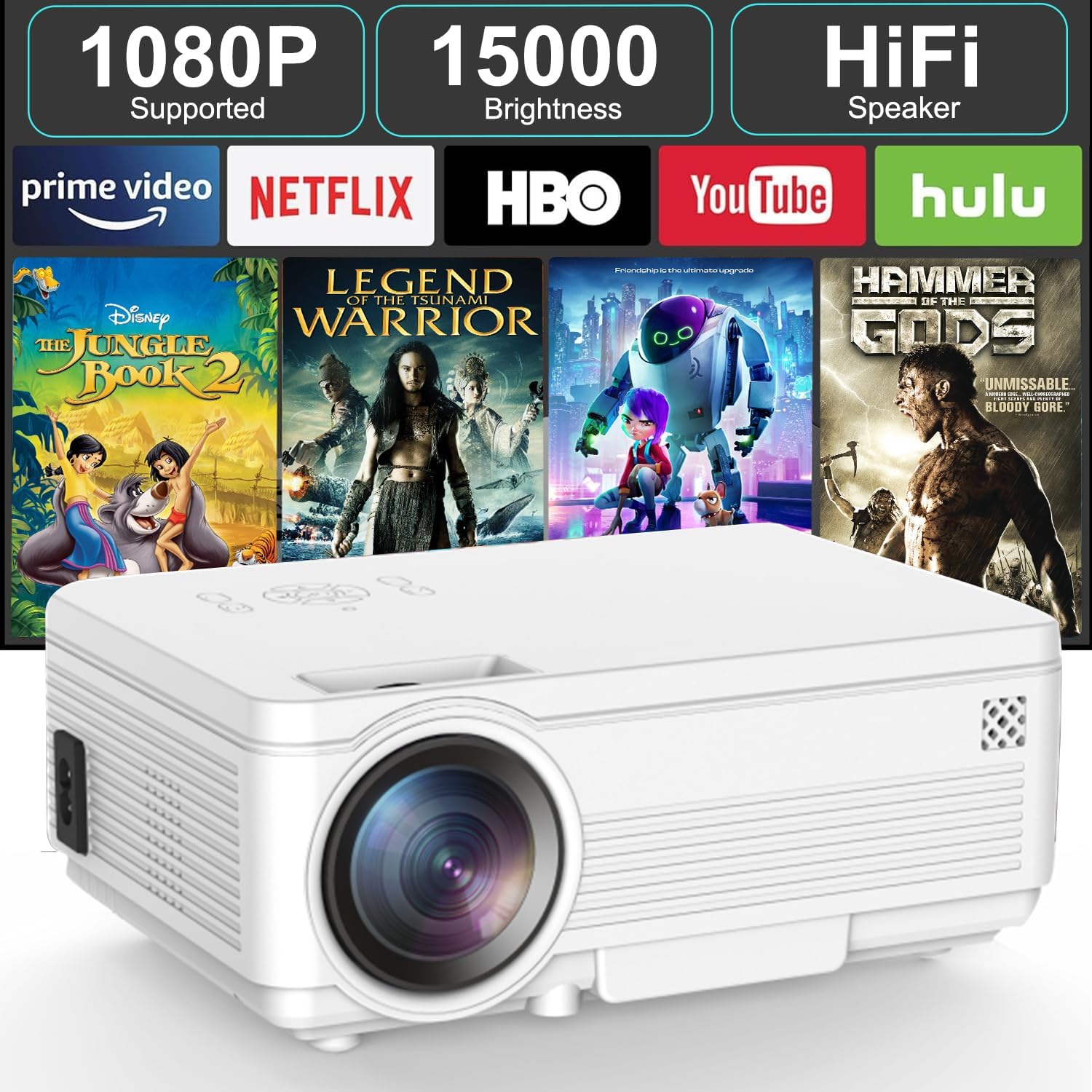
Image: Front view of the BIGASUO BGP34 projector, showcasing its lens and ventilation. The image also highlights key features like 1080P support, 15000 brightness, HiFi speaker, and compatibility with streaming services such as Prime Video, Netflix, HBO, YouTube, and Hulu.
Ports and Controls
Familiarize yourself with the various ports and controls on your projector for seamless connectivity.

Image: A detailed view of the projector's side panel, illustrating various input ports including AUX, AV, TF card slot, HDMI, and USB. Below the projector, icons depict compatible devices such as speakers, PS4, tablets, laptops, smartphones, USB flash drives, Roku Stick, TV Box, and TV Stick, demonstrating its versatile connectivity options.
- HDMI Port: Connects to laptops, gaming consoles, TV sticks, etc.
- USB Port: Connects to USB flash drives for media playback.
- AUX/Audio Out: Connects to external speakers or headphones.
- AV Port: Connects to older devices using an AV cable.
- TF Card Slot: For playing media directly from a TF (MicroSD) card.
- Power Input: Connects to the power adapter.
- Focus Ring: Adjusts image clarity.
- Keystone Correction: Adjusts image shape (manual or auto, depending on model features).
5. Setup
5.1 Placement and Screen Size
Position the projector on a stable surface. The projection distance affects the screen size. Ensure the projector is perpendicular to the projection surface for the best image quality.

Image: The BIGASUO BGP34 projector displayed in three common mounting configurations: on a desktop, mounted on a tripod, and hanging from a ceiling. This illustrates the versatility of the projector for various setup environments.
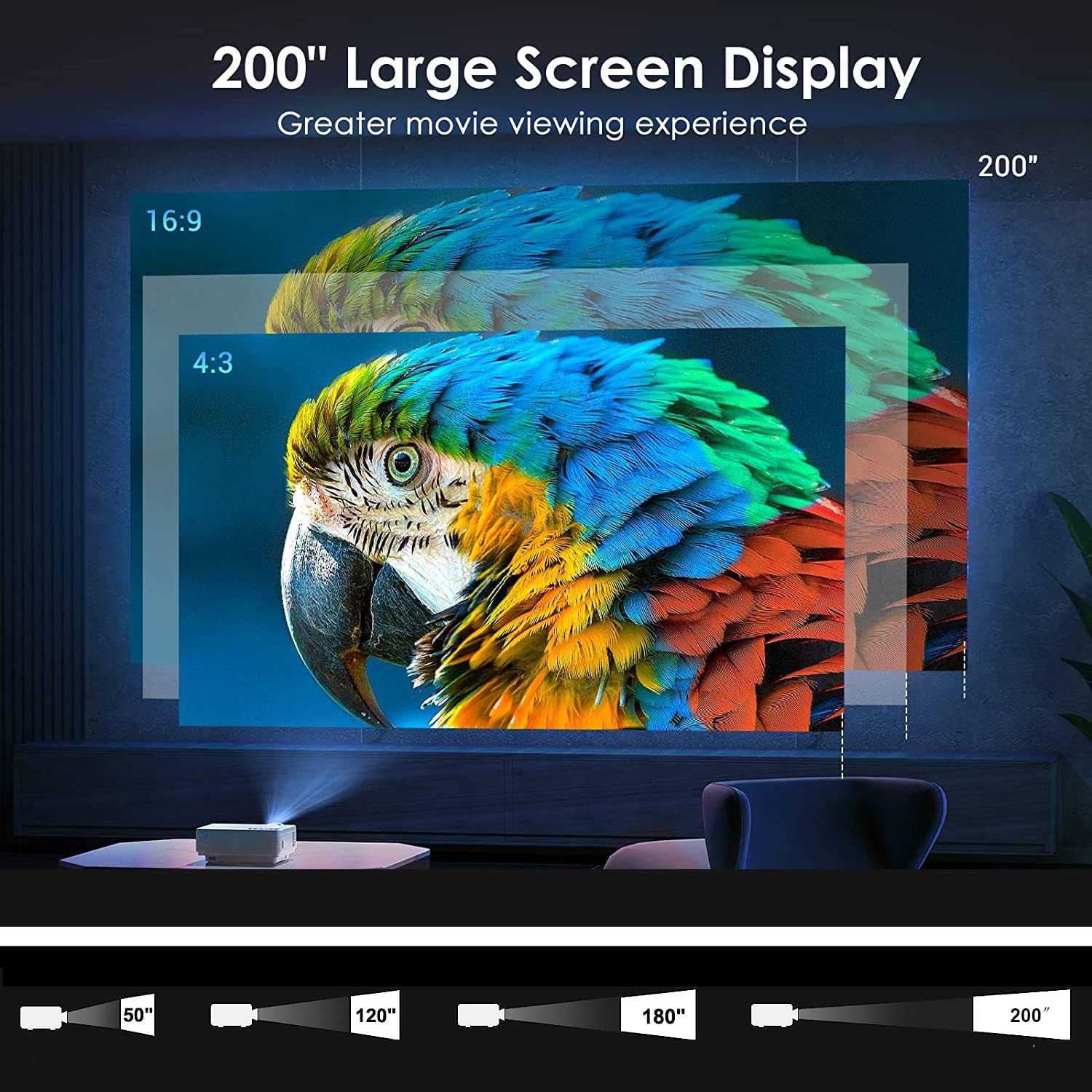
Image: A visual representation of the projector's capability to display a large screen up to 200 inches. It shows different projection sizes (50", 120", 180", 200") at varying distances, along with aspect ratio comparisons (16:9 and 4:3), demonstrating the immersive viewing experience.
- For optimal viewing, project onto a white wall or a dedicated projector screen.
- Adjust the distance to achieve your desired screen size, up to 200 inches.
- The projector supports desktop, tripod, and ceiling mounting options.
5.2 Power Connection
- Connect the power adapter to the projector's power input port.
- Plug the power adapter into a suitable electrical outlet.
- Press the power button on the projector or remote control to turn it on.
5.3 Focus and Keystone Adjustment
- Focus: Rotate the focus ring near the lens until the projected image is clear and sharp.
- Keystone Correction: If the image appears trapezoidal, use the keystone correction feature (manual knob or digital adjustment via settings) to square the image.
6. Operating Instructions
6.1 Connecting External Devices
- HDMI: Connect an HDMI cable from your device (laptop, TV stick, game console) to the projector's HDMI port. Select the HDMI input source from the projector's menu.
- USB: Insert a USB flash drive into the USB port. The projector's media player will typically detect the drive, allowing you to browse and play media files.
- AV: Use an AV cable to connect older devices. Select the AV input source.
- TF Card: Insert a TF (MicroSD) card into the designated slot for direct media playback.
6.2 Wireless Connectivity (5G WiFi, Bluetooth)
- WiFi Connection: Navigate to the projector's settings menu, select 'Network' or 'WiFi', and connect to your desired 2.4G or 5G WiFi network. This enables access to online apps and screen mirroring.
- Bluetooth Connection: Go to the Bluetooth settings on the projector. Enable Bluetooth and pair with your Bluetooth speaker, headphones, or soundbar for enhanced audio.
6.3 Screen Mirroring (Android/iOS)
The projector supports screen mirroring from Android and iOS devices via WiFi.
- For Android: Ensure your Android device and projector are on the same WiFi network. On the projector, select the 'Android Cast' or 'Screen Mirroring' option. On your Android device, enable 'Wireless Display', 'Smart View', or 'Cast' and select the projector from the list.
- For iOS: Ensure your iOS device and projector are on the same WiFi network. On the projector, select the 'iOS Cast' or 'AirPlay' option. On your iOS device, open Control Center, tap 'Screen Mirroring', and select the projector.
- Note: Due to copyright restrictions, some streaming services (e.g., Prime Video, Netflix) may not support screen mirroring directly. For these, connect a TV stick (not included) or use an HDMI cable.
6.4 Using Built-in Applications
The BIGASUO BGP34 comes with built-in Android applications like YouTube. Connect to WiFi to access these apps directly.
- Navigate the Android interface using the remote control.
- Select the desired application from the home screen.
- Ensure a stable internet connection for smooth streaming.

Image: A collage demonstrating various application scenarios for the BIGASUO BGP34 projector, including outdoor parties, home theater setups, gaming sessions, and watching sports matches. This highlights the projector's versatility for different entertainment needs.
7. Maintenance
Proper maintenance ensures the longevity and optimal performance of your projector.
- Lens Cleaning: Use a soft, lint-free cloth specifically designed for optical lenses. Gently wipe the lens to remove dust or smudges. Avoid abrasive materials or harsh chemicals.
- Ventilation Cleaning: Regularly check and clean the air vents to prevent dust buildup, which can lead to overheating. Use a soft brush or compressed air.
- Storage: When not in use, store the projector in a cool, dry, and dust-free environment. If possible, use the original packaging or a protective case.
- Power Off: Always power off the projector correctly and allow it to cool down before unplugging or moving.
8. Troubleshooting
Refer to the table below for common issues and their solutions.
| Problem | Possible Cause | Solution |
|---|---|---|
| No image displayed | Power cable loose; incorrect input source; device not connected. | Check power connection; select correct input source (HDMI, USB, etc.); ensure external device is properly connected and powered on. |
| Blurry image | Focus not adjusted; keystone not corrected. | Adjust the focus ring; correct keystone distortion. |
| No sound | Volume too low; external speaker not connected/paired; incorrect audio output. | Increase volume; connect/pair Bluetooth speaker; check audio output settings on projector and source device. |
| Remote control not working | Batteries dead/incorrectly inserted; sensor blocked. | Replace batteries; ensure correct polarity; clear any obstructions between remote and projector sensor. |
| WiFi connection unstable | Weak signal; too far from router; network interference. | Move projector closer to router; ensure no large obstructions; try connecting to a 5G network if available and supported. |
9. Technical Specifications
| Feature | Specification |
|---|---|
| Brand | BIGASUO |
| Model | BGP34 |
| Native Resolution | 1920 x 1080 Pixels |
| Supported Resolution | Up to 4K |
| Display Type | LED |
| Image Contrast Ratio | 6000:1 |
| Aspect Ratio | 16:9 |
| Connectivity Technology | Bluetooth 5.0, 5G WiFi |
| Hardware Interface | HDMI, USB |
| Special Features | Bluetooth 5.0, Android OS, Auto Keystone |
| Recommended Use | Home Theatre |
| Product Dimensions | 10 x 25 x 10 cm |
| Item Weight | 2.5 kg |
| Voltage | 220 Volts |
| Wattage | 50 Watts |
| Refresh Rate | 60 Hz |
10. Warranty and Support
Your BIGASUO BGP34 Projector is covered by a manufacturer's warranty. Please refer to the warranty card included in your package for specific terms and conditions, including the warranty period and coverage details.
For technical support, troubleshooting assistance, or warranty claims, please contact BIGASUO customer service. Contact information can typically be found on the product packaging, the official BIGASUO website, or your purchase invoice.