
DOOGEE U11Pro
DOOGEE U11Pro Android 16 Tablet User Manual
Model: U11Pro | Brand: DOOGEE
Introduction
This manual provides detailed instructions for the safe and efficient use of your DOOGEE U11Pro Android 16 Tablet. Please read this manual thoroughly before operating the device and keep it for future reference.
Package Contents
Upon opening the package, please verify that all the following items are included:
- 1x DOOGEE U11 Pro Tablet
- 1x Type-C Cable
- 1x Charger
- 1x SIM Card Ejector Pin (Note: This is a Wi-Fi only model, the pin is for microSD card tray)
- 1x Packaging Box
- 1x User Manual
- 1x Warranty Card

Figure 1: Contents of the DOOGEE U11Pro package. Includes the tablet, charging accessories, and documentation.
Product Overview and Key Features
Operating System: Android 16 with Gemini AI
The DOOGEE U11Pro runs on the latest Android 16 operating system, released in 2025. This version brings significant improvements in multitasking, AI capabilities, UI design, security, and privacy. It is optimized for faster app launch and responsiveness, offering a more intuitive and convenient user experience. The integration of Gemini AI enhances various functions, including content creation, image analysis, code development, language learning, smart assistance, and information retrieval.
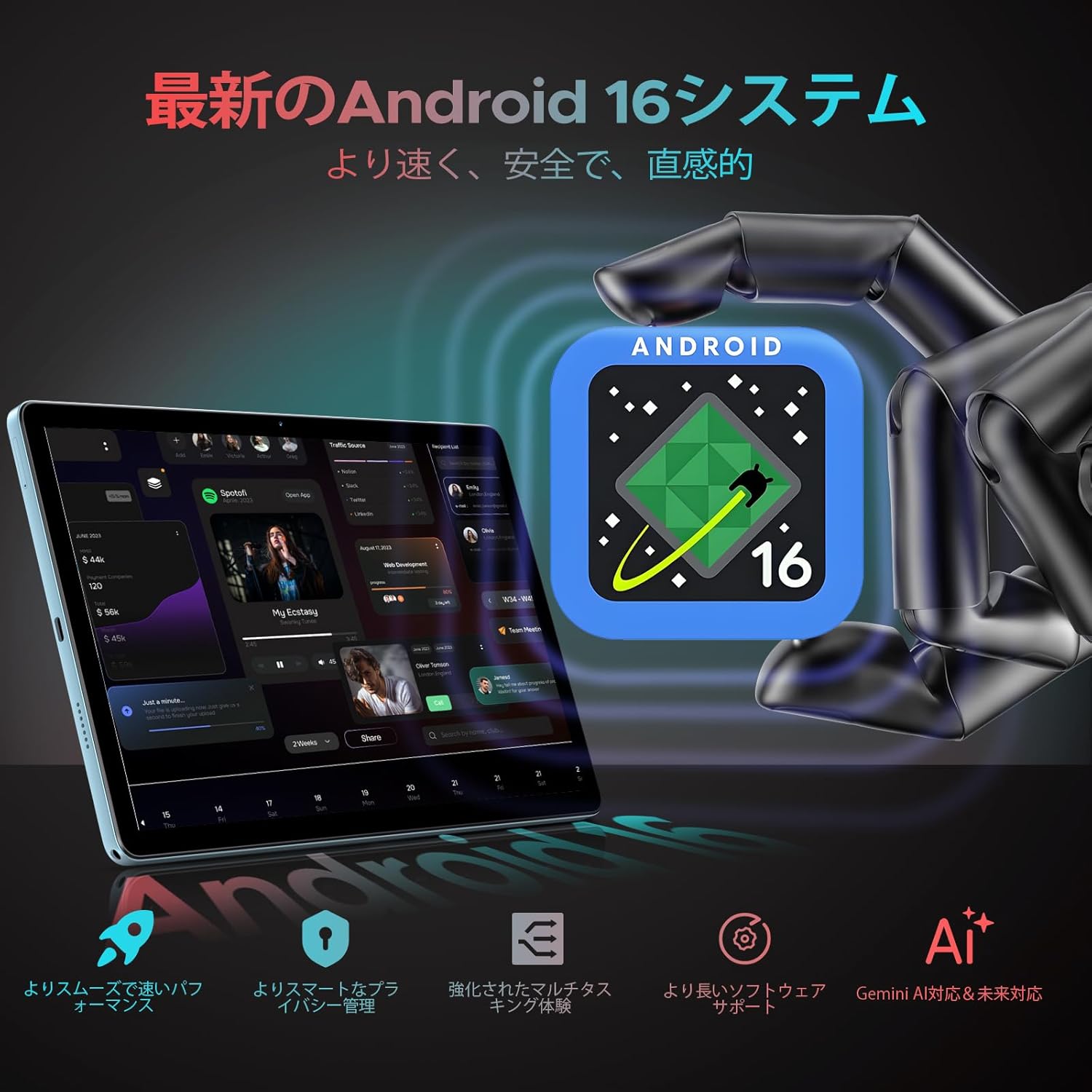
Figure 2: The DOOGEE U11Pro features the latest Android 16 OS with integrated Gemini AI for enhanced performance and smart functionalities.

Figure 3: Gemini AI capabilities on the DOOGEE U11Pro, supporting various intelligent tasks for work and daily life.
Performance: High-Capacity RAM & Storage
The U11Pro is equipped with 6GB of physical RAM, expandable with an additional 24GB of virtual RAM, totaling 30GB. This large RAM capacity ensures quick app launches and smooth multitasking. It also features 256GB of internal storage, which can be expanded up to 2TB using a microSD card (sold separately). This ample storage eliminates concerns about running out of space for applications, photos, and videos.

Figure 4: The powerful Unisoc T7200 Octa-core processor combined with 30GB RAM and 256GB ROM provides robust performance and ample storage.
Display: 11-inch IPS with 90Hz Refresh Rate
Experience vibrant and comfortable viewing on the DOOGEE U11Pro's 11-inch IPS display with a resolution of 1280x800. The 90Hz high refresh rate enhances responsiveness, providing a smoother and more comfortable gaming experience and fluid web browsing. Fast-moving actions are rendered seamlessly, and scrolling through web pages or social media feeds is highly responsive.

Figure 5: The 11-inch IPS 90Hz display offers ultra-clear visuals and a smoother user experience compared to standard 60Hz displays.

Figure 6: The 90Hz high refresh rate provides upgraded smooth operation for browsing and gaming.
Battery: 8580mAh Long-Lasting Power
The DOOGEE U11Pro is equipped with a large 8580mAh battery, supporting Type-C charging. This allows for extended usage, making it ideal for business trips or travel without frequent recharging. The battery provides up to 1509 hours of standby time, 28.3 hours of music playback, 9.2 hours of video viewing, and 6.7 hours of web browsing.
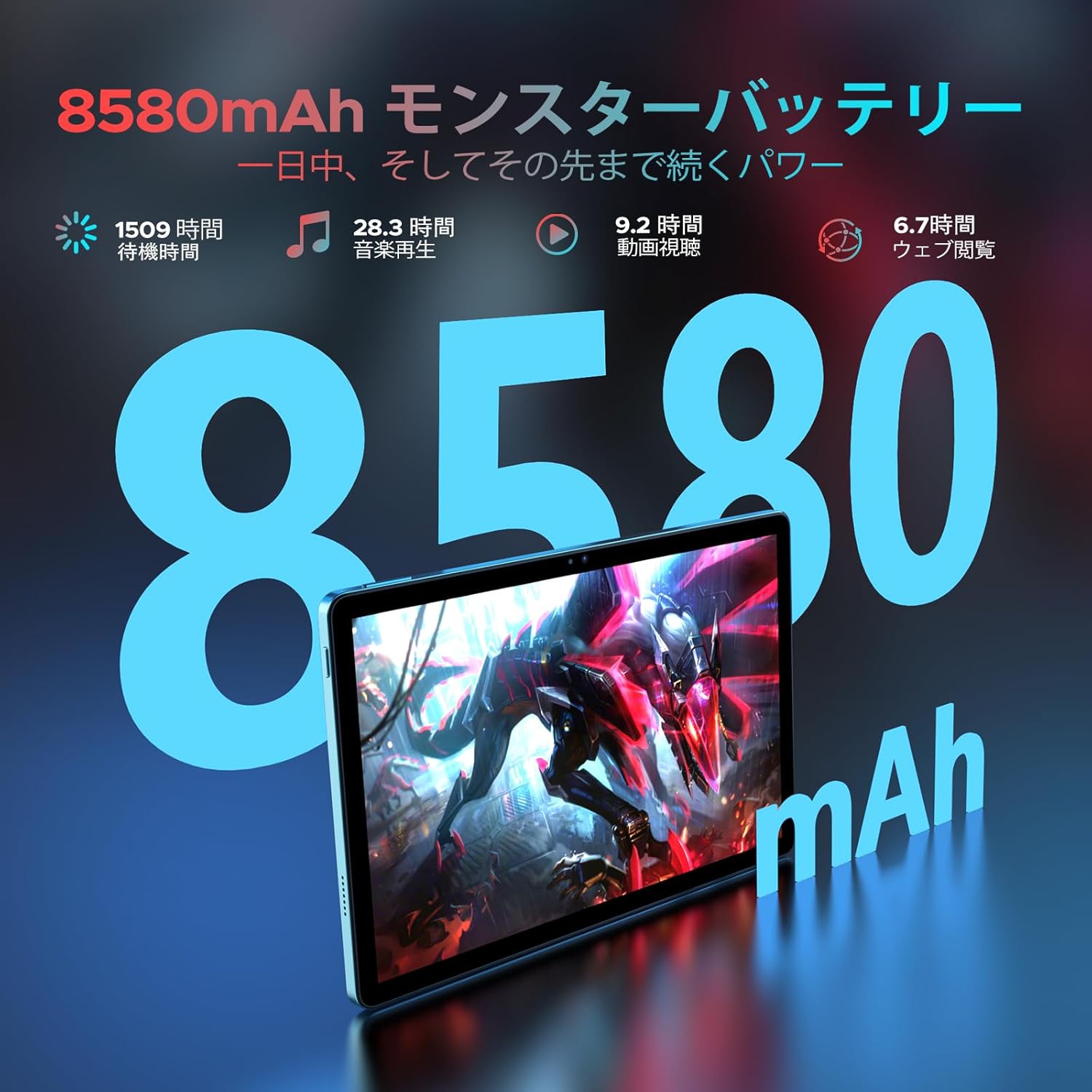
Figure 7: The 8580mAh monster battery provides power that lasts all day and beyond.
Connectivity: Dual-Band Wi-Fi, Bluetooth 5.0, and GPS
The tablet features a built-in dual-band Wi-Fi chip (2.4GHz/5GHz compatible) supporting 802.11 a/b/g/n/ac standards, enabling high-speed communication up to 433Mbps. This ensures stable connections both indoors and outdoors for a comfortable online experience. Bluetooth 5.0 allows for high-speed pairing with game controllers and external speakers with minimal delay. The integrated high-precision GPS enables quick and accurate positioning for navigation and location-based applications.
Multimedia & Productivity Features
- Widevine L1 Support: Enjoy high-quality streaming from platforms like Amazon Prime Video, Disney+, Hulu, and Netflix.
- Dual Speakers: Provides an immersive audio-visual experience.
- Cameras: Equipped with a 13MP main camera and a 5MP front camera for clear photos and video calls.
- Face Recognition: Quick and easy tablet unlocking.
- Split Screen Functionality: Multitask efficiently, for example, watching YouTube while browsing Twitter.
- FM Radio: Connect your favorite headphones to enjoy high-quality audio anywhere.
- OTG Support: Connect external devices for seamless transfer of photos, videos, and files.
- Kids Protection Mode: Manage screen time for children and balance learning with entertainment.
- Blue Light Reduction Mode: Protects your eyes during extended use.
- Pre-installed WPS Office: Includes WPS Word, Excel, and PPT for productivity.

Figure 8: Widevine L1 support ensures the highest quality streaming anytime.

Figure 9: Capture clear details with the 13MP main camera and 5MP front camera.

Figure 10: Face recognition provides simple and fast tablet input.

Figure 11: The low blue light protect mode gently protects your vision.

Figure 12: Built-in PC-level WPS Office for enhanced productivity.
Setup Guide
1. Initial Power On
- Press and hold the Power button located on the side of the tablet until the DOOGEE logo appears on the screen.
- Follow the on-screen prompts to select your language, region, and agree to the terms and conditions.
2. Charging the Device
Before first use, it is recommended to fully charge your tablet. Use the provided Type-C cable and charger.
- Connect the Type-C cable to the tablet's charging port.
- Plug the other end of the cable into the charger, and then plug the charger into a power outlet.
- The charging indicator will appear on the screen. A full charge typically takes several hours.
3. Connecting to Wi-Fi
- From the home screen, swipe down from the top to open the Quick Settings panel.
- Tap and hold the Wi-Fi icon to go to Wi-Fi settings.
- Toggle the Wi-Fi switch to the 'On' position.
- Select your desired Wi-Fi network from the list of available networks.
- Enter the network password if prompted, then tap 'Connect'.
4. Setting up Face Recognition
- Go to Settings > Security & privacy > Face unlock.
- Follow the on-screen instructions to register your face. Ensure you are in a well-lit area and hold the tablet at eye level.
- Once registered, you can use your face to unlock the tablet.
Operating Instructions
Basic Navigation
- Touch: Tap an icon or option to select it.
- Swipe: Drag your finger across the screen to scroll or navigate between screens.
- Pinch-to-Zoom: Place two fingers on the screen and spread them apart to zoom in, or pinch them together to zoom out.
- 10-Point Touch: The tablet supports multi-touch gestures for precise control, especially useful in games and drawing applications.

Figure 13: 10-point touch provides multi-touch precision and seamless gesture control.
Using Split Screen
The split-screen feature allows you to use two applications simultaneously.
- Open the first application you wish to use.
- Tap the recent apps button (usually a square icon) to view open applications.
- Tap the app icon at the top of the first app's card, then select 'Split screen'.
- Choose the second application from the recent apps list or the app drawer to fill the other half of the screen.
Managing Applications
- Installing Apps: Download and install applications from the Google Play Store.
- Uninstalling Apps: Press and hold an app icon on the home screen or app drawer, then drag it to the 'Uninstall' option, or go to Settings > Apps, select the app, and tap 'Uninstall'.
FM Radio Function
To use the FM radio, connect wired headphones to the 3.5mm audio jack. The headphones act as an antenna.
- Plug in your headphones.
- Open the 'FM Radio' application.
- Scan for available stations and select your preferred one.
Figure 14: The FM radio function allows you to relax and enjoy your favorite stations.
WPS Office Suite
The tablet comes with WPS Office pre-installed, allowing you to create, edit, and view documents, spreadsheets, and presentations.
- Open the WPS Office application from your app drawer.
- Select the type of document you wish to create or open an existing file.
Blue Light Reduction Mode
To reduce eye strain, especially during prolonged use or in low light conditions, activate the blue light reduction mode.
- Go to Settings > Display > Eye Comfort Shield (or similar).
- Toggle the feature on. You may also be able to adjust the intensity or schedule it.
GPS Navigation
The built-in high-precision GPS supports various navigation systems (GPS, Beidou, GLONASS, Galileo) for accurate location tracking.
- Ensure location services are enabled in Settings > Location.
- Use pre-installed map applications or download your preferred navigation app from the Google Play Store.

Figure 15: The precise navigation system keeps you on track wherever you go.
OTG Functionality
The tablet supports On-The-Go (OTG) functionality, allowing you to connect USB devices such as flash drives, keyboards, or mice using an OTG adapter (not included).
- Connect the OTG adapter to the tablet's Type-C port.
- Plug your USB device into the OTG adapter.
- The tablet should automatically recognize the connected device.
Kids Protection Mode
This mode helps parents manage their children's tablet usage, ensuring a balanced experience between learning and entertainment.
- Access the Kids Protection Mode application or setting (location may vary based on Android version or pre-installed apps).
- Set time limits, restrict access to certain applications, and monitor usage.
Maintenance
Battery Care
- Avoid exposing the tablet to extreme temperatures (hot or cold) as this can degrade battery life.
- Do not let the battery completely drain frequently. Charge it before it reaches very low levels.
- Use only the provided charger and cable or certified alternatives to prevent damage.
Cleaning the Tablet
- Use a soft, lint-free cloth to wipe the screen and body of the tablet.
- For stubborn smudges, slightly dampen the cloth with water or a screen cleaner designed for electronics.
- Avoid using harsh chemicals, abrasive materials, or excessive moisture.
Software Updates
Regularly check for and install software updates to ensure optimal performance, security, and access to new features.
- Go to Settings > System > System update.
- Follow the on-screen instructions to download and install any available updates.
Storage Management
To maintain optimal performance, regularly manage your tablet's storage.
- Delete unnecessary files, photos, and videos.
- Uninstall unused applications.
- Clear cache data for apps in Settings > Apps.
- Consider using cloud storage services for large files.
Troubleshooting
| Problem | Possible Cause | Solution |
|---|---|---|
| Tablet does not turn on. | Low battery; System crash. | Charge the tablet for at least 30 minutes. If still unresponsive, press and hold the Power button for 10-15 seconds to force restart. |
| Wi-Fi connection issues. | Incorrect password; Router issue; Tablet Wi-Fi module issue. | Verify Wi-Fi password. Restart your Wi-Fi router. Go to Wi-Fi settings, forget the network, and reconnect. Restart the tablet. |
| Apps are slow or crashing. | Too many apps running; Low storage; App bug. | Close background apps. Clear app cache or data. Free up storage space. Update the app or the tablet's OS. |
| Battery drains quickly. | High screen brightness; Background apps; Frequent Wi-Fi/Bluetooth use. | Reduce screen brightness. Close unused apps. Turn off Wi-Fi/Bluetooth when not in use. Check battery usage in settings to identify power-hungry apps. |
| Tablet is not responding to touch. | Temporary software glitch; Screen damage. | Force restart the tablet. If the issue persists, contact customer support. |
Technical Specifications
| Brand | DOOGEE |
| Model Name | U11Pro |
| Operating System | Android 16 |
| Display Size | 11 Inches |
| Display Resolution | 1280x800 Pixels |
| CPU Brand | Unisoc |
| CPU Speed | 1.6 GHz |
| Memory Storage Capacity | 256 GB (Expandable up to 2TB via microSD) |
| RAM | 6GB Physical + 24GB Virtual (Total 30GB) |
| Wireless Type | 802.11ac (Dual-band Wi-Fi) |
| Connectivity | Wi-Fi, Bluetooth 5.0, GPS |
| Front Camera Resolution | 5 MP |
| Rear Camera Resolution | 13 MP |
| Battery Capacity | 8580 mAh (Lithium Polymer) |
| Item Weight | 537 g |
| Product Dimensions | 32.9 x 19.2 x 3.7 cm |
| Color | Black |
Warranty and Support
Your DOOGEE U11Pro tablet comes with a 12-month warranty from the date of purchase. Additionally, a 30-day refund policy is available for products purchased from our store.
If you encounter any issues with your product within the warranty period, or if you have any questions, please contact our customer support team. We are committed to ensuring your satisfaction.
How to Contact Support:
- Navigate to your Amazon purchase history.
- Find your order for the DOOGEE U11Pro.
- Click on the seller's name (Doogee Smart Tablet) located under the "Add to Cart" button on the product page, then click "Ask a question" on the top right of the seller's page.
Related documentsU11Pro


Ask a question about this manual
Ask about setup, troubleshooting, compatibility, parts, safety, or missing instructions. Manuals+ will review the question and use this page’s manual context to help answer it.