
1. Introduction
Welcome to the user manual for your BIGASUO Mini Projector BGP7. This guide provides essential information for setting up, operating, maintaining, and troubleshooting your projector. Please read this manual thoroughly before using the product to ensure optimal performance and safety.
Safety Instructions
- Do not look directly into the projector lens when the lamp is on.
- Ensure proper ventilation around the projector to prevent overheating.
- Keep the projector away from water, moisture, and flammable materials.
- Use only the power adapter supplied with the projector.
- Avoid placing the projector on unstable surfaces.
- Do not attempt to disassemble or repair the projector yourself. Contact qualified service personnel.
2. Package Contents
Please check that all items are present in your package:
- BIGASUO Mini Projector BGP7
- Remote Control
- Power Adapter
- HDMI Cable
- Mini Tripod
- User Manual (this document)
3. Product Overview
The BIGASUO BGP7 is a portable mini projector featuring Android 11.0 OS, WiFi 6, Bluetooth 5.0, 270° rotatable stand, automatic keystone correction, and support for Full HD 1080P resolution. It offers a projection size from 40 to 130 inches.

Image 3.1: Front view of the BIGASUO BGP7 Mini Projector highlighting its key features including 1080P support, Air Remote, WiFi 6, HDMI/USB connectivity, and Bluetooth 5.0. Various streaming service logos are also displayed.
Key Features
- High Resolution Support: Supports Full HD 1080P with a native resolution of 1280 x 720.
- Wide Projection Range: Projects screen sizes from 40 to 130 inches at distances from 4 to 15 feet.
- Integrated Android TV System: Runs on Android 11.0, allowing direct app downloads and streaming.
- 270° Rotatable Stand: Provides flexible projection angles, including ceiling projection.
- Automatic Keystone Correction: Automatically adjusts image distortion for a rectangular display.
- Manual Focus: Allows precise image sharpness adjustment.
- Advanced Connectivity: Features WiFi 6 for fast wireless streaming and Bluetooth 5.0 for audio output.
- Eye Protection: Equipped with three optical glass lenses to filter harmful blue light.

Image 3.2: The BIGASUO BGP7 Mini Projector showcasing its 180° built-in adjustable stand, emphasizing its small size and portability.
Ports and Controls
Familiarize yourself with the various ports and controls on your projector:
- Power Port: For connecting the power adapter.
- HDMI Port: For connecting external devices like laptops, gaming consoles, or TV sticks.
- USB Port: For connecting USB drives to play media files.
- Focus Ring: Manual adjustment for image sharpness.
- Control Buttons: On-device buttons for basic navigation and power.
4. Setup
4.1 Placement
- Place the projector on a stable, flat surface.
- Adjust the 270° rotatable stand to achieve the desired projection angle on a wall or ceiling.
- For optimal viewing, position the projector between 4 to 15 feet from the projection surface. An ideal viewing distance is approximately 5 feet for a clear image.

Image 4.1: Illustration of the BIGASUO BGP7 Mini Projector demonstrating how different projection distances (1.6m, 2m, 2.6m) result in various screen sizes (80", 100", 130").
4.2 Power Connection
- Connect the power adapter to the projector's power port.
- Plug the power adapter into a suitable electrical outlet.
- Press the power button on the projector or remote control to turn it on.
4.3 Focus Adjustment
After powering on, adjust the focus ring located on the projector until the projected image appears sharp and clear.
4.4 Keystone Correction
The projector features automatic vertical keystone correction. It will automatically adjust the image to be rectangular. If further adjustment is needed, manual options may be available in the settings menu.

Image 4.2: The BIGASUO BGP7 Mini Projector demonstrating its auto vertical keystone correction feature, ensuring a perfectly rectangular image, and highlighting manual focus adjustment.
4.5 Network Connection (WiFi 6)
- Navigate to the 'Settings' menu on the projector's home screen.
- Select 'Network & Internet'.
- Turn on Wi-Fi and select your desired network from the list.
- Enter the Wi-Fi password using the on-screen keyboard and connect.
4.6 Bluetooth Pairing
- Go to 'Settings' and select 'Connected Devices' or 'Bluetooth'.
- Turn on Bluetooth on the projector.
- Put your Bluetooth audio device (e.g., speaker, headphones) into pairing mode.
- Select your device from the list of available devices on the projector to pair.
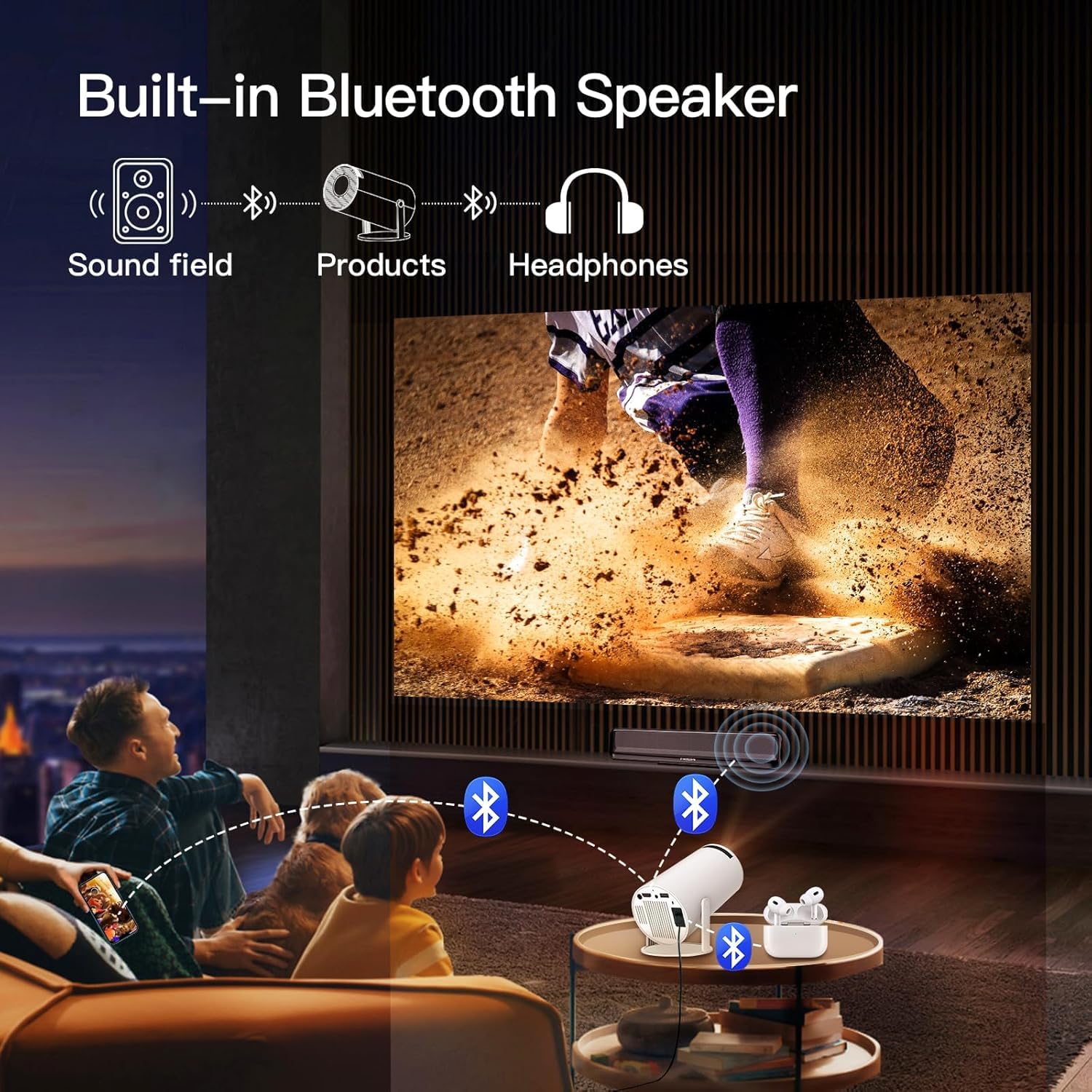
Image 4.3: The BIGASUO BGP7 Mini Projector demonstrating its built-in Bluetooth speaker functionality, allowing connection to external Bluetooth headphones or speakers for enhanced audio.
5. Operating
5.1 Navigating the Android TV System
Use the remote control to navigate the Android 11.0 interface. The directional buttons allow movement, the 'OK' button confirms selections, and the 'Back' button returns to the previous screen. You can download and install various applications from the pre-installed app store.
5.2 Connecting External Devices
- HDMI: Connect an HDMI cable from your external device (e.g., TV stick, game console, laptop) to the projector's HDMI port. The projector should automatically detect the input or allow manual selection from the input source menu.
- USB: Insert a USB drive into the USB port. The projector's media player will typically prompt you to browse files on the drive.

Image 5.1: The BIGASUO BGP7 Mini Projector demonstrating its 2.4G/5G WiFi and Bluetooth connectivity, allowing seamless connection to iOS, Android, and Windows devices for screen mirroring or content playback.
5.3 Adjusting Projection Size (Zoom Function)
The projector includes a zoom function to adjust the screen size without moving the projector. This can be accessed via the remote control or the projector's on-screen menu. This feature is particularly useful for optimizing the image to fit your projection surface.

Image 5.2: The BIGASUO BGP7 Mini Projector illustrating its zoom function, which allows users to adjust the screen size (e.g., to 80%) to perfectly fit small spaces without physically moving the projector.
5.4 Sound Settings
You can adjust the volume using the remote control. For enhanced audio, connect external Bluetooth speakers or headphones as described in Section 4.6.
6. Maintenance
6.1 Cleaning the Lens
Use a soft, lint-free cloth specifically designed for optical lenses. Gently wipe the lens in a circular motion. Avoid using abrasive cleaners or excessive force.
6.2 Cleaning the Vents
Regularly check and clean the projector's ventilation openings to prevent dust buildup, which can lead to overheating. Use a soft brush or compressed air to remove dust.
6.3 Storage
When not in use, store the projector in a cool, dry place, away from direct sunlight and extreme temperatures. If possible, use the original packaging or a protective case to prevent dust and damage.
7. Troubleshooting
If you encounter issues with your BIGASUO BGP7 Mini Projector, refer to the following common problems and solutions:
| Problem | Possible Cause / Solution |
|---|---|
| No power | Ensure the power adapter is securely connected to both the projector and a working power outlet. Check if the power button is pressed. |
| No image projected | Check the input source selection (HDMI, USB). Ensure the lens cap is removed. Verify the projector is powered on. |
| Image is blurry | Adjust the manual focus ring until the image is sharp. Ensure the projection distance is within the recommended range. |
| Image is distorted (not rectangular) | The projector has automatic keystone correction. If distortion persists, check for any manual keystone settings in the menu. Ensure the projector is placed as perpendicular to the screen as possible. |
| No sound | Check the volume level on the projector and any connected external devices. Ensure external Bluetooth speakers are properly paired and connected. |
| Remote control is unresponsive or lags | Ensure there are no obstructions between the remote and the projector's IR sensor. Replace the remote control batteries. |
| Wi-Fi connection issues | Ensure your Wi-Fi network is active and the password is correct. Try restarting your router and the projector. |
| Dark spots or artifacts on the screen | Clean the projector lens. If the issue persists, it may indicate an internal component issue. Contact customer support. |
| Low brightness | Ensure the viewing environment is sufficiently dark. Adjust brightness settings in the projector menu. |
8. Specifications
| Feature | Detail |
|---|---|
| Brand | BIGASUO |
| Model | BGP7 |
| Display Type | LCD |
| Native Resolution | 1280 x 720 Pixels |
| Supported Resolution | 1920 x 1080 (Full HD 1080P) |
| Aspect Ratio | 16:9 |
| Projection Screen Size | 40-130 inches |
| Operating System | Android 11.0 |
| Wireless Connectivity | WiFi 6 (2.4G/5G), Bluetooth 5.0 |
| Hardware Interface | HDMI, USB, Bluetooth |
| Special Features | 270° Rotatable Stand, Automatic Keystone, Manual Focus, Eye Protection |
| Voltage | 220 Volts |
| Wattage | 50 Watts |
| Refresh Rate | 60 Hz |
| Product Dimensions | 10 x 25 x 10 cm |
| Item Weight | 2.5 kg |
9. Warranty and Support
9.1 Product Reliability
The BIGASUO Mini Projector BGP7 comes with a 2-year reliability period, ensuring support for manufacturing defects and performance issues under normal use.
9.2 Customer Support
For technical assistance, warranty claims, or any questions regarding your BIGASUO Mini Projector BGP7, please contact BIGASUO customer support. Refer to the contact information provided with your purchase or visit the official BIGASUO website for support details.
