
Microsoft Surface Pro 7 Tablet
Microsoft Surface Pro 7+ Tablet PC User Manual
Model: Surface Pro 7+
Introduction
This manual provides essential information for setting up, operating, maintaining, and troubleshooting your Microsoft Surface Pro 7+ Tablet PC. Please read this guide thoroughly to ensure optimal performance and longevity of your device.
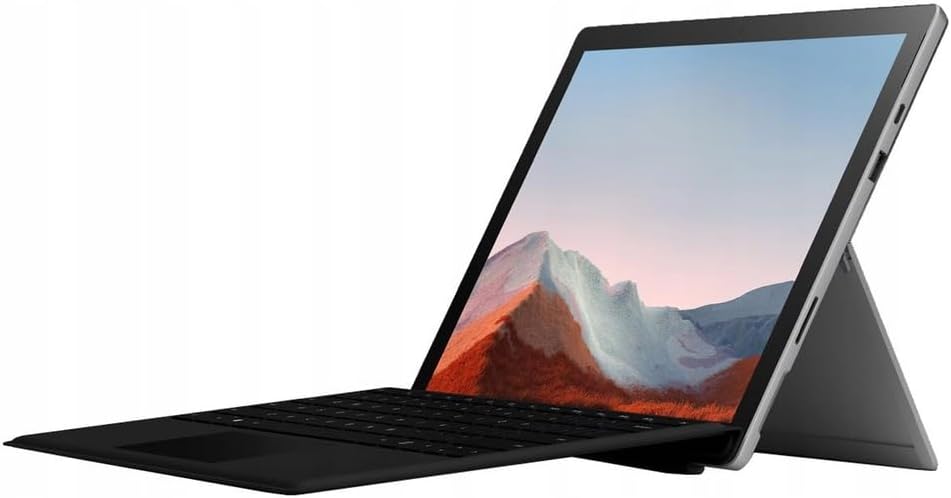
Image: The Microsoft Surface Pro 7+ in tablet mode with an attached keyboard, showcasing its versatile design.
The Microsoft Surface Pro 7+ is a versatile 2-in-1 device, functioning as both a powerful tablet and a laptop. It features a 12.3-inch PixelSense touchscreen display with a resolution of 2736 x 1824 pixels, powered by an Intel Core i7-1165G7 processor. This model comes with 16GB RAM and a 512GB Solid State Drive, running on Windows 11 Pro.
Setup
1. Unboxing and Initial Inspection
Carefully remove all components from the packaging. Verify that the following items are present:
- Microsoft Surface Pro 7+ Tablet PC
- Power Adapter/Cable
Inspect the device for any visible damage before proceeding.

Image: The Microsoft Surface Pro 7+ tablet shown alongside its detachable keyboard, illustrating the two main components.
2. Connecting to Power
Connect the power adapter to the Surface Connect port on your device and then plug the adapter into a wall outlet. The battery indicator will illuminate to show that the device is charging.
3. Initial Boot and Windows Setup
Press the power button located on the top edge of the device to turn it on. Follow the on-screen prompts to complete the Windows 11 Pro setup, including language selection, network connection, and user account creation.
4. Attaching the Type Cover (Keyboard)
Align the magnetic connector of the Surface Type Cover with the bottom edge of the Surface Pro 7+. The magnets will snap the keyboard into place. You can adjust the angle of the keyboard for comfortable typing.

Image: The Microsoft Surface Pro 7+ with its keyboard attached, set up on a wooden surface, demonstrating its portability and usability in various environments.
Operating
1. Basic Navigation
- Touchscreen: Use gestures for navigation, zooming, and scrolling.
- Type Cover: Utilize the keyboard for typing and the integrated trackpad for cursor control.
- Surface Pen (Optional): If you have a Surface Pen, it can be used for writing, drawing, and precise interaction with the screen.
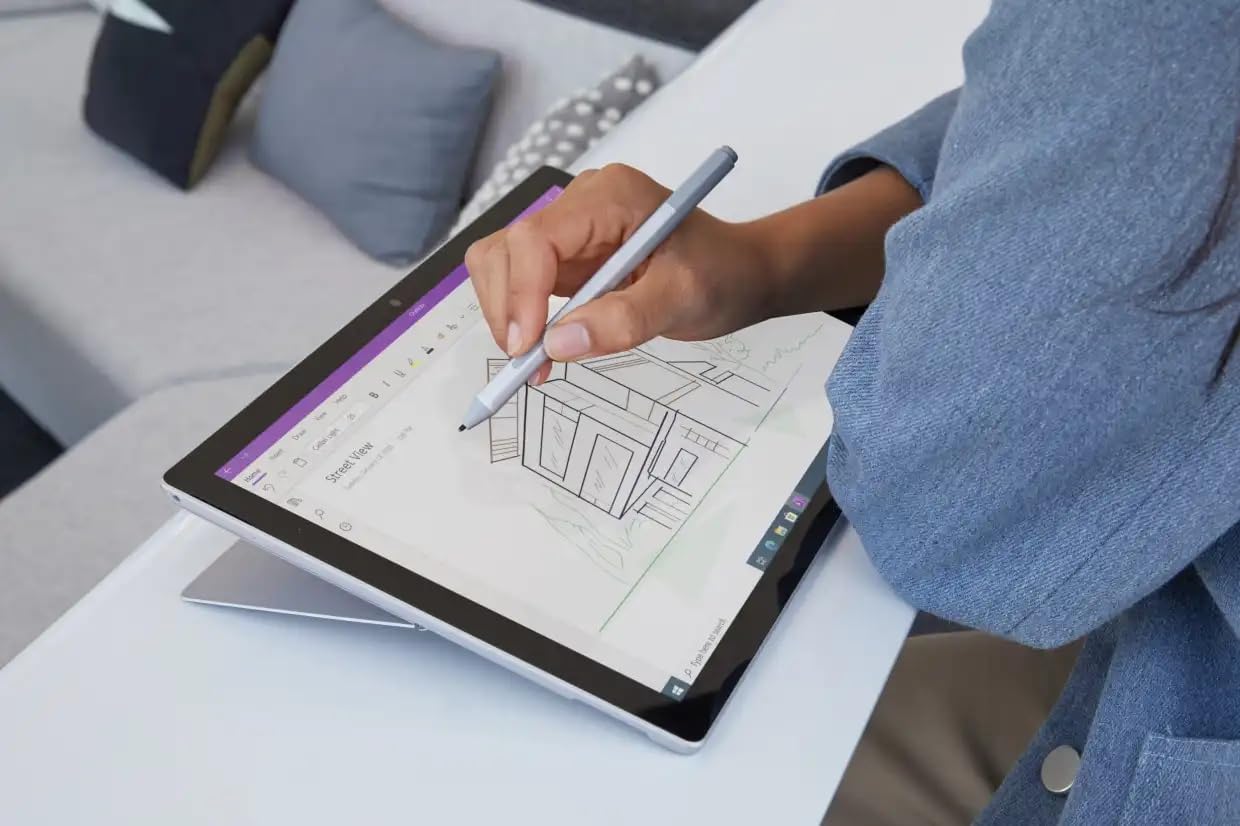
Image: A user interacting with the Microsoft Surface Pro 7+ using a Surface Pen, highlighting its capabilities for creative and precise tasks.
2. Ports and Connectivity
Your Surface Pro 7+ includes various ports for connecting peripherals:
- USB-C Port: For data transfer, video output, and charging compatible devices.
- USB-A Port: For connecting standard USB devices like flash drives or mice.
- 3.5 mm Headphone Jack: For audio output to headphones or external speakers.
- Surface Connect Port: For power and connecting Surface Dock accessories.
- Micro SDXC Card Reader: For expanding storage or transferring files from memory cards.

Image: A side profile view of the Microsoft Surface Pro 7+, clearly showing the various input/output ports available for connectivity.
Wireless Connectivity: The device supports Wi-Fi 6 (802.11ax) for high-speed internet access and Bluetooth 5.0 for connecting wireless accessories.
3. Windows 11 Pro Features
Leverage the advanced features of Windows 11 Pro, including enhanced security, powerful management tools, and improved productivity with features like Snap Layouts and virtual desktops. Regular updates will ensure your system remains secure and up-to-date.
Maintenance
1. Cleaning Your Device
- Screen: Use a soft, lint-free cloth slightly dampened with water or a screen cleaner. Avoid harsh chemicals.
- Body: Wipe the exterior with a soft, dry cloth.
- Ports: Keep ports free of dust and debris. Use compressed air if necessary, but do so gently.
2. Software Updates
Ensure your Surface Pro 7+ is always up-to-date by regularly checking for Windows updates. Go to Settings > Windows Update to check for and install available updates. This helps maintain security and performance.
3. Battery Care
To maximize battery lifespan:
- Avoid extreme temperatures.
- Do not consistently drain the battery to 0% or keep it at 100% for extended periods.
- Use the provided official power adapter.
Troubleshooting
Common Issues and Solutions
- Device Not Powering On:
Ensure the device is charged. Connect the power adapter and wait a few minutes before attempting to power on again. If unresponsive, perform a force restart by holding the power button for 30 seconds.
- Display Issues:
If the screen is blank or flickering, try restarting the device. Check display settings in Windows. Ensure drivers are updated.
- Wi-Fi/Bluetooth Connectivity Problems:
Toggle Wi-Fi/Bluetooth off and on. Restart your router. Check device drivers in Device Manager.
- Slow Performance:
Close unnecessary applications. Check for background processes. Ensure sufficient free storage space. Run a disk cleanup.
For more detailed troubleshooting, refer to the official Microsoft Surface support website.
Specifications
| Feature | Detail |
|---|---|
| Brand | Microsoft |
| Model | Surface Pro 7+ |
| CPU | Intel Core i7-1165G7 Processor (3.4GHz up to 4.6GHz) |
| Memory (RAM) | 16GB |
| Storage | 512GB Solid State Drive (SSD) |
| Graphics | Intel Iris Plus Graphics |
| Operating System | Windows 11 Pro 64 Bit |
| Display | 12.3-inch Full HD (2736 x 1824) 2K PixelSense Touchscreen |
| Wi-Fi | 802.11ax (Wi-Fi 6) |
| Bluetooth | BT5.0 |
| Ports | 1 x USB-C, 1 x USB-A, 1 x Surface Connect port, 1 x 3.5 mm headphone jack, 1 x Micro SDXC card reader |
| Dimensions | 20.1 x 29.2 x 0.85 cm (7.9 x 11.5 x 0.33 inches) |
| Weight | 0.77 kg (1.7 lbs) |
Warranty and Support
This Microsoft Surface Pro 7+ comes with a 90-day warranty. For warranty claims or technical support, please contact the vendor or refer to the official Microsoft support resources.
For additional assistance, visit the official Microsoft Surface support website: support.microsoft.com/surface
Related documentsSurface Pro 7 Tablet


Ask a question about this manual
Ask about setup, troubleshooting, compatibility, parts, safety, or missing instructions. Manuals+ will review the question and use this page’s manual context to help answer it.