
1. Introduction
The Tukio Tracker Tag TX02 is a compact Bluetooth item finder designed to help you locate your personal belongings using the Apple Find My network. This device is compatible exclusively with iOS devices (iPhone, iPad, macOS) and integrates seamlessly with the pre-installed "Find My" app. Attach it to keys, wallets, bags, or other items to keep track of them and receive alerts if they are left behind.
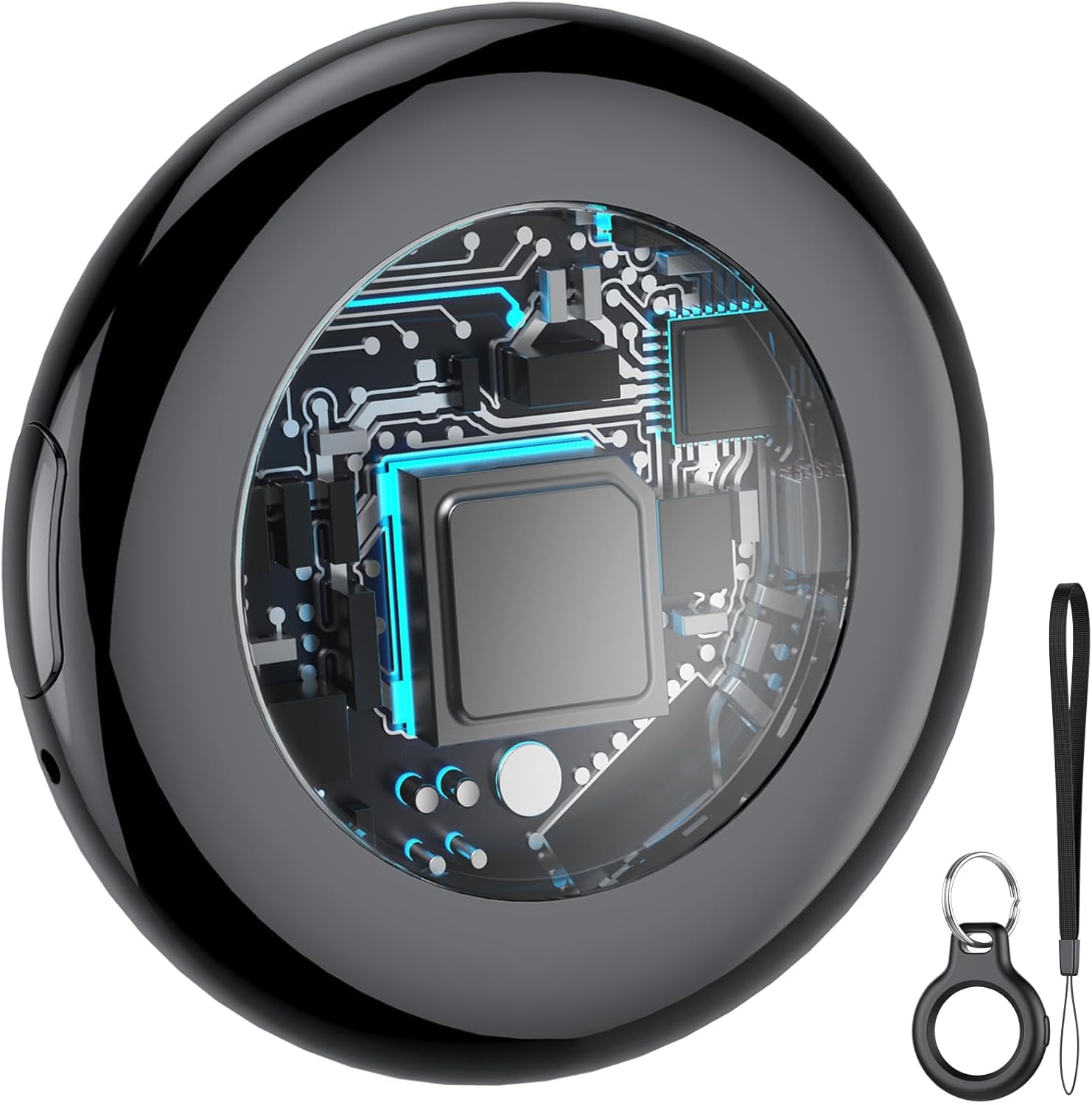
Image: The Tukio Tracker Tag TX02, showcasing its design and included accessories.
2. Package Contents
Verify that all items are present in your package:
- 1 x Tukio Tracker Tag TX02
- 1 x Protective Silicone Case
- 1 x Key Ring
- 1 x Lanyard
- 1 x User Manual (this document)
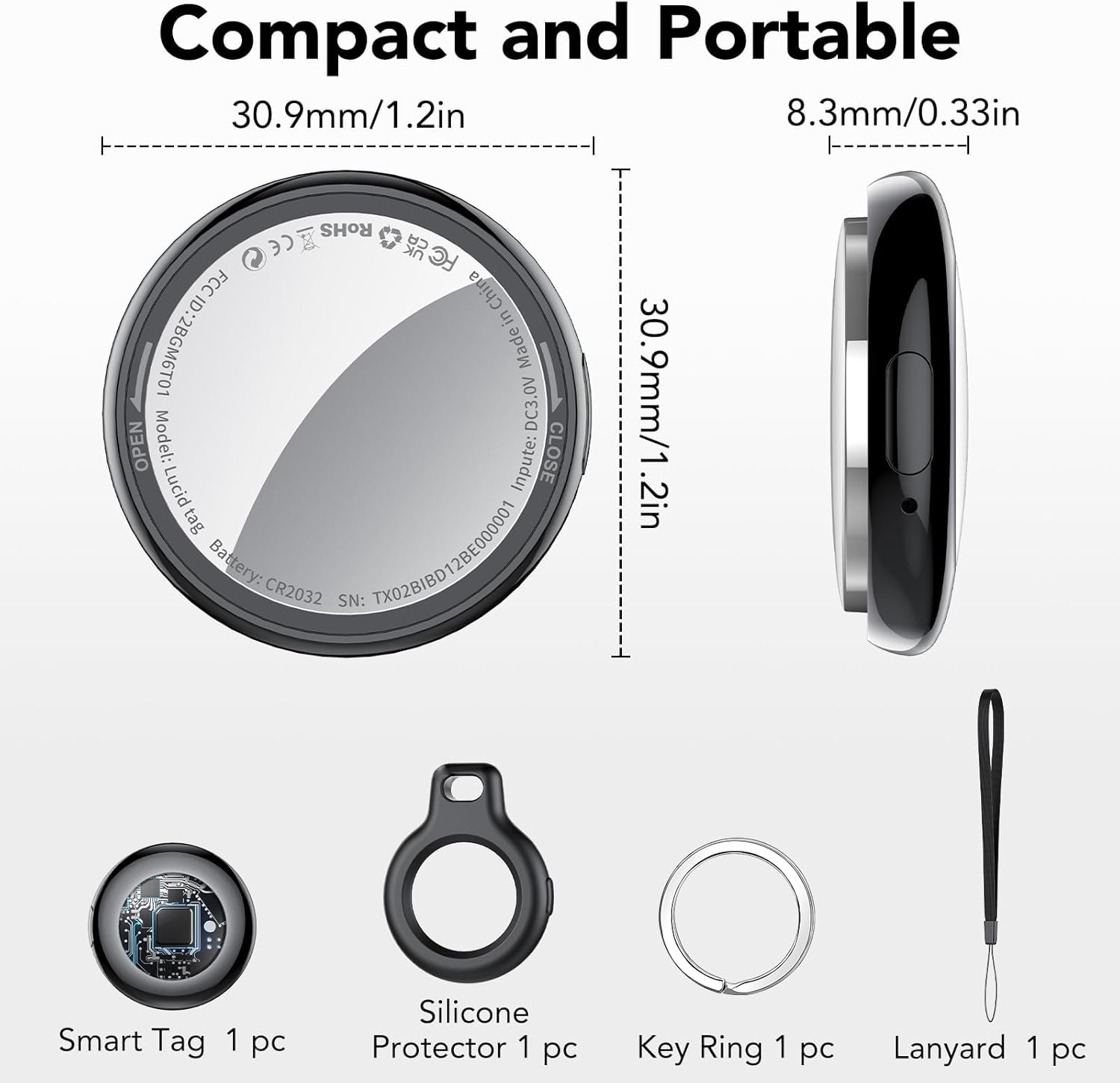
Image: Contents of the Tukio Tracker Tag TX02 package and device dimensions.
3. Setup: Connecting to Apple Find My
The Tukio Tracker Tag TX02 integrates with the Apple Find My network for easy item location. Follow these steps to pair your device:
- Ensure your iPhone or iPad has Bluetooth enabled and the "Find My" app is installed.
- Open the "Find My" app on your iOS device.
- Navigate to the "Items" tab.
- Tap the "+" icon and select "Add New Item", then choose "Other Supported Item". (Note: Do not select "Add AirTag".)
- Bring the Tukio Tracker Tag close to your iOS device. The app will search for "Lucid tag" (the internal name for the device).
- Tap "Connect" when the "Lucid tag" appears. Follow the on-screen prompts to complete the pairing process.
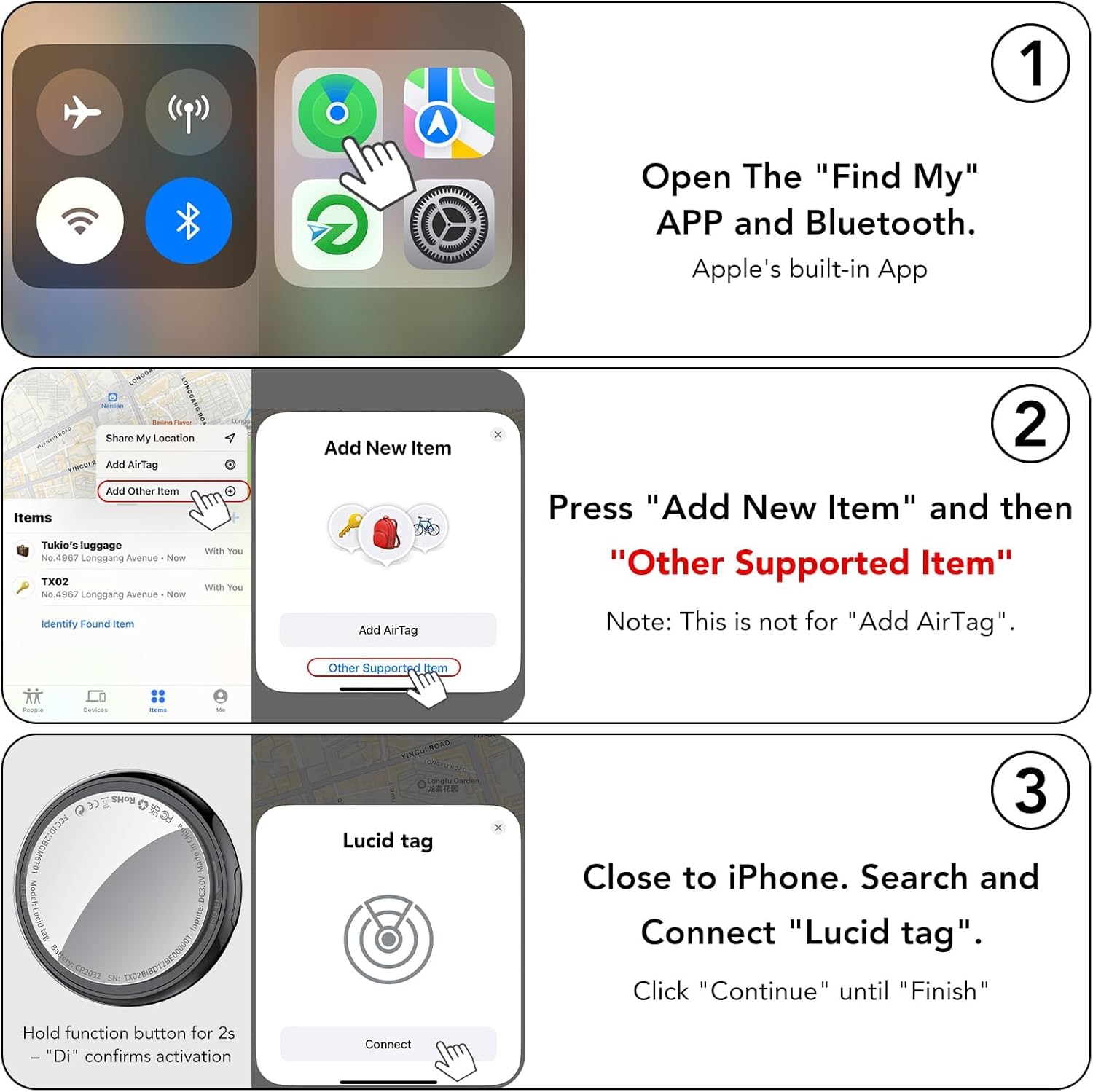
Image: Visual guide for connecting the Tukio Tracker Tag TX02 to the Apple Find My app.
4. Operating the Tracker Tag
4.1 Finding Items Nearby
When your Tukio Tracker Tag is within Bluetooth range (approximately 200 feet), you can use the "Find My" app to locate it. Tap "Play Sound" in the app, and the tracker will emit an audible beep (80-100dB) to help you pinpoint its location. You can also ask Siri for assistance, for example, "Hey Siri, where are my keys?"

Image: Using the "Play Sound" feature in the Find My app to locate nearby items.
4.2 Finding Items Far Away
If your item is out of Bluetooth range, the Apple Find My network can help. Hundreds of millions of Apple devices worldwide anonymously and securely detect your Tukio Tracker Tag and report its location to the "Find My" app, allowing you to see its last known location on a map.
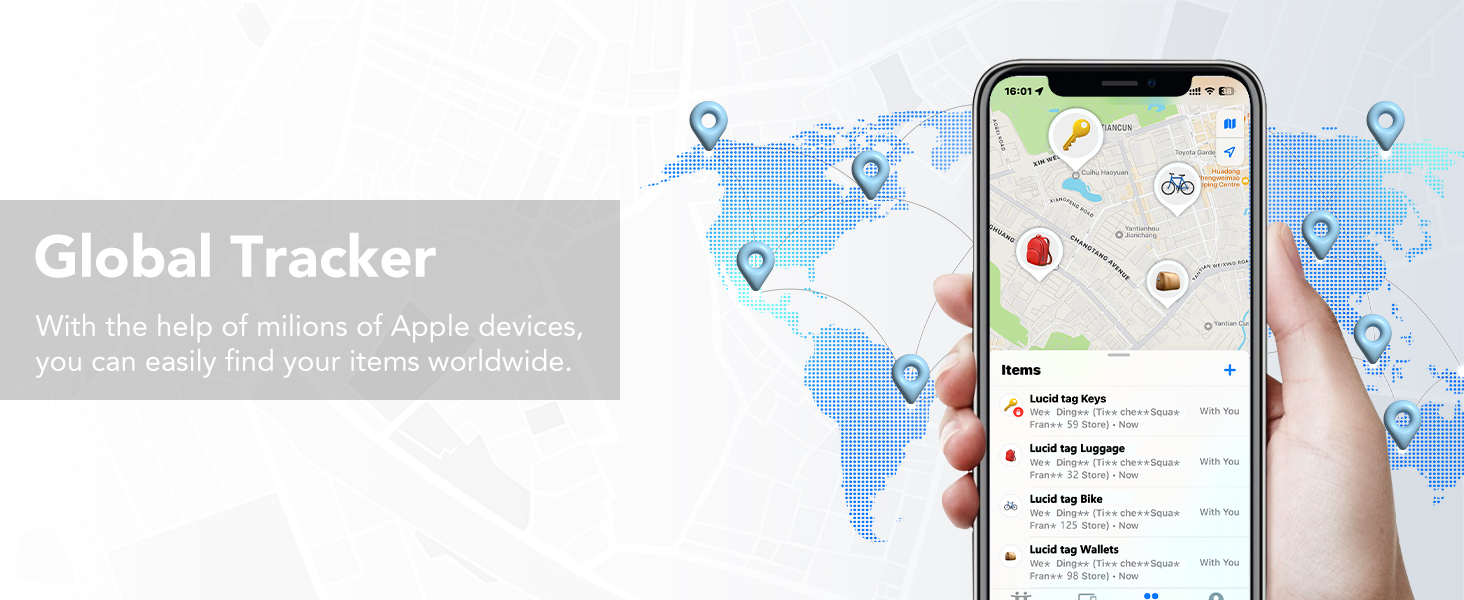
Image: Illustration of the global tracking capability via the Apple Find My network.
4.3 Left-Behind Reminders
Receive instant notifications on your iOS device if you leave your Tukio Tracker Tag behind and it goes out of Bluetooth range. The notification will include the last known location of your item, which you can view on the "Find My" app.

Image: Example of a "Left Behind" notification on an iPhone.
4.4 Lost Mode
If an item with your Tukio Tracker Tag is lost, activate "Lost Mode" in the "Find My" app. You can enter your contact information, and if someone finds your item, they can use their Apple device to scan the tag and retrieve your contact details, helping facilitate its return. You will also receive a notification when the item's location is updated.

Image: Activating "Lost Mode" in the Find My app.
4.5 Sharing Items (iOS 17 and above)
With iOS 17, iPadOS 17, or macOS 14 (or later versions), you can share your Tukio Tracker Tag with up to five other individuals in the "Find My" app. This allows family or friends to also track the item's location. Borrowers will not receive tracking notifications when the item moves with them.
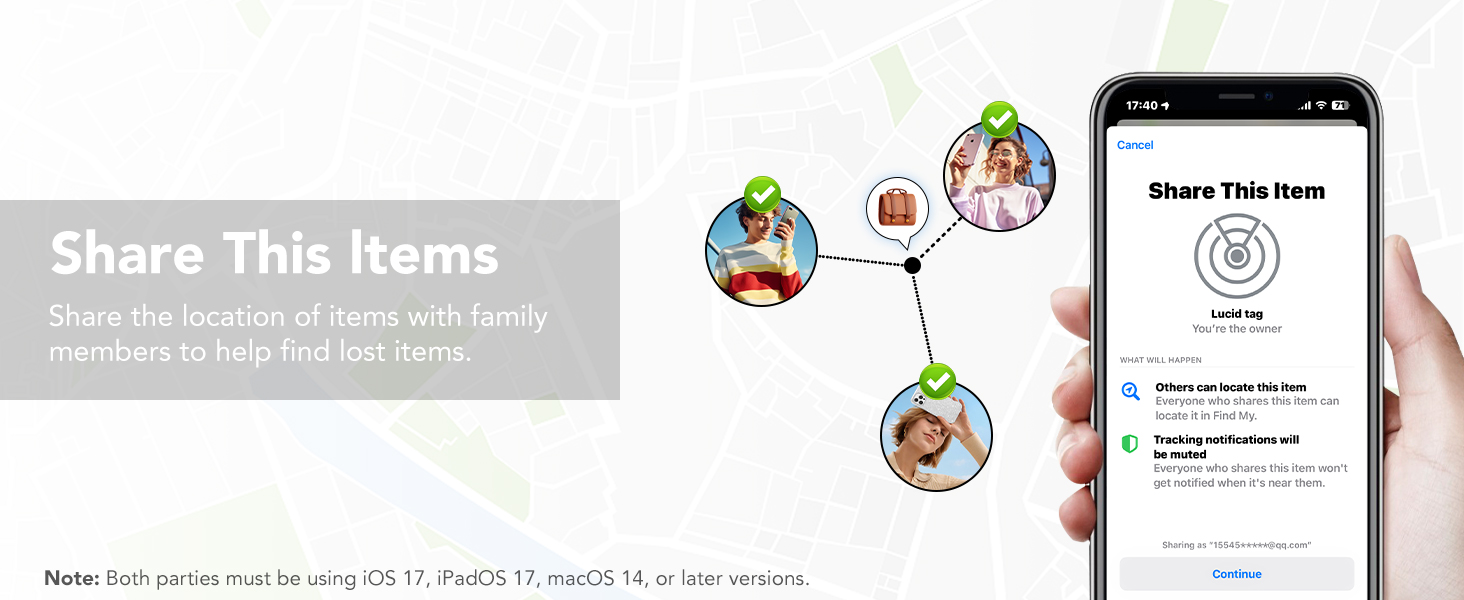
Image: Sharing a Tukio Tracker Tag's location with family or friends.
5. Maintenance
5.1 Battery Replacement
The Tukio Tracker Tag TX02 uses a replaceable CR2032 coin cell battery, providing up to one year of use. The "Find My" app will notify you when the battery level is low. To replace the battery:
- Turn the stainless steel battery cover counter-clockwise to open it.
- Remove the old CR2032 battery.
- Insert a new CR2032 battery with the positive (+) side facing up.
- Align the battery cover and press it gently, then rotate it clockwise to tighten and secure it.

Image: Step-by-step guide for replacing the CR2032 battery.
5.2 Water and Dust Resistance
The Tukio Tracker Tag TX02 features an IP67 rating, meaning it is resistant to dust and can withstand immersion in water up to 3 feet (1 meter) for up to 30 minutes. This makes it suitable for various outdoor activities and provides protection against splashes and brief submersion.
6. Troubleshooting
If you encounter issues with your Tukio Tracker Tag TX02, consider the following:
- Connectivity Issues: Ensure Bluetooth is enabled on your iOS device and the tracker is within range. Try restarting your iOS device.
- Tracker Not Responding: The battery may be low or depleted. Replace the CR2032 battery as described in Section 5.1.
- Incorrect Location: Ensure your iOS device has location services enabled for the "Find My" app. The accuracy of location data depends on the density of the Apple Find My network in the area.
- Resetting the Tracker: If persistent issues occur, you may need to reset the tracker to factory settings. Consult the included physical user manual for specific instructions on performing a factory reset.
For further assistance, please contact Tukio customer support.
7. Specifications
| Feature | Detail |
|---|---|
| Model Number | TX02 |
| Brand | Tukio |
| Connectivity | Bluetooth |
| Compatibility | iOS devices only (iPhone, iPad, macOS) |
| Battery Type | 1 x CR2032 (included) |
| Battery Life | Up to 1 year |
| Water Resistance | IP67 (up to 3 feet for 30 minutes) |
| Dimensions | 1.22"L x 1.22"W x 0.35"Th (30.9mm x 30.9mm x 8.3mm) |
| Item Weight | 0.247 ounces (approx. 7g) |
8. Warranty and Support
Tukio provides customer support for the Tracker Tag TX02. For any questions, technical assistance, or warranty inquiries, please refer to the contact information provided in your product packaging or visit the official Tukio website. Our customer service team is available to assist you.


