
ANYSECU W999
ANYSECU W999 POC Radio User Manual
Model: W999
1. Introduction
Welcome to the user manual for the ANYSECU W999 POC Radio. This device is a rugged smart phone designed for demanding environments, combining the functionality of an Android 13 smartphone with Push-to-Talk (PTT) radio capabilities. It is built to be durable, featuring an IP68 waterproof rating and shock-resistant construction.
This manual provides essential information on setting up, operating, and maintaining your W999 device to ensure optimal performance and longevity.
2. Package Contents
Upon unboxing your ANYSECU W999, please verify that all the following items are included:
- ANYSECU W999 Radio Body
- Antenna
- Battery
- Power Cable
- Adapter
- Clip
- User Manual

Figure 2.1: Included items in the ANYSECU W999 retail package.
3. Product Features
The ANYSECU W999 is equipped with advanced features designed for robust performance and versatile communication:
- Rugged Design: IP68-rated waterproof smartphone built for durability with reinforced corners and shock-resistant construction for demanding environments.
- Latest Android: Runs on Android 13 operating system, providing access to the newest features, enhanced privacy controls, and improved performance.
- Connectivity: 4G network compatibility ensures reliable high-speed data connection, while NFC support enables convenient contactless payments and quick device pairing.
- Outdoor Ready: Large display with clear visibility and responsive touch, perfect for outdoor use in various weather conditions.
- POC Radio: Works seamlessly with ZELLO and REAL PTT platforms for Push-to-Talk communication.

Figure 3.1: Front, side, and rear views of the ANYSECU W999 device.

Figure 3.2: Key features of the W999 including 4G, Android 13, IP68, and NFC.
4. Setup Guide
4.1. Battery Installation
- Locate the battery compartment cover on the back of the device.
- Carefully remove the cover.
- Insert the provided 5000mAh battery into the compartment, ensuring the contacts align correctly.
- Replace the battery compartment cover, pressing firmly until it clicks into place.
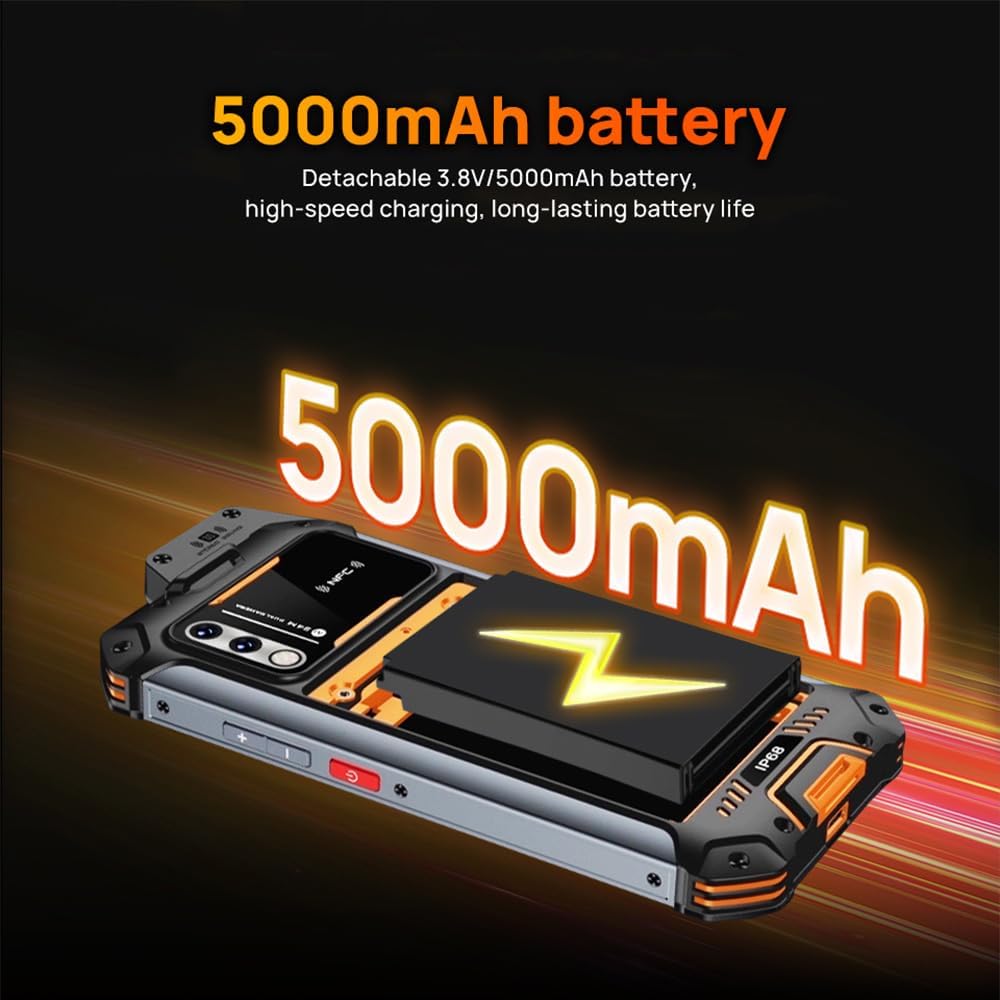
Figure 4.1: Battery compartment and 5000mAh battery.
4.2. SIM Card and SD Card Installation
- Locate the SIM card tray on the side of the device.
- Use the provided SIM ejector tool (or a small paperclip) to open the tray.
- Place your Nano-SIM card(s) and/or microSD card into the designated slots on the tray. Ensure correct orientation.
- Gently push the tray back into the device until it is flush with the body.

Figure 4.2: SIM and SD card tray.
4.3. Initial Charging
Before first use, fully charge the device. Connect the power cable to the device's charging port and the adapter to a power outlet. The charging indicator will show the charging status.
5. Operating Instructions
5.1. Power On/Off
- To Power On: Press and hold the Power button (located on the side) until the ANYSECU logo appears.
- To Power Off: Press and hold the Power button until the power options menu appears, then select "Power off".
5.2. Basic Navigation
The W999 operates on Android 13. Navigate using the touch screen: swipe, tap, and pinch-to-zoom. Use the on-screen navigation buttons (Home, Back, Recent Apps) at the bottom of the display.

Figure 5.1: Device in hand, demonstrating screen size and usability.
5.3. Push-to-Talk (PTT) Functionality
The W999 is designed for Push-to-Talk (PTT) communication, compatible with platforms like Zello and Real PTT. Ensure the respective application is installed and configured.
- PTT Button: Locate the dedicated PTT button on the side of the device.
- Using PTT: Open your PTT application (e.g., Zello). Select your desired channel or contact. Press and hold the PTT button to transmit your voice. Release the button to listen.
5.4. NFC Functionality
The W999 supports Near Field Communication (NFC) for quick pairing with other devices or contactless payments.
- Activating NFC: Go to Settings > Connected devices > Connection preferences > NFC and ensure it is toggled on.
- Using NFC: To make a payment or pair with a device, hold the back of your W999 near the NFC reader or compatible device. Follow on-screen prompts.

Figure 5.2: NFC functionality for convenient payments and pairing.

Figure 5.3: Rear view highlighting the NFC area.
6. Maintenance and Care
To ensure the longevity and optimal performance of your ANYSECU W999, follow these maintenance guidelines:
- Cleaning: Use a soft, lint-free cloth to clean the screen and body. For stubborn dirt, slightly dampen the cloth with water. Avoid harsh chemicals or abrasive materials.
- Water Resistance (IP68): The device is IP68 rated, meaning it is protected against dust ingress and can withstand immersion in water up to 1.5 meters for up to 30 minutes. Ensure all port covers are securely closed before exposure to water. Do not intentionally submerge the device. If the device gets wet, dry it thoroughly before charging.
- Temperature: Avoid exposing the device to extreme temperatures (hot or cold) as this can affect battery life and internal components.
- Storage: When not in use for extended periods, store the device in a cool, dry place.
7. Troubleshooting
This section addresses common issues you might encounter with your ANYSECU W999.
| Problem | Possible Cause | Solution |
|---|---|---|
| Device does not power on. | Low battery; software crash. | Charge the device for at least 30 minutes. Perform a forced restart by holding the Power button for 10-15 seconds. |
| Poor network signal. | Out of network coverage; SIM card issue. | Move to an area with better coverage. Reinsert the SIM card. Contact your network provider. |
| PTT function not working. | App not configured; no internet connection. | Ensure Zello/Real PTT app is installed and logged in. Check Wi-Fi or mobile data connection. |
| Battery drains quickly. | Background apps; high screen brightness. | Close unused apps. Reduce screen brightness. Disable unnecessary features like GPS, Bluetooth, Wi-Fi when not in use. |
8. Specifications
Detailed technical specifications for the ANYSECU W999 POC Radio:
| Feature | Specification |
|---|---|
| Model Number | W999 |
| Operating System | Android 13.0 |
| RAM Memory Installed Size | 8 GB |
| Special Features | Long Range, NFC Support, IP68 Waterproof |
| Display Features | Wireless, 6.3 inch Touch Screen |
| Network Bands | 2G GSM, 3G WCDMA, 4G FDD-LTE, TDD-LTE (specific bands listed in product description) |
| WiFi | IEEE 802.11 a/b/g/n/ac, 2.4GHz/5GHz dual band |
| Bluetooth | V5.2 |
| GNSS | GPS/GLONASS/Beidou/Galileo |
| Battery Capacity | 5000mAh (Detachable 3.8V) |
| Dimensions | 9.84 x 6.69 x 2.36 inches (Package Dimensions) |
9. Warranty and Support
ANYSECU products are manufactured to high quality standards. For information regarding warranty coverage, please refer to the warranty card included with your product or visit the official ANYSECU website.
For technical support, troubleshooting assistance beyond this manual, or service inquiries, please contact ANYSECU customer support through their official channels. Keep your purchase receipt and product serial number handy when contacting support.
Related documentsW999

Ask a question about this manual
Ask about setup, troubleshooting, compatibility, parts, safety, or missing instructions. Manuals+ will review the question and use this page’s manual context to help answer it.