1. Introduction
Thank you for choosing the UGREEN Revodok Pro 14-in-1 USB-C Docking Station. This manual provides detailed instructions for setting up, operating, and maintaining your docking station to ensure optimal performance and compatibility with your devices. Please read this manual thoroughly before use.
2. Product Overview
The UGREEN Revodok Pro is a versatile 14-in-1 USB-C docking station designed to expand your laptop's connectivity. It features a comprehensive array of ports to support multiple displays, high-speed data transfer, network connectivity, and power delivery.
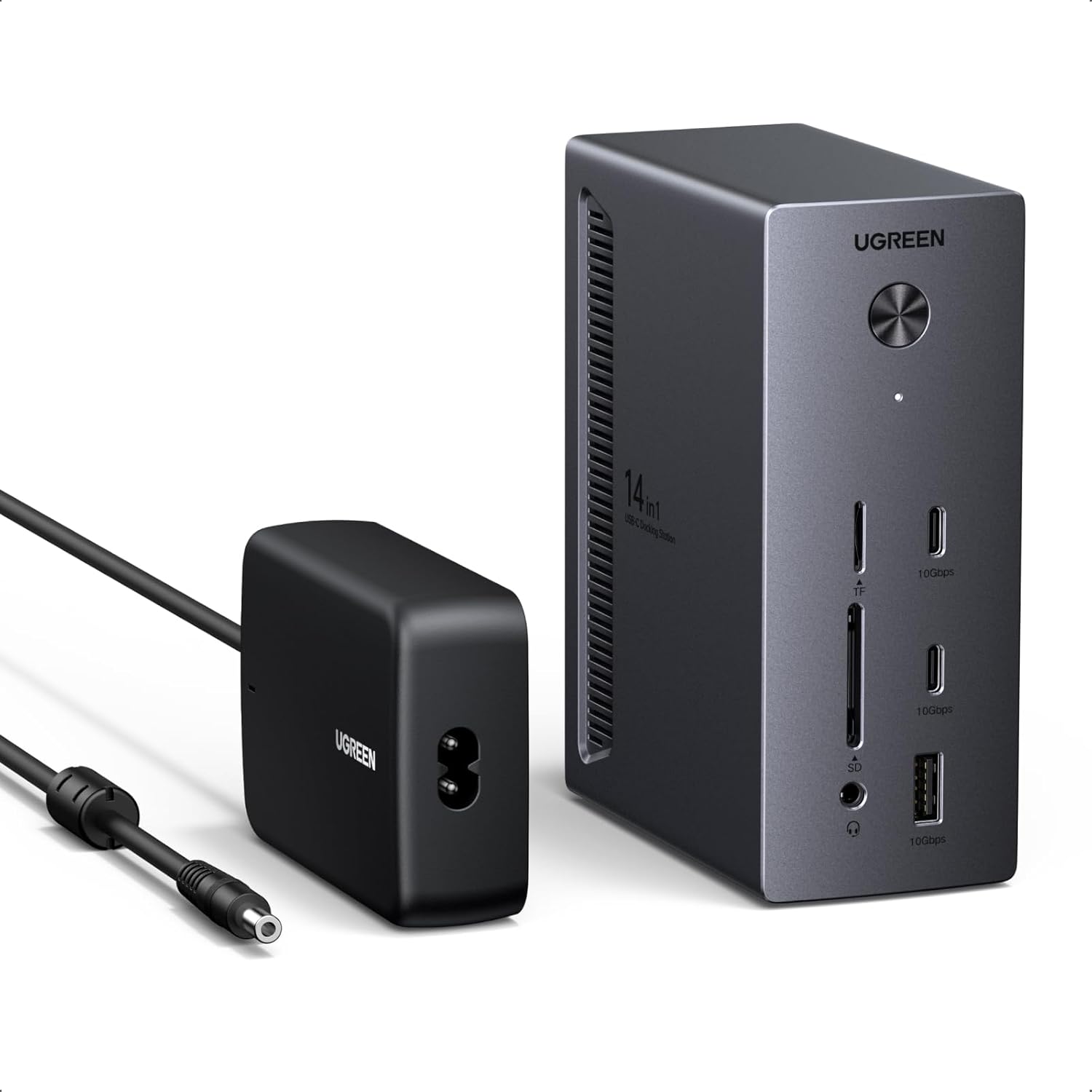
Image: UGREEN Revodok Pro Docking Station with its included power adapter.
Port Configuration:
- 2 x DisplayPort 4K@120Hz
- 1 x HDMI 4K@60Hz
- 2 x USB-C 10Gbps (Data Transfer Only)
- 1 x USB-A 10Gbps
- 2 x USB-A 5Gbps
- 1 x Gigabit Ethernet (RJ45)
- 1 x USB-C PD Out 27W (for peripheral charging)
- 1 x SD Card Reader (up to 170MB/s)
- 1 x TF Card Reader (up to 170MB/s)
- 1 x 3.5mm Audio Jack (output/input)
- 1 x DC IN 24V/5.83A 140W (for docking station power)
- 1 x USB-C Upstream Port (100W Max, for host connection)

Image: Detailed diagram illustrating the location and function of each of the 14 ports on the docking station.
3. Setup Instructions
- Power Connection: Connect the provided 140W power adapter to the DC IN port on the docking station and then to a power outlet. This is essential for the docking station to function correctly and provide power to connected devices.
- Host Connection: Connect your laptop or host device to the docking station using the supplied USB-C to USB-C cable. Ensure your laptop's USB-C port supports full functionality (DP Alt Mode, Power Delivery, and Data Transfer).
- Display Connection: Connect your external monitors to the DisplayPort (DP) and/or HDMI ports on the docking station.
- Peripheral Connection: Connect your USB devices (keyboard, mouse, external drives), Ethernet cable, SD/TF cards, and audio devices to the corresponding ports on the docking station.
- Driver Installation: The UGREEN Revodok Pro is generally plug-and-play. No additional drivers are typically required for Windows 10/11. For macOS, ensure your system is up to date.
4. Operating Instructions
4.1 Triple Display Configuration
The docking station supports connecting up to three external displays.
- One display can support up to 4K@120Hz (via DisplayPort).
- Simultaneously, three external displays can be connected with resolutions such as 4K@60Hz (x2) + 4K@30Hz (x1).

Image: A user demonstrating a triple 4K display setup connected to a laptop via the UGREEN Revodok Pro docking station.
Display Modes:
- Windows PC: Supports multiple external displays showing different content (MST mode).
- macOS PC: Only supports all external displays showing the same content (SST mode). Extended multi-monitor functionality with different content on each screen is not supported on macOS with this docking station.

Image: Visual representation of multi-screen display modes, highlighting the differences between Windows (supporting extended displays) and macOS (supporting mirrored displays).
4.2 High-Speed Data Transfer
The docking station is equipped with three USB 3.2 data ports (two USB-C and one USB-A) supporting data transfer speeds of up to 10Gbps. Two additional USB-A 5Gbps ports are suitable for connecting peripherals like a mouse or keyboard.
- USB 3.2 Ports (2x USB-C, 1x USB-A): Ideal for connecting external hard drives and USB flash drives for rapid data transfer.
- USB 3.0 Ports (2x USB-A): Suitable for standard peripherals.
- SD/TF Card Readers: Support speeds up to 170MB/s for efficient photo and file transfers from memory cards.
Note: The data-only USB ports do not support video signal output or charging.

Image: Illustration of fast file transfer capabilities, showing a laptop connected to the docking station with external storage and memory cards.
4.3 Power Delivery and Charging
The docking station provides power delivery capabilities for your host laptop and other devices.
- USB-C Upstream Port: Delivers up to 100W Power Delivery to charge your host laptop.
- USB-C PD Out Port: Provides up to 27W Power Delivery for charging peripherals like smartphones or tablets.
Note: The USB-C charging ports do not support data transfers or video signal output.

Image: Diagram illustrating the power delivery features, with 100W charging for a laptop via the upstream port and 27W charging for a smartphone via the downstream port.
4.4 Network and Audio Connectivity
- Gigabit Ethernet Port: Provides a stable and fast wired network connection up to 1000Mbps.
- 3.5mm Audio Jack: Supports both audio output (headphones/speakers) and microphone input.
5. Compatibility
For full functionality, ensure your computer's USB-C port supports the following:
- DP Alt Mode (DisplayPort Alternate Mode): Required for video output via DisplayPort and HDMI.
- Power Delivery (PD): Required for charging your laptop via the docking station.
- Data Transfer: Required for USB data ports to function.
The docking station is compatible with Windows 10/11 and macOS. Popular compatible models include Dell, HP, ThinkPad, and ASUS laptops with full-function USB-C ports.

Image: Compatibility chart detailing supported operating systems (Windows 10/11) and the requirement for a full-function USB-C port (Thunderbolt 5/4/USB4/USB-C with DP Alt Mode/PD Charge/Data Transfer).
Important Note for macOS Users:
macOS computers only support SST (Single Stream Transport) mode for external displays. This means all external monitors will display the same content, mirroring your primary display. If you require multiple external displays with different content, this docking station is not recommended for macOS.
6. Maintenance
- Keep the docking station clean and free from dust. Use a soft, dry cloth for cleaning.
- Avoid exposing the device to extreme temperatures or humidity.
- Ensure adequate ventilation around the docking station to prevent overheating.
- Do not attempt to disassemble or repair the device yourself. Contact customer support if issues arise.
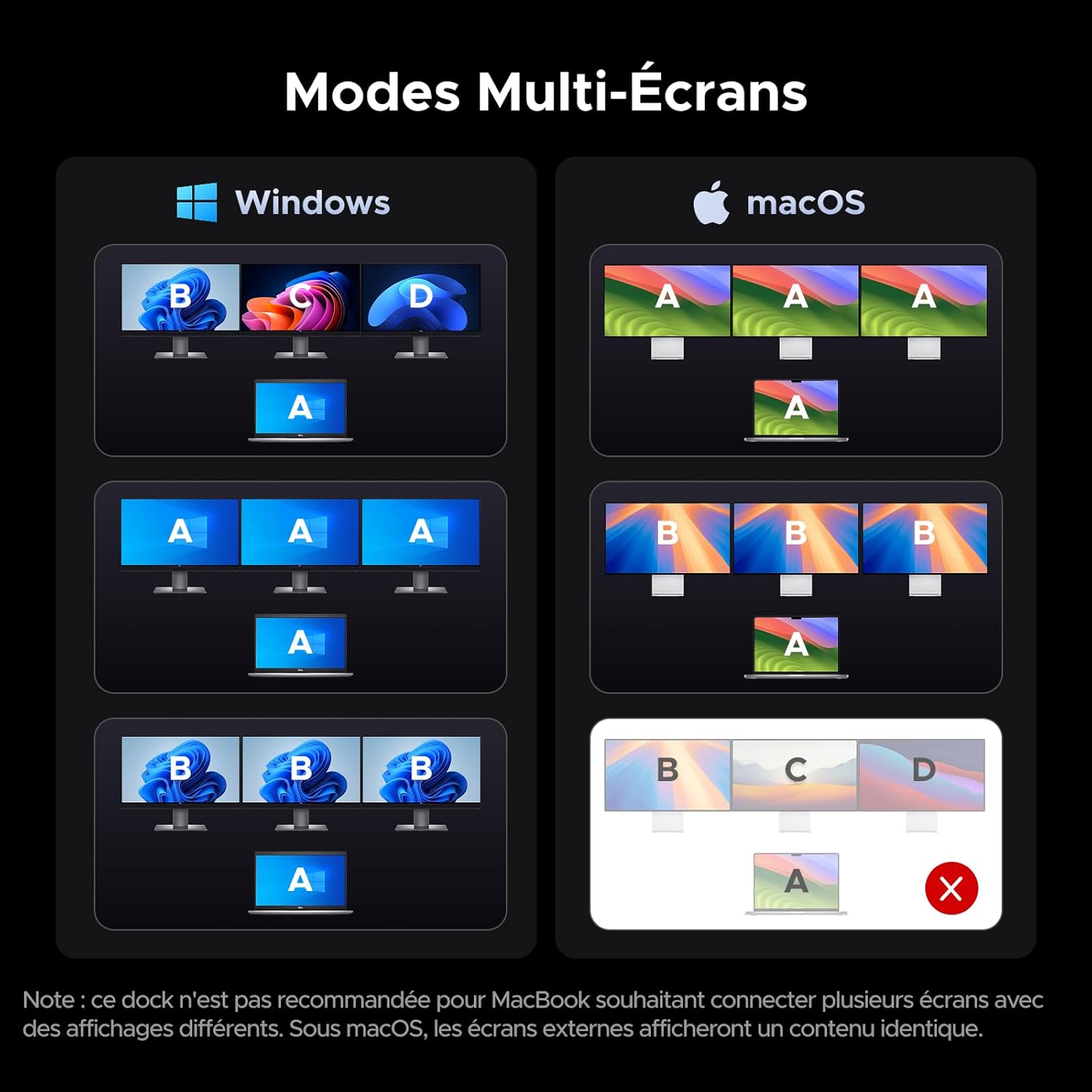
Image: Comparison of a cluttered desk before using the docking station versus an organized desk after integrating the docking station for cable management.
7. Troubleshooting
| Issue | Possible Cause / Solution |
|---|---|
| No display output or flickering screens. |
|
| Laptop not charging. |
|
| USB devices not recognized or slow data transfer. |
|
| Ethernet connection issues. |
|
| Audio not working. |
|
8. Specifications
| Feature | Detail |
|---|---|
| Model Number | CM843 |
| Ports | 2x DisplayPort 4K@120Hz, 1x HDMI 4K@60Hz, 2x USB-C 10Gbps, 1x USB-A 10Gbps, 2x USB-A 5Gbps, 1x Gigabit Ethernet, 1x USB-C PD Out 27W, 1x SD Card Reader, 1x TF Card Reader, 1x 3.5mm Audio, 1x DC IN 140W, 1x USB-C Upstream 100W |
| Total USB Ports | 8 (5 data, 3 charging/upstream) |
| Power Input | DC IN 24V/5.83A (140W Power Adapter) |
| Laptop Charging (Upstream) | Up to 100W Power Delivery |
| Peripheral Charging (Downstream) | Up to 27W Power Delivery |
| Data Transfer Speed | USB 3.2 Gen 2 (10Gbps), SD/TF (170MB/s) |
| Ethernet Speed | 10/100/1000Mbps Gigabit Ethernet |
| Compatible Devices | Laptops with full-function USB-C ports (DP Alt Mode, PD, Data Transfer) |
| Operating System | Windows 10/11, macOS (with display limitations) |
| Manufacturer | Ugreen Group Limited |
| Country of Origin | China |
9. Warranty and Support
The UGREEN Revodok Pro Docking Station comes with a 24-month manufacturer's warranty from UGREEN.
For technical support, warranty claims, or further assistance, please contact UGREEN customer service through their official website or the retailer where you purchased the product.
Manufacturer: Ugreen Group Limited


