
Introduction
The KIIROO Keon is an advanced automatic interactive device designed to provide a hands-free experience. It features connectivity options for interactive content, partners, and webcam performers via Bluetooth and WiFi. The device offers controllable stroke length and can achieve up to 230 strokes per minute. This manual provides essential information for the safe and effective use of your Keon device.

Image: A front view of the KIIROO Keon automatic interactive device, showcasing its sleek black design.
Package Contents
Upon opening your KIIROO Keon package, please verify that all components are present:
- 1 x Keon Device by KIIROO
- 1 x USB Charging Cable
Note: The stroker/sleeve is not included with the Keon device and must be purchased separately. The Keon is compatible with FeelStar Sleeves and PowerBlow.
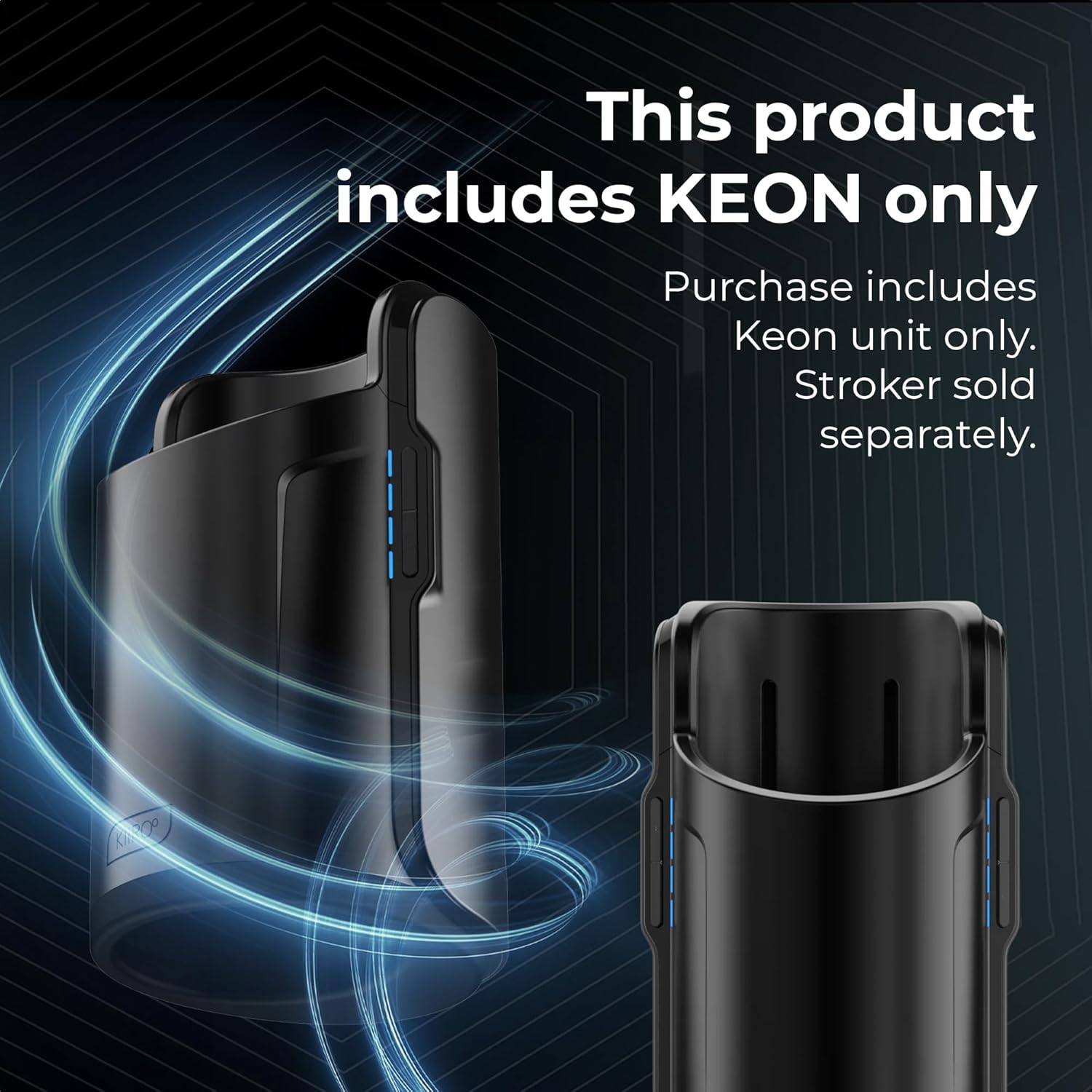
Image: The KIIROO Keon device, highlighting that the stroker is sold separately.
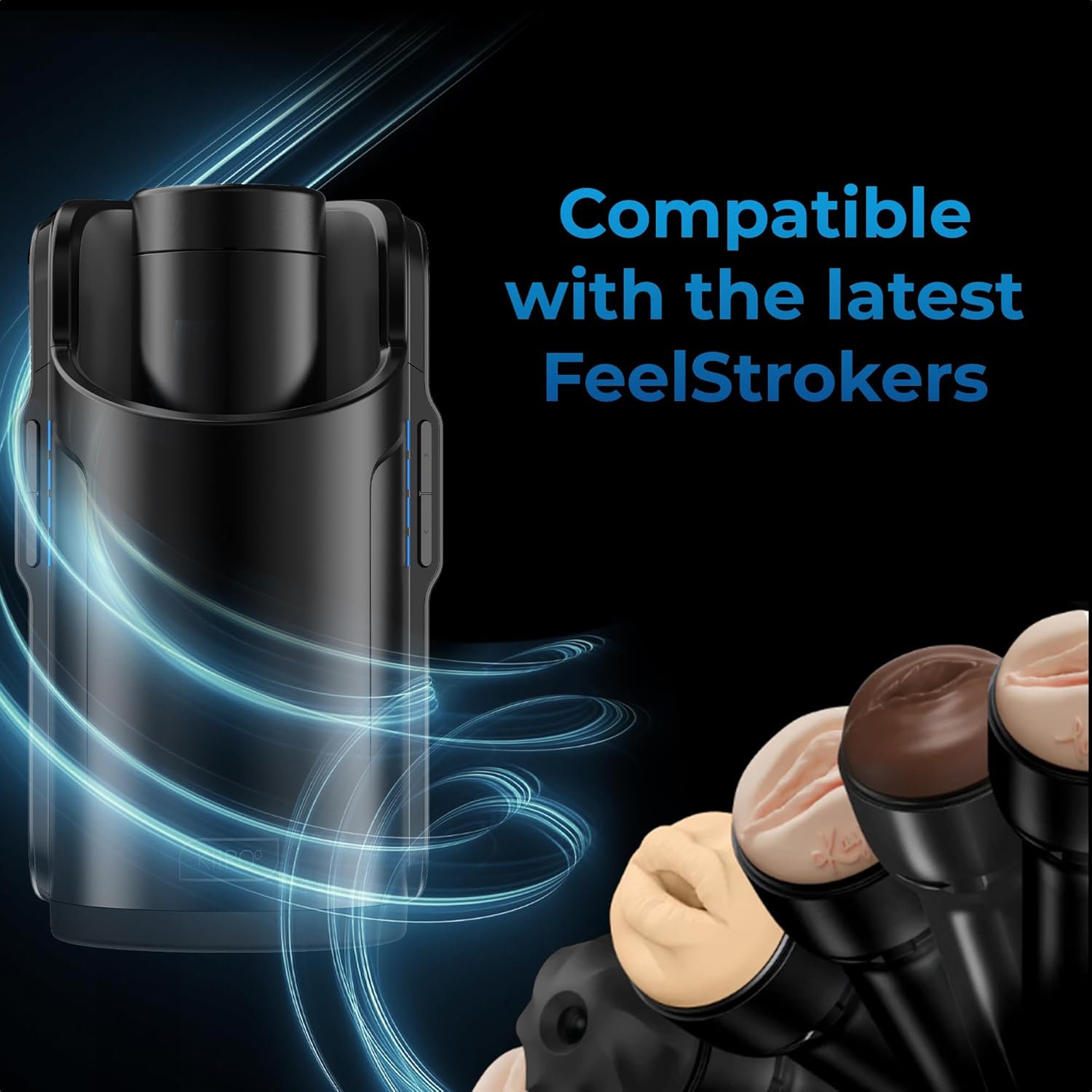
Image: The Keon device displayed with a selection of compatible FeelStroker sleeves, illustrating its modular design.
Setup
1. Charging the Device
Before initial use, fully charge your Keon device. Connect the provided USB charging cable to the charging port on the device and to a compatible USB power source. The device features a 16.8V 700 mAh battery. A full charge typically takes approximately 4 hours, providing a usage time of 30 minutes to 2 hours depending on intensity and interactive features used.

Image: KIIROO Keon device displaying battery and charging information.
2. Connecting to Interactive Content
The Keon device is WiFi and Bluetooth enabled, allowing for an immersive interactive experience. To connect:
- Ensure your Keon device is powered on.
- Activate Bluetooth on your smartphone, tablet, or computer.
- Open the FeelMe AI application or compatible interactive platform.
- Follow the on-screen instructions within the application to pair your Keon device via Bluetooth or connect via WiFi.
Once connected, you can synchronize with interactive videos, VR content, games, webcam performers, or even a partner's device for a shared experience.

Image: Keon device demonstrating connectivity with various interactive platforms.
Operating Instructions
1. Powering On/Off
Locate the power button on your Keon device. Press and hold the button for a few seconds to turn the device on or off. Indicator lights will confirm the power status.
2. Basic Operation and Stroke Control
The Keon device offers precise control over the stroke length and speed. You can adjust these settings manually on the device or through the connected application. The device is capable of up to 230 strokes per minute.

Image: Visual representation of stroke length control and maximum stroke rate.
3. Interactive Mode with FeelMe AI
For the full interactive experience, connect your Keon to the FeelMe AI platform. This allows the device to synchronize with various forms of interactive content, providing real-time haptic feedback. Ensure your device is properly paired as described in the Setup section.

Image: Keon device interacting with the FeelMe AI platform for unlimited content.
Maintenance
Cleaning the Device
To ensure hygiene and longevity of your Keon device, regular cleaning is recommended. Note: The Keon device is not water resistant. Do not submerge it in water or expose it to excessive moisture.
- Disconnect the device from any power source before cleaning.
- Wipe the exterior of the device with a soft, damp cloth and a mild, non-abrasive cleaner.
- Ensure the device is completely dry before storing or recharging.
- For cleaning compatible sleeves (sold separately), refer to their specific cleaning instructions.
Storage
Store your Keon device in a clean, dry place away from direct sunlight and extreme temperatures. Keep it out of reach of children.
Troubleshooting
If you encounter issues with your KIIROO Keon device, please refer to the following common solutions:
| Problem | Possible Cause | Solution |
|---|---|---|
| Device does not turn on. | Low battery or no charge. | Charge the device for at least 4 hours using the provided USB cable. |
| Cannot connect via Bluetooth/WiFi. | Bluetooth/WiFi is off on host device; device not in pairing mode; interference. | Ensure Bluetooth/WiFi is enabled. Restart both the Keon and the host device. Move closer to the host device. Check the FeelMe AI app for pairing instructions. |
| Device not responding to interactive content. | Poor connection; outdated app; content incompatibility. | Verify stable Bluetooth/WiFi connection. Update the FeelMe AI application. Ensure the content is compatible with Keon. |
| Unusual noises or vibrations. | Internal malfunction. | Discontinue use immediately and contact KIIROO customer support. |
Specifications
| Feature | Detail |
|---|---|
| Model | Keon |
| Brand | KIIROO |
| Dimensions (Package) | 10.67 x 7.05 x 6.38 inches |
| Weight (Package) | 3.4 Pounds |
| Battery | 1 Nonstandard Battery (16.8V 700 mAh), included |
| Charging Time | Approximately 4 hours |
| Usage Time | 30 minutes to 2 hours |
| Material | Acrylonitrile Butadiene Styrene (ABS) |
| Color | Black |
| Connectivity | WiFi, Bluetooth |
| Max Strokes per Minute | 230 |
| Water Resistance Level | Not Water Resistant |
Warranty and Support
Limited Warranty
KIIROO products are covered by a limited warranty against manufacturing defects. For specific warranty terms and conditions, please refer to the warranty card included with your product or visit the official KIIROO website. Keep your proof of purchase for warranty claims.
Customer Support
If you require further assistance, have questions, or need to report an issue not covered in this manual, please contact KIIROO customer support. Contact information can typically be found on the KIIROO official website or on the product packaging.
For more information, visit the KIIROO Store on Amazon.