
1. Introduction
Thank you for choosing the CHROX Android TV Box 14.0, Model 66507595. This device transforms your television into a smart entertainment hub, offering access to a wide range of streaming services, applications, and media content. Powered by Android 14.0 and an Allwinner H313 Quad-Core processor, it delivers a fast and smooth user experience with support for 4K resolution.
This manual provides essential information for setting up, operating, and maintaining your TV Box. Please read it carefully before use to ensure proper functionality and to maximize your enjoyment of the product.

Figure 1.1: The CHROX Android TV Box 14.0, showcasing its sleek design, remote control, and a typical Android TV interface with various streaming applications. This image highlights the device's capability to deliver a rich multimedia experience.
2. Package Contents
Please check the box for the following items:
- 1 x CHROX Android TV Box 14.0
- 1 x Remote Control
- 1 x HD Cable (HDMI)
- 1 x Power Adapter (DC 5V/2A)
3. Setup Guide
Follow these steps to set up your CHROX Android TV Box:
- Connect to TV: Connect one end of the provided HD (HDMI) cable to the HDMI port on the TV Box and the other end to an available HDMI input on your television.
- Connect Power: Plug the power adapter into the DC 5V port on the TV Box, then plug the adapter into a wall outlet.
- Power On: The TV Box should automatically power on. If not, press the power button on the remote control.
- Select Input: On your television, select the correct HDMI input source using your TV's remote control.
- Initial Setup: Follow the on-screen instructions to complete the initial setup, including language selection, network connection (Wi-Fi or Ethernet), and Google account login.

Figure 3.1: The CHROX Android TV Box 14.0 with its rear ports visible, including DC power, Ethernet, HDMI, AV, and IR. The image also displays the Android 14 interface, indicating the operating system version and connectivity options.
4. Operating Instructions
4.1 Basic Navigation
Use the provided remote control to navigate the Android TV interface. The directional pad (up, down, left, right) allows you to move between icons and menus, while the 'OK' button confirms selections. The 'Back' button returns to the previous screen, and the 'Home' button takes you to the main home screen.
4.2 App Installation
Access the Google Play Store from the home screen to download and install your favorite streaming applications, games, and utilities. A Google account is required for this process.
4.3 Media Playback
The TV Box supports various media formats. You can play local media files from connected USB drives or stream content from online services. The device supports H.265 HEVC, H.264 AVC, VP9, and VP8 video decoding for high-quality playback.

Figure 4.1: This image illustrates the versatile applications of the CHROX Android TV Box, including playing games, enjoying movies, listening to music, and watching sports, demonstrating its capability as a comprehensive entertainment device.
5. Connectivity
The CHROX Android TV Box offers multiple connectivity options for network access and peripheral devices:
- Wi-Fi: Supports dual-band 2.4G and 5G Wi-Fi for high-speed wireless internet access.
- Ethernet: A standard 10/100M RJ-45 port for stable wired network connection.
- Bluetooth: Features Bluetooth 4.1 for connecting wireless devices such as keyboards, mice, game controllers, and audio devices.
- USB Ports: Includes one USB 2.0 port and one USB 3.0 port for connecting external storage devices (e.g., USB flash drives, external hard drives) or other USB peripherals. The USB 3.0 port offers significantly faster data transfer speeds.
- HDMI: HDMI 2.0 output supports up to 4K@60fps resolution.
- SPDIF: Digital audio interface for high-quality audio output.

Figure 5.1: This image illustrates the CHROX Android TV Box's advanced connectivity, featuring dual-band 2.4G and 5.8G Wi-Fi, along with Bluetooth 5.0. It emphasizes faster loading speeds and wider coverage for an enhanced user experience.
6. Specifications
| Feature | Specification |
|---|---|
| Operating System | Android 14.0 |
| CPU | Allwinner H313 Quad-Core A55 64-bit |
| GPU | G31 MP2 Processor |
| RAM | 2 GB SDRAM |
| Internal Storage | 16 GB Flash |
| Expandable Storage | Supports TF cards up to 64 GB |
| Wi-Fi | 2.4G & 5G Dual-Band Wi-Fi |
| Bluetooth | BT4.1 |
| Ethernet | Standard 10/100M RJ-45 |
| HDMI Output | HDMI 2.0, 4K@60fps Max Resolution |
| Audio Output | SPDIF Digital Audio Interface |
| USB Host | 1 x USB 2.0, 1 x USB 3.0 |
| Video Decoder | H.265 HEVC/MVC Main10, H.264 AVC/MVC Main10, VP9 Profile0/2, VP8 Version2 (up to 4096x2304@60fps) |
| Video Encoder | H.264/AVC BP/MP/HP@level4.2 (up to 1920x1080@100fps), H.265/HEVC MP@level4.1 (4K) |
| JPEG Decoder | Supports YUV400/411/420/422/440/444 (up to 1920x1080@120fps), MJPEG |
| Model Number | 66507595 |
| Country of Origin | China |
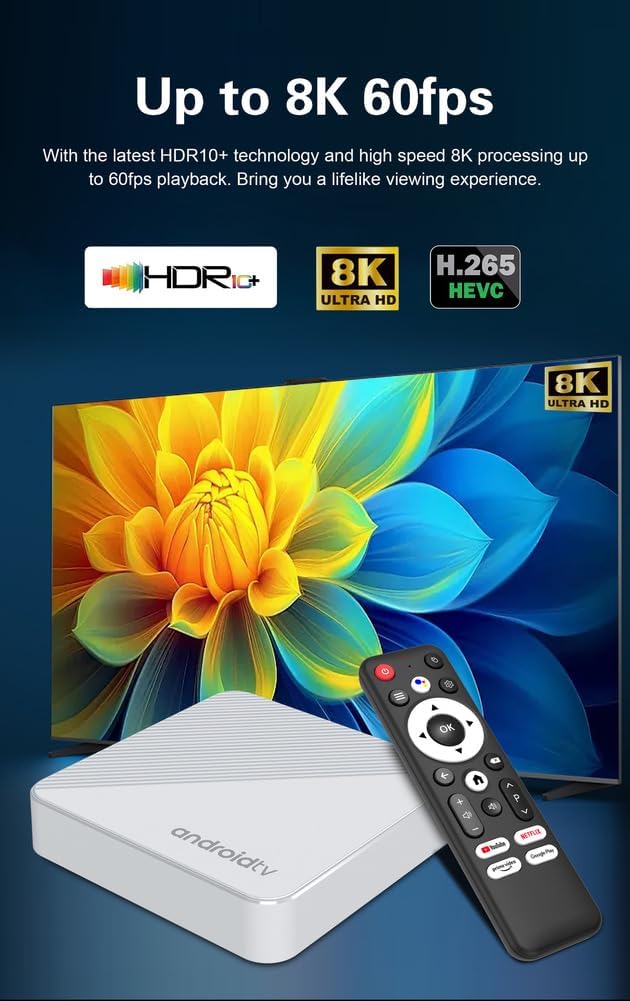
Figure 6.1: This image highlights the advanced video capabilities of the CHROX Android TV Box, including support for up to 8K at 60 frames per second, HDR10+ technology, and H.265 HEVC decoding for a lifelike viewing experience.
7. Troubleshooting
If you encounter issues with your CHROX Android TV Box, please refer to the following common solutions:
- No Power:
- Ensure the power adapter is securely connected to the TV Box and a working power outlet.
- Check if the power indicator light on the TV Box is on.
- No Picture on TV:
- Verify that the HDMI cable is firmly connected to both the TV Box and the TV.
- Ensure your TV is set to the correct HDMI input source.
- Try a different HDMI cable or HDMI port on your TV.
- No Sound:
- Check the volume levels on both the TV Box and your television.
- Ensure audio output settings on the TV Box are correctly configured (e.g., HDMI audio).
- Wi-Fi Connection Issues:
- Restart your Wi-Fi router and the TV Box.
- Ensure the Wi-Fi password is entered correctly.
- Move the TV Box closer to the router or try a wired Ethernet connection.
- Remote Control Not Responding:
- Replace the batteries in the remote control.
- Ensure there are no obstructions between the remote and the TV Box's IR receiver.
- System Lag or Freezing:
- Close unused applications running in the background.
- Clear cache for problematic applications.
- Consider performing a factory reset (Note: This will erase all data and settings).
8. Maintenance
To ensure the longevity and optimal performance of your CHROX Android TV Box, follow these maintenance guidelines:
- Cleaning: Use a soft, dry cloth to clean the exterior of the device. Do not use liquid cleaners or abrasive materials.
- Ventilation: Ensure the TV Box is placed in a well-ventilated area to prevent overheating. Do not cover ventilation openings.
- Power Off: When not in use for extended periods, it is recommended to power off the device and unplug the power adapter.
- Software Updates: Regularly check for and install system updates to ensure you have the latest features and security patches.
9. Safety Information and Warnings
Please observe the following safety precautions to prevent damage to the device or personal injury:
- Do not expose the device to water, moisture, or extreme temperatures.
- Avoid dropping or subjecting the device to strong impacts.
- Do not attempt to open or repair the device yourself. Refer all servicing to qualified personnel.
- Use only the provided power adapter. Using unauthorized adapters may damage the device and void the warranty.
- Keep the device away from heat sources and direct sunlight.
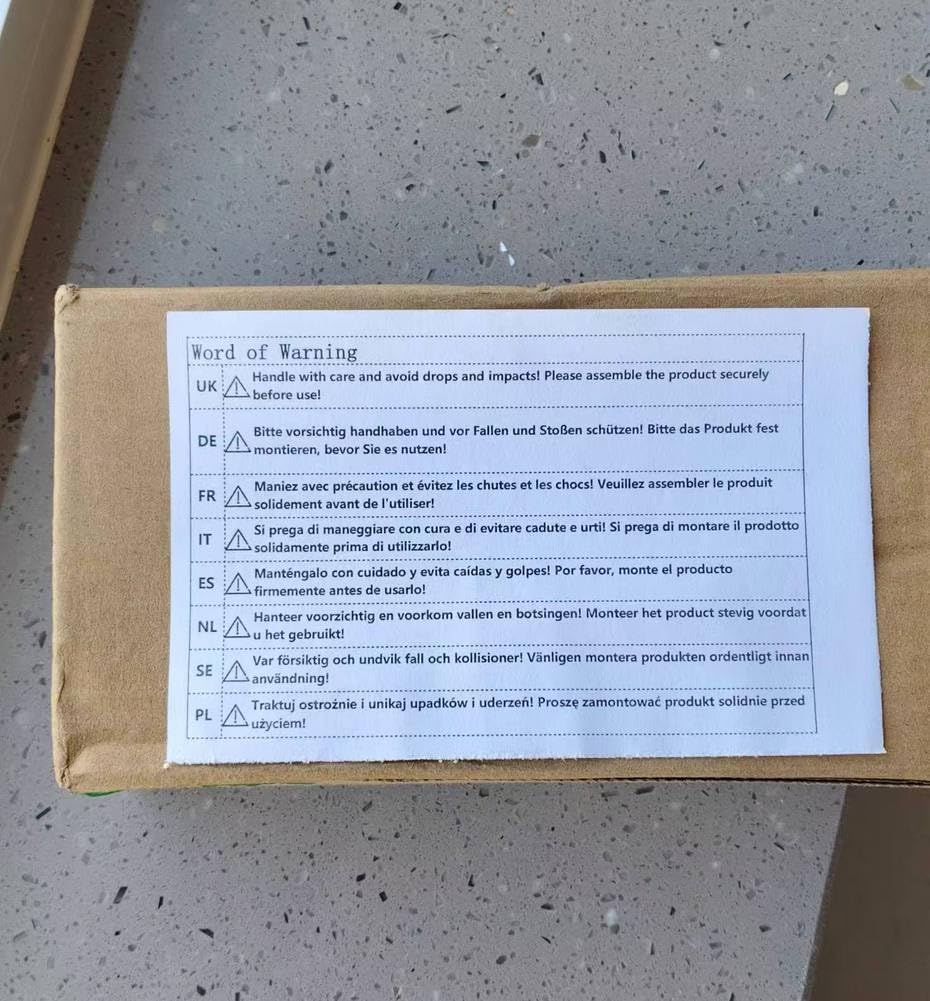
Figure 9.1: A warning label emphasizing the importance of handling the product with care and avoiding drops and impacts. It advises users to securely assemble the product before use, with the message translated into multiple languages including English, German, French, Italian, Spanish, Dutch, Swedish, and Polish.
10. Warranty and Support
CHROX products are designed for reliability and performance. For specific warranty information, please refer to the documentation included with your purchase or contact your retailer. If you require technical assistance or have questions not covered in this manual, please reach out to CHROX customer support through the contact information provided at the point of purchase.