1. Introduction
This manual provides detailed instructions for the setup, operation, maintenance, and troubleshooting of your Womier ERA75 75% Wireless Mechanical Keyboard. Please read this manual thoroughly before using the product to ensure optimal performance and longevity.

Image 1.1: Womier ERA75 75% Wireless Mechanical Keyboard (Y-White variant).
Video 1.1: An overview of the Womier ERA75 75% Wireless Mechanical Keyboard, showcasing its design and features.
2. Package Contents
Verify that all items are present in the package:
- 1 x Womier ERA75 Keyboard
- 1 x User Manual
- 1 x DIY Case Sticker Set
- 3 x Mac-specific Keycaps
- 1 x Tweezer
- 1 x 2-in-1 Keycap & Switch Puller
- 1 x USB-A to USB-C Cable
- Extra Stock Switches
- Extra Replacement Keycaps

Image 2.1: Contents included in the Womier ERA75 keyboard package.
3. Key Features
- Full Aluminum Chassis: Crafted from durable aluminum with a powder-coated finish, featuring diamond-inspired table-cut edges.
- Hot-Swappable Volume Knob and Switches: Allows for easy replacement of the volume knob and 3-pin/5-pin switches. Pre-installed with high-quality POM linear switches.
- 3-Mode Connectivity: Supports wired (USB-C), Bluetooth, and 2.4GHz wireless connections for versatile use across devices.
- VIA/QMK Open-Source Programmability: Customize key remapping, macros, and lighting directly via a web-based configurator.
- Full RGB Backlight: Features 17 built-in lighting effects with real-time customization options through VIA.
- 8000mAh Battery: Provides extended usage in wireless modes.
- DIY Customization: Includes sticker sets for personalizing the keyboard's aesthetic.

Image 3.1: Visual representation of the Womier ERA75's key features, including VIA software, hot-swap switches, volume knob, gasket mount, aluminum case, and tri-mode connection.

Image 3.2: Illustration highlighting the 8000mAh battery capacity and up to 350 hours of usage with the backlight off.
4. Setup
4.1 Wired Connection
- Locate the USB-C port on the keyboard.
- Connect the provided USB-A to USB-C cable to the keyboard and your computer.
- The keyboard will automatically switch to wired mode and begin charging.
4.2 2.4GHz Wireless Connection
- Locate the 2.4GHz USB receiver.
- Plug the USB receiver into an available USB port on your computer.
- On the keyboard, switch the mode selector to 2.4G mode. The keyboard should connect automatically.
4.3 Bluetooth Connection
- On the keyboard, switch the mode selector to BT (Bluetooth) mode.
- The keyboard will enter pairing mode.
- On your device (laptop, tablet, smartphone), open Bluetooth settings and search for available devices.
- Select "Womier ERA75" from the list to pair.

Image 4.1: Diagram illustrating the 3-mode connectivity options (Wired, Bluetooth, 2.4GHz) for the Womier ERA75 keyboard with various devices.
5. Operating Instructions
5.1 Mode Switching
Use the physical switch located on the keyboard to toggle between Wired, 2.4GHz, and Bluetooth modes. Ensure the correct mode is selected for your desired connection type.
5.2 RGB Backlight Control
The Womier ERA75 features a full RGB backlight with 17 built-in lighting effects. You can cycle through these effects using specific key combinations (refer to the included quick start guide for exact keybinds). For advanced customization, use the VIA software.

Image 5.1: The Womier ERA75 keyboard showcasing its vibrant RGB backlight with various effects.
Video 5.2: A demonstration of the pre-lubed POM switches and RGB lighting effects on the Womier ERA75 keyboard.
5.3 Volume Knob Functionality
The hot-swappable volume knob provides convenient media control:
- Clockwise Rotation: Increases volume.
- Counter-clockwise Rotation: Decreases volume.
- Press: Mutes/unmutes audio.

Image 5.3: Detailed view of the hot-swappable volume knob and its functions, alongside the hot-swappable switch sockets.
5.4 VIA/QMK Customization
The ERA75 supports VIA for comprehensive customization. VIA allows you to remap keys, create macros, and adjust lighting settings directly through a web-based interface, eliminating the need for dedicated software installation. For advanced users, open-source QMK firmware is also available for deeper personalization.
- Access the VIA configurator via your web browser.
- Connect your keyboard via USB-C.
- Follow the on-screen instructions to customize key assignments, macros, and RGB effects.

Image 5.4: Screenshot of the VIA software interface for customizing the Womier ERA75 keyboard.

Image 5.5: VIA/QMK open-source support for Mac, Windows, and Linux operating systems.
5.5 Hot-Swappable Switches
The ERA75's hot-swappable PCB allows for easy replacement of mechanical switches without soldering. This enables users to experiment with different switch types to find their preferred typing feel.
- Using the provided switch puller, gently grip the switch and pull it straight up to remove it.
- Align the pins of the new switch with the holes on the PCB.
- Press the new switch firmly into place until it clicks. Ensure the switch is seated correctly and the pins are not bent.
6. Maintenance
- Cleaning: Use a soft, dry cloth to wipe the keyboard surface. For deeper cleaning, remove keycaps and use compressed air to clear debris.
- Keycap Replacement: Use the provided keycap puller to gently remove keycaps. Avoid excessive force to prevent damage.
- Switch Replacement: Follow the instructions in Section 5.5.
- Battery Care: To prolong battery life, avoid fully discharging the keyboard frequently. Charge the keyboard regularly.

Image 6.1: The included DIY sticker sets allow for personalizing the keyboard's appearance. Apply stickers carefully into the sculpted grooves on the case.
7. Troubleshooting
- Keyboard not responding: Ensure the keyboard is properly connected (wired) or paired (wireless). Check the mode switch. Recharge the battery if in wireless mode.
- Bluetooth connection issues: Ensure the keyboard is in Bluetooth pairing mode. Remove the keyboard from your device's Bluetooth list and attempt to re-pair. Try restarting both the keyboard and your device.
- 2.4GHz connection issues: Ensure the USB receiver is securely plugged in. Check the keyboard's mode switch. Try plugging the receiver into a different USB port.
- RGB backlight not working: Check if the backlight is turned off or set to a very low brightness. Use VIA software to diagnose and adjust lighting settings.
- Keys not registering: If specific keys are not working, try replacing the switch for that key (refer to Section 5.5). Ensure the switch is fully seated.
8. Specifications
| Feature | Detail |
|---|---|
| Model | ERA75 |
| Brand | Womier |
| Connectivity Technology | 2.4GHz Wireless, Bluetooth 5.0, USB-C Wired |
| Keyboard Description | 75% Layout Mechanical Keyboard |
| Special Features | Full Aluminum CNC, Hot-Swap Knob, VIA Programmable Macro, Gasket Mounted |
| Color | Y-White |
| Material | Aluminum |
| Switch Type | POM Linear Mechanical Switches (Pre-lubed) |
| Battery | 8000mAh Lithium Polymer (included) |
| Item Weight | 0.317 ounces (Note: This weight seems unusually low for an aluminum keyboard and may be a data entry error. Actual weight is likely higher.) |
| Package Dimensions | 14.45 x 8.03 x 2.91 inches |
| Compatible Devices | Laptop, PC, Tablet, Smartphone, Mac |
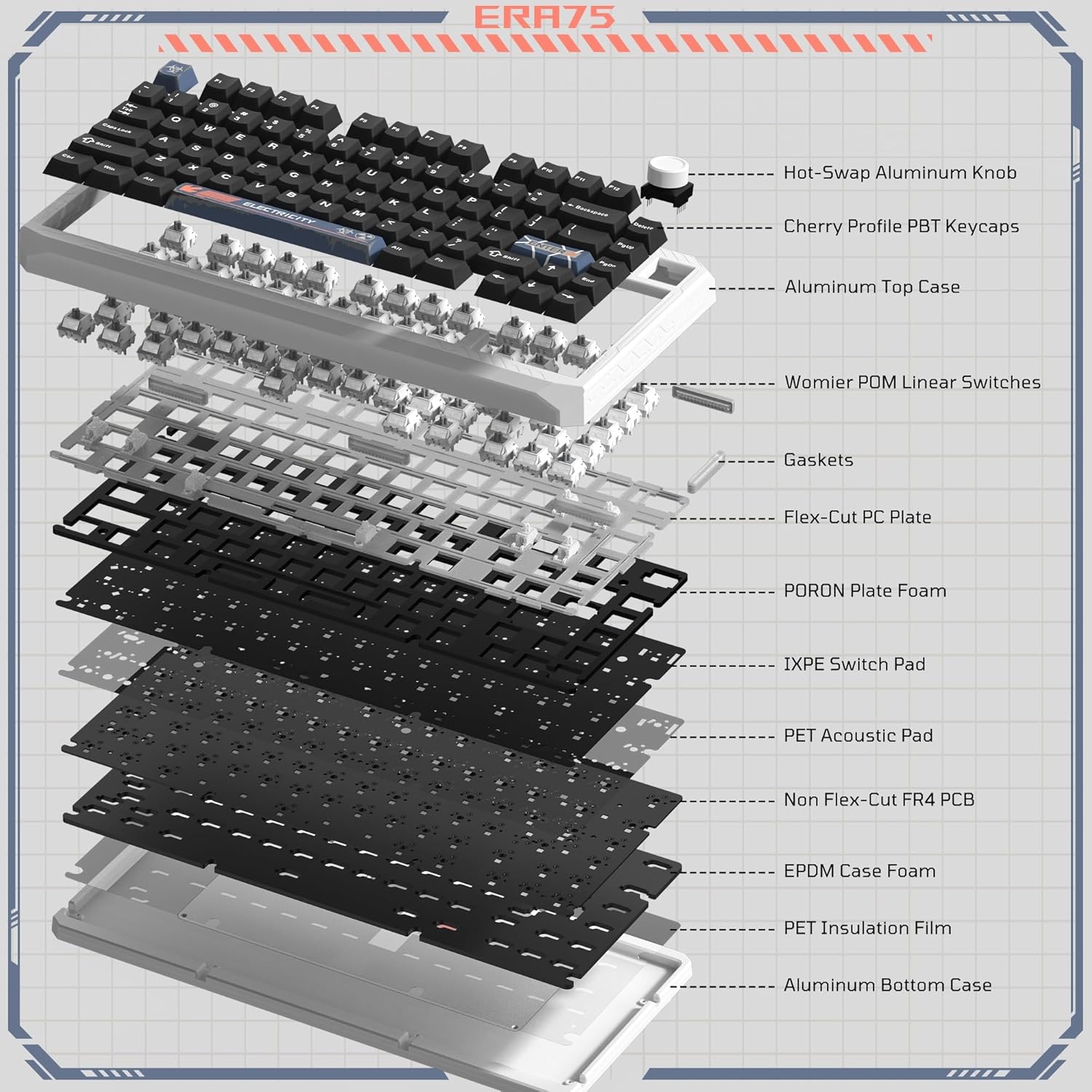
Image 8.1: Exploded view illustrating the internal layers and components of the Womier ERA75 keyboard, including the aluminum case, switches, gaskets, and PCB.

Image 8.2: Technical drawing showing the dimensions of the Womier ERA75 keyboard.
9. Warranty and Support
The Womier ERA75 keyboard comes with a manufacturer's warranty. For specific warranty details, please refer to the warranty card included in your package or visit the official Womier website. For technical support, troubleshooting assistance, or warranty claims, please contact Womier customer service through their official channels.


