
1. Introduction
Thank you for choosing the Gofunly H11 Instant Print Kids Camera. This camera is designed to provide children aged 3-12 with a fun and creative way to capture memories through digital photos, 1080P videos, and instant black and white prints. Please read this manual carefully to ensure proper use and maintenance of the device.
2. Safety Information
- This product is intended for children aged 3 and above. Adult supervision is recommended during use.
- Do not disassemble or attempt to repair the camera yourself. This may void the warranty and cause damage.
- Keep the camera away from water and excessive moisture to prevent electrical shock or malfunction.
- Avoid exposing the camera to extreme temperatures or direct sunlight for prolonged periods.
- Use only the provided USB cable for charging.
- Do not look directly into the LED light when it is active, as it may cause temporary discomfort.
- Ensure printing paper is loaded correctly to prevent jams.
3. What's in the Box
The package includes the following items:
- 1 x Gofunly H11 Instant Print Kids Camera
- 1 x 32GB Memory Card
- 5 x Rolls of Thermal Printing Paper
- 5 x Color Pencils
- 1 x Lanyard
- 1 x USB Charging Cable
- 1 x User Manual

Image: All items included in the Gofunly H11 Instant Print Kids Camera package.
4. Product Overview
The Gofunly H11 camera features a 2.0-inch IPS screen, allowing for clear viewing of photos and videos. It supports 1080P video recording and 12-megapixel photo capture. Key functions include instant black and white printing, timed shooting, burst mode, and various creative filters and frames.
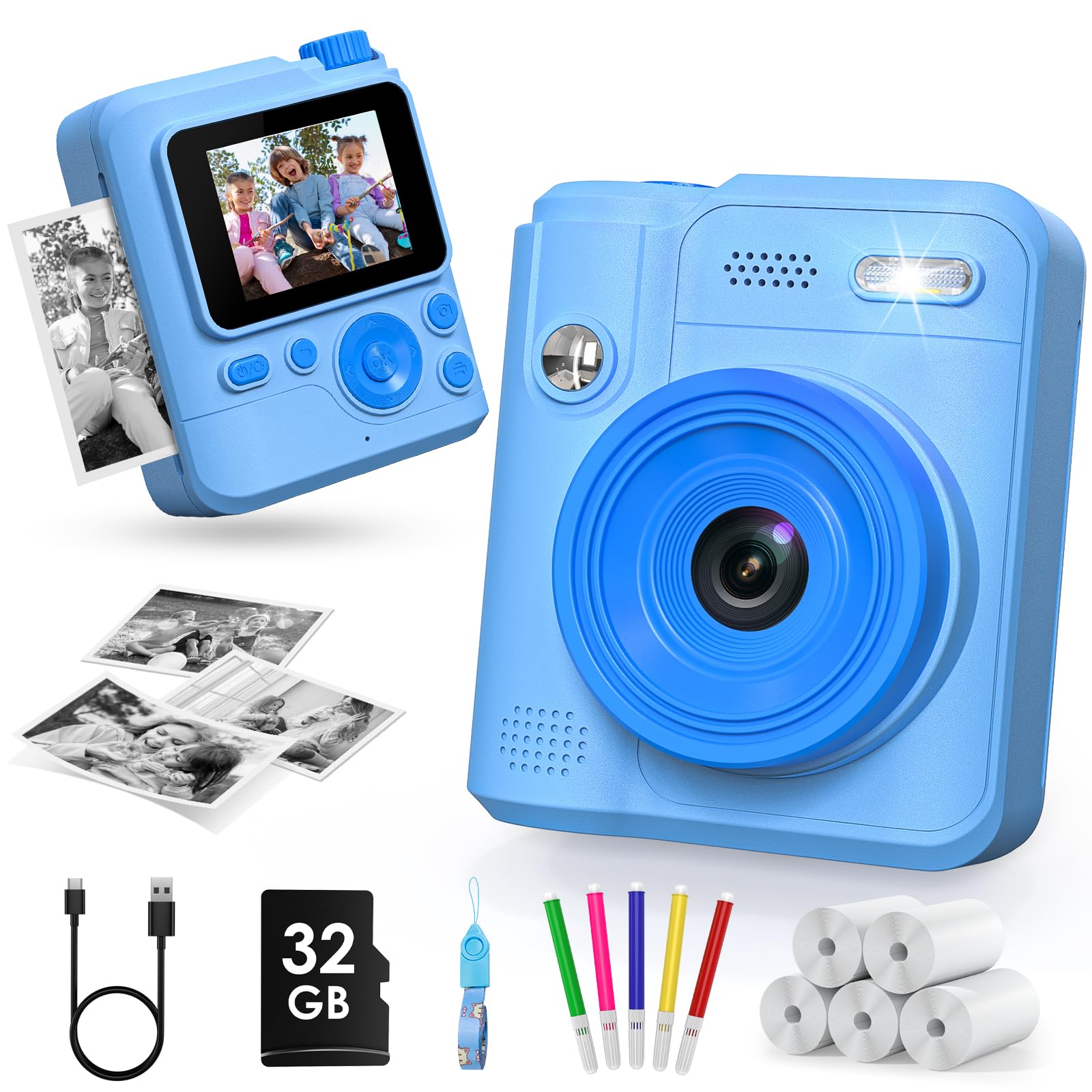
Image: The Gofunly H11 Instant Print Kids Camera.
5. Setup
5.1 Charging the Battery
Before first use, fully charge the camera. Connect the provided USB cable to the camera's charging port and a suitable USB power adapter (not included). The charging indicator will show the charging status and turn off when fully charged. The 1000mAh lithium battery provides several hours of use.
5.2 Inserting the Memory Card
Locate the memory card slot on the side of the camera. Insert the included 32GB SD card into the slot until it clicks into place. Ensure the card is inserted in the correct orientation. The camera supports up to 32GB SD cards.
5.3 Loading Printing Paper
The camera uses ink-free thermal printing paper. Follow these steps to load the paper:
- Push the camera cover to the left or right to open the paper slot as illustrated.
- Place the printer paper inside, ensuring the correct direction.
- Close the paper slot cover to begin printing photos. You can pull out 1-2 cm of paper to prepare for printing.

Image: Instructions for loading printing paper.
5.4 Attaching the Lanyard
Thread the included lanyard through the designated loop on the camera. This helps prevent accidental drops and makes it easier for children to carry the camera.
6. Operating Instructions
6.1 Power On/Off
Press and hold the power button to turn the camera on or off.
6.2 Taking Photos
- Standard Photo: In photo mode, press the shutter button to take a picture.
- Burst Shooting: Activate burst mode in the settings to capture multiple photos in quick succession.
- Timed Shooting: Set a self-timer (3s, 5s, or 10s) in the settings for delayed photo capture.

Image: Demonstrating 1080P video recording, time-lapse, and burst shooting.
6.3 Recording Videos
Switch to video mode and press the record button to start/stop 1080P video recording. The camera supports loop recording, which can be enabled in settings.
6.4 Using Photo Frames and Filters
The camera offers various fun photo frames and filters to enhance creativity. Navigate through the options using the directional buttons and select your preferred frame or filter before taking a photo.

Image: Examples of creative frames and filters.
6.5 Printing Photos
After taking a photo, you can choose to print it instantly. The camera will produce a black and white thermal print. Use the included color pencils to decorate the printed photos.

Image: DIY coloring of instant prints.
6.6 Flashlight Function
The camera is equipped with an LED light that can be used as a flashlight or fill light in low-light conditions. Refer to the camera's interface for activating this feature.

Image: Demonstrating the LED light function.
6.7 Music Playback
The camera supports music playback. Load MP3 files onto the memory card, and use the camera's interface to select and play music.
6.8 Transferring Files
Connect the camera to a computer using the USB cable to transfer photos and videos. Alternatively, remove the SD card and use a card reader (not included) to access files.
7. Maintenance
7.1 Cleaning the Camera
Use a soft, dry cloth to clean the camera body and screen. Do not use liquid cleaners or abrasive materials.
7.2 Battery Care
To prolong battery life, avoid fully discharging the battery frequently. Charge the camera regularly, even if not in use for extended periods.
7.3 Storage
Store the camera in a cool, dry place away from direct sunlight and extreme temperatures when not in use.
7.4 Replacing Printing Paper
When the printing paper runs out, replace it with new thermal paper rolls. Ensure the new roll is compatible with the camera and follow the loading instructions in Section 5.3.
8. Troubleshooting
- Camera does not turn on: Ensure the battery is charged. Connect the camera to a power source and try again.
- Cannot take photos/videos: Check if the memory card is inserted correctly and has sufficient free space.
- Printing issues (no print, paper jam): Verify that the printing paper is loaded correctly and that there is enough paper. Open the paper compartment and re-insert the paper, ensuring it feeds smoothly.
- Poor print quality: Ensure the thermal paper is correctly installed. Print quality for instant cameras is typically black and white and lower resolution than digital images.
- Screen frozen: Try restarting the camera by holding the power button. If unresponsive, allow the battery to fully discharge and then recharge.
9. Specifications
| Feature | Specification |
|---|---|
| Brand | Gofunly |
| Model Name | H11 |
| Max Image Resolution | 12 Megapixels |
| Video Resolution | 1080p (30 FPS) |
| Screen Size | 2.0 Inches (LCD) |
| Special Features | Instant Printing (Ink-free), Timed Shooting, Burst Mode, Filters, Frames |
| Battery Type | Lithium-ion Polymer |
| Battery Capacity | 1000 mAh |
| Memory Card | 32GB SD Card included (Max 32GB supported) |
| Connectivity | USB |
| Self-Timer | 3s, 5s, 10s |
| Digital Zoom | 10x |
| Skill Level | Beginner |
10. Warranty and Support
This Gofunly H11 Instant Print Kids Camera comes with a one-year warranty from the date of purchase. This warranty covers manufacturing defects under normal use. It does not cover damage caused by misuse, accidents, unauthorized modifications, or improper maintenance.
For warranty claims, technical support, or any questions regarding your product, please contact Gofunly customer support through the retailer where you purchased the camera or visit the official Gofunly website for contact information.