
1. Introduction
Thank you for choosing the YFDSPSM Streaming Stick PRO Smart TV Box. This device transforms any television into a smart entertainment hub, offering seamless streaming with advanced features. Powered by a quad-core processor and the Android GTV operating system, it delivers crystal-clear visuals up to 8K resolution and stable connectivity via dual WiFi and Bluetooth 5.0. This manual provides essential information for setup, operation, and maintenance to ensure you get the most out of your device.
2. Safety Information
- Read all instructions carefully before use.
- Keep the device away from water, moisture, and extreme temperatures.
- Do not attempt to disassemble or repair the device yourself. Refer to qualified service personnel.
- Use only the provided power adapter to prevent damage.
- Ensure proper ventilation around the device to prevent overheating.
- Keep out of reach of children.
3. Package Contents
Please check the box for the following items:
- YFDSPSM Streaming Stick PRO Smart TV Box
- Bluetooth Voice Remote Control
- Power Adapter
- HDMI Cable
- User Manual

Image: Package contents of the YFDSPSM Streaming Stick PRO, showing the TV box, remote control, HDMI cable, and power adapter.

Image: Additional view of package contents, highlighting the user manual alongside the TV box, HDMI cable, and power adapter.
4. Product Overview
4.1. Device Layout
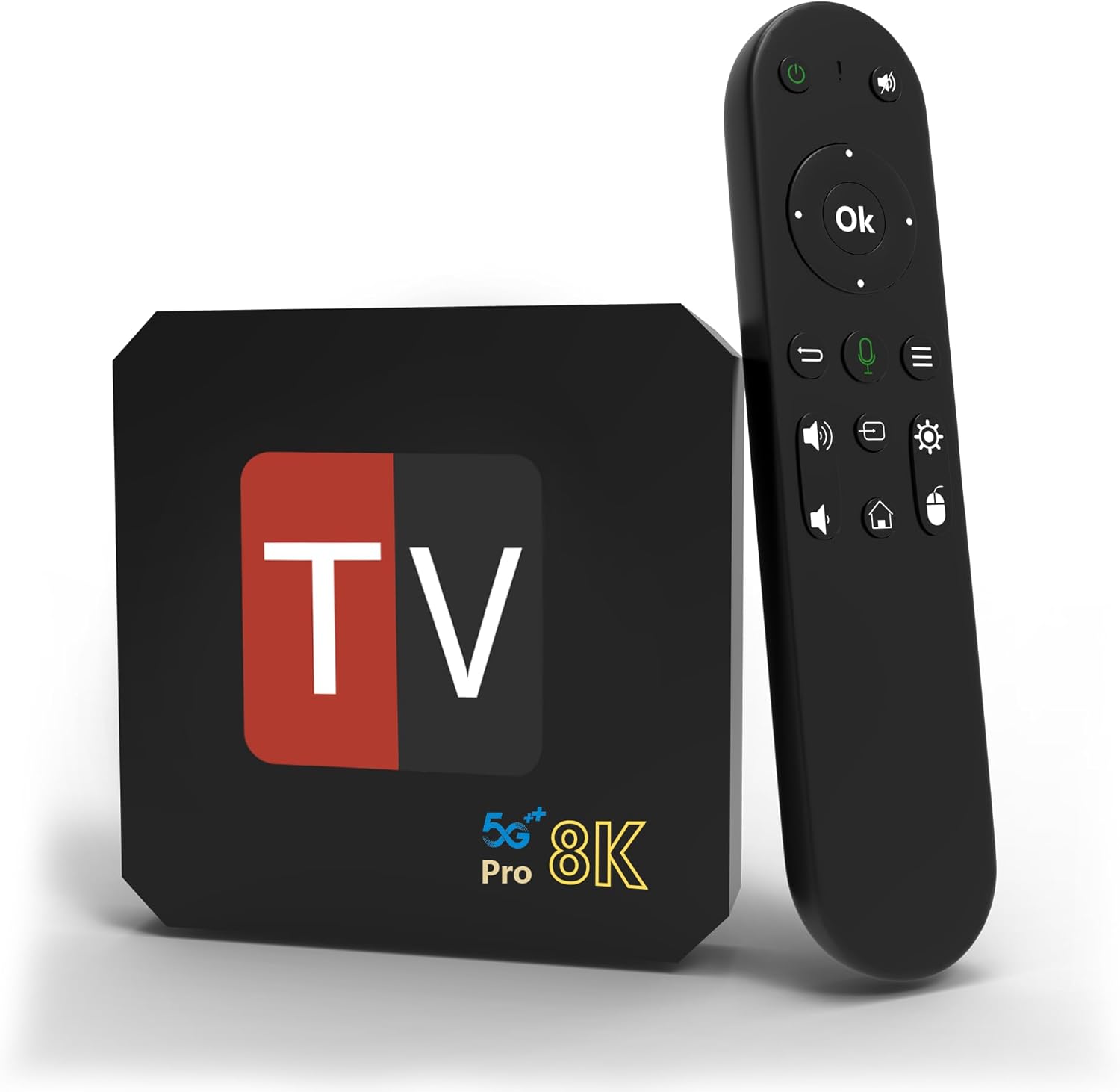
Image: The YFDSPSM Streaming Stick PRO Smart TV Box shown with its accompanying remote control.
The YFDSPSM Streaming Stick PRO is a compact TV box designed to deliver high-performance streaming. It features a powerful quad-core processor, 2GB of RAM, and 16GB of ROM for smooth operation and ample storage for applications and media. The device supports up to 8K resolution for stunning visual clarity.

Image: Visual representation of the TV box's high performance, highlighting 2GB of running space (RAM) and 16GB of storage (ROM).
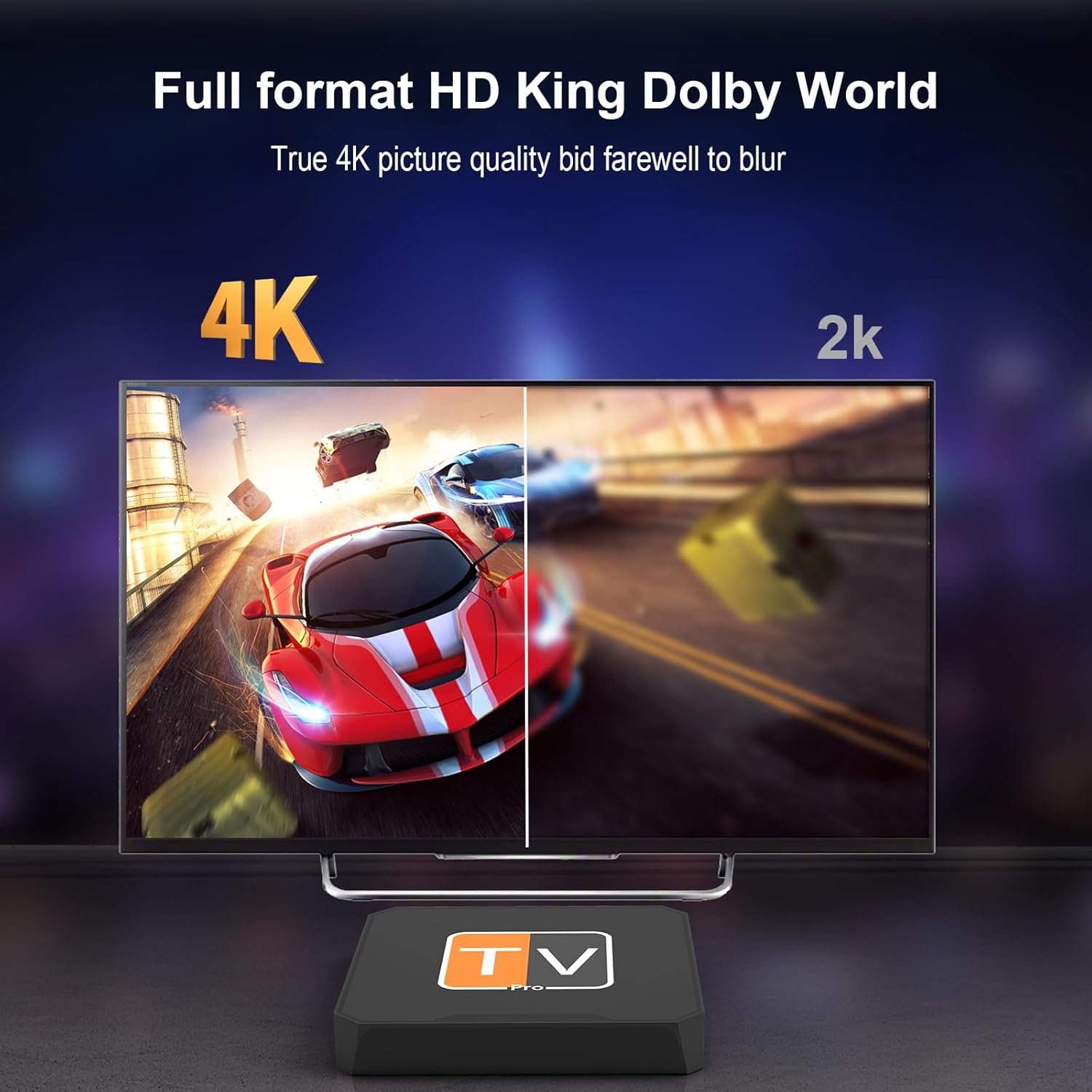
Image: A visual comparison showcasing the difference between 4K and 2K picture quality, emphasizing the enhanced detail provided by 4K resolution, supported by the TV box.
4.2. Ports and Connections
The device is equipped with various ports for versatile connectivity:
- Power Port (DC): For connecting the power adapter.
- HDMI: For connecting to your TV or display.
- USB (x2): For connecting external storage devices or peripherals.
- Memory Card Slot: For expanding storage with a memory card.
- Ethernet (LAN): For wired network connection.
- AV Port: For connecting to older TVs or audio systems.
- SPDIF: For digital audio output.
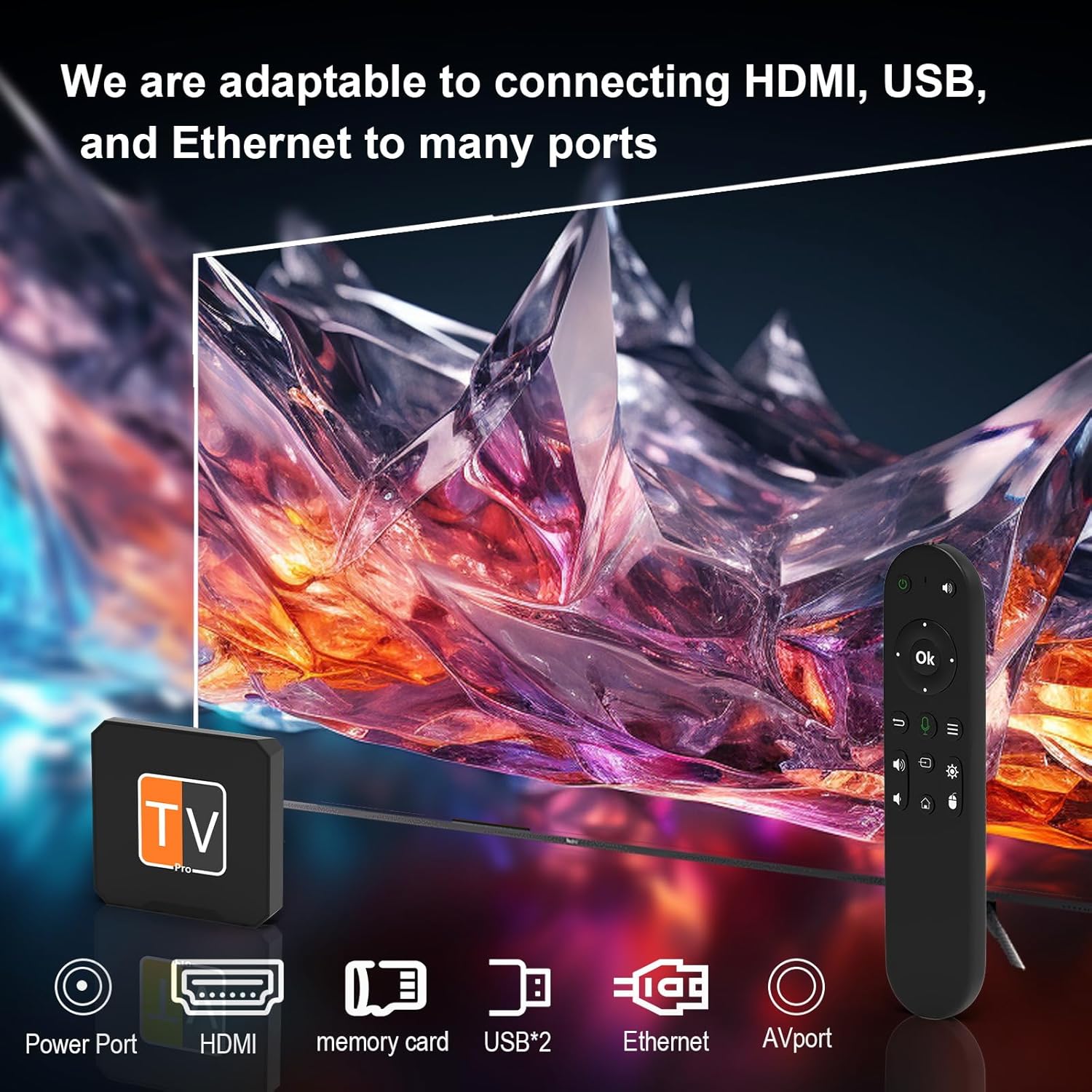
Image: Detailed view of the YFDSPSM Streaming Stick PRO TV box, highlighting its various input/output ports including Power, HDMI, USB, Memory Card, Ethernet, and AV.
4.3. Remote Control
The included Bluetooth 5.0 voice remote control allows for easy navigation and voice commands, enhancing your user experience.
5. Setup
5.1. Physical Installation
- Connect one end of the HDMI cable to the HDMI port on the TV Box and the other end to an available HDMI input on your television.
- Connect the power adapter to the DC power port on the TV Box, then plug the adapter into a power outlet.
- Turn on your television and select the correct HDMI input source using your TV remote.
Video: This video demonstrates the unboxing, physical installation, and initial network connection process for a similar Android TV Box. It shows how to connect the device to a TV via HDMI and power, and how to set up the network.
Video: This video provides an unboxing and installation guide for a similar Android TV Stick. It illustrates the connection steps to a TV and the initial setup of the user interface.
5.2. Initial Configuration
- Once powered on, the device will boot up and display the Android TV logo.
- Follow the on-screen prompts to select your preferred language and region.
5.3. Remote Control Pairing
The Bluetooth voice remote needs to be paired with the TV Box for full functionality:
- Ensure the remote has batteries installed.
- Hold the remote close to the TV Box (within 20cm).
- Press and hold the 'Home' and 'Back' buttons on the remote simultaneously for approximately 10 seconds until the remote's indicator light flashes, then release.
- The TV Box will detect and connect to the remote. A confirmation message will appear on the screen.
5.4. Network Connection
Connect your TV Box to the internet for streaming content:
- From the home screen, navigate to Settings.
- Select Network & Internet.
- Choose your desired Wi-Fi network from the list of available networks.
- Enter the Wi-Fi password using the on-screen keyboard and select Connect.
- Alternatively, connect an Ethernet cable to the LAN port on the TV Box for a wired connection.
6. Operating Instructions
6.1. Navigation
Use the directional pad (D-pad) and the 'OK' button on your remote control to navigate through the Android GTV interface. The 'Home' button returns you to the main screen, and the 'Back' button allows you to go back to the previous screen.
6.2. App Usage
The TV Box comes with pre-installed apps like YouTube and Prime Video. You can install additional applications from the Google Play Store:
- From the home screen, navigate to the 'Apps' section or select the '+' icon to add a new app to your favorites.
- Select the Google Play Store icon.
- Browse or search for your desired applications.
- Select an app and choose Install to download and install it on your device.
6.3. Voice Control
The Bluetooth voice remote allows you to use voice commands for searching content, controlling playback, and more:
- Press the dedicated Voice Assistant button (usually a microphone icon) on your remote.
- Speak your command clearly into the remote. For example, "Open Netflix" or "Search for action movies."
7. Maintenance
- Cleaning: Use a soft, dry cloth to clean the device. Do not use liquid cleaners or aerosols.
- Software Updates: The device may receive periodic software updates. Ensure your device is connected to the internet to receive these updates, which improve performance and add new features. You can check for updates in the Settings menu.
- Storage Management: Regularly clear cache and uninstall unused apps to maintain optimal performance.
8. Troubleshooting
| Issue | Possible Cause | Solution |
|---|---|---|
| No power/Device not turning on | Power adapter not connected, faulty outlet. | Ensure power adapter is securely connected to the device and a working power outlet. Try a different outlet. |
| No signal on TV | Incorrect HDMI input selected, loose HDMI cable. | Verify the TV is on the correct HDMI input. Check HDMI cable connections at both ends. Try a different HDMI port or cable. |
| Remote control not responding | Batteries low/dead, remote not paired. | Replace remote batteries. Re-pair the remote control following the instructions in Section 5.3. |
| Wi-Fi connection issues | Incorrect password, router issues, device too far from router. | Double-check Wi-Fi password. Restart your router. Move the TV Box closer to the router or use a wired Ethernet connection. |
| Apps crashing or slow performance | Insufficient memory, app issues, outdated software. | Clear app cache (Settings > Apps > [App Name] > Clear Cache). Restart the device. Check for system and app updates. |
9. Specifications
| Feature | Detail |
|---|---|
| Brand | YFDSPSM |
| Model Number | SF20250914B0FGCPZYNL |
| Operating System | Android GTV |
| Processor | Quad-core |
| RAM | 2 GB |
| ROM (Storage) | 16 GB |
| Resolution Support | Up to 8K (Video Output Resolution: 3840 Pixels, commonly known as 4K) |
| Connectivity | Dual Wi-Fi (2.4G & 5G), Bluetooth 5.0, Ethernet |
| Supported Internet Services | Netflix, Hulu, Amazon Prime Video, YouTube, etc. |
| Form Factor | TV Box |
| Item Weight | 12 ounces (0.34 Kilograms) |
| Product Dimensions | 3.5 x 1 x 3.5 inches |
| Compatible Devices | Television |
10. Warranty & Support
Your YFDSPSM Streaming Stick PRO Smart TV Box comes with a standard manufacturer's warranty. Please refer to the warranty card included in your package for specific terms and conditions.
For technical support, troubleshooting assistance, or warranty claims, please contact YFDSPSM customer service through the retailer where you purchased the product or visit the official YFDSPSM website for contact information.