1. Product Overview
The Hwagol Smart Watch is designed to integrate health monitoring, fitness tracking, and communication features into a single device. It is compatible with both Android and iOS smartphones.

Image: Hwagol Smart Watch, featuring a gold-plated finish and a mesh band. The watch face displays the time, date, battery level, and basic health metrics.
2. Setup and Initial Pairing
2.1. Device Activation and App Installation
- Ensure your Hwagol Smart Watch is charged.
- Turn on the watch. A QR code may appear for app download.
- On your smartphone, enable the Bluetooth function.
- Download the 'GloryFit' application from the Google Play Store (for Android) or the Apple App Store (for iOS).
- Open the 'GloryFit' app and follow the on-screen instructions to create an account or log in.
- Within the app, navigate to the 'Device' section and select 'Add Device'.
- The app will search for nearby devices. Select 'M6' (or the corresponding device name) to initiate pairing.
- Confirm the pairing request on both your smartphone and the smart watch.

Image: Visual guide demonstrating the steps to connect the smart watch, including enabling Bluetooth, downloading the GloryFit app, and adding the device.
2.2. Enabling Bluetooth Call Function
- After initial pairing, swipe right on your watch screen to access the sub-menu.
- Tap the call icon to enter the call function interface.
- Ensure 'Audio mode' is enabled on the watch.
- On your smartphone, go to 'Settings' and then 'Bluetooth'.
- Locate 'M6' (or the device name) in the list of paired devices and ensure it is connected for calls. If not, tap to connect.

Image: Step-by-step visual for activating the Bluetooth call feature, showing watch and phone settings.
3. Operating Instructions
3.1. Bluetooth Call and Message Notifications
Once connected, the smart watch allows you to manage calls and receive notifications directly on your wrist.
- Answering/Refusing Calls: When a call comes in, you can answer or refuse it directly from the watch screen.
- Call Dialing: Access the dial pad or contacts list on the watch to make outgoing calls.
- Message Alerts: Receive notifications from various apps (e.g., SMS, social media) on your watch. Note: Replying to messages directly from the watch is not supported.
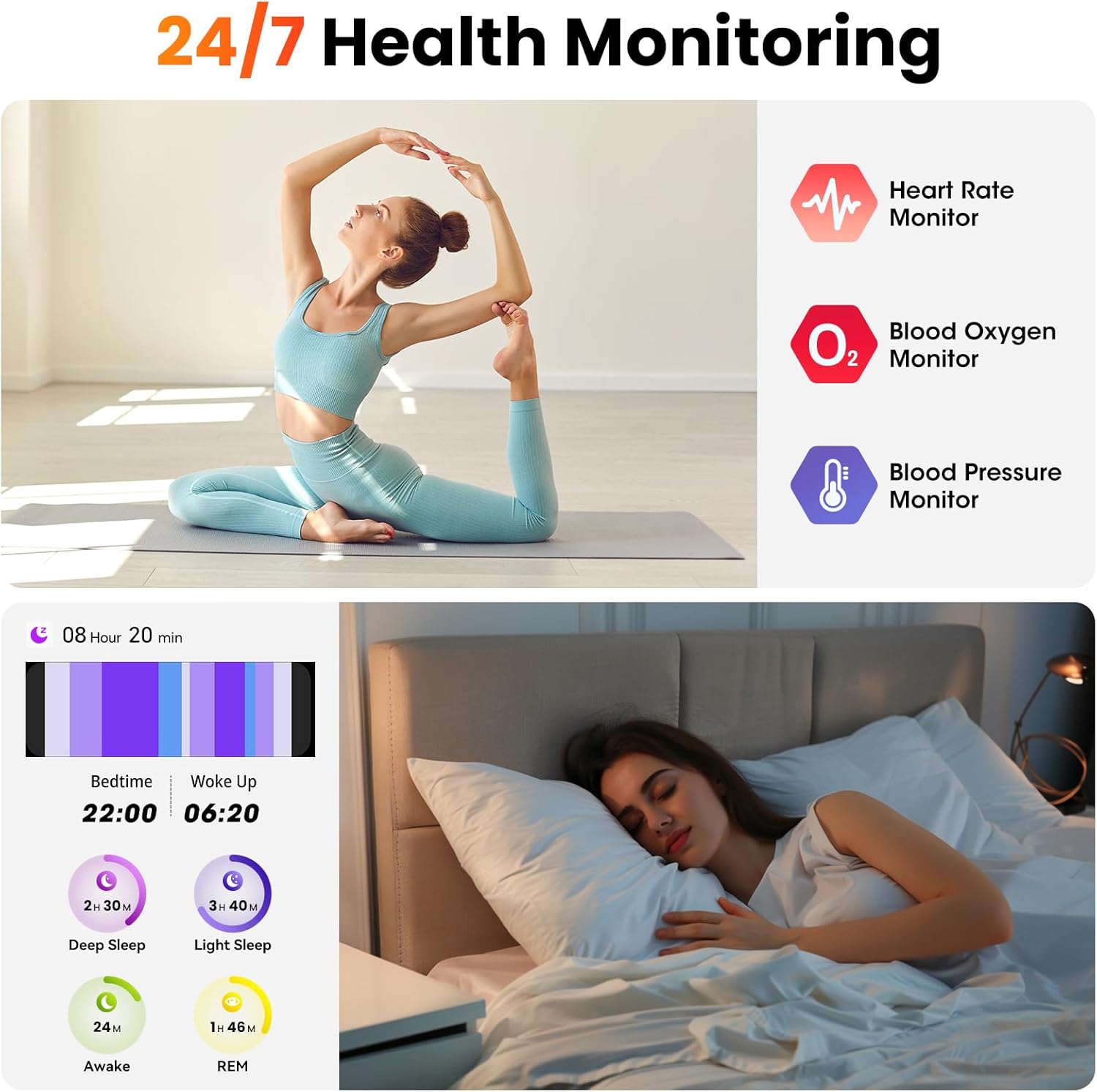
Image: The smart watch screen showing an incoming call with options to answer or decline, alongside icons for call dial and contacts.
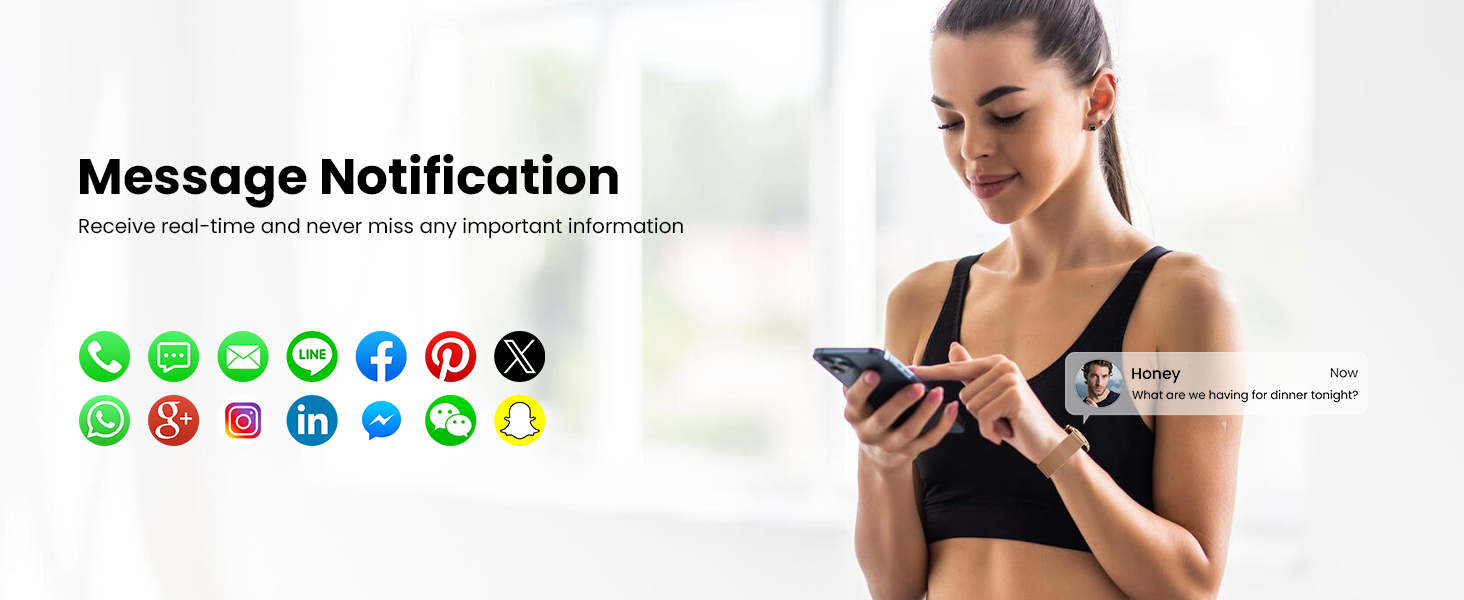
Image: A user viewing a message notification on their smartphone, illustrating the type of alerts the watch can display from various applications.
3.2. Health Monitoring
The watch provides continuous monitoring of several key health metrics. Data is for reference only and should not be used for medical purposes.
- Heart Rate: Tracks your heart rate throughout the day.
- Blood Oxygen (SpO2): Monitors your blood oxygen saturation levels.
- Sleep Tracking: Analyzes sleep patterns, including deep sleep, light sleep, and awake times.
- Steps, Calories, Distance: Records daily activity levels.

Image: A visual representation of the watch's 24/7 health monitoring capabilities, showing icons for heart rate, blood oxygen, and sleep tracking.

Image: The smart watch screen showing blood oxygen data, including a graph of SpO2 levels over time and the current percentage.
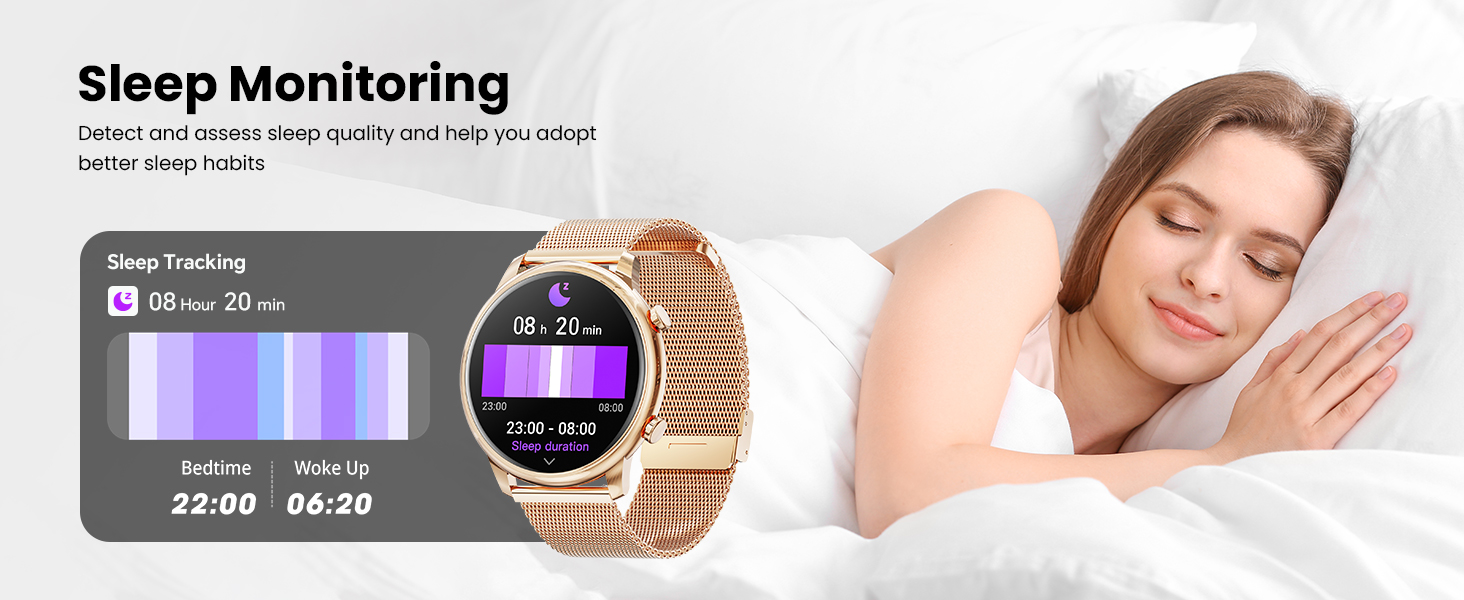
Image: The smart watch screen illustrating sleep monitoring data, detailing bedtime, wake-up time, and the breakdown of sleep stages.
3.3. Sports Modes
The watch supports over 100 sports modes to accurately track various physical activities.
- Select your desired sport mode from the watch menu to begin tracking.
- The watch records data such as heart rate, calories burned, steps, and distance during your workout.
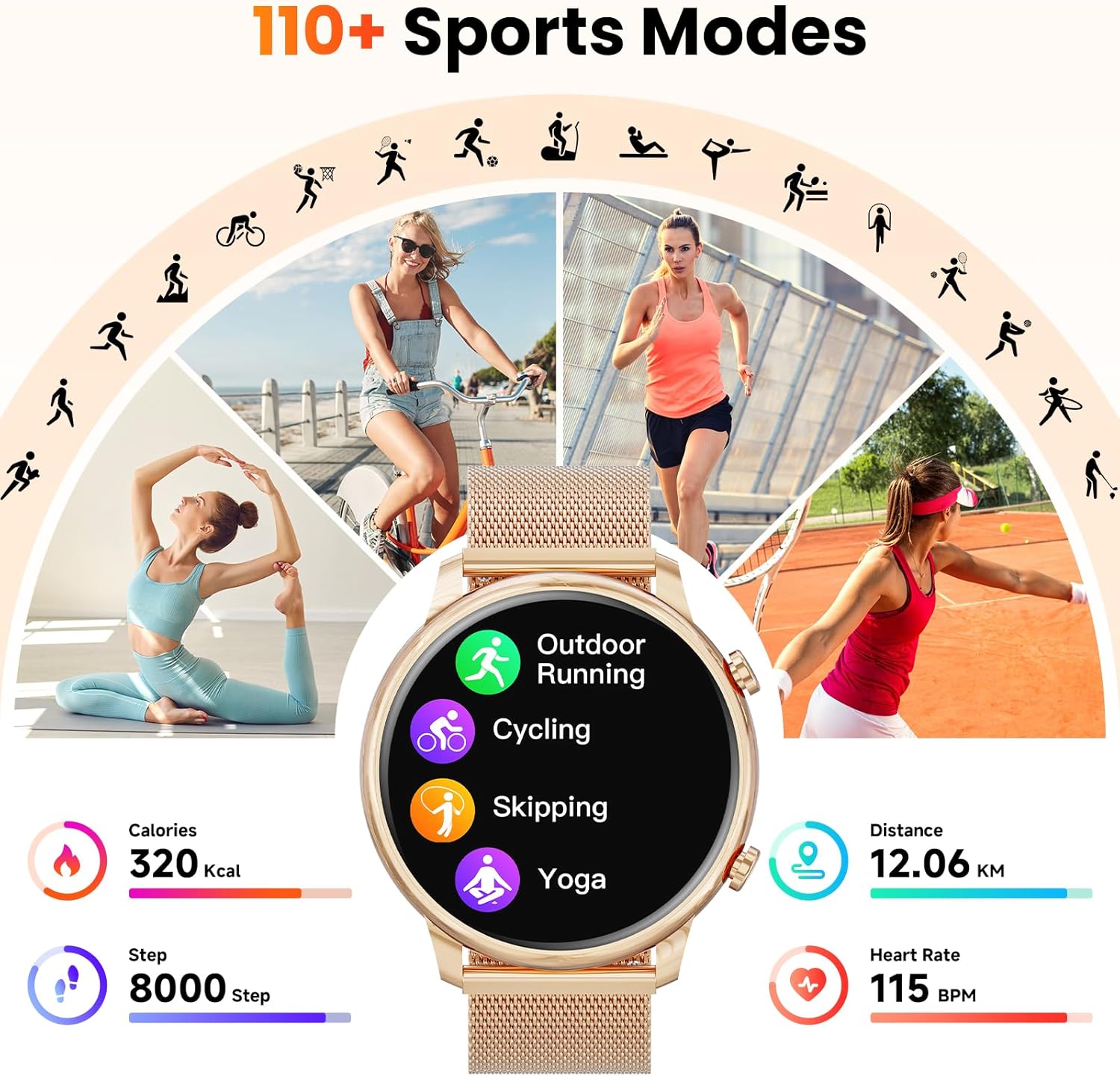
Image: The smart watch interface showing a selection of sports modes, including outdoor running, cycling, skipping, and yoga, with associated activity metrics.
3.4. Customization
Personalize your watch with a variety of watch faces.
- The 1.39-inch TFT HD touch screen allows for clear display of watch faces.
- Choose from hundreds of pre-designed watch faces or create your own using photos from your smartphone via the GloryFit app.
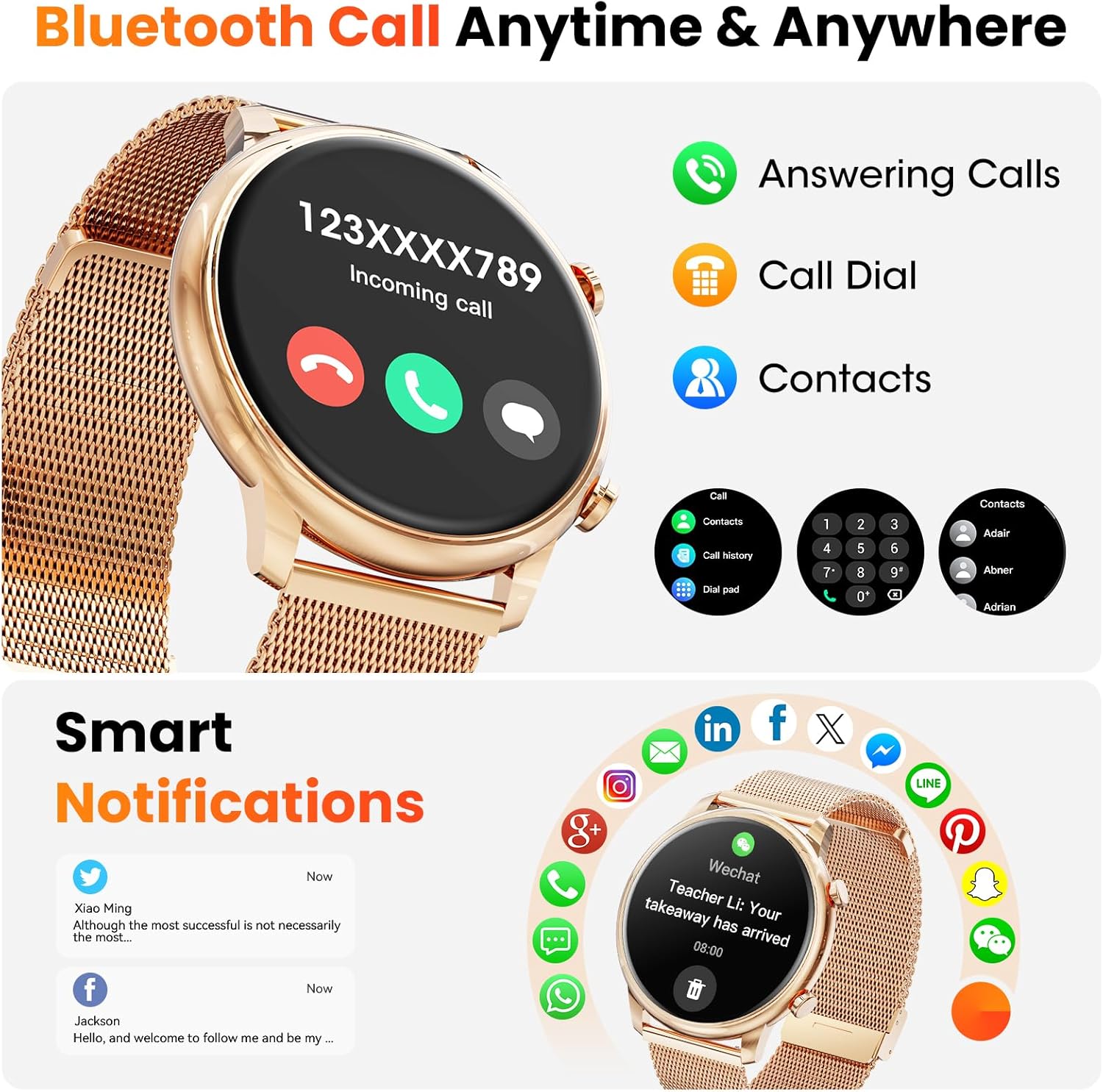
Image: The smart watch showcasing a customizable watch face, surrounded by several other design options, highlighting the 1.39-inch TFT HD touch screen.
3.5. Female Function
The watch includes a dedicated feature for tracking menstrual cycles.
- Record and predict menstrual periods and ovulation cycles.
- Receive reminders and insights related to your physiological cycle.
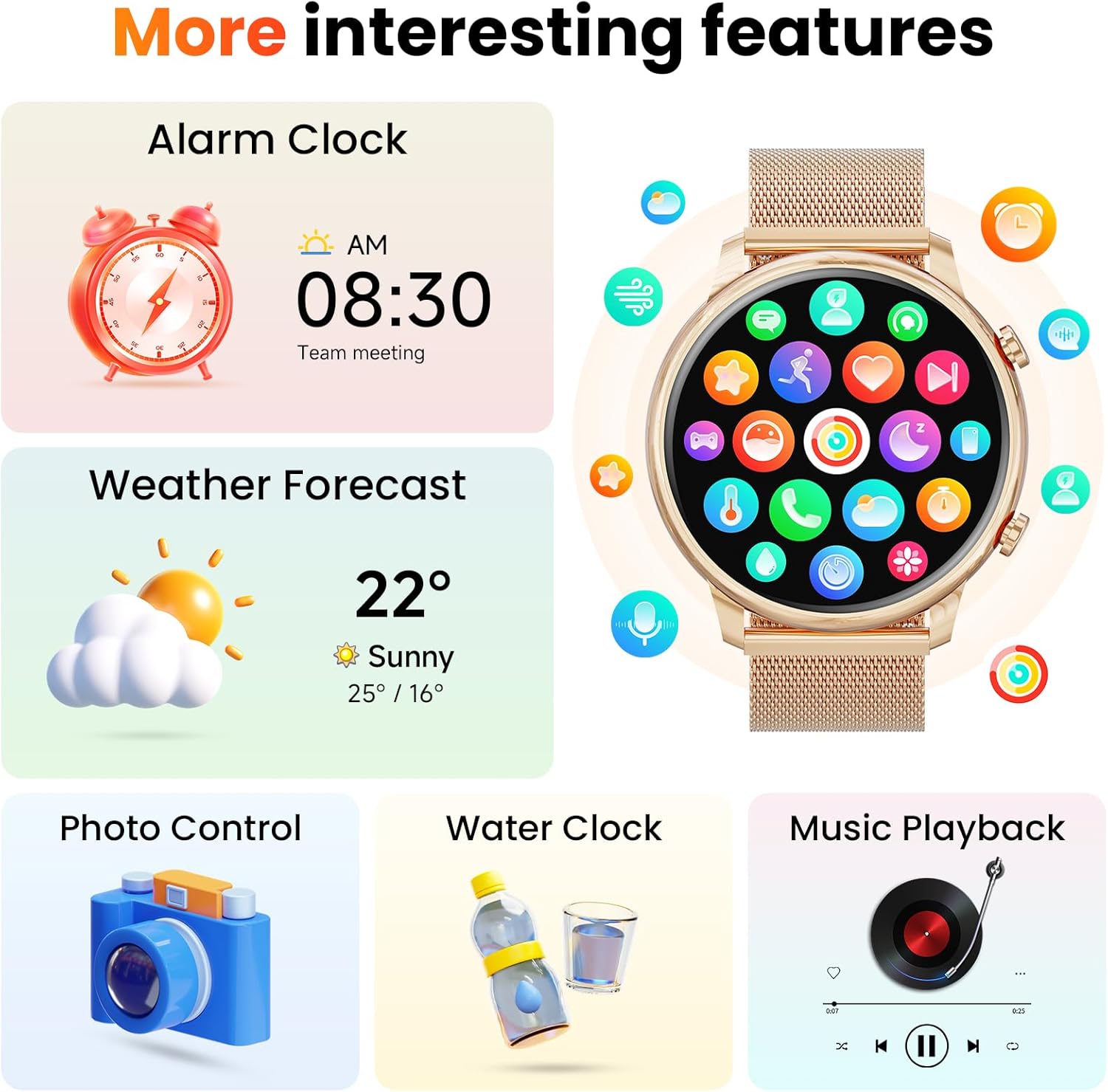
Image: The smart watch screen showing the 'Intimate Female Mode' interface, which tracks and predicts menstrual and ovulation periods.
3.6. Other Features
The Hwagol Smart Watch offers additional functionalities for daily convenience:
- Alarm Clock: Set alarms directly from your watch.
- Weather Forecast: View current weather conditions and forecasts.
- Photo Control: Remotely control your smartphone camera.
- Music Playback: Control music playing on your smartphone.
- Voice Assistant: Access your smartphone's voice assistant.
- Water Clock: Reminders to drink water.
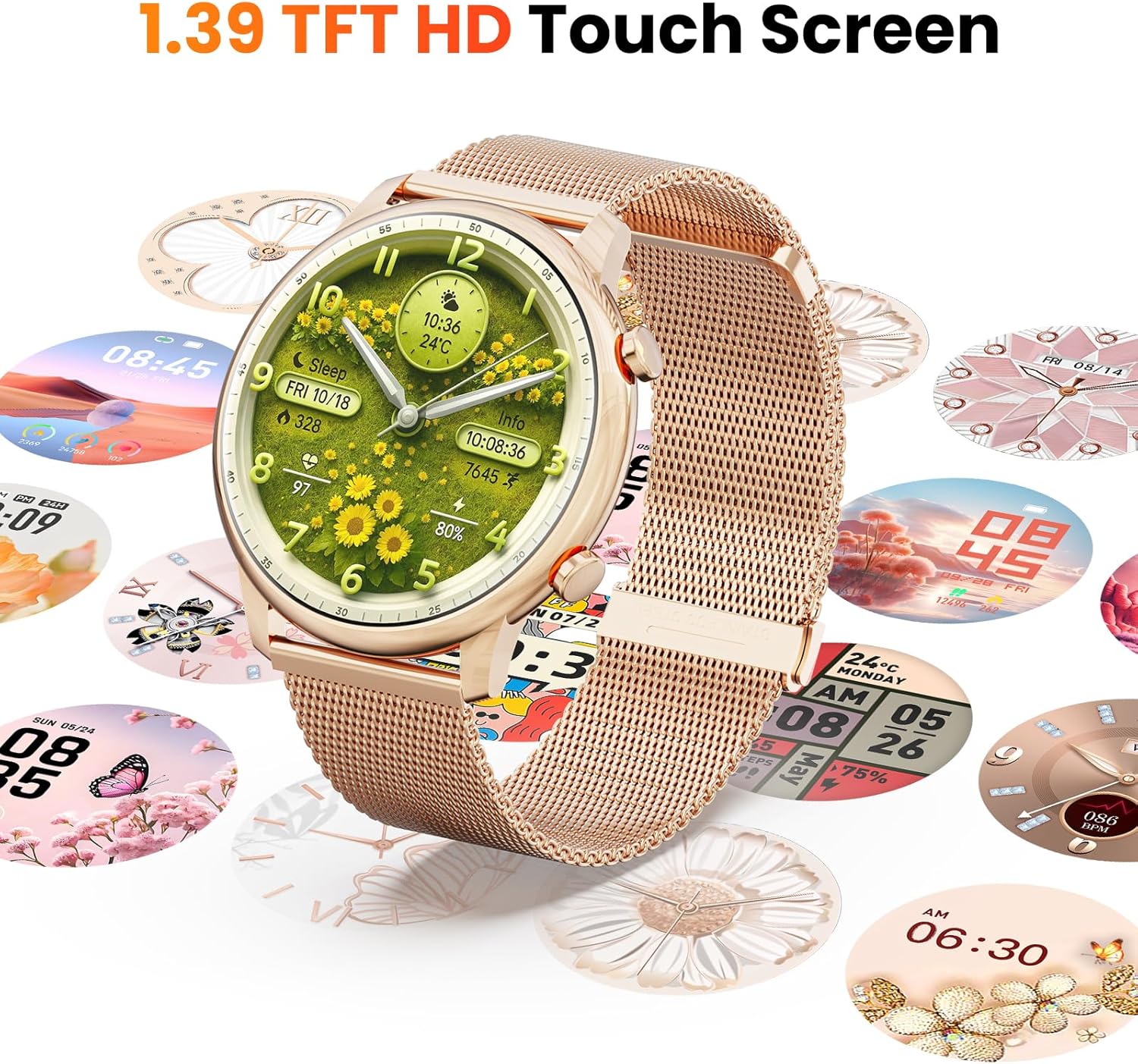
Image: The smart watch interface showcasing various additional features such as alarm clock, weather forecast, photo control, water clock, and music playback.
4. Maintenance
4.1. Charging
- Use the provided charging cable to charge the watch.
- A full charge typically takes approximately 2 hours.
- The 250mAh battery provides up to 1 week of use under typical conditions. Heavy feature usage may shorten battery life.
4.2. Water Resistance
- The watch features an IP67 water-resistant design.
- This rating means it is protected from dust and can withstand immersion in water up to 1 meter for 30 minutes.
- Avoid prolonged exposure to hot water, steam, or high-pressure water jets.
4.3. Cleaning
- Wipe the watch and band regularly with a soft, dry cloth.
- If necessary, use a slightly damp cloth for cleaning, then dry thoroughly.
- Avoid using harsh chemicals or abrasive materials.
5. Troubleshooting
- Watch not turning on: Ensure the watch is fully charged. Connect it to the charger and wait a few minutes before attempting to power it on again.
- Cannot pair with smartphone:
- Ensure Bluetooth is enabled on your smartphone.
- Make sure the watch is within Bluetooth range of your phone.
- Restart both the watch and your smartphone.
- Clear the Bluetooth cache on your phone (if applicable) and try pairing again.
- Call function not working:
- Verify that the 'Audio mode' is enabled on the watch (refer to Section 2.2).
- Check your smartphone's Bluetooth settings to ensure the watch is connected for calls (often listed as a separate connection or profile).
- Inaccurate health data: Ensure the watch is worn snugly on your wrist, but not too tight. Clean the sensor on the back of the watch regularly.
- Short battery life: Reduce the use of power-intensive features such as continuous heart rate monitoring, frequent screen wake-ups, or excessive notifications. Adjust screen brightness.
6. Specifications
| Feature | Detail |
|---|---|
| Model Number | 607601938086 |
| Brand | Hwagol |
| Screen Size | 1.39 inches |
| Display Type | TFT HD Touch Screen |
| Connectivity | Bluetooth |
| Operating System Compatibility | Android 5.0+ / iOS 11+ |
| Battery Capacity | 250 mAh |
| Water Resistance Rating | IP67 |
| Item Weight | 5.3 ounces |
| Package Dimensions | 6.5 x 2.87 x 0.98 inches |
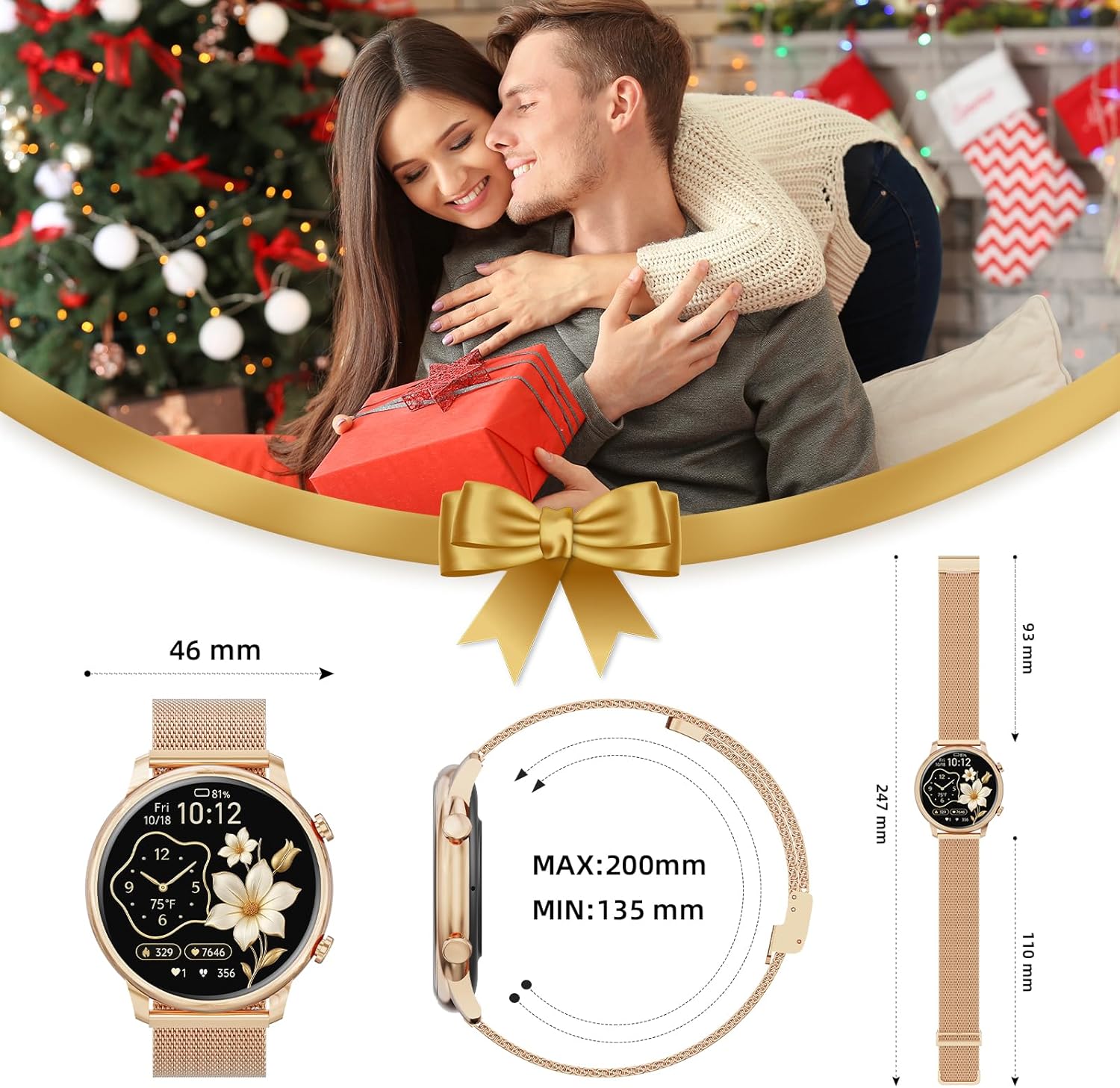
Image: A diagram illustrating the physical dimensions of the smart watch, including the watch face diameter and band length.
7. Warranty and Support
For any product issues or support inquiries, please contact the seller's customer service directly. Specific warranty details may vary and should be confirmed with the seller at the time of purchase.


