
1. Introduction
The DOOGEE U11 tablet features the latest Android 16 operating system, enhanced with Gemini AI for intelligent interactions. It boasts an 11-inch 90Hz display, a powerful Unisoc T606 8-core processor, 16GB of RAM, and 128GB of internal storage expandable up to 2TB. A robust 8580mAh battery ensures extended usage. This manual provides essential information for setting up, operating, maintaining, and troubleshooting your DOOGEE U11 tablet.

Figure 1.1: DOOGEE U11 Tablet Overview
2. Setup
2.1 Unboxing and Initial Inspection
Carefully unpack your DOOGEE U11 tablet and verify that all components are present:
- DOOGEE U11 Tablet
- USB Type-C Cable
- Charger
- SIM Eject Pin
- User Manual
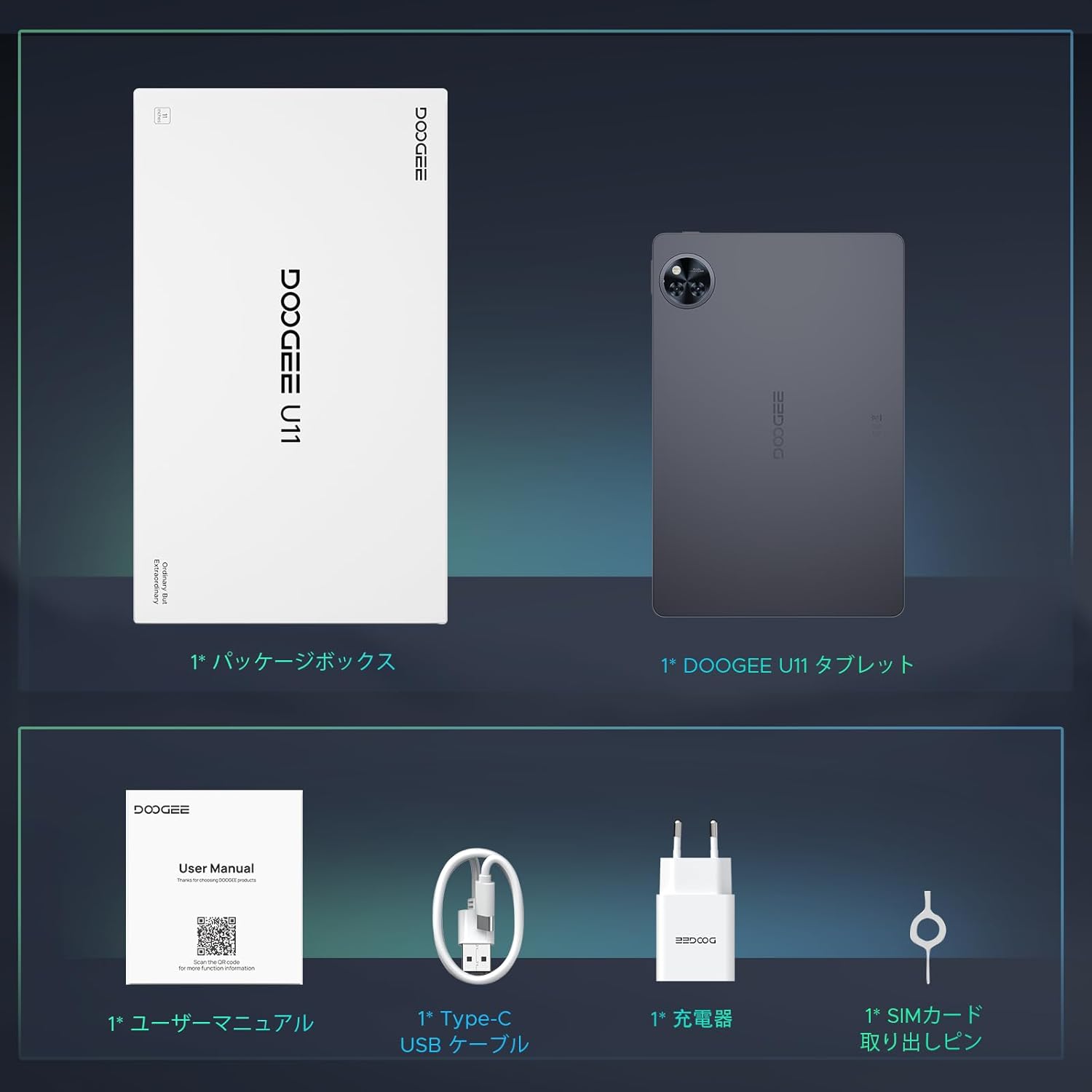
Figure 2.1: Package Contents
2.2 Charging the Device
Before first use, fully charge your tablet. Connect the USB Type-C cable to the tablet's charging port and the charger. Plug the charger into a power outlet. The tablet supports Type-C charging.
2.3 Powering On/Off
- To Power On: Press and hold the power button located on the side of the tablet until the DOOGEE logo appears.
- To Power Off: Press and hold the power button, then select "Power off" from the on-screen options.
2.4 Inserting a MicroSD Card
To expand storage, you can insert a MicroSD card (up to 2TB, sold separately):
- Locate the card tray on the side of the tablet.
- Use the provided SIM eject pin to gently push into the small hole on the tray until it pops out.
- Place the MicroSD card into the designated slot on the tray, ensuring correct orientation.
- Carefully push the tray back into the tablet until it is flush with the device body.
2.5 Initial Setup Wizard
Upon first power-on, follow the on-screen instructions to complete the initial setup:
- Select your preferred language.
- Connect to a Wi-Fi network.
- Set up your Google account or skip for later.
- Configure basic settings such as date, time, and screen lock.
3. Operating Instructions
3.1 Android 16 Operating System
The DOOGEE U11 runs on the latest Android 16, offering significant improvements in security, productivity, and user experience. Enjoy features like dynamic notifications and desktop window mode for enhanced multitasking capabilities.

Figure 3.1: Android 16 System Features
3.2 Gemini AI Integration
Leverage the power of next-generation Gemini AI for intelligent interactions. Gemini AI supports high-precision information retrieval and generative AI functions, expanding how you use your tablet.
- Content Creation: Generate text, images, and other creative content.
- Image Analysis: Understand and interpret visual information.
- Code Development: Assist with programming tasks.
- Language Learning Support: Enhance your language studies.
- Smart Assistant Functions: Get help with daily tasks and queries.
- Information Search & Summary: Quickly find and summarize information.

Figure 3.2: Gemini AI Capabilities
3.3 Display and Audio
The 11-inch Incell TDDI display features a 1280x800 resolution and a 90Hz high refresh rate for smooth visuals. With a 16:10 aspect ratio and 178-degree IPS wide viewing angle, it provides an excellent viewing experience. Dual speakers deliver immersive stereo sound. Widevine L1 certification enables high-quality streaming from services like Netflix, Amazon Prime Video, Disney+, and Hulu.

Figure 3.3: 11-inch 90Hz HD IPS Display

Figure 3.4: Widevine L1 and Dual Speakers
3.4 Connectivity
The DOOGEE U11 supports dual-band 2.4G/5G Wi-Fi for stable and high-speed internet access. Bluetooth 5.0 ensures fast and reliable wireless connections to peripherals. It also includes GPS, Beidou, Galileo, and Glonass for accurate navigation.

Figure 3.5: Connectivity and Security Features
3.5 Camera Functions
Capture clear photos and videos with the 13MP rear camera and take selfies or video calls with the 5MP front camera.

Figure 3.6: Camera Features
3.6 Security and Privacy
The tablet supports face recognition for quick and secure unlocking. Android 16 introduces new protection modes to enhance your security and privacy with a single touch.
3.7 Advanced Features
- Wireless Projection: Easily cast your tablet's screen to a larger display for presentations or entertainment.
- WPS Office: Pre-installed WPS Office suite for document creation and editing.
- Multi-user System: Create and manage multiple user profiles for different users.
- App Cloning: Run multiple instances of the same application, useful for managing separate accounts.

Figure 3.7: App Cloning Function
- Game Space: Optimize tablet performance for a smoother gaming experience, maintaining high frame rates without lag.

Figure 3.8: Game Space for Enhanced Gaming
4. Maintenance
4.1 Battery Care
The DOOGEE U11 is equipped with an 8580mAh battery. To maximize battery lifespan, avoid exposing the tablet to extreme temperatures and prevent frequent complete discharge cycles. Regular, moderate charging is recommended.

Figure 4.1: 8580mAh Battery Life
4.2 Cleaning
Use a soft, lint-free cloth to clean the tablet's screen and body. Avoid using abrasive materials or harsh chemical cleaners, as they may damage the device's surfaces.
4.3 Software Updates
Regularly check for and install system updates to ensure your tablet has the latest features, security patches, and performance optimizations. You can usually find this option in the tablet's Settings menu under "System" or "About tablet".
4.4 Storage Management
Your tablet comes with 128GB of internal storage. Utilize the MicroSD card slot to expand storage up to 2TB for photos, videos, and applications. Regularly review and delete unnecessary files to maintain optimal performance.

Figure 4.2: Storage and Memory
5. Troubleshooting
This section addresses common issues you might encounter with your DOOGEE U11 tablet.
- Device Not Powering On:
Ensure the battery is charged. Connect the tablet to the charger and wait a few minutes before attempting to power it on again. If the issue persists, try holding the power button for an extended period (10-15 seconds). - Slow Performance:
Close unnecessary background applications. Clear the cache from frequently used apps in Settings > Apps. If performance remains slow, consider a factory reset (back up all important data first). - Wi-Fi Disconnection Issues:
Ensure you are within range of the Wi-Fi router. Restart both your Wi-Fi router and the tablet. In the tablet's Wi-Fi settings, "forget" the problematic network and then reconnect. Check for tablet software updates. - Screen Responsiveness:
If the screen feels slow or unresponsive, ensure no heavy applications are running in the background. Restarting the device can often resolve temporary slowdowns. - Apps Crashing:
Clear the cache and data for the problematic app via Settings > Apps. If the issue continues, uninstall and then reinstall the app. Ensure the tablet's operating system is up to date.
6. Specifications
Detailed technical specifications for the DOOGEE U11 tablet:
| Feature | Specification |
|---|---|
| Brand | DOOGEE |
| Model Name | U11 |
| Operating System | Android 16 |
| Screen Size | 11 inches |
| Display Resolution | 1280x800 pixels |
| CPU Brand | Unisoc |
| CPU Speed | 1.6 GHz |
| CPU Type | 8-core (Unisoc T606) |
| RAM | 16GB (4GB physical + 12GB virtual) |
| Internal Storage | 128GB |
| Expandable Storage | Up to 2TB via MicroSD card |
| Battery | 8580mAh Lithium-ion |
| Front Camera | 5 MP |
| Rear Camera | 13 MP |
| Connectivity | Wi-Fi (2.4G/5G), Bluetooth 5.0 |
| Dimensions | 33.1 x 19 x 3.7 cm |
| Weight | 880 g |
| Color | Gray |
| Special Features | Gemini AI, 90Hz Refresh Rate, Widevine L1, GPS, Face Recognition, USB Type-C, 3.5mm Headphone Jack |
7. Warranty and Support
7.1 Warranty Information
The DOOGEE U11 tablet comes with a 1-year warranty from the date of purchase, covering manufacturing defects. Please retain your proof of purchase for warranty claims.
7.2 Customer Support
For any technical assistance, questions, or support needs, DOOGEE offers 24/7 customer service. Please refer to the contact information provided with your product packaging or visit the official DOOGEE website.
7.3 Online Manual and Resources
For the most up-to-date information, additional guides, and FAQs, please visit the official DOOGEE U11 series manual online:


