
Introduction
Thank you for choosing the RebotAi A11 Android Tablet. This manual provides essential information for setting up, operating, and maintaining your device. Please read it carefully to ensure optimal performance and longevity of your tablet.
Package Contents
Upon unboxing, please verify that all items listed below are included:
- RebotAi A11 Tablet Unit
- Type-C Cable
- Charging Adapter (PD20W compatible)
- SIM Card Pin
- Japanese Instruction Manual (Please refer to this English manual for detailed instructions)

Image: Contents of the RebotAi A11 tablet package.
Setup
1. Initial Charging
Before first use, fully charge your RebotAi A11 tablet using the provided Type-C cable and PD20W charging adapter. Connect the Type-C cable to the tablet's charging port and the adapter to a power outlet. The charging indicator will show the charging status.

Image: RebotAi A11 tablet being charged with the USB-PD 20W adapter.
2. Power On/Off
- To Power On: Press and hold the Power button located on the side of the tablet until the RebotAi logo appears on the screen.
- To Power Off: Press and hold the Power button until a power-off menu appears. Select "Power Off" and confirm.
- To Restart: From the power-off menu, select "Restart".
3. Initial Setup Wizard
Upon first power-on, the tablet will guide you through an initial setup process. Follow the on-screen prompts to configure:
- Language: Select your preferred language.
- Wi-Fi Connection: Connect to a Wi-Fi network. The tablet supports dual-band 2.4GHz and 5GHz Wi-Fi (802.11ac).
- Google Account: Sign in with your Google account or create a new one to access Google services like Google Play Store.
- Date & Time: Set the correct date and time.
- Security: Set up a screen lock (PIN, pattern, password, or face recognition).
Operating Instructions
Display and Visual Experience
The RebotAi A11 features an 11-inch 2.5K IPS display with a resolution of 2560x1600. Its In-Cell technology enhances color accuracy and visibility. With 450 nits brightness, the screen is clear both indoors and outdoors. It supports 10-point multi-touch.

Image: The RebotAi A11 tablet showcasing its high-resolution display with vivid colors.
The tablet is Widevine L1 certified, allowing you to stream 1080P high-quality content from platforms like Netflix, Amazon Prime Video, Disney+, and Hulu. It also supports wireless projection to TVs or monitors for a larger viewing experience.
Performance and Storage
Powered by the MediaTek Helio G100 processor (MT8781), the A11 tablet offers smooth performance for daily tasks, social media, video playback, and various AI applications. It features 24GB RAM (8GB physical + 16GB virtual) and 128GB internal storage, expandable up to 1TB via a microSD card.

Image: Key specifications of the RebotAi A11 tablet, including processor, memory, and storage.
Battery Management
The tablet is equipped with an 8200mAh battery, providing extended usage for reading, online classes, video watching, and work. It supports 20W PD fast charging for quick power replenishment.

Image: The RebotAi A11 tablet's large 8200mAh battery and 20W PD fast charging capability.
Connectivity and Sensors
The A11 supports high-speed 5G Wi-Fi (802.11ac) and Bluetooth 5.2 for stable and fast connections. It includes a 6-axis gyroscope for precise control in games, GPS for accurate navigation (supporting Beidou, Galileo, and GLONASS), a light sensor for automatic brightness adjustment, and a gravity sensor for screen rotation.
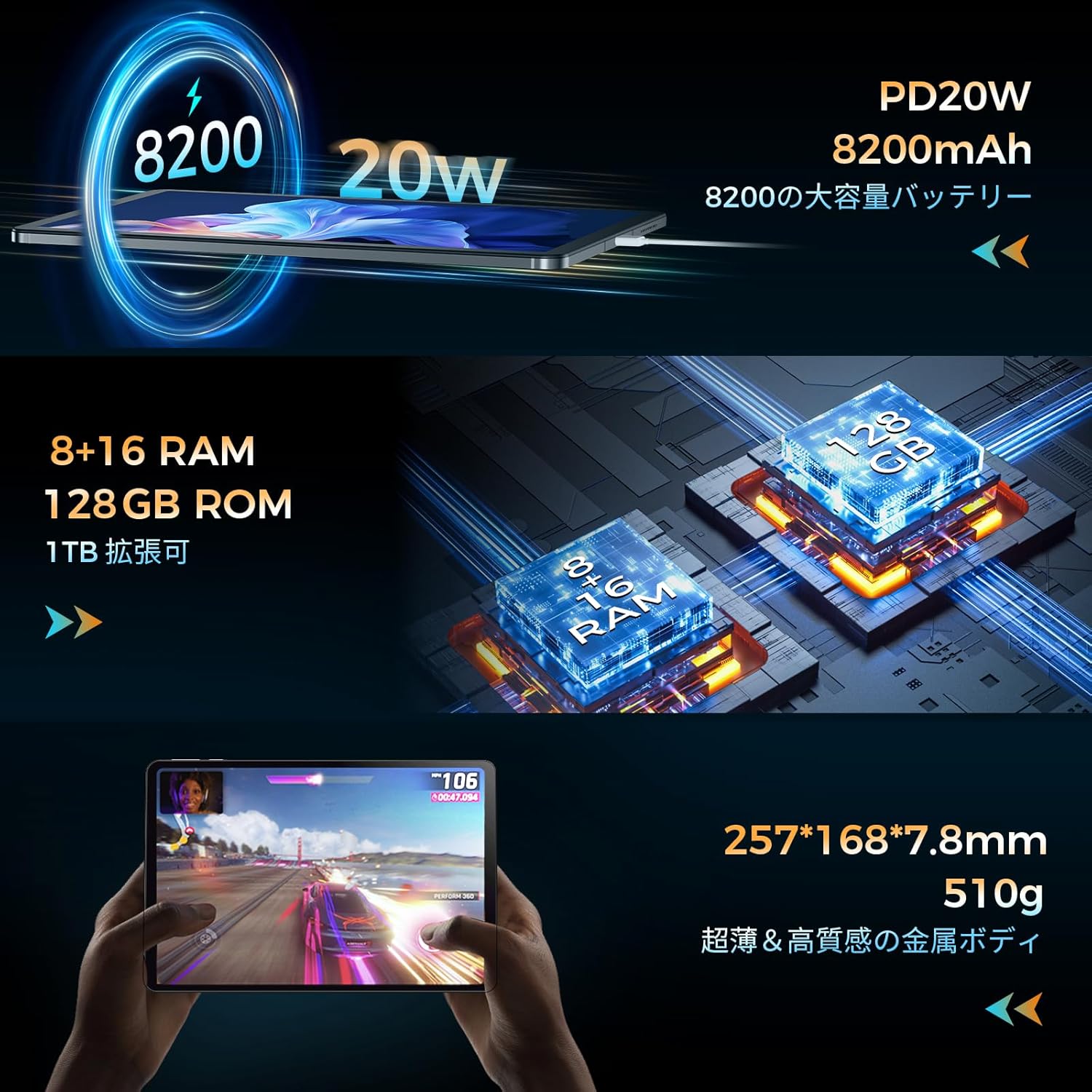
Image: Connectivity options and sensors of the RebotAi A11 tablet.
Camera Functionality
The tablet features a 16MP autofocus rear camera and a 5MP front camera. These cameras are suitable for taking photos, video calls, and scanning QR codes.
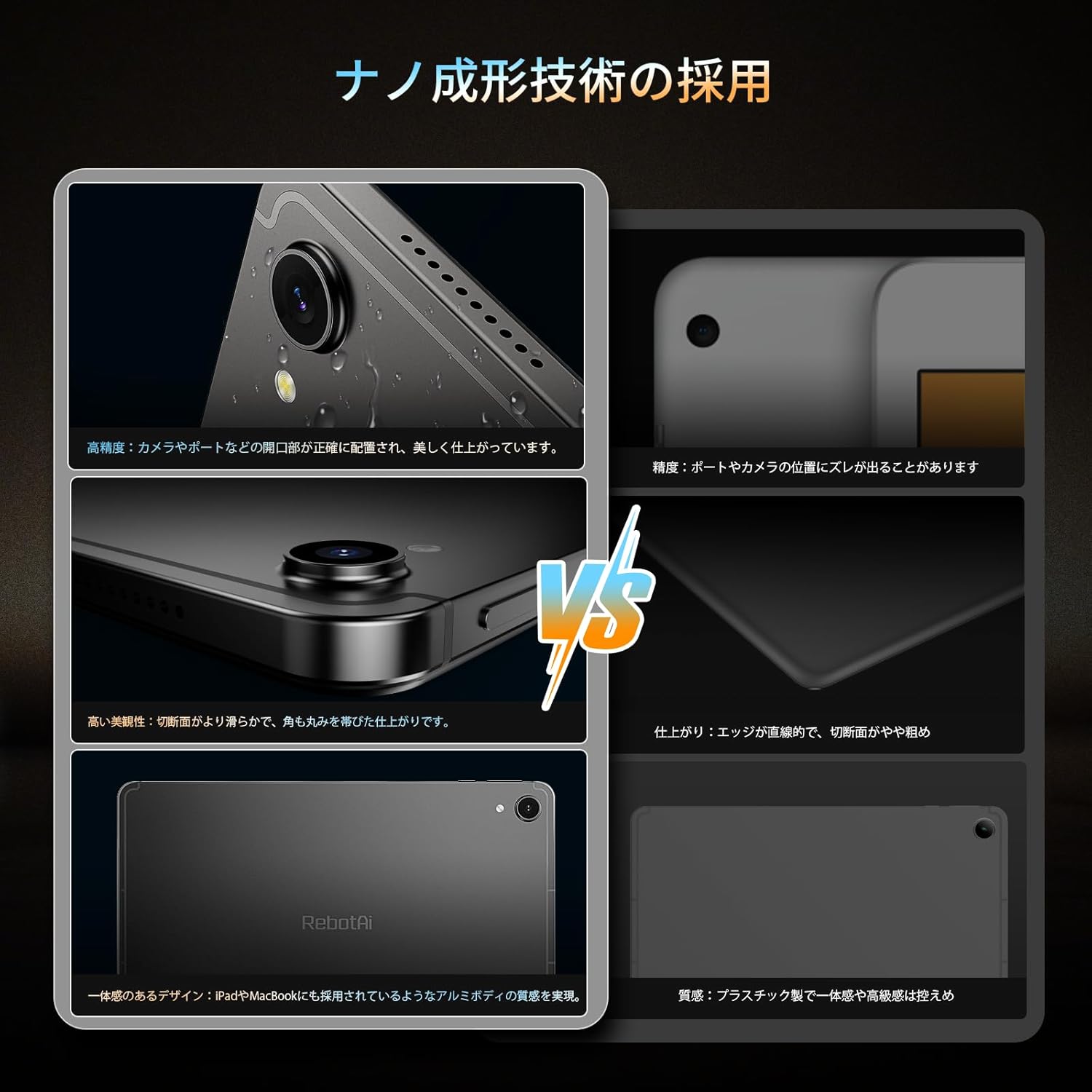
Image: Detailed view of the RebotAi A11 tablet's camera system.
Audio
Equipped with dual BOX speakers, the A11 delivers clear and powerful stereo sound, enhancing your movie and music experience.
AI Features
With GMS certification and the Helio G100 processor, the tablet supports various AI applications available on Google Play, including ChatGPT, Gemini, Notion AI, Canva, Lensa AI, and Microsoft Copilot, facilitating tasks like translation, content generation, creative design, photo editing, and smart business operations.

Image: The RebotAi A11 tablet's interface displaying various AI applications.
Maintenance
Cleaning the Tablet
- Use a soft, lint-free cloth to gently wipe the screen and body of the tablet.
- For stubborn smudges, slightly dampen the cloth with water or a screen cleaner specifically designed for electronics.
- Avoid using harsh chemicals, abrasive cleaners, or aerosol sprays directly on the tablet.
Battery Care
- Avoid exposing the tablet to extreme temperatures (hot or cold), as this can degrade battery life.
- Do not leave the tablet fully charged or completely drained for extended periods.
- Use only the provided charger or a certified compatible charger.
General Care
- Protect the screen from scratches by using a screen protector (if not pre-applied) and a protective case.
- Avoid dropping the tablet or subjecting it to strong impacts. The nano-metal body offers durability, but extreme force can still cause damage.
- Keep the tablet away from liquids and excessive dust.
Troubleshooting
Tablet Not Powering On
- Ensure the battery is charged. Connect the tablet to the charger and wait a few minutes before attempting to power on again.
- Press and hold the Power button for at least 10-15 seconds to perform a forced restart.
Wi-Fi Connection Issues
- Check if Wi-Fi is enabled in the tablet's settings.
- Restart your Wi-Fi router and the tablet.
- Ensure you are within range of the Wi-Fi signal.
- Verify the Wi-Fi password is correct.
Slow Performance
- Close unnecessary background applications.
- Clear cache data for frequently used apps.
- Ensure sufficient storage space is available. Delete unused apps or files.
- Restart the tablet periodically.
Widevine L1/L3 Display Issue
Some units (approximately 10) may incorrectly display Widevine L3 instead of L1 due to a manufacturing defect in the coding process, preventing 1080P high-quality video playback. If you encounter this issue, please contact customer support immediately for a resolution.
Screen Flickering or Unresponsive Touch
- Restart the tablet.
- Ensure the screen is clean and free from moisture or debris.
- If the issue persists, contact customer support.
Specifications
| Feature | Detail |
|---|---|
| Brand | RebotAi |
| Model Name | A11 |
| Operating System | Android 15 |
| Processor | MediaTek Helio G100 |
| RAM | 24 GB (8GB physical + 16GB virtual) |
| Internal Storage | 128 GB |
| Expandable Storage | Up to 1 TB (microSD) |
| Screen Size | 11 inches |
| Display Resolution | 2560x1600 pixels (2.5K) |
| Display Type | IPS LED, In-Cell, TDDI Full Lamination |
| Max Brightness | 450 nits |
| Aspect Ratio | 16:9 |
| Rear Camera | 16 MP (Autofocus) |
| Front Camera | 5 MP |
| Battery Capacity | 8200 mAh (30.14 Wh) |
| Charging | 20W PD Fast Charging (Type-C) |
| Wi-Fi | 5G Wi-Fi (802.11ac), Dual-band 2.4GHz/5GHz |
| Bluetooth | Bluetooth 5.2 |
| Sensors | 6-axis Gyroscope, Gravity Sensor, Light Sensor, Hall Sensor, Proximity Sensor |
| Navigation | GPS (Beidou, Galileo, GLONASS, A-GPS) |
| Audio | Dual BOX Speakers, 3.5mm Headphone Jack |
| Dimensions (L x W x H) | 25.7 x 16.7 x 0.78 cm |
| Weight | 900 grams |
| Body Material | Nano-metal integrated body |
| Certifications | PSE, TELEC, GMS |
| Additional Features | Widevine L1, USB OTG, Wireless Projection, Face Recognition |
Warranty and Support
The RebotAi A11 tablet comes with a 12-month warranty. This product has obtained all necessary certifications for Japan, including PSE (Electrical Appliance and Material Safety Law), TELEC (Radio Law), and GMS (Google Official Certification).
If you have any questions or encounter any issues with the product, please do not hesitate to contact us. We strive to provide prompt and sincere support to ensure your satisfaction.
How to Contact Support:
- Go to your Amazon account.
- Navigate to "Order History".
- Select the relevant order for this product.
- Click on "Contact Seller".
Alternatively, on the product page, click the store name below the "Add to Cart" button, then click "Ask a Question" in the upper right corner to send an email.
Support Hours: Replies within 24 hours (10 AM - 5 PM JST, excluding holidays).

Image: Graphic illustrating product warranty and support details.


