
1. Introduction
This manual provides detailed instructions for the LG Magic Remote, model MR25JP.AJL. The Magic Remote offers an intuitive way to control your LG Smart TV with motion sensing, voice commands, and a convenient scroll wheel. Please read this manual thoroughly before using the product to ensure proper operation and to maximize your viewing experience.
2. Product Overview
The LG Magic Remote MR25JP.AJL is designed for ease of use and advanced control. Below is an image of the remote control with a description of its key buttons and functions.
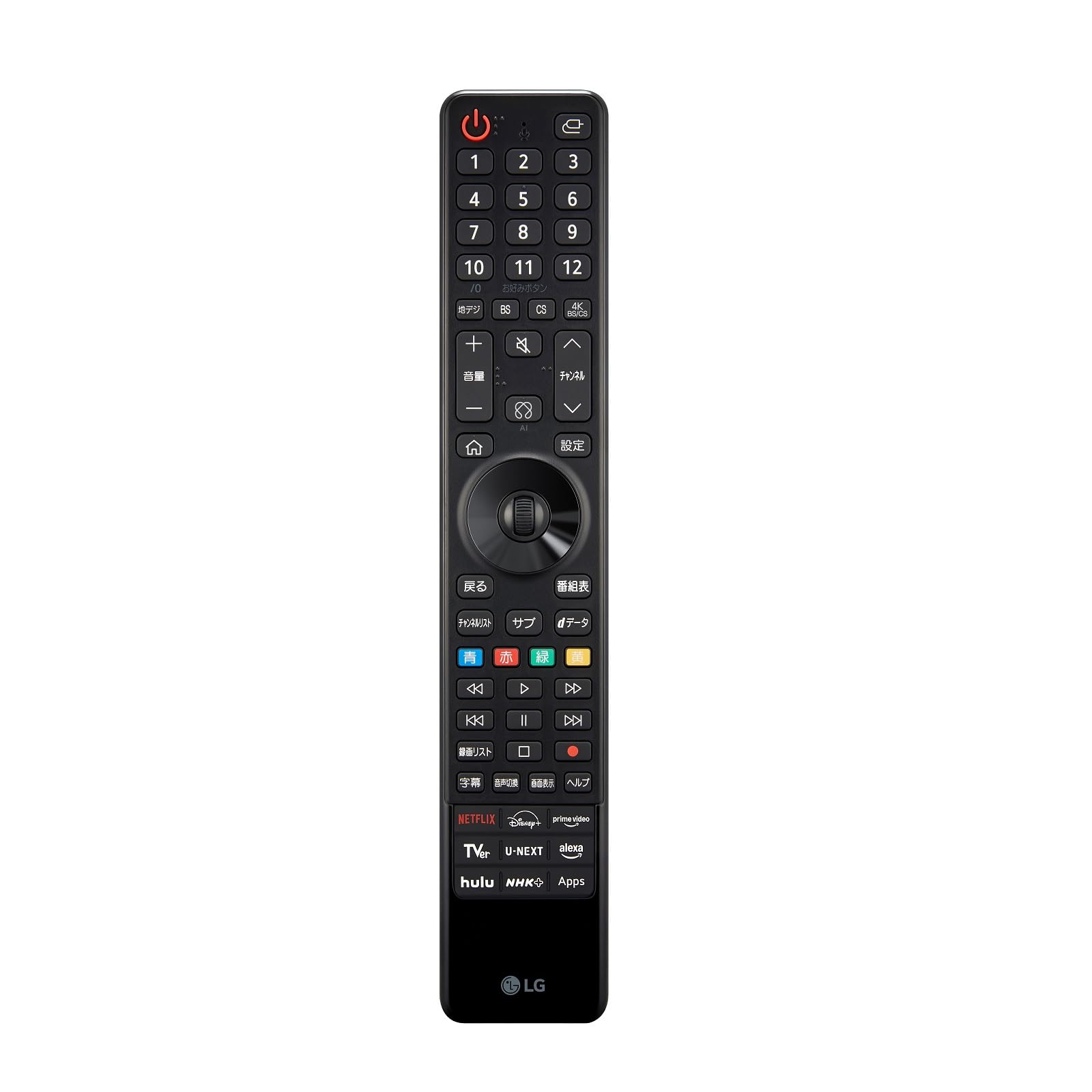
Image: LG Magic Remote MR25JP.AJL, a black remote control with various buttons for TV operation, including a numeric keypad, navigation buttons, and dedicated app buttons.
Button Functions:
- Power Button (U): Turns the TV on or off.
- Input/Source Button (⎌): Changes the input source.
- Microphone Button: Activates voice recognition for commands and searches.
- Number Pad (0-12): Enters channel numbers or other numerical inputs.
- Terrestrial Digital (地デジ): Selects terrestrial digital broadcasting.
- BS / CS / 4K BS/CS: Selects satellite broadcasting channels.
- Favorite Button (お好みボタン): Accesses favorite channels or functions.
- Volume Up/Down (+ / -): Adjusts the volume level.
- Mute Button (🔇): Mutes or unmutes the sound.
- Channel Up/Down (⌃ / ⌄): Changes the TV channel.
- Home Button (⌂): Accesses the Home menu.
- Settings Button (設定): Opens the TV settings menu.
- Back Button (戻る): Returns to the previous screen.
- Program Guide Button (番組表): Displays the electronic program guide.
- Scroll Wheel / Directional Pad: Navigates menus and selects items. The wheel also allows scrolling.
- Color Buttons (Blue, Red, Green, Yellow): Used for specific functions within certain applications or menus.
- Media Control Buttons (<<, >, >>, |<, ||, >|, Stop, Record): Controls playback of media content (rewind, play, fast forward, previous, pause, next, stop, record).
- Recording List (録画リスト): Accesses recorded content.
- Subtitle (字幕): Toggles subtitles on or off.
- Audio Switch (音声切換): Changes audio tracks or languages.
- Screen Display (画面表示): Adjusts screen display options.
- Help (ヘルプ): Accesses the TV's help menu.
- Quick Access App Buttons (NETFLIX, Disney+, prime video, TVer, U-NEXT, alexa, hulu, NHK+, Apps): Provides direct access to popular streaming services and the TV's app store.
3. Setup
3.1. Inserting Batteries
- Open the battery cover on the back of the remote control.
- Insert two AA batteries, ensuring the positive (+) and negative (-) terminals are correctly aligned.
- Close the battery cover securely.
3.2. Pairing the Magic Remote with Your TV
The Magic Remote typically pairs automatically when you turn on the TV and point the remote at it. If the remote does not pair automatically, follow these steps:
- Turn on your LG Smart TV.
- Point the Magic Remote at the TV and press the ⌂ (Home) button.
- If pairing is successful, a message will appear on the TV screen.
- If pairing fails, try pressing and holding the ⌂ (Home) and ⌄ (Back) buttons simultaneously for 5 seconds to unpair, then repeat step 2 to re-pair.
4. Operating Instructions
4.1. Using the Pointer and Scroll Wheel
- Pointer: Point the remote at the TV screen. A pointer will appear, allowing you to select items by moving your hand. Press the scroll wheel to click.
- Scroll Wheel: Rotate the wheel to scroll through lists or web pages. Press the wheel to confirm a selection.
4.2. Voice Recognition
- Press and hold the 🎤 (Microphone) button.
- Speak your command clearly into the remote's microphone.
- Release the button when you are finished speaking.
4.3. Accessing Smart TV Features
- Press the ⌂ (Home) button to open the Smart TV launcher bar.
- Use the pointer or directional pad to navigate and select apps or functions.
- Use the dedicated app buttons (NETFLIX, Disney+, etc.) for direct access to those services.
5. Features
- Motion Control: Control your TV by simply pointing and clicking, similar to a computer mouse.
- Voice Recognition: Use voice commands to search for content, change settings, or control smart home devices (if integrated).
- Scroll Wheel: Provides quick and easy scrolling through menus and web pages.
- Quick Access Buttons: Instant access to popular streaming services and the TV's app store.
- Universal Remote Functionality: Can control compatible set-top boxes, Blu-ray players, and soundbars.
6. Troubleshooting
6.1. Remote Not Responding
- Check if the batteries are inserted correctly and have sufficient charge. Replace them if necessary.
- Ensure there are no obstructions between the remote and the TV.
- Try re-pairing the remote with the TV (refer to Section 3.2).
6.2. Pointer Not Appearing on Screen
- Shake the remote gently to activate the pointer.
- Ensure the remote is paired correctly.
- If the pointer is still not visible, try resetting the remote by removing and reinserting the batteries.
6.3. Voice Recognition Issues
- Ensure you are holding down the Microphone button while speaking.
- Speak clearly and at a normal volume.
- Check your TV's network connection, as voice recognition often requires internet access.
7. Specifications
| Attribute | Value |
|---|---|
| Brand | LG |
| Model Name | MR25JP.AJL |
| Color | Black |
| Special Features | Motion Control, Voice Recognition |
| Compatible Devices | LG Smart TVs (2025 models and compatible older models) |
8. Warranty and Support
For warranty information and technical support, please refer to the documentation included with your LG TV or visit the official LG Electronics website for your region. You can also contact LG customer service directly for assistance with your Magic Remote.
LG Customer Support: www.lg.com/support