1. Introduction
This manual provides detailed instructions for the Tenveo 4K NDI PTZ Camera, Model TEVO-VHD20H4KN. This camera is designed for professional video conferencing and live streaming applications, offering advanced features such as 4K resolution, 20X optical zoom, AI-powered auto-tracking, and multiple connectivity options including NDI, HDMI, LAN, and USB3.0. Please read this manual thoroughly before operating the device to ensure proper setup and optimal performance.
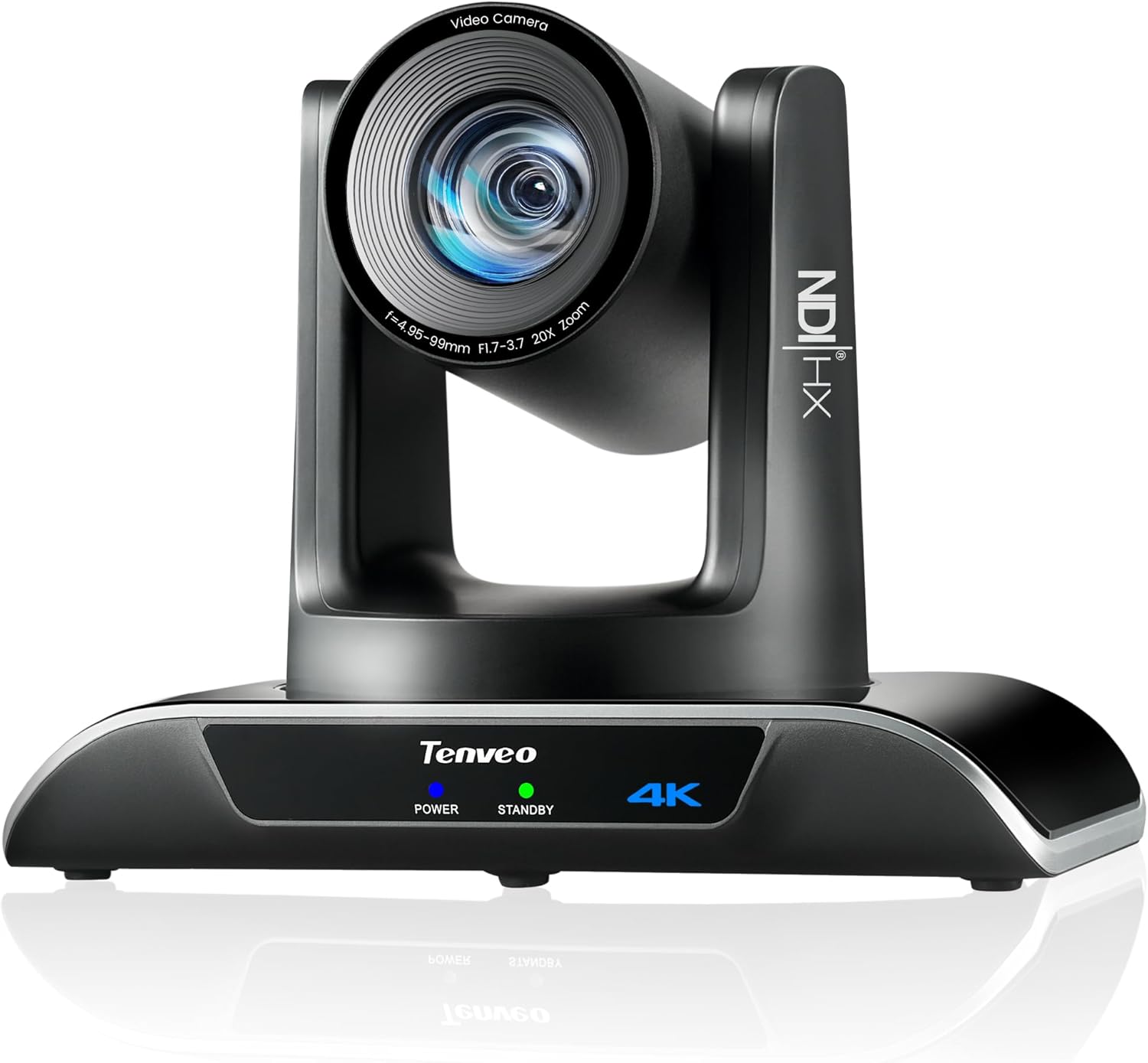
Figure 1: Tenveo 4K NDI PTZ Camera (Model TEVO-VHD20H4KN)
2. Product Overview
2.1 Key Features
- 4K Ultra HD Video: Delivers 4K 30fps and 1080P 60fps video with a Sony 1/2.8" CMOS Sensor (8.29MP Effective Pixels).
- 20X Optical Zoom: High-quality optical zoom for capturing distant subjects with clarity.
- AI Humanoid & Face Auto-Tracking: Advanced deep learning algorithms enable precise, millisecond-level response tracking and autoframing, even if the target is momentarily blocked.
- NDI|HX Support: Enables low-latency, IP-based production workflows for high-quality, frame-accurate video streaming and PTZ control.
- Multiple Video Output Interfaces: Supports USB3.0, HDMI, and LAN/NDI outputs.
- PoE (Power over Ethernet): Simplifies installation by providing power and data over a single Ethernet cable (802.3af compliant).
- Professional Live Streaming: Compatible with RTMP, RTSP, SRT protocols for direct streaming to platforms like YouTube, Facebook, and OBS.
- Multi-Camera Production: Supports multi-camera video production and sync capabilities.
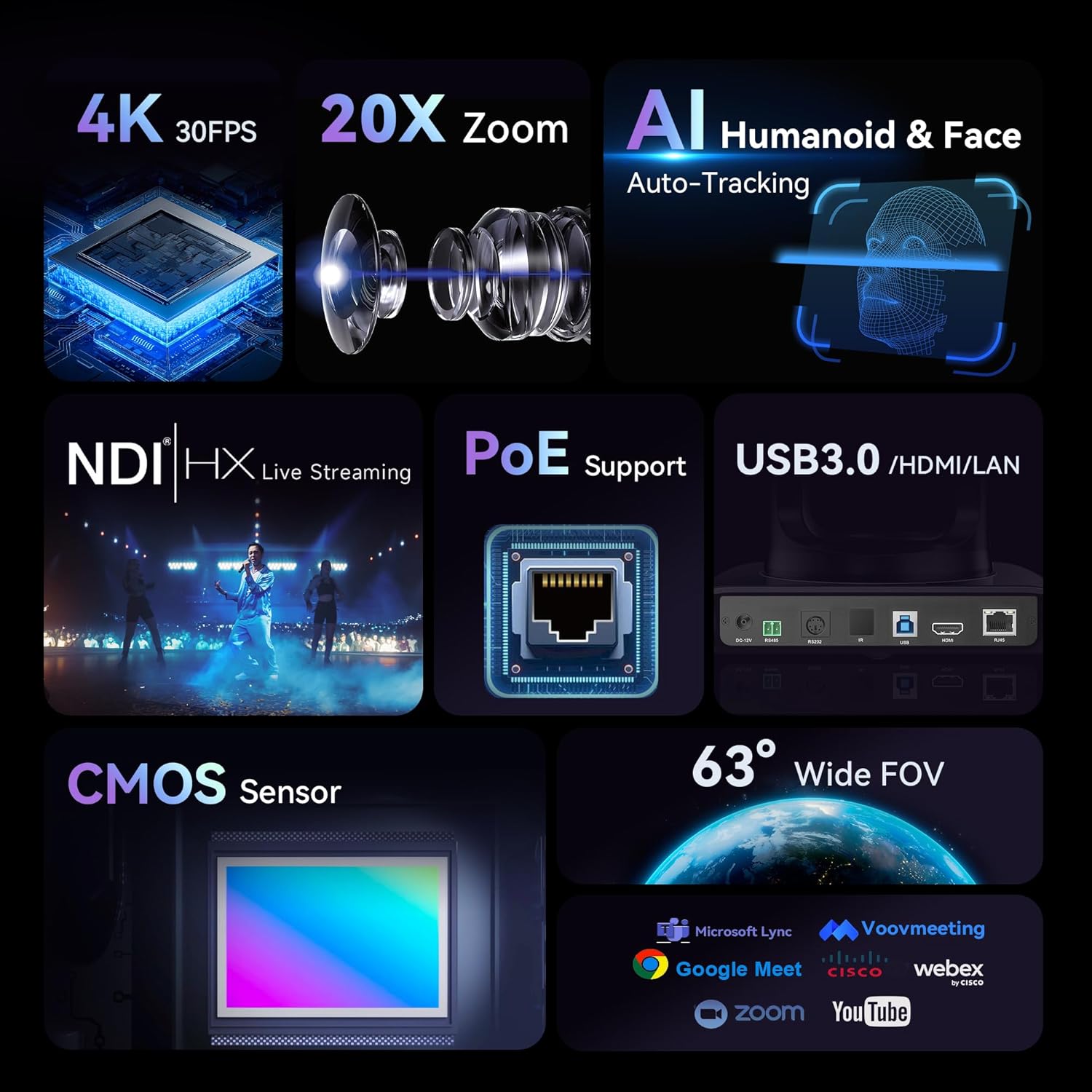
Figure 2: Key Features of the Tenveo 4K NDI PTZ Camera
2.2 What's in the Box
- Tenveo 4K NDI AI Auto Tracking PTZ Live Streaming Camera (20X Optical Zoom)
- IR Remote Control
- DC12V Power Adapter
- USB3.0 Cable
- Wall mount
- Mounting screws
- User Manual
3. Setup
3.1 Mounting Options
The Tenveo 4K NDI PTZ Camera supports various installation methods to suit your environment:
- Desktop Placement: Place the camera on a flat, stable surface.
- Wall Mounting: Use the included wall mount and screws to secure the camera to a wall.
- Ceiling Mounting: The camera can be inverted and mounted to the ceiling. The image can be flipped via remote control or web interface settings.
- Tripod Mounting: The camera can be mounted on a standard tripod for portable setups.

Figure 3: Various Installation Methods
3.2 Connectivity
The camera offers multiple connection options for video output and control:
- USB3.0: Connect directly to a computer for video capture.
- HDMI: Connect to a display, video switcher, or capture card.
- LAN/NDI: Connect to a network for IP streaming, NDI workflows, and IP control. PoE (802.3af) is supported, requiring a PoE switch for power and data over a single cable.
- RS-232/RS-485: For external PTZ joystick controller connections.
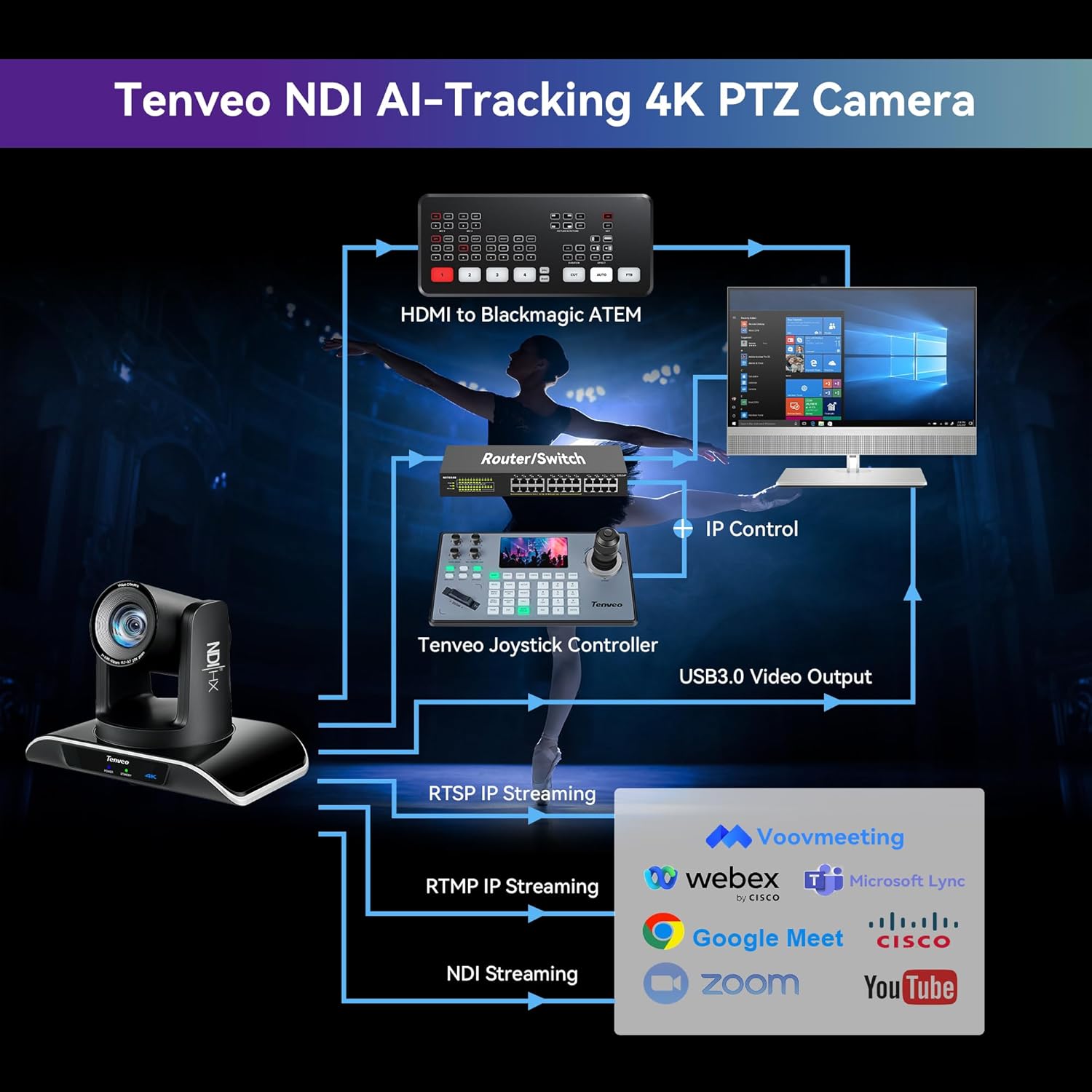
Figure 4: Multiple Connection Options
3.3 Initial Setup Steps
- Connect Power: Connect the DC12V power adapter or use a PoE switch if utilizing Power over Ethernet.
- Connect Video Output: Choose your preferred video output (USB3.0, HDMI, or LAN) and connect it to your receiving device (computer, display, or network).
- Network Configuration (for LAN/NDI): If using LAN/NDI, connect the camera to your network. You may need to access the camera's web interface via its IP address to configure network settings and NDI.
- Power On: Press the power button on the camera or remote control.

Figure 5: Example Setup Diagram
4. Operating Instructions
4.1 Pan, Tilt, and Zoom (PTZ) Control
The camera features 350° pan and 180° tilt capabilities, along with 20X optical zoom. Control can be achieved via the included IR remote control, a dedicated PTZ joystick controller (sold separately), or the web interface.
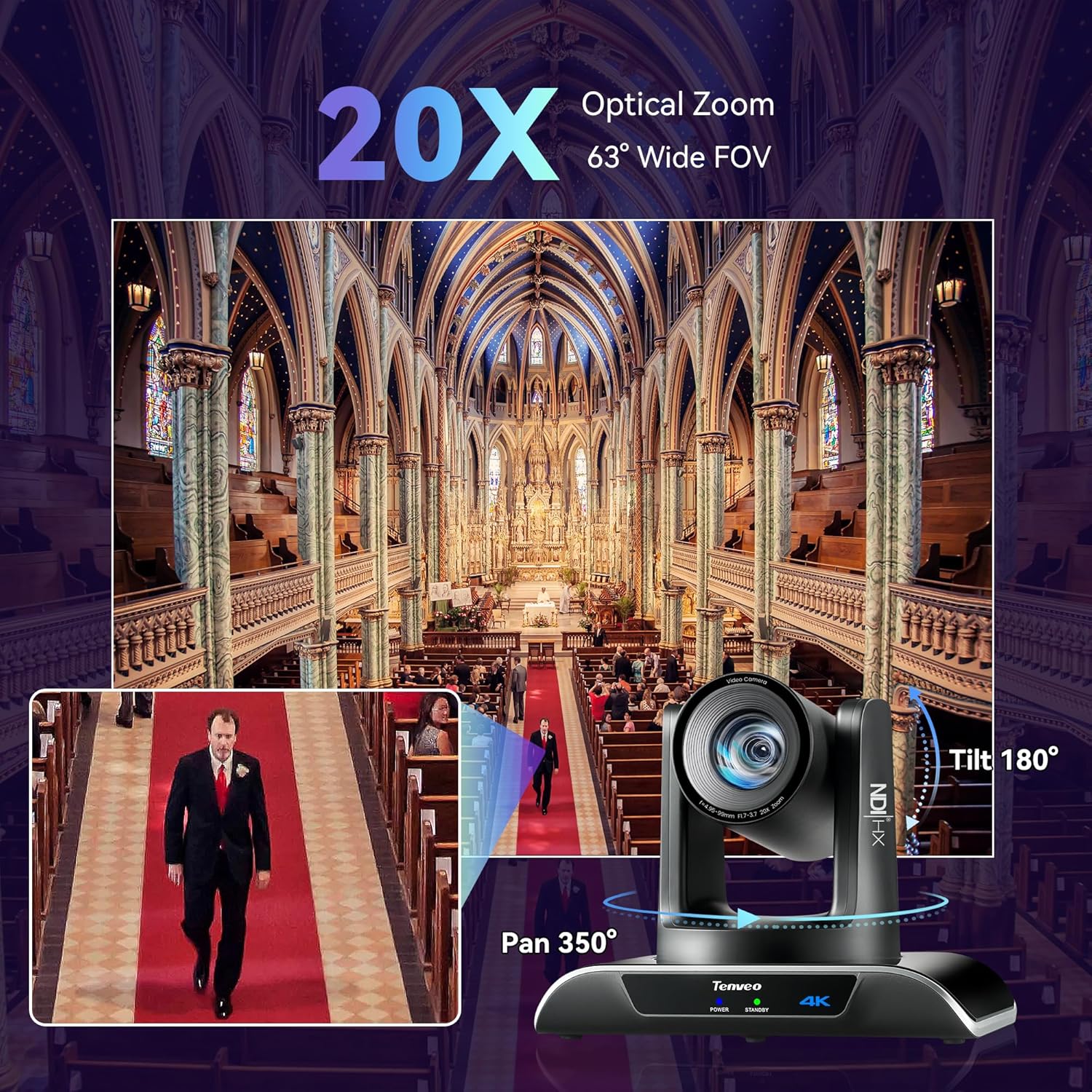
Figure 6: Pan, Tilt, and Zoom Capabilities
4.2 AI Auto-Tracking
The camera's AI auto-tracking function uses deep learning to accurately track human figures and faces. This ensures subjects remain centered in the frame during movement.
- Presenter Mode: Tracks a single designated speaker.
- Autoframing Mode: Automatically adjusts the frame to include all detected participants.
- Uninterrupted Tracking: The camera maintains tracking even if the target is momentarily obscured.

Figure 7: AI Auto-Tracking in Action
4.3 Remote Control Operation
The IR remote control allows for easy adjustment of camera functions:
- PTZ Control: Use the directional buttons to pan and tilt, and the zoom buttons to adjust magnification.
- Preset Settings: Save and recall up to 10 camera positions and zoom levels.
- AI Tracking/Autoframing: Dedicated buttons for enabling/disabling AI tracking and switching between modes.
- Image Settings: Adjust brightness, focus, and other image parameters.
4.4 Web UI Control
For advanced control and configuration, access the camera's web interface via a web browser. Enter the camera's IP address in your browser to access settings for:
- Network settings (IP address, subnet mask, gateway).
- Video encoding parameters (resolution, frame rate, bitrate).
- PTZ control and preset management.
- AI tracking mode selection and fine-tuning.
- Image adjustments (color, exposure, white balance).
4.5 Live Streaming
The camera supports various protocols for direct live streaming:
- NDI|HX: For high-quality, low-latency video over IP networks.
- RTMP/RTSP/SRT: Directly stream to platforms like YouTube, Facebook Live, OBS, and other streaming services without additional hardware.

Figure 8: NDI|HX Live Streaming Integration
5. Maintenance
To ensure the longevity and optimal performance of your Tenveo 4K NDI PTZ Camera, follow these maintenance guidelines:
- Cleaning: Use a soft, dry cloth to clean the camera body. For the lens, use a specialized lens cleaning cloth and solution. Avoid abrasive cleaners or solvents.
- Environment: Operate and store the camera in a clean, dry environment, away from extreme temperatures, humidity, and direct sunlight.
- Cable Management: Ensure all cables are securely connected and not under strain to prevent damage to ports or cables.
- Firmware Updates: Periodically check the Tenveo website for firmware updates to ensure your camera has the latest features and performance enhancements.
6. Troubleshooting
If you encounter issues with your camera, refer to the following common troubleshooting steps:
6.1 No Power
- Verify the power adapter is securely connected to both the camera and a working power outlet.
- If using PoE, ensure your PoE switch is powered on and the Ethernet cable is connected correctly.
6.2 No Video Output
- Check all video cables (USB3.0, HDMI, Ethernet) for secure connections.
- Ensure the input source on your display or capture device is correctly selected.
- For LAN/NDI, verify network connectivity and IP address settings.
6.3 PTZ Control Not Responding
- Ensure the IR remote control has fresh batteries and a clear line of sight to the camera's IR receiver.
- If using a joystick controller, check its connection and power.
- For web UI control, verify network connection to the camera.
6.4 AI Tracking Issues
- Ensure the lighting conditions are adequate for the camera to detect subjects clearly.
- Verify that AI tracking is enabled via the remote control or web interface.
- Avoid rapid, erratic movements that might exceed the camera's tracking speed.
If problems persist, please contact Tenveo customer support for further assistance.
7. Specifications
| Feature | Specification |
|---|---|
| Model Number | TEVO-VHD20H4KN |
| Product Dimensions | 6.5 x 9.72 x 6.73 inches |
| Item Weight | 3.08 pounds |
| Brand | Tenveo |
| Photo Sensor Technology | CMOS |
| Video Capture Resolution | 4K |
| Optical Zoom | 20X |
| Maximum Focal Length | 99 Millimeters |
| Maximum Aperture | 1.7 f |
| Video Capture Format | MJPEG/YUY2/H.264/H.265 |
| Connectivity Technology | Infrared, USB3.0, Ethernet, HDMI, NDI |
| Special Features | 4K30FPS & 1080P60FPS, HDMI/LAN/NDI/USB3.0 Multiple Connections, PoE Support, Easy Preset Setting, Universal Compatibility, Professional-Grade Live Streaming Capabilities, Enterprise-Grade Connectivity & Control, Optimized for Worship & Collaborative Spaces, Advanced AI Humanoid & Face Auto Tracking |
8. Warranty and Support
Tenveo offers a 3-year standard warranty for this product. We are committed to providing excellent after-sales service and lifetime technical support. Should you require assistance with setup or encounter any issues, remote assistance can be provided if necessary.
Your purchase is backed by a 30-day no-questions-asked money-back guarantee, ensuring a risk-free experience.
For any questions or support needs, please contact Tenveo customer service. We aim to respond within 12 hours and provide a satisfactory solution.
Contact Email: tenveo_amazon@tenveo.com


