
1. Introduction
Thank you for choosing the UGREEN 12-in-1 Docking Station for Mac Mini M4/M4 Pro. This device is designed to expand the connectivity and storage capabilities of your Mac Mini, providing a comprehensive solution for various peripherals and high-speed data transfer. Please read this manual carefully before use to ensure proper operation and to maximize the product's potential.

Image: The UGREEN 12-in-1 Docking Station positioned beneath a Mac Mini M4, enhancing a professional workspace.
2. Product Overview
The UGREEN 12-in-1 Docking Station is specifically designed for Mac Mini M4 and M4 Pro models, integrating 12 essential ports into a single unit. It features an aluminum alloy frame and an intelligent cooling system for stable performance.
Key Features:
- Dedicated Mac Mini M4/M4 Pro Compatibility: Seamlessly integrates with your Mac Mini.
- Dual High-Quality Video Output: Supports HDMI 2.1 and USB-C DP1.4 for up to 8K@30Hz (M4 Pro) or 4K@144Hz.
- Ultra-High-Speed Data Transfer: Features USB4.0 (up to 40Gbps) and multiple USB 3.2 Gen2 ports (10Gbps).
- M.2 NVMe SSD Slot: Expand storage with an M.2 NVMe SSD (2230-2280) for up to 40Gbps transfer speeds.
- SD/TF 4.0 Card Reader: High-speed card access up to 312MB/s.
- Studio-Grade Audio: Built-in Realtek ALC4032 DAC chip for 192kHz/24bit Hi-Res audio via a 3.5mm 4-pole jack.
- Efficient Cooling: Aluminum alloy body and silent fan maintain optimal operating temperatures.
Port Layout:

Image: Detailed view of the docking station's ports, including 3x USB-A (10Gbps), SD & TF 4.0 (312MB/s) on the front, and 3.5mm Aux, 1x USB-A (10Gbps), 1x USB-C (10Gbps), HDMI (8K@30Hz max), M.2 NVMe SSD case (40Gbps), and a USB-C host cable (4cm) on the rear.
- Front Ports:
- 3 x USB-A 3.2 Gen2 (10Gbps)
- 1 x SD 4.0 Card Reader (up to 312MB/s)
- 1 x TF 4.0 Card Reader (up to 312MB/s)
- Rear Ports:
- 1 x 3.5mm Audio Jack (Headphone/Microphone Combo)
- 1 x USB-A 3.2 Gen2 (10Gbps)
- 1 x USB-C 3.2 Gen2 (10Gbps)
- 1 x HDMI 2.1 Port (up to 8K@30Hz or 4K@144Hz)
- 1 x M.2 NVMe SSD Slot (up to 40Gbps)
- Host Connection:
- 2 x USB-C Host Cables (integrated, 4cm length) for connection to Mac Mini. One for video/data, one for M.2 SSD connection.
3. Setup Instructions
Follow these steps to set up your UGREEN Docking Station with your Mac Mini:
- Position the Docking Station: Place the UGREEN Docking Station on a stable, flat surface.
- Place Mac Mini: Carefully place your Mac Mini M4 or M4 Pro directly on top of the docking station. The design ensures a perfect fit and stable placement.
- Connect Host Cables: Connect the two integrated USB-C host cables from the docking station to the corresponding USB-C/Thunderbolt ports on your Mac Mini. Ensure both cables are securely connected. One cable is for video and general data, the other is specifically for the M.2 SSD connection.
- Power On Mac Mini: The docking station features a design that allows easy access to the Mac Mini's power button from the rear opening of the dock. Press the power button to turn on your Mac Mini.
- Connect Peripherals: Connect your desired peripherals (monitors, USB devices, SD cards, etc.) to the appropriate ports on the docking station.

Image: Visual guide for setting up the docking station, highlighting the easy power-on access, secure fit, anti-slip base, and optimal cable length.
4. M.2 NVMe SSD Installation
The docking station supports M.2 NVMe SSDs (sizes 2230, 2242, 2260, 2280) for expanded storage. Follow these steps to install an SSD:
- Remove Cover: Turn the docking station upside down. Unscrew and remove the cover for the M.2 NVMe SSD slot.
- Insert SSD: Gently insert your M.2 NVMe SSD into the slot. Ensure it is fully seated.
- Secure SSD: Secure the SSD with the provided screw.
- Replace Cover: Place the cover back on and tighten the screws.
- Connect to Computer: Connect the docking station to your Mac Mini. The drive should appear, and installation is complete.

Image: Step-by-step instructions for M.2 NVMe SSD installation, showing how to open the slot, insert the SSD, secure it, and close the cover.

Image: Illustration of the M.2 NVMe SSD slot and the various compatible SSD form factors.
The M.2 NVMe slot supports ultra-high-speed data transfer up to 40Gbps, allowing for rapid saving and editing of large files like RAW photos and 4K videos. This significantly enhances workflow efficiency for video editors and creators.

Image: Performance metrics showing 40Gbps M.2 NVMe speeds, with read speeds of 3451.14 MB/s and write speeds of 3318.91 MB/s on a Mac Mini M4.
The docking station supports up to 8TB of storage expansion via the M.2 NVMe SSD slot (SSD not included).

Image: Graphic illustrating the capability to expand storage up to 8TB using the docking station.
5. Operating Instructions
Data Transfer:
The docking station provides multiple high-speed data transfer options:
- USB4.0: The top USB-C port supports USB4.0 with speeds up to 40Gbps.
- USB 3.2 Gen2: Four USB-A ports and one USB-C port offer 10Gbps data transfer.
- SD/TF 4.0 Card Reader: Supports speeds up to 312MB/s for quick file transfers from memory cards.

Image: A user editing video on a monitor, demonstrating the 10Gbps high-speed data transfer capability of the docking station.

Image: The front of the docking station with an SD card inserted, highlighting its compatibility and 312MB/s transfer speed.
Display Output:
The docking station supports both single and dual display configurations:
- Single Display: Connect a monitor to the HDMI 2.1 port for up to 8K@30Hz (with Mac Mini M4 Pro) or 4K@144Hz resolution.
- Dual Display: For dual monitor setup, connect one monitor to the docking station's HDMI port and the second monitor directly to the HDMI port on your Mac Mini M4. This configuration supports HDR and provides a smooth, detailed visual experience for various applications.
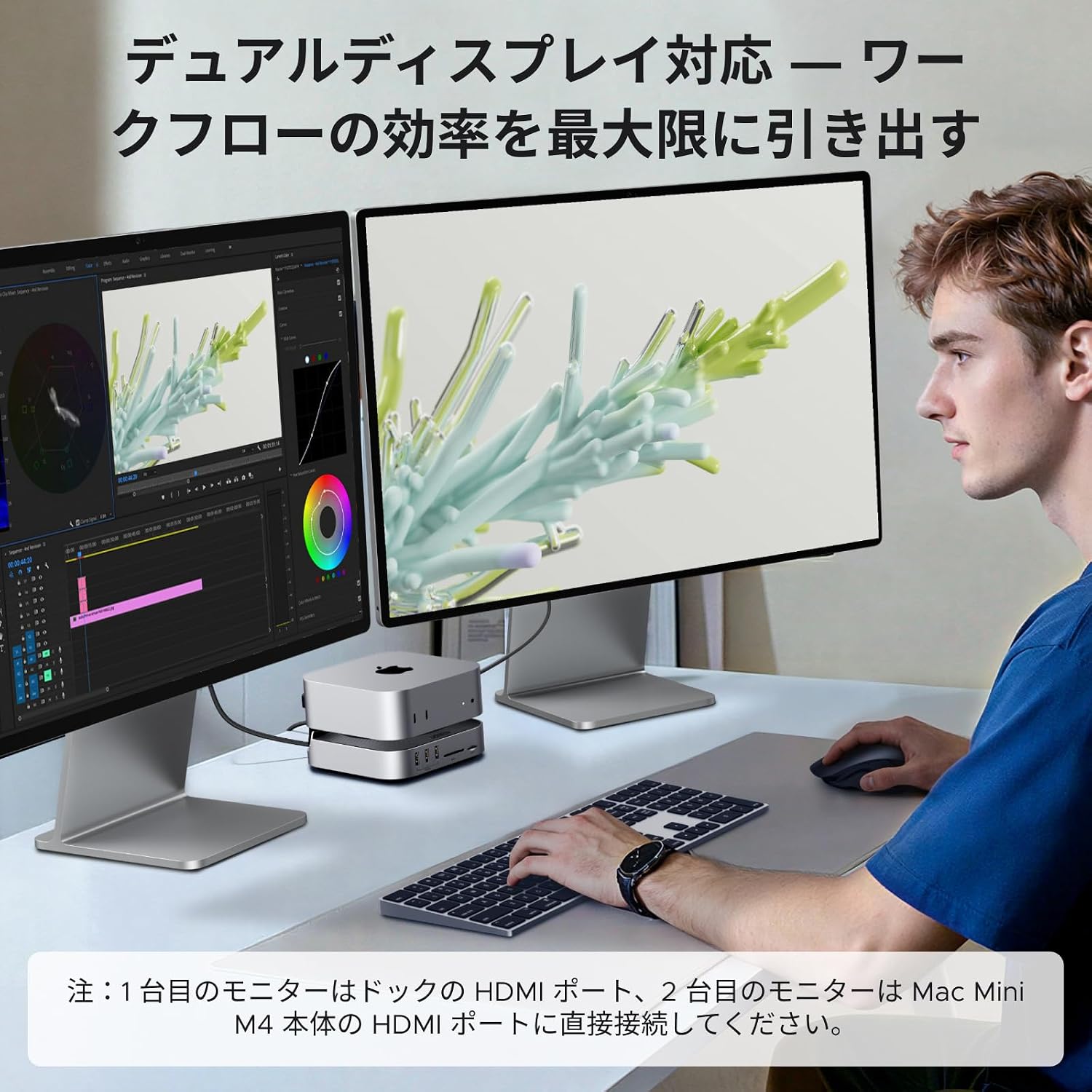
Image: A dual display setup demonstrating enhanced workflow efficiency with the docking station. Note: One monitor connects to the dock's HDMI, the second to the Mac Mini's HDMI.

Image: A single 8K display setup. Note: 8K@30Hz display is supported only when a Mac Mini M4 Pro is connected to the dock's HDMI port.
Audio Output:
The integrated ALC4032 independent sound card supports high-resolution audio up to 192kHz/24bit. Connect headphones or a headset with a microphone (CTIA standard) to the 3.5mm audio jack for an immersive audio experience in video conferences, music listening, or gaming.
6. Specifications
| Brand | UGREEN |
| Model Number | 95503 |
| Color | Silver |
| Material | Aluminum Alloy |
| Host Interface | 2 x USB-C (for Mac Mini M4/M4 Pro) |
| Video Output | 1 x HDMI 2.1 (up to 8K@30Hz or 4K@144Hz) |
| USB Ports | 4 x USB-A 3.2 Gen2 (10Gbps), 1 x USB-C 3.2 Gen2 (10Gbps) |
| Storage Slot | 1 x M.2 NVMe SSD (2230/2242/2260/2280, up to 40Gbps) |
| Card Reader | 1 x SD 4.0, 1 x TF 4.0 (up to 312MB/s) |
| Audio Port | 1 x 3.5mm Audio Jack (ALC4032 DAC, 192kHz/24bit) |
| Cooling System | Built-in Silent Fan, Aluminum Frame |
| Operating Temperature | 0°C to 45°C |
| Dimensions | 127 x 127 x 36 mm |
| Minimum OS Requirement | macOS 10.15 Catalina |
7. Troubleshooting
- No Display Output:
- Ensure both USB-C host cables are securely connected to your Mac Mini.
- Verify the HDMI cable is properly connected to both the docking station and the monitor.
- Check your Mac Mini's display settings to ensure the external monitor is detected and configured correctly.
- If using dual displays, remember one monitor connects to the dock's HDMI, and the other directly to the Mac Mini's HDMI.
- USB Devices Not Recognized:
- Ensure the USB device is properly inserted into the port.
- Try connecting the device to a different USB port on the docking station.
- Restart your Mac Mini and the docking station.
- M.2 NVMe SSD Not Detected:
- Verify the SSD is correctly installed and secured within the slot as per Section 4.
- Ensure the second USB-C host cable (for SSD connection) is properly connected to your Mac Mini.
- Check Disk Utility on macOS to see if the SSD is recognized but needs formatting.
- Slow Data Transfer Speeds:
- Ensure you are using compatible cables and devices that support the advertised speeds (e.g., USB 3.2 Gen2 devices for 10Gbps ports).
- Verify that the USB-C host cables are fully connected.
- Avoid connecting multiple high-bandwidth devices simultaneously if experiencing slowdowns.
- Overheating:
- Ensure the docking station is placed in a well-ventilated area and its fan vents are not obstructed.
- The intelligent cooling system is designed to maintain optimal temperatures during normal operation. If excessive heat is detected, reduce the load on the device or disconnect some peripherals.
8. Maintenance
To ensure the longevity and optimal performance of your UGREEN Docking Station, follow these maintenance guidelines:
- Cleaning: Use a soft, dry cloth to clean the exterior of the docking station. Avoid liquid cleaners or abrasive materials.
- Ventilation: Ensure the ventilation openings are clear of dust and debris to allow for proper airflow and cooling.
- Storage: When not in use for extended periods, store the docking station in a cool, dry place away from direct sunlight and extreme temperatures.
- Cable Management: Avoid bending or crimping the integrated USB-C host cables excessively to prevent damage.

Image: Diagram showing the efficient heat dissipation design, ensuring quiet operation without disruptive fan noise.
9. Warranty and Support
This UGREEN product comes with a 2-year manufacturer's warranty. For warranty claims or technical support, please contact UGREEN customer service through the official UGREEN website or your point of purchase. Please have your model number (95503) and purchase details ready when contacting support.


