
WEMAX Nova-Pro
WEMAX Nova Pro 4K Ultra Short Throw Projector User Manual
Model: Nova-Pro
1. Introduction
This manual provides essential information for the safe and effective use of your WEMAX Nova Pro 4K Ultra Short Throw Projector. The Nova Pro features ALPD laser technology, 4K UHD resolution, integrated Google TV, 2100 ISO lumens brightness, and Dolby Audio DTS-HD for an immersive home cinema experience. Please read this manual thoroughly before operating the device and retain it for future reference.

Image 1.1: The WEMAX Nova Pro 4K Ultra Short Throw Projector, a sleek black device designed for home entertainment.
2. What's in the Box
Upon unpacking, ensure all the following items are present:
- WEMAX Nova Pro Projector
- Remote Control
- Power Cord
- Warranty Card
- User Manual (this document)
- Cleaning Kit
3. Setup Guide
3.1 Projector Placement
The WEMAX Nova Pro is an Ultra Short Throw (UST) projector, designed to project a large image from a very short distance. For optimal viewing, place the projector on a flat, stable surface directly below the projection screen or wall. The 0.23:1 throw ratio allows for a 150-inch screen from approximately 19 inches (49 cm) away.

Image 3.1: Diagram illustrating the ultra-short throw capability, showing screen sizes from 80 to 150 inches based on projection distance.
3.2 Power Connection
Connect the provided power cord to the projector's power input and then to a suitable electrical outlet. Ensure the power source meets the projector's voltage requirements.
3.3 Connecting External Devices
The projector offers various connectivity options for external devices:
- HDMI 2.1: For high-definition video and audio sources like gaming consoles, Blu-ray players, or set-top boxes.
- USB: For media playback from USB drives.
- AUDIO (3.5mm): For connecting external audio systems.
- OPTICAL: For digital audio output to soundbars or receivers.
- LAN: For wired internet connection.
- Wireless: Wi-Fi 6 for internet and Bluetooth for audio devices.
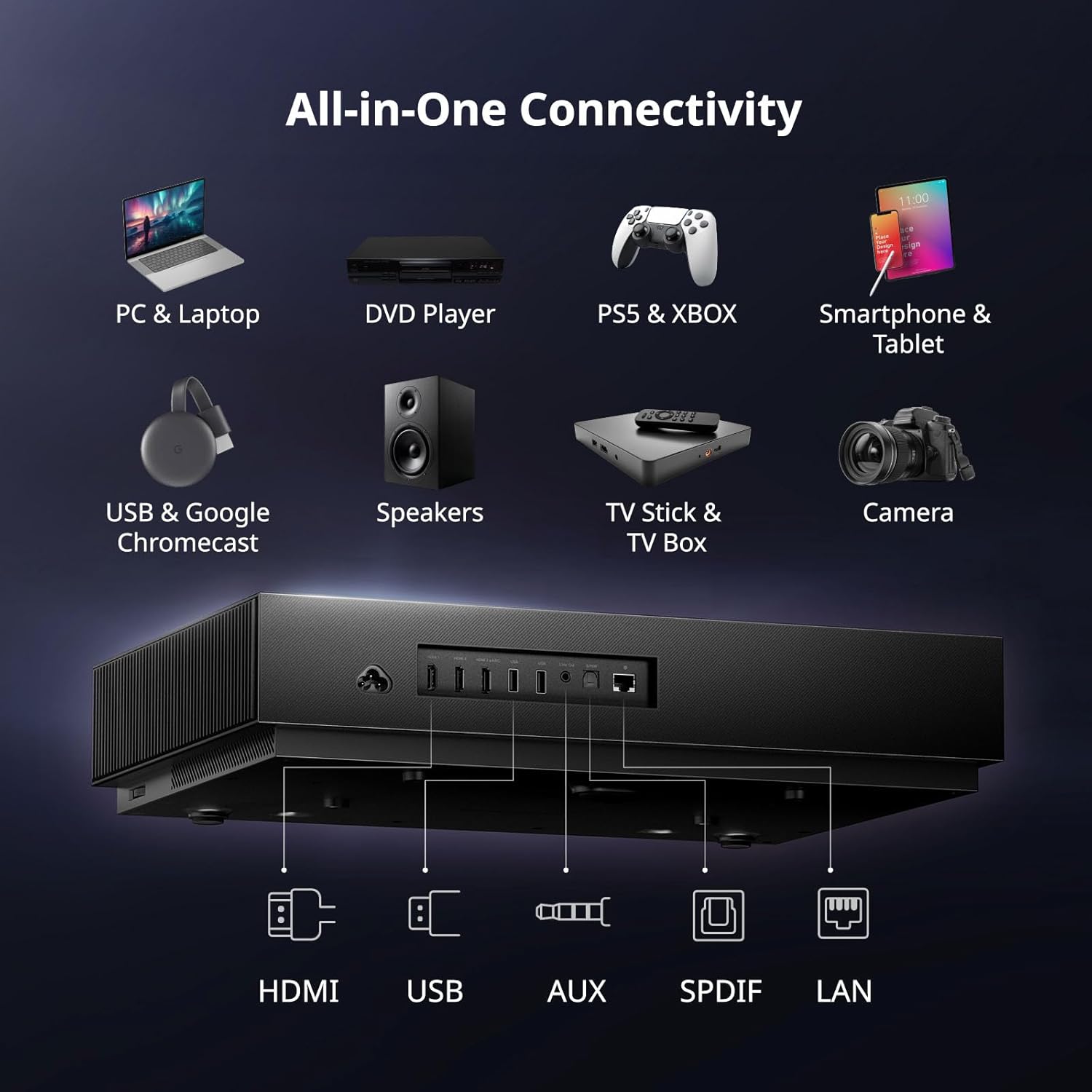
Image 3.2: Rear view of the WEMAX Nova Pro showing various input and output ports including HDMI, USB, Audio, Optical, and LAN.
3.4 Initial Power-On and Network Setup
Press the power button on the projector or remote control to turn on the device. Follow the on-screen instructions to complete the initial setup, including language selection, Wi-Fi network connection, and Google account login for Google TV features.
3.5 Image Adjustment
After initial placement, adjust the image for clarity and geometry:
- Electric Focus: Use the remote control to fine-tune the image focus until it is sharp and clear.
- 8-Point Keystone Correction: If the projected image appears distorted (trapezoidal), use the keystone correction feature to adjust each corner of the image independently, ensuring a perfectly rectangular display.

Image 3.3: On-screen display showing the electric focus adjustment interface for sharpening the projected image.

Image 3.4: Visual representation of 8-point keystone correction, demonstrating how to adjust image corners for a perfect rectangular shape.
4. Operating Instructions
4.1 Remote Control Functions
The included remote control provides full functionality for navigating the projector's interface. Key features include:
- Power Button: Turns the projector on or off.
- Navigation Pad: For menu navigation.
- Google Assistant Button: Activates voice control.
- Volume Control: Adjusts audio output.
- Dedicated App Buttons: Quick access to popular streaming services like Netflix.

Image 4.1: Illustration of the remote control with Google Assistant functionality, demonstrating voice commands for app control and playback.
4.2 Navigating Google TV
The WEMAX Nova Pro integrates Google TV, providing access to over 700,000 movies and shows across 10,000+ applications. The interface offers personalized recommendations, multi-user profiles, and a dedicated kids mode.

Image 4.2: Screenshot of the Google TV home screen, displaying various streaming apps and content recommendations.

Image 4.3: Depiction of the personalized content hub within Google TV, showing watchlists and tailored recommendations.
4.3 Audio Features
The projector features built-in dual 15W speakers supporting Dolby Audio and DTS-HD, delivering a rich and immersive sound experience. For enhanced audio, connect external sound systems via the available audio ports or Bluetooth.

Image 4.4: Graphic highlighting the 30W Dolby Audio and DTS-HD sound system, showing sound waves emanating from the projector.

Image 4.5: Cutaway view of the projector illustrating the internal speaker placement and the immersive sound field created by Dolby Audio and DTS-HD.
4.4 Visual Features
The Nova Pro utilizes ALPD laser technology for true 4K UHD resolution, offering 110% Rec.709 wide color gamut and 1.07 billion colors. HDR10 and HLG support ensure superior contrast and color accuracy. The projector also includes MEMC motion compensation for smooth visuals and supports Active 3D content.
- ALPD Laser Technology: Provides high color accuracy, enhanced brightness, and deep contrast.
- 2100 ISO Lumens: Delivers bright, vibrant images suitable for various lighting conditions.
- Eye-Friendly Low Blue Light: Reduces eye strain during extended viewing.
- MEMC: Motion Estimation, Motion Compensation for smooth display of fast-moving content.
- 3D Function: Supports Active 3D for an immersive viewing experience.

Image 4.6: Diagram explaining ALPD laser technology, highlighting its benefits for color accuracy, brightness, and contrast.
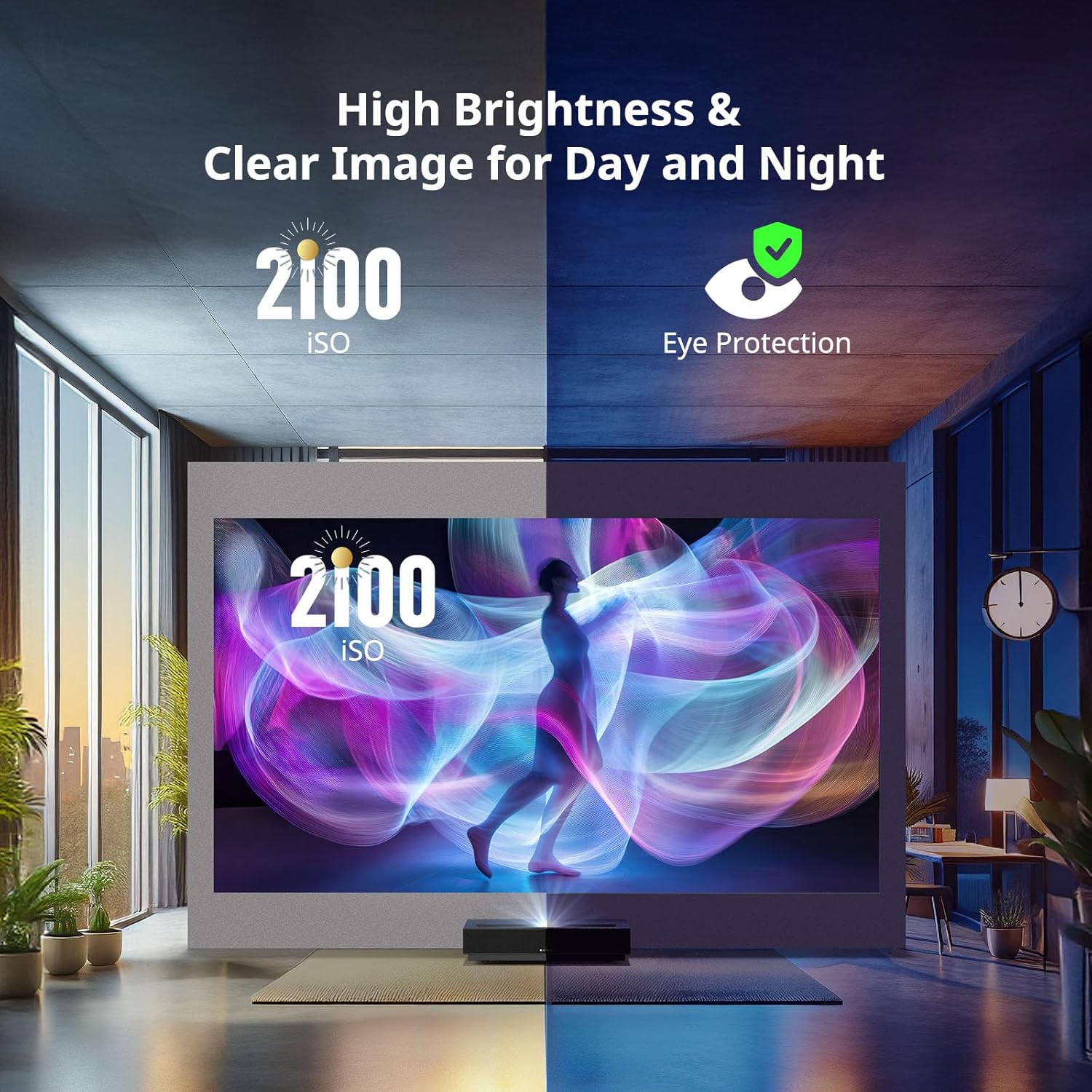
Image 4.7: Split image demonstrating 2100 ISO lumens brightness in both bright and dim environments, alongside an icon for eye protection.

Image 4.8: Visual comparison showing the enhanced colors and contrast provided by HDR10 and HLG technologies.

Image 4.9: Comparison image showing the difference in motion clarity with and without MEMC technology during a sports scene.

Image 4.10: A living room scene depicting a large projected 3D image of a dinosaur, emphasizing the immersive 3D experience.
5. Maintenance
5.1 Cleaning the Projector
Regular cleaning helps maintain optimal performance and image quality. Use the provided cleaning kit for best results.
- Lens: Gently wipe the projector lens with a soft, lint-free cloth from the cleaning kit. Avoid abrasive materials or harsh chemicals.
- Exterior: Wipe the projector's exterior surfaces with a dry, soft cloth. Do not use liquid cleaners directly on the device.
- Vents: Ensure the ventilation openings are clear of dust and obstructions to prevent overheating. Use a soft brush or compressed air if necessary.
Always ensure the projector is powered off and unplugged before cleaning.
6. Troubleshooting
If you encounter issues with your WEMAX Nova Pro projector, refer to the following common problems and solutions:
| Problem | Possible Cause | Solution |
|---|---|---|
| No Power | Power cord disconnected; Power outlet faulty | Check power cord connection; Try a different outlet |
| No Image | Input source not selected; External device off; Cable loose | Select correct input source; Ensure external device is on; Check HDMI/USB cable connections |
| Blurred Image | Focus not adjusted; Lens dirty | Adjust electric focus using remote; Clean the projector lens |
| Distorted Image | Keystone not adjusted | Perform 8-point keystone correction |
| No Sound | Volume too low; Muted; External audio device issue | Increase volume; Unmute; Check external audio connections/settings |
| Remote Not Responding | Batteries low/dead; Obstruction between remote and projector | Replace batteries; Remove obstructions; Ensure line of sight |
| Wi-Fi Connection Issues | Incorrect password; Router issues; Signal interference | Verify Wi-Fi password; Restart router; Reduce interference |
If the problem persists after attempting these solutions, please contact customer support.
7. Specifications
Detailed technical specifications for the WEMAX Nova Pro Projector:
| Feature | Detail |
|---|---|
| Brand | WEMAX |
| Model | Nova-Pro |
| Display Resolution | 3840 x 2160 (4K UHD) |
| Brightness | 2100 ISO Lumens |
| Contrast Ratio | 3000:1 |
| Light Source | ALPD Laser |
| Light Source Life | 25,000+ hours |
| Throw Ratio | 0.23:1 (Ultra Short Throw) |
| Screen Size | 80" - 150" |
| Color Gamut | 110% Rec.709 |
| HDR Support | HDR10, HLG |
| Operating System | Google TV (with Netflix built-in) |
| CPU | MT9629 |
| RAM | 2GB |
| eMMC Storage | 32GB |
| Audio | Dual 15W Speakers, Dolby Audio, DTS-HD |
| Connectivity | HDMI 2.1, USB, AUDIO, OPTICAL, LAN, Wi-Fi 6 (2.4G/5GHz), Bluetooth 5.0 |
| Special Features | Google Assistant, Google Cast, MEMC, 3D Function, Eye Safety |
| Product Dimensions | 12.13 x 3.58 x 18 inches |
| Item Weight | 15.4 pounds |
| Noise Level | ≤32dB |
| Power Consumption | ≤300W (Operating), <0.5W (Standby) |
| Working Temperature | 0-40°C |
| Storage Temperature | -20-55°C |
8. Warranty Information
The WEMAX Nova Pro Projector comes with a warranty. Please refer to the included Warranty Card for specific terms, conditions, and duration of your product's warranty. This card contains important details regarding coverage and how to claim warranty services.
The ALPD laser light source is designed for longevity, offering over 25,000 hours of reliable entertainment, which translates to over a decade of typical use.

Image 8.1: Graphic indicating the projector's laser light source lifespan of over 25,000 hours.
9. Customer Support
For further assistance, technical support, or inquiries regarding your WEMAX Nova Pro Projector, please contact our customer support team:
Email: support@wemax.com
Our support team aims to provide quick responses to all inquiries.

Image 9.1: Customer support contact information, including the support email address.
Ask a question about this manual
Ask about setup, troubleshooting, compatibility, parts, safety, or missing instructions. Manuals+ will review the question and use this page’s manual context to help answer it.