1. Introduction
The UGREEN USB Gaming Microphone is designed to provide high-quality audio for streaming, gaming, voice chat, and podcasting. Featuring a 24-bit/96kHz sample rate, cardioid polar pattern, and adaptive noise suppression, it ensures clear and rich sound capture. This microphone offers plug-and-play compatibility with various devices and includes convenient controls for mute, gain, and customizable RGB lighting.
2. Package Contents
- UGREEN USB Gaming Microphone
- USB A-C Cable
- Pop Filter
- Shock Mount
- Desktop Stand
- User Manual
3. Key Features
- Crystal-Clear Pro Audio: Captures studio-quality sound with a 96kHz/24-bit sample rate and 20Hz-20kHz frequency response. The cardioid polar pattern focuses on your voice, reducing background noise. Advanced DSP chip and adaptive noise suppression (ANS) further enhance clarity.
- Plug and Play & Wide Compatibility: No drivers required for easy setup. Compatible with computers (Mac, Windows, Linux), PS4/PS5, Switch/Switch 2, Steam Deck, iPhone 15/16/17/Galaxy S25 (requires a USB-C to USB-C data cable), and platforms like YouTube, Zoom, Skype, and Discord. Note: Not Compatible with Xbox.
- Professional Control & Versatility: Features a 3.5mm jack for zero-latency monitoring, a one-tap mute button for quick privacy, and a gain control knob for effortless volume adjustment. The included pop filter eliminates plosives, and the shock mount isolates low-frequency vibrations and desk noise.
- Customizable RGB Ambiance: Offers 7 dynamic lighting modes, including vibrant rainbow, 5 solid colors (orange, yellow, cyan, blue, purple), and a smooth breathing effect. Easily switch modes with a one-tap control on the microphone.
4. Setup Instructions
- Unpack all components from the box.
- Attach the pop filter to the microphone. The pop filter snaps into place over the microphone grille.
- Connect the USB-C end of the provided cable to the USB-C port on the microphone.
- Connect the USB-A or USB-C end of the cable to an available USB port on your computer, PS4/PS5, Switch, or Steam Deck. For iPhone 15/16/17/Galaxy S25, ensure you use a compatible USB-C to USB-C data cable.
- The microphone is plug-and-play and should be automatically recognized by your operating system without additional drivers.
- For real-time audio monitoring, plug your headphones into the 3.5mm jack on the microphone.
5. Operating the Microphone
5.1 Power On/Off
The microphone powers on automatically when connected to a powered USB port. Disconnect the USB cable to power it off.
5.2 Mute Function
Press the Mute Button (microphone icon) on the front of the microphone to instantly mute or unmute your audio. An indicator light will show the mute status.
5.3 Gain Control
Rotate the Gain Control Knob located at the bottom of the microphone to adjust the input sensitivity (volume) of the microphone.
5.4 RGB Lighting Modes
Press the RGB Light Button (light bulb icon) on the front of the microphone to cycle through the 7 dynamic lighting modes. This allows you to match your setup's aesthetic or mood.
5.5 Zero-Latency Monitoring
Plug your headphones into the 3.5mm audio jack on the microphone to monitor your voice in real-time without any delay. This helps ensure optimal vocal levels during recording or live streams.
5.6 Optimal Microphone Positioning
For the best sound quality, position the microphone 8–12 inches (20–30 cm) from your mouth. Ensure you are speaking directly into the front of the microphone, where the UGREEN logo and control buttons are located, as it utilizes a cardioid pickup pattern.
6. Product Visuals and Demonstrations
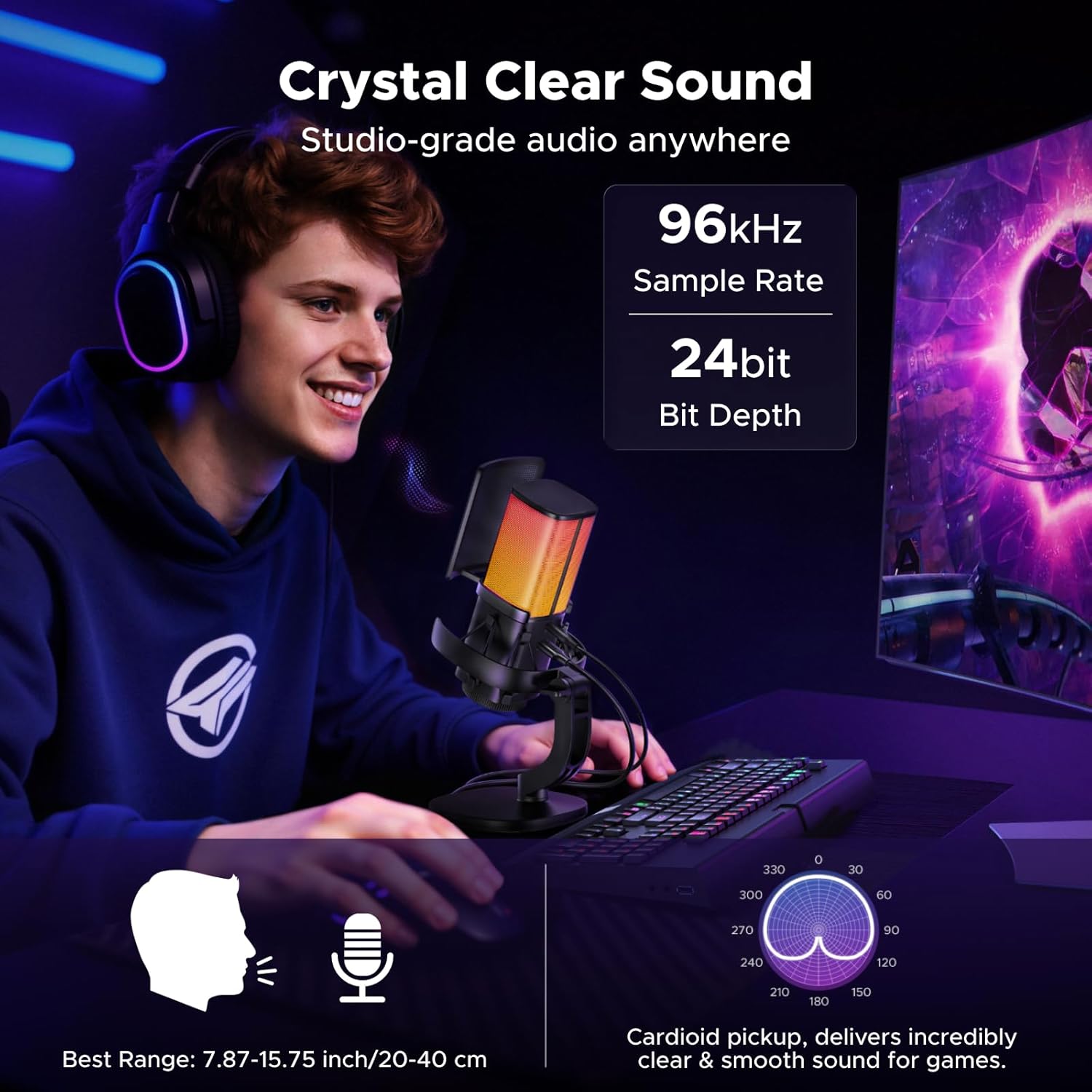
Image 1: The UGREEN USB Gaming Microphone fully assembled with its pop filter and desktop stand.
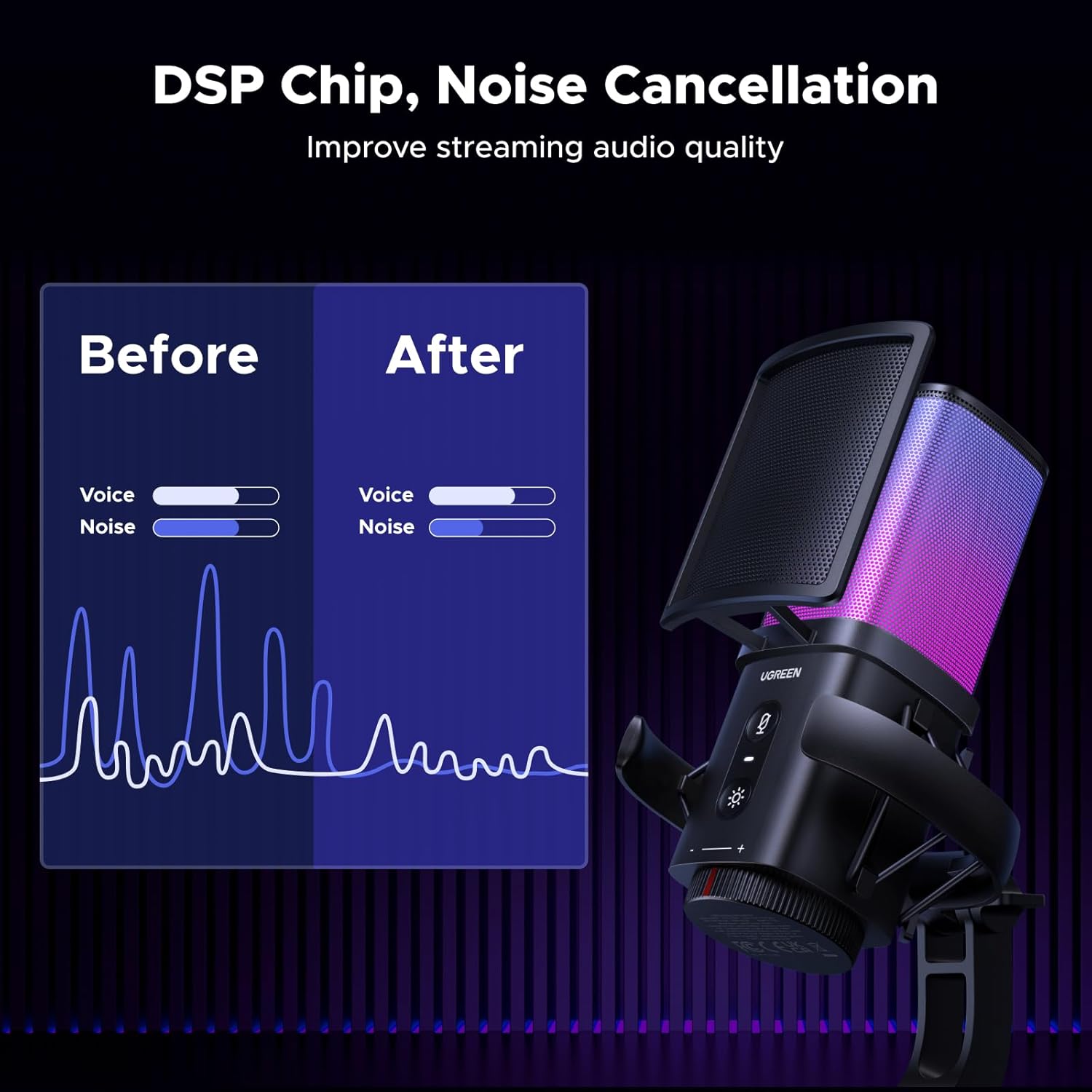
Image 2: Close-up view of the microphone highlighting its dynamic RGB lighting effects.

Image 3: The microphone's front panel showing the mute button, RGB light button, and gain control knob.
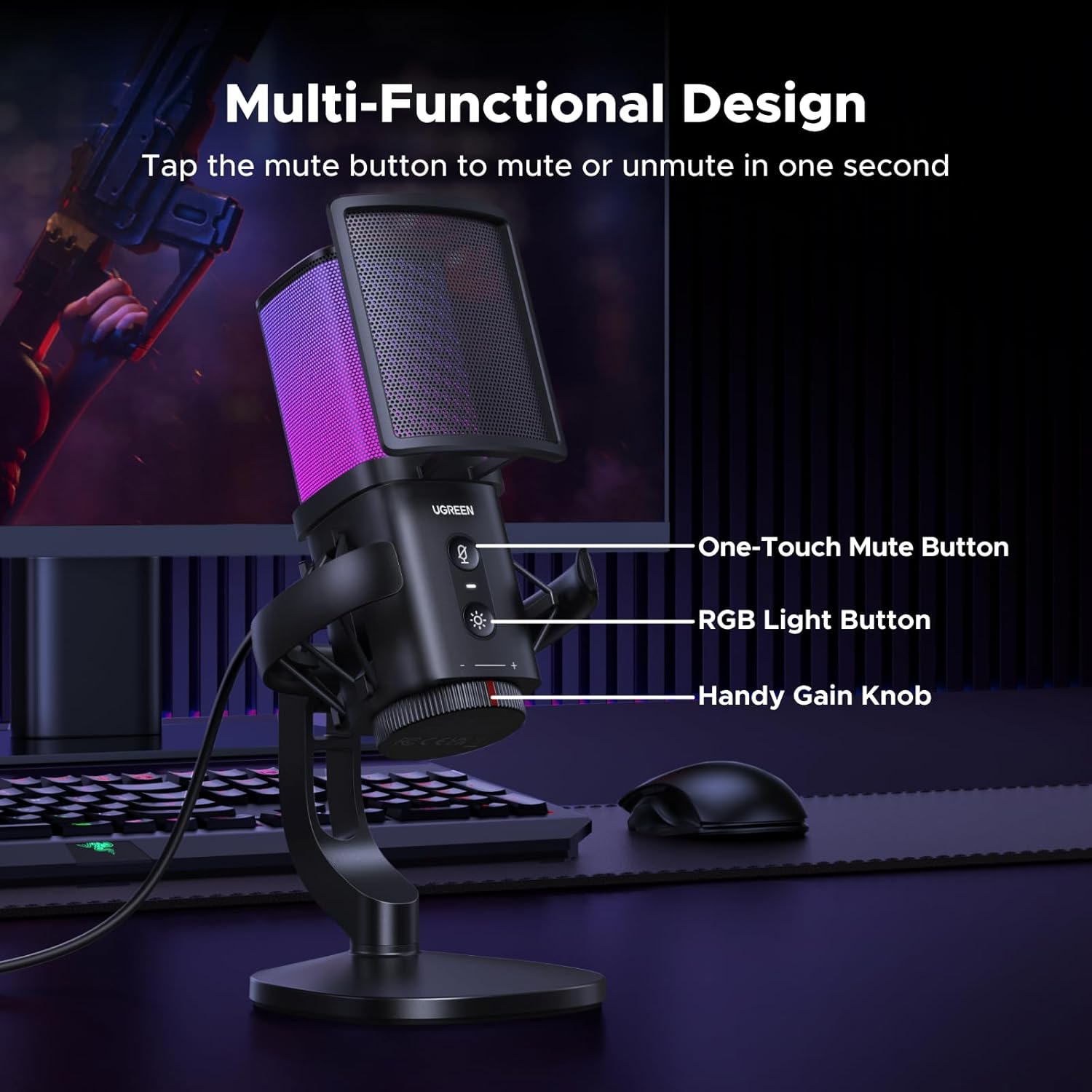
Image 4: Detail of the microphone's connectivity options, including the 3.5mm headphone jack for monitoring and the USB-C port.

Image 5: Visual representation of the microphone's wide compatibility with different operating systems and streaming platforms.
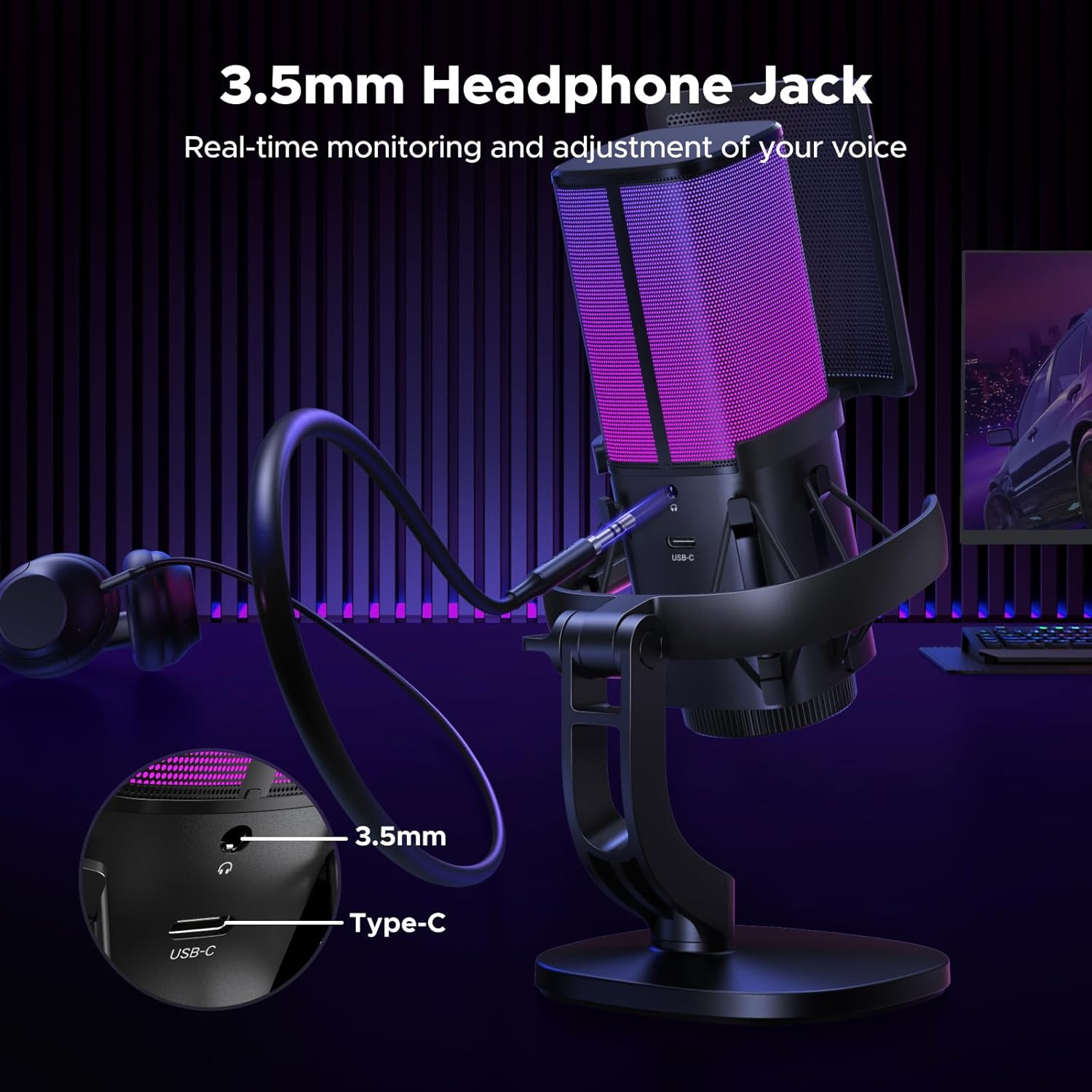
Image 6: Close-up of the integrated shock mount designed to reduce vibrations and handling noise.
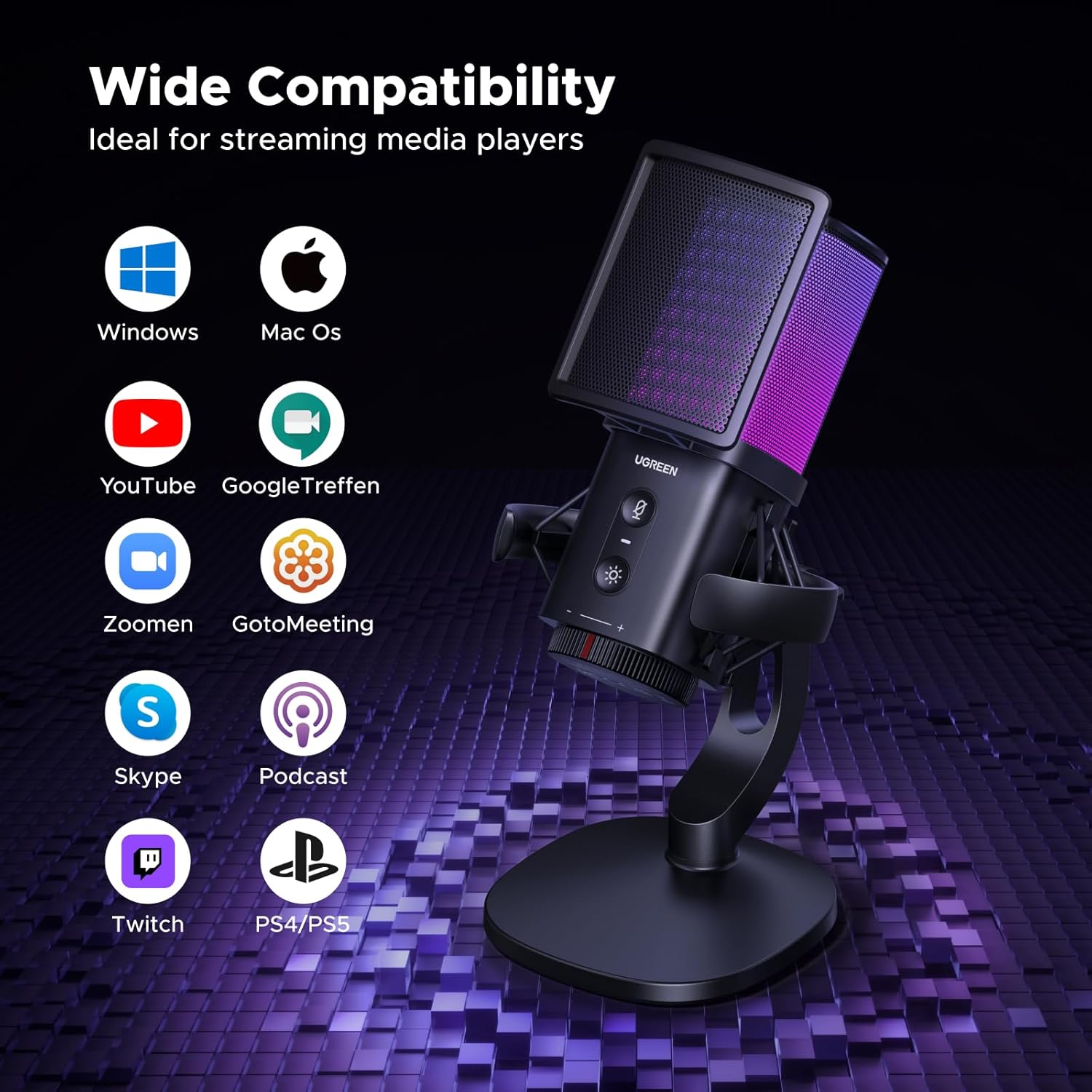
Image 7: The UGREEN USB Gaming Microphone in a typical user setup, demonstrating its compact size and aesthetic appeal.
7. Specifications
| Feature | Detail |
|---|---|
| Model Name | 65629 |
| Microphone Form Factor | Studio Condenser |
| Connectivity Technology | USB |
| Connector Type | 3.5 mm Jack, USB Type-C |
| Polar Pattern | Unidirectional (Cardioid) |
| Audio Sampling Rate | 96KHz/24bit |
| Frequency Response | 20Hz-20kHz |
| Signal-to-Noise Ratio | 70 dB |
| Special Features | 96KHz/24bit, Adjustable Gain Control Knob, Mute Function, Pop Filter, RGB Lights |
| Compatible Devices | Laptop, Desktop, PC, PS4/PS5, Switch/Switch 2, Steam Deck, iPhone 15/16/17/Galaxy S25 (requires USB-C to USB-C data cable) |
| Color | Black |
| Material | Acrylonitrile Butadiene Styrene, Metal, Plastic |
| Item Weight | 1.06 pounds |
| Power Source | Corded Electric |
8. Maintenance and Care
- Keep the microphone clean by wiping it with a soft, dry cloth.
- Avoid exposing the microphone to extreme temperatures, humidity, or direct sunlight.
- Do not use harsh chemicals or abrasive cleaners on the microphone.
- Store the microphone in a safe place when not in use to prevent damage.
9. Troubleshooting
9.1 No Sound Output
- Ensure the USB cable is securely connected to both the microphone and your device.
- Check your device's audio settings to confirm the UGREEN microphone is selected as the input device.
- Verify the microphone is not muted using the mute button on the device.
- Adjust the gain control knob on the microphone to an appropriate level.
9.2 Distorted Sound
- Lower the gain control knob on the microphone to prevent clipping.
- Ensure the microphone is positioned at the recommended distance (8-12 inches) from your mouth.
- Avoid using the microphone with speakers, as its high sensitivity may cause feedback or screeching.
9.3 RGB Lights Not Working
- Ensure the microphone is properly connected and powered on.
- Press the RGB Light Button to cycle through modes; it might be set to an off state or a single color.
10. Warranty and Support
UGREEN products come with a standard manufacturer's warranty. For detailed warranty information, technical support, or service inquiries, please refer to the official UGREEN website or contact their customer service directly. Keep your purchase receipt for warranty claims.