
Introduction
Thank you for choosing the Rii RK302 Ultra-Slim Bluetooth Keyboard. This manual provides detailed instructions for setting up, operating, and maintaining your keyboard to ensure optimal performance. The RK302 is designed for wide compatibility, portability, and a comfortable typing experience across various devices.

Image: Top view of the Rii RK302 Ultra-Slim Bluetooth Keyboard, showcasing its compact layout and black finish.
Setup Instructions
1. Bluetooth Connection
Follow these steps to connect your Rii RK302 keyboard via Bluetooth to your device. The keyboard will automatically connect after the first successful pairing.
- Step 1: Power On. Locate the ON/OFF switch on the keyboard and slide it to the "ON" position. The power indicator light will illuminate.
- Step 2: Activate Pairing Mode. Press the "Connect" key (usually located near the ON/OFF switch). The Bluetooth indicator light will flash, indicating the keyboard is in pairing mode.
- Step 3: Enable Bluetooth on Your Device. On your tablet, smartphone, or computer, go to the Settings menu and turn on Bluetooth.
- Step 4: Select Keyboard. In the list of available Bluetooth devices, select "Bluetooth Keyboard" (or similar name) to initiate the connection. Your device may prompt you to enter a code displayed on the screen; type this code on the Rii RK302 keyboard and press Enter.
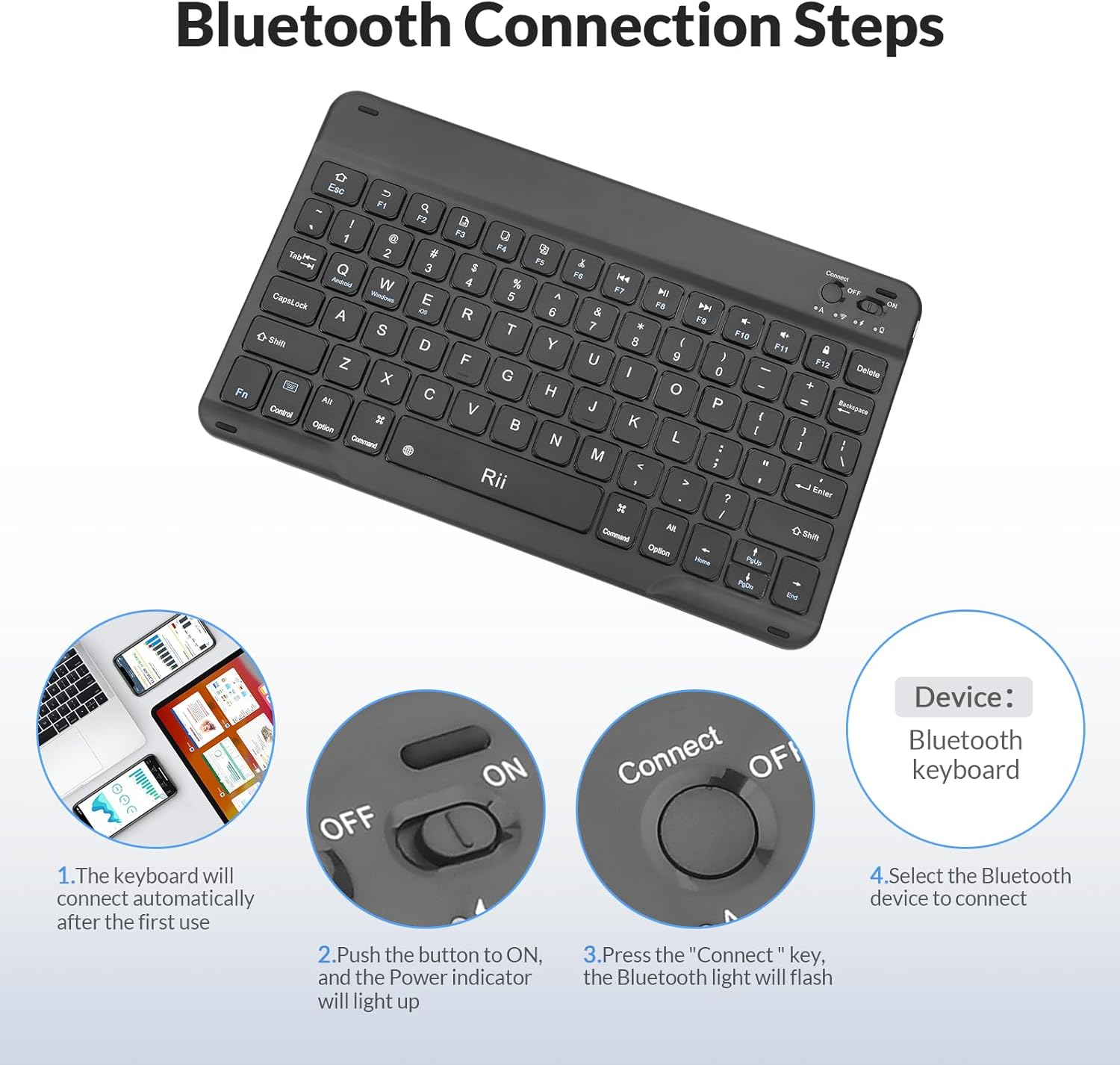
Image: Visual guide illustrating the four steps for Bluetooth connection: power on, press connect, enable Bluetooth on device, and select "Bluetooth Keyboard" from the device list.

Image: The Rii RK302 keyboard wirelessly connected to a tablet, demonstrating its stable Bluetooth connection.
2. System Switching
The Rii RK302 keyboard is compatible with multiple operating systems. To switch between systems, use the following key combinations:
- Fn + Q: For Android devices
- Fn + W: For Windows devices
- Fn + E: For iOS devices (iPad, iPhone)
Important Note for Apple Devices: Before using this keyboard with an Apple device, please ensure the "Assistive Touch" function is turned off in your device's accessibility settings.

Image: The Rii RK302 keyboard shown with various devices (tablet, laptop, smartphone) illustrating its wide compatibility with Android, Windows, and iOS operating systems.
Operating Instructions
1. Charging the Keyboard
The Rii RK302 keyboard features a built-in rechargeable lithium battery. To charge the keyboard:
- Connect the provided USB-C charging cable to the charging port on the keyboard.
- Connect the other end of the cable to a USB power source (e.g., computer USB port, USB wall adapter).
- The charging indicator light will show the charging status and turn off when fully charged.
A full charge provides weeks of normal use.
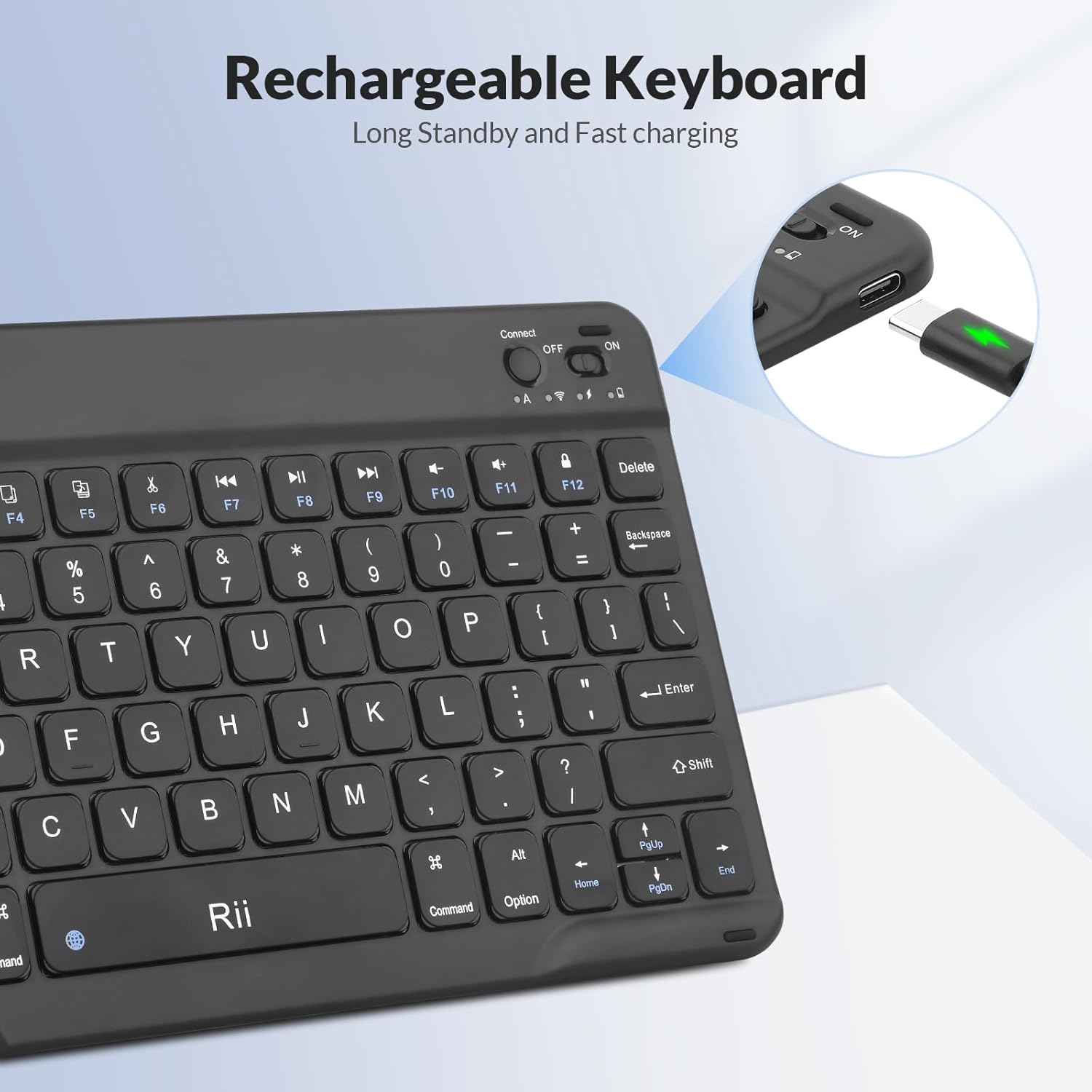
Image: Close-up of the Rii RK302 keyboard's side, highlighting the USB-C charging port and indicating its rechargeable nature.
2. Sleep Mode
To conserve battery life, the keyboard will automatically enter sleep mode after 15 minutes of inactivity. To wake the keyboard, simply press any key and wait approximately 3 seconds for it to reconnect and become active.
3. Typing Experience and Special Keys
The Rii RK302 features scissor-type keys designed for a smooth, quiet, and comfortable typing experience, reducing finger fatigue.
- Mute Buttons: The keyboard includes mute buttons for convenient audio control.
- Function (Fn) Key: The Fn key is used in combination with other keys for special functions, such as system switching (Fn+Q/W/E) and multimedia controls. Note that for some applications, the Esc key may require pressing Fn + Esc.

Image: A user's hands typing on the Rii RK302 keyboard, demonstrating the comfortable key layout and highlighting the mute buttons.
Maintenance
To ensure the longevity and optimal performance of your Rii RK302 keyboard, follow these maintenance guidelines:
- Cleaning: Use a soft, dry cloth to clean the surface of the keyboard. For stubborn dirt, a slightly damp cloth can be used, but ensure no moisture enters the keycaps or internal components.
- Storage: When not in use for an extended period, it is recommended to turn off the power switch to preserve battery life. Store the keyboard in a dry, cool place away from direct sunlight and extreme temperatures.
- Handling: While the keyboard is durable, avoid dropping it or subjecting it to excessive force, which could damage internal components or keys.
Troubleshooting
If you encounter issues with your Rii RK302 keyboard, please refer to the following common solutions:
- Keyboard not connecting:
- Ensure the keyboard is powered on and fully charged.
- Verify that Bluetooth is enabled on your device.
- Press the "Connect" button on the keyboard to enter pairing mode.
- Remove "Bluetooth Keyboard" from your device's paired devices list and attempt to re-pair.
- Ensure the keyboard is within the 10-meter effective range of your device.
- Keys not responding or typing incorrectly:
- Check if the keyboard is connected to the correct operating system mode (Fn+Q for Android, Fn+W for Windows, Fn+E for iOS).
- Ensure the keyboard is charged. Low battery can affect performance.
- If using an Apple device, confirm that "Assistive Touch" is disabled.
- Restart both the keyboard (turn off/on) and your connected device.
- Keyboard slides on surface:
- While the keyboard is ultra-slim, some users may find it slides on smooth surfaces. Consider placing it on a non-slip mat or adding small non-slip pads to the bottom for increased stability.
Specifications
| Model | RK302 |
| Brand | Rii |
| Connectivity Technology | Bluetooth |
| Compatible Devices | iOS (iPhone, iPad), Android (Smartphones, Tablets), Windows (PC, Laptops), Mac, Linux, Smart TV |
| Operating Distance | Up to 10 meters (33 feet) |
| Keyboard Type | Ultra-Slim, Scissor-Switch, Ergonomic |
| Battery | Built-in Rechargeable Lithium Battery (1 A battery included) |
| Charging Port | USB-C |
| Product Dimensions | 9.67 x 5.91 x 0.24 inches (24.6 x 15 x 0.6 cm) |
| Item Weight | 7.8 ounces |
| Material | Aluminum |

Image: Diagram illustrating the precise dimensions of the Rii RK302 keyboard, including length, width, and thickness.
Warranty and Support
Information regarding product warranty and customer support for the Rii RK302 Ultra-Slim Bluetooth Keyboard was not available in the provided product details. For warranty claims or technical assistance, please refer to the manufacturer's official website or contact their customer service directly using the contact information provided with your purchase.


