
Introduction
This manual provides detailed instructions for the Hohem iSteady V3 Gimbal Stabilizer. Please read this manual carefully before use to ensure proper operation and to maximize the performance of your device. Keep this manual for future reference.
Package Contents
Verify that all items listed below are included in your package:
- 1 Hohem iSteady V3 Gimbal Stabilizer
- 1 AI Magnetic Tracker with Fill Light
- 1 Detachable Remote Control
- 1 USB-C Charging Cable
- 1 Hex Wrench
- 1 Storage Bag
- 1 Instruction Manual
Product Overview and Key Features
The Hohem iSteady V3 is a versatile 3-axis smartphone gimbal designed for stable and professional-grade video recording. It integrates advanced features for an enhanced user experience.
Ultra-Smooth 3-Axis Stabilization
Equipped with iSteady 8.0 technology, the iSteady V3 ensures stable footage, even during high-intensity action. Its extended roll arm allows for unobstructed wide-angle shots and greater range of motion, keeping the motor out of the frame for distraction-free filming.

Image: The iSteady V3 gimbal demonstrating its 8.0 stabilization technology, highlighting the smooth movement of the phone holder.
Magnetic AI Tracking
Achieve hands-free shooting with the iSteady V3's magnetic AI tracker. This feature does not require an app and can seamlessly track faces and bodies, ensuring stable footage. Gesture control allows you to initiate or stop tracking.
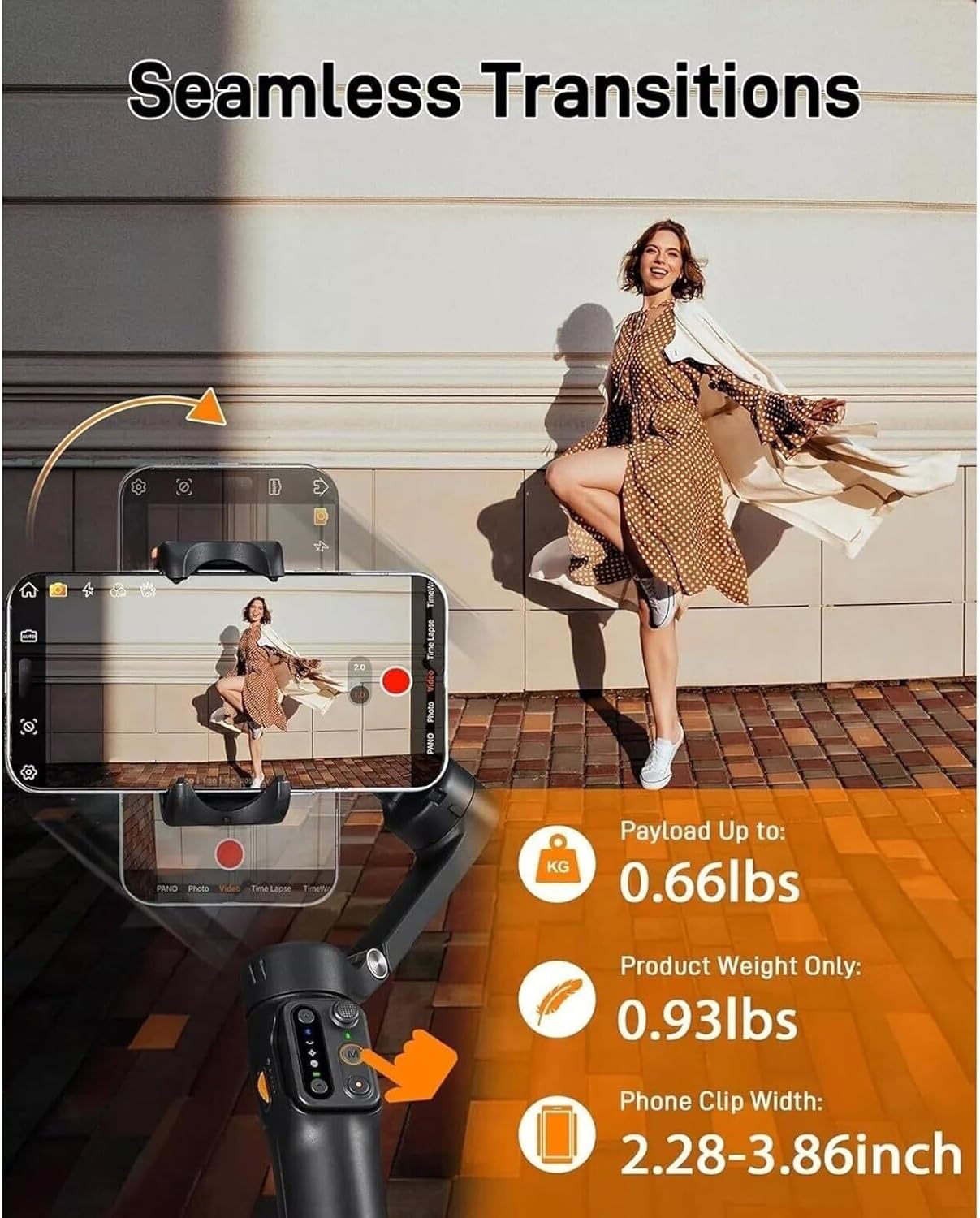
Image: Close-up view of the magnetic AI tracker attached to the gimbal, illustrating its magnetic connection and integrated fill light.
Detachable Remote Control
The detachable remote control offers flexibility for various shooting scenarios. Switch between handheld and remote modes. The remote can be used independently or magnetically attached to the handle for real-time charging. This provides precise fingertip control for perfect shots, ideal for solo vlogging.

Image: A user holding the detachable remote control, with the gimbal in the background, demonstrating the remote's independent use.
Extendable Rod and Built-in Tripod
Expand your creative possibilities with the integrated 205mm extendable rod and built-in tripod. Capture selfies, low-angle pet shots, or aerial views. Easily adjust for groups, pets, or landscapes. Deploy the tripod for hands-free shooting without additional equipment, perfect for travel vlogs and dynamic content.

Image: The iSteady V3 gimbal with its extension rod fully extended and the built-in tripod deployed, ready for hands-free use.
Hohem Joy App Integration
Pair with the Hohem Joy app for cinematic versatility. Features like panorama, timelapse, slow motion, and Dolly Zoom allow for professional-level footage with a single tap. Utilize Moment presets for easy cinematic shots or customize focus/zoom and gimbal settings. The app's intuitive templates and adjustable features transform every session into a masterpiece.

Image: The Hohem iSteady V3 gimbal with a smartphone displaying the Hohem Joy app interface, showcasing various shooting modes and settings.
Setup Guide
1. Unfolding the Gimbal
Gently unfold the gimbal from its compact storage position. Ensure all axes are free to move.

Image: A diagram showing the steps to unfold the Hohem iSteady V3 gimbal from its folded state to its operational position.
2. Attaching Your Smartphone
Place your smartphone securely into the phone clamp. Ensure the phone is centered and balanced to prevent strain on the gimbal motors. For optimal performance, remove any bulky phone cases.
3. Powering On/Off
Press and hold the power button for 3 seconds to turn the gimbal on or off. The indicator lights will illuminate when powered on.
4. Initial Calibration (if needed)
If the gimbal is not level after powering on, connect to the Hohem Joy app and perform an auto-calibration. This ensures optimal stabilization.
5. Charging the Gimbal
Connect the USB-C charging cable to the gimbal's charging port and a power source. The indicator lights will show charging status. The detachable remote control also charges when magnetically attached to the gimbal handle.
Operating Instructions
Gimbal Modes
The iSteady V3 offers various operating modes for different shooting scenarios. Use the mode button to cycle through them:
- Pan Follow (PF): The camera pans left/right following your hand movements, while tilt and roll axes are locked.
- Pan & Tilt Follow (PTF): The camera pans left/right and tilts up/down following your hand movements, while the roll axis is locked.
- All Lock (AL): All three axes are locked, keeping the camera pointing in a fixed direction.
- POV (Point of View): All three axes follow your hand movements, providing a dynamic first-person perspective.
- Sport Mode (S): Provides faster response and stronger motor torque for quick movements and action shots.
Using the AI Magnetic Tracker
Attach the AI Magnetic Tracker to the top of your smartphone. Once powered on, it will automatically detect and track faces or bodies. Use hand gestures to initiate or stop tracking (refer to the gesture guide in the full manual for specific gestures).
Detachable Remote Control Functions
The remote control allows for wireless operation of the gimbal. Functions typically include:
- Shutter button (photo/video recording)
- Zoom in/out
- Mode switching
- Joystick for manual pan/tilt control
Ensure the remote is paired with the gimbal before use. Refer to the full manual for pairing instructions.
Using the Extension Rod and Tripod
To extend the rod, pull the handle downwards. To deploy the tripod, spread the legs at the base of the handle. Ensure the tripod is placed on a stable, flat surface.
Hohem Joy App Features
Download the Hohem Joy app from your smartphone's app store. Connect the gimbal via Bluetooth. The app provides advanced features such as:
- Customizable shooting modes (Panorama, Timelapse, Dolly Zoom)
- Parameter adjustments (ISO, White Balance, Exposure)
- Firmware updates
- Calibration tools
Maintenance
- Cleaning: Wipe the gimbal with a soft, dry cloth. Do not use liquid cleaners or solvents.
- Storage: Store the gimbal in a cool, dry place, away from direct sunlight and extreme temperatures. Use the provided storage bag for protection.
- Battery Care: Charge the battery regularly, even if not in use, to maintain battery health. Avoid fully discharging the battery for extended periods.
- Firmware Updates: Periodically check for firmware updates via the Hohem Joy app to ensure optimal performance and access to new features.
Troubleshooting
| Problem | Possible Solution |
|---|---|
| Gimbal not powering on. | Ensure the battery is charged. Connect the USB-C cable to charge for at least 30 minutes. |
| Gimbal is unstable or vibrating. | Ensure your smartphone is properly balanced in the clamp. Perform an auto-calibration via the Hohem Joy app. Check for firmware updates. |
| AI tracking not working. | Ensure the AI Magnetic Tracker is correctly attached and powered on. Check lighting conditions; sufficient light is required for optimal tracking. |
| Remote control not responding. | Ensure the remote control is charged and properly paired with the gimbal. Re-pair if necessary. |
| Cannot connect to Hohem Joy app. | Ensure Bluetooth is enabled on your smartphone. Restart both the gimbal and the app. Try re-pairing the device within the app. |
Specifications
| Feature | Detail |
|---|---|
| Brand | hohem |
| Model Number | iSteady V3 (Part No: RDJP-HO-00022) |
| ASIN | B0FG71X927 |
| Compatible Devices | Smartphones |
| Audio Recording | No |
| Minimum Shutter Speed | 1/1000 seconds |
| Maximum Shutter Speed | 1/1000 seconds |
| Payload Capacity | Up to 0.66 lbs (0.3 kg) |
| Product Weight | 0.93 lbs (0.42 kg) |
| Phone Clip Width | 2.28-3.86 inches (58-98 mm) |
| Extension Rod Length | 205 mm (built-in) |
Warranty and Support
For warranty information and technical support, please refer to the official Hohem website or contact their customer service directly. Keep your purchase receipt as proof of purchase.
Online Resources: Visit the official Hohem website for FAQs, video tutorials, and the latest firmware updates.


