
1. Product Overview
The Bonacell RGB Wireless Controller is designed to enhance your gaming experience on PS5 Pro, PS5 Slim, and PC. It features advanced functionalities such as dual vibration, 6-axis motion sensing, customizable RGB lighting, programmable back paddles, and a turbo function. This manual provides detailed instructions for setup, operation, and troubleshooting.

Image 1: The Bonacell RGB Wireless Controller is compatible with multiple devices, including PS5 consoles and Windows PCs.
2. Controller Layout and Components
Familiarize yourself with the various buttons and components of your Bonacell RGB Wireless Controller.

Image 2: Detailed diagram showing the layout of the multifunctional controller, including all buttons, sticks, and ports.
- Touchpad: Interactive surface for in-game navigation.
- Share Button: For sharing gameplay content.
- MENU Button: Accesses in-game menus.
- Cross Key (D-pad): Directional input.
- Speaker: Integrated audio output.
- Left Stick: Primary movement control.
- Turbo Button: Activates turbo mode for rapid input.
- 3.5mm Headphone Jack: For connecting headphones.
- Light Button: Controls RGB lighting modes.
- Home Button: Powers on/off and accesses system menus.
- Right Stick: Camera and secondary movement control.
- R1/L1 Buttons: Shoulder buttons.
- USB Charging Port: Type-C port for charging and wired connection.
- R2/L2 Triggers: Analog triggers.
- SET (Marco) Button: For macro programming.
- PR/PL Paddles: Programmable rear paddles.
3. Setup and Connection
3.1 Initial Pairing with PS5 Console
- Ensure the PS5 console is powered on.
- Connect the Bonacell RGB Wireless Controller to the PS5 console using a Type-C data cable (included or original).
- Press and hold the Share button + Home button on the wireless controller simultaneously for 3 seconds to initiate pairing.
- Once paired, the controller can be used wirelessly. The Home button can then activate the controller with a single click without restarting the console.
3.2 Connecting to PC
The controller offers two methods for PC connection:
3.2.1 Wired Connection
- Connect the controller to your PC using the Type-C data cable.
- The PC should automatically detect and install the necessary drivers.
3.2.2 Bluetooth Wireless Connection
- Ensure your PC has Bluetooth enabled.
- On the controller, press and hold the Share button + Home button simultaneously for 3 seconds to enter pairing mode. The indicator light will flash.
- On your PC, go to Bluetooth settings and search for new devices. Select the Bonacell controller when it appears.
- Follow any on-screen prompts to complete the pairing process.
4. Operating Instructions
4.1 RGB Lighting Modes
The controller features 9 vibrant RGB lighting effects.

Image 3: The controller offers seven light colors and three light modes, including breathing, strobe, and static effects, with a color memory function.
- Press the LIGHT button to cycle through the 9 available lighting effects (e.g., breath, strobe, static).
- The controller includes a color memory function, ensuring your preferred lighting color is displayed upon subsequent use.
4.2 Dual Vibration Feedback
Experience immersive feedback with the controller's dual vibration motors.

Image 4: The dual motor vibration feedback provides a delicate and immersive sensation during gameplay.
- The dual motors provide tactile feedback for in-game actions, such as explosions and impacts.
4.3 6-Axis Gyroscope and Sensitive Joysticks
Achieve precise control with the integrated 6-axis gyroscope and sensitive 3D joysticks.

Image 5: The sensitive 6-axis somatosensory and 3D joysticks contribute to an ultimate gaming experience with enhanced precision.
- The 6-axis gyroscope allows for motion-based controls, enhancing aiming and in-game interactions.
- Sensitive 3D joysticks provide accurate and responsive input.
4.4 Programmable Back Paddles and Macro Function
- The rear paddles (PR/PL) can be programmed to execute complex button combinations (macros).
- Use the SET (Marco) button to program sequences like R2 + Triangle + L3 onto a single paddle for quick execution.
4.5 Turbo Mode
- Activate Turbo Mode to transform single button presses into rapid, automatic fire. This is useful for games requiring fast, repetitive inputs.
4.6 Audio Features
The controller supports both wired and Bluetooth audio functions.
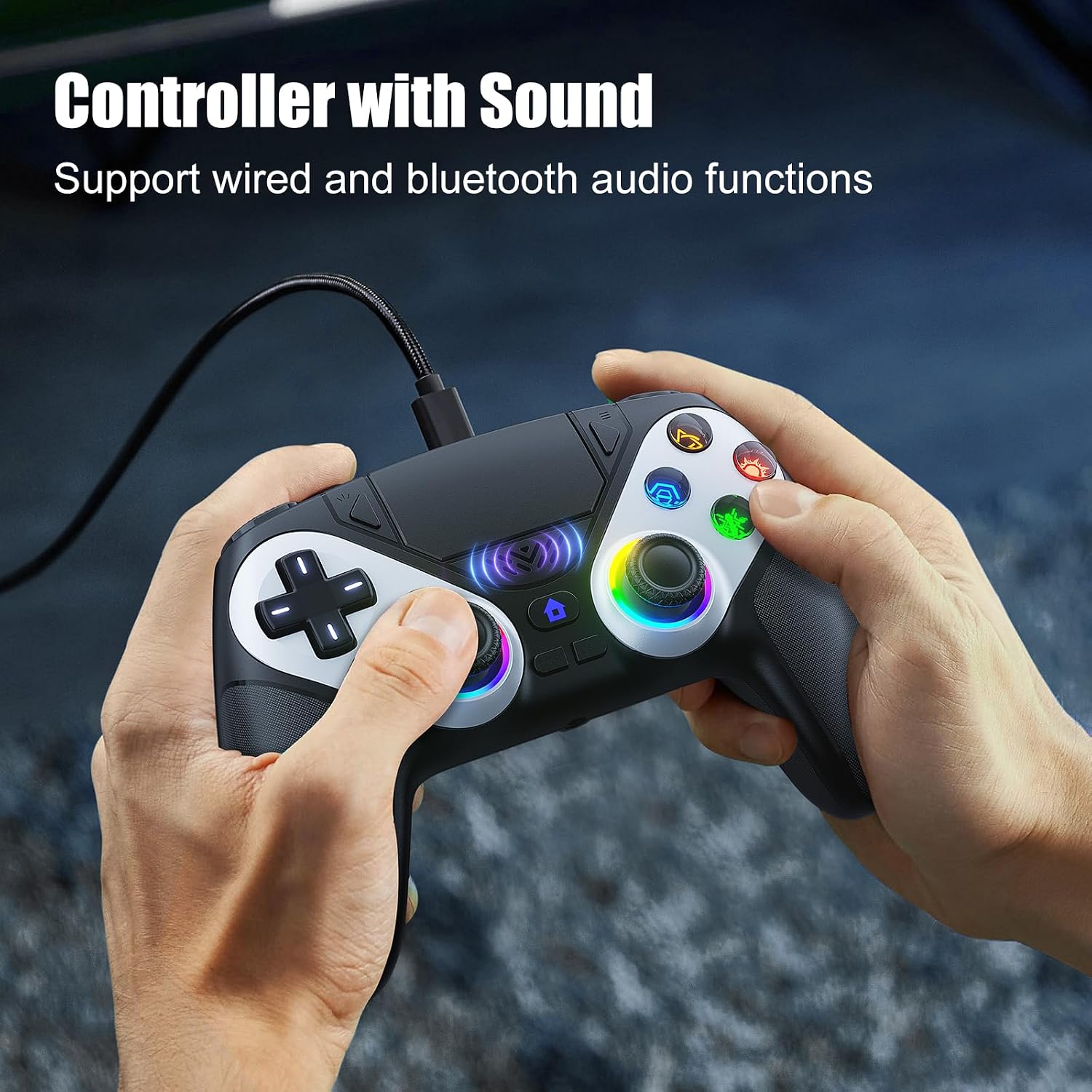
Image 6: The controller supports wired and Bluetooth audio functions, allowing for headset connection via the 3.5mm jack.
- Connect your headphones to the 3.5mm headphone jack for private audio.
- The built-in speaker provides in-game audio cues.
- Note: To use the controller's microphone, headphones must be connected.
5. Charging the Controller
- The controller has a 1000 mAh battery capacity.
- Charging can be done via the Type-C port using a cable or a compatible charging base.
- A full charge typically takes approximately 2.5 hours.
- Once fully charged, the controller provides up to 16 hours of usage time.
6. Troubleshooting
- Controller not charging or turning on: Ensure the Type-C cable is securely connected to both the controller and a power source. Try a different cable or charging port.
- Headphones not working correctly: Verify that the headphones are fully plugged into the 3.5mm jack. Check headphone volume settings on the console/PC and the controller. Remember that a microphone requires headphones to be connected.
- Connection issues: For PS5, ensure initial wired pairing was successful. For PC Bluetooth, ensure PC Bluetooth is active and the controller is in pairing mode. Try re-pairing the controller.
- If issues persist, please refer to the support information provided with your purchase or contact Bonacell customer support.
7. Specifications
| Feature | Specification |
|---|---|
| Product Name | Wireless Controller for P-5 |
| Product Weight | 0.26 kg (340 grams with packaging) |
| Product Dimensions | 165 x 105 x 45 mm (Controller) / 17 x 7 x 12 cm (Package) |
| Battery Capacity | 1000 mAh |
| Usage Time | Up to 16 hours |
| Charging Time | Approximately 2.5 hours |
| Charging Method | Type-C cable or charging base |
| Functions | Dual Shock Motor, 6-Axis Gyroscope, RGB Lighting, Back Paddles, Turbo Mode, Touchpad, 3.5mm Audio Jack, Speaker |
| Material | ABS |
| Compatibility | PS5 Pro, PS5 Slim, Windows PC |
8. Warranty and Support
For warranty information, returns, or specific support inquiries, please refer to the documentation included with your purchase or contact the seller directly. If you encounter any issues not covered in this manual, such as charging problems or audio malfunctions, please reach out to customer support for assistance.


