
LG 24G411A-B
LG UltraGear G4 24G411A-B Gaming Monitor User Manual
Model: 24G411A-B
Introduction
This manual provides essential information for the safe and efficient use of your LG UltraGear G4 24G411A-B Gaming Monitor. Please read this manual thoroughly before operating the product and retain it for future reference.
Setup
Package Contents
Ensure all components are present:
- LG UltraGear G4 Monitor (24G411A-B)
- Stand Base
- Stand Neck
- Power Cable
- HDMI Cable
- DisplayPort Cable
- User Manual (this document)
Assembling the Stand
Attach the stand neck to the monitor panel, then secure the stand base to the neck. Refer to the diagrams below for proper assembly.
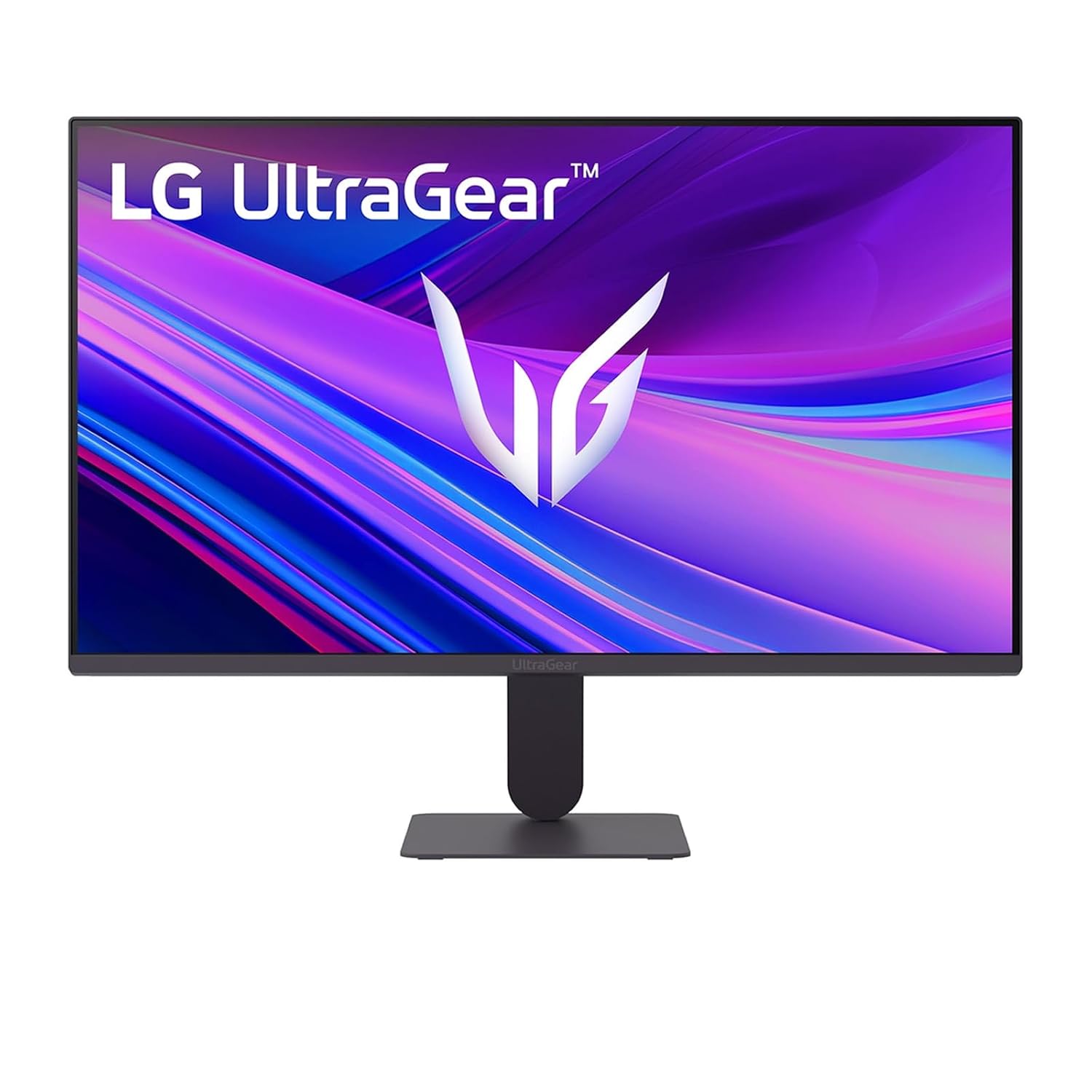
Figure 1: Front view of the LG UltraGear G4 monitor with its stand assembled.

Figure 2: Top-down view illustrating the ultra-slim design and slim stand base of the monitor.
Connecting Cables
Connect the power cable to the monitor and a power outlet. Use either an HDMI or DisplayPort cable to connect the monitor to your computer or gaming console.

Figure 3: Rear view of the monitor, highlighting the HDMI and DisplayPort input connections.
The monitor supports both HDMI and DisplayPort connections. Ensure your device is connected to the correct input port.
Adjusting the Monitor
The monitor features an adjustable design, allowing for tilt adjustments to optimize your viewing angle. It is also wall-mountable using a VESA compatible mount (sold separately).

Figure 4: Side view of the monitor, demonstrating its tilt adjustment capability.
Operating Instructions
Power On/Off and Basic Controls
The monitor is controlled via buttons, typically located on the bottom or rear of the display. Refer to the on-screen display (OSD) menu for detailed settings.
Display Features
- Screen Size: 23.8 Inches (24-inch class)
- Resolution: Full HD (FHD) 1920 x 1080 pixels
- Display Type: IPS (In-Plane Switching) panel for wide viewing angles and accurate colors.
- Color Gamut: Supports sRGB 99% (Typical) for vivid and true-to-life colors.
- HDR Support: HDR10 compatible for enhanced contrast and color depth.

Figure 5: The monitor displaying its 24-inch FHD IPS resolution of 1920x1080 pixels.

Figure 6: Visual representation of the monitor's sRGB 99% (Typical) color coverage and HDR10 compatibility.

Figure 7: An image demonstrating the vivid color reproduction achieved through HDR, sRGB 99%, and IPS panel technology.
Gaming Performance Features
- Refresh Rate: Native 120Hz, overclockable to 144Hz for smoother motion.
- Response Time: 1ms Motion Blur Reduction (MBR) for minimal ghosting in fast-paced scenes.
- Adaptive Sync: Compatible with NVIDIA G-SYNC and AMD FreeSync technologies to eliminate screen tearing and stuttering.
- Dynamic Action Sync (DAS): Reduces input lag for real-time action.
- Black Stabilizer: Enhances visibility in dark game scenes, allowing you to spot enemies more easily.
- Crosshair: Provides a fixed crosshair on the center of the screen for improved aiming accuracy in FPS games.

Figure 8: The monitor illustrating its 120Hz native refresh rate, capable of overclocking to 144Hz.

Figure 9: A visual representation of the monitor's 1ms Motion Blur Reduction feature.
Maintenance
Cleaning the Monitor
- Always unplug the monitor from the power outlet before cleaning.
- Use a soft, lint-free cloth slightly dampened with water or a mild, non-abrasive screen cleaner.
- Do not spray cleaner directly onto the screen.
- Avoid using benzene, thinner, or any volatile substances, as they may damage the screen surface.
General Care
- Avoid placing heavy objects on the monitor or its cables.
- Keep the monitor away from direct sunlight, heat sources, and excessive dust.
- Ensure proper ventilation around the monitor to prevent overheating.
Troubleshooting
No Power
- Check if the power cable is securely connected to both the monitor and the power outlet.
- Verify that the power outlet is functioning correctly by plugging in another device.
No Signal / Blank Screen
- Ensure the video cable (HDMI or DisplayPort) is firmly connected to both the monitor and your computer/device.
- Check if the correct input source is selected on the monitor's OSD menu.
- Restart your computer/device.
Image Issues (Flickering, Distorted Colors)
- Check the video cable for any damage or loose connections.
- Adjust the monitor's resolution and refresh rate settings on your computer to match the monitor's specifications.
- Perform a factory reset through the monitor's OSD menu.
Sound Issues (if applicable)
- Ensure the audio cable (if separate) is connected, or that audio is being transmitted via HDMI/DisplayPort.
- Check the volume settings on both the monitor and your computer.
Specifications
| Feature | Detail |
|---|---|
| Brand | LG |
| Model | 24G411A-B |
| Product Dimensions (LxWxH) | 22 x 53.94 x 41.2 cm |
| Item Weight | 4.56 kg |
| Screen Size | 23.8 Inches |
| Display Type | IPS |
| Resolution | 1920 x 1080 (FHD 1080p) |
| Aspect Ratio | 16:9 |
| Refresh Rate | 144 Hz (Overclock) |
| Response Time | 1ms MBR (Motion Blur Reduction) |
| Hardware Interface | DisplayPort, HDMI |
| Special Features | High Refresh Rate, HDR10, Wide Color Gamut (sRGB 99%), G-Sync/FreeSync Compatibility, Gamer-Centric Features (DAS, Black Stabilizer, Crosshair), Adjustable Design |
| Date First Available | 22 November 2025 |
Warranty and Support
Warranty Information
For detailed warranty terms and conditions, please refer to the warranty card included with your product or visit the official LG website. Keep your purchase receipt as proof of purchase.
Extended Protection Plans
Optional extended protection plans are available for this product:
- 1 Year Cyber Standard Protect Plan by OneAssist
- 1 Year Extended Warranty by OneAssist
- 2 Year Extended Warranty by OneAssist
These plans offer additional coverage beyond the standard manufacturer's warranty. Contact OneAssist or your retailer for more details.
Customer Support
For technical assistance, service inquiries, or further support, please contact LG Customer Service. Contact details can typically be found on the LG official website or in the product packaging.
Ask a question about this manual
Ask about setup, troubleshooting, compatibility, parts, safety, or missing instructions. Manuals+ will review the question and use this page’s manual context to help answer it.