1. Introduction
This manual provides comprehensive instructions for the installation, operation, and maintenance of your REOLINK RP-WCB8MZ 4K Wi-Fi 6 Outdoor Security Camera. Please read this manual thoroughly before using the product to ensure proper setup and functionality. Keep this manual for future reference.
2. Product Overview
The REOLINK RP-WCB8MZ is a high-performance 4K outdoor security camera featuring Wi-Fi 6 connectivity, 5X optical zoom, and advanced AI detection capabilities. It is designed for reliable outdoor surveillance with IP67 waterproofing.
2.1 Camera Components
Familiarize yourself with the various parts of your security camera:

Image Description: A detailed diagram illustrating the REOLINK RP-WCB8MZ camera and its various components. Labels point to the CDS Sensor, Infrared LED, Spotlight, Lens, Aperture Hood, Microphone, Speaker, Antenna, Mounting Bracket, microSD Card Cover, Alarm Input/Output, Power Port, Reset Button, and Network Port.
- CDS Sensor: Detects ambient light levels for automatic day/night mode switching.
- Infrared LED: Provides illumination for black and white night vision.
- Spotlight: Activates for color night vision and deterrence.
- Lens: Captures video footage.
- Aperture Hood: Protects the lens and reduces glare.
- Microphone: Captures audio for two-way communication and recording.
- Speaker: Enables two-way audio and plays custom voice alerts.
- Antenna: For Wi-Fi connectivity.
- Mounting Bracket: Used for secure installation on walls or ceilings.
- microSD Card Cover: Protects the microSD card slot.
- Alarm Input/Output: For connecting external alarm devices.
- Power Port: Connects to the power adapter.
- Reset Button: Used to restore factory settings.
- Network Port: For wired network connection (optional).
3. Key Features
- 4K/8MP Resolution with 5X Optical Zoom: The camera delivers 4K (8-megapixel) video resolution, providing clear and detailed images. The 5X optical zoom allows for magnification of distant objects without loss of clarity.
- Color Night Vision: Equipped with spotlights, the camera can capture full-color video even in low-light conditions, enhancing visibility and detail at night.
- AI Smart Detection: The camera can intelligently distinguish between humans, vehicles, and animals, reducing false alarms caused by irrelevant movements. It also supports package detection and detection of non-motorized objects.
- Perimeter Protection: Configure specific detection zones such as line crossing, zone intrusion, and zone loitering to monitor critical areas. Note: Perimeter settings are currently managed via the Reolink App.
- Local AI Video Search: Utilize descriptive keywords to quickly find specific event-based footage stored locally.
- Dual-Band Wi-Fi 6: Supports both 2.4GHz and 5GHz Wi-Fi bands, offering stable and fast wireless connectivity. 5GHz provides higher speeds in open areas, while 2.4GHz offers better penetration through walls.
- Flexible Recording Options: Supports recording to a microSD card (up to 512GB), a Reolink NVR (Network Video Recorder), or an FTP server for continuous 24/7 recording without subscription fees.
- Two-Way Audio: Built-in microphone and speaker allow for real-time communication through the camera.
- IP67 Waterproof: Designed to withstand outdoor weather conditions, ensuring durability and reliable operation.

Image Description: A split image demonstrating the clarity of 4K/8MP resolution and the detail captured with 5X optical zoom. The top panel shows a wide street view in 4K, while the bottom panel shows a zoomed-in section of a storefront with 5X optical zoom, highlighting fine details.

Image Description: A screenshot from the Reolink app showing a vivid color night vision view of an outdoor scene with people near a building. The image demonstrates the camera's ability to capture colors in dark environments.
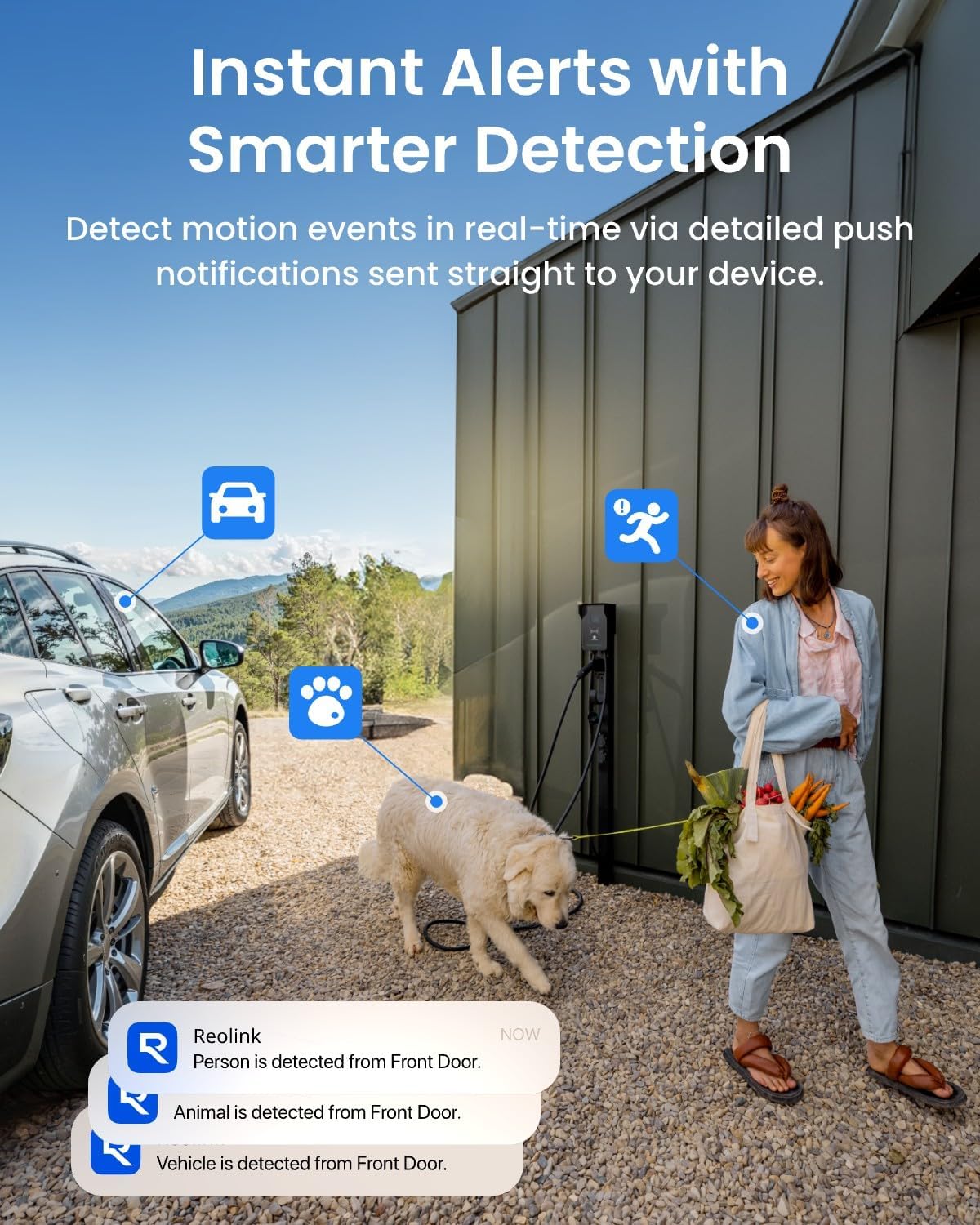
Image Description: An illustration showing the camera detecting a person, a vehicle, and an animal (dog) in an outdoor setting. Notification bubbles indicate instant alerts for each detected category, demonstrating the AI smart detection feature.

Image Description: A multi-panel image displaying different perimeter protection alerts within the Reolink app interface. It shows visual representations of Line-Crossing Alert, Zone Intrusion Alert, and Zone Loitering Alert, along with detection of forgotten objects and absence of objects.

Image Description: A depiction of the Reolink app's AI Video Search feature, where a user types 'Delivery man' to search for relevant footage. Multiple small video thumbnails are shown, illustrating the search results for various events involving people and packages.

Image Description: A graphic illustrating the benefits of Wi-Fi 6 for the security camera, emphasizing Superfast Transfer, Low Latency, and Higher Stability. The image shows the camera with prominent Wi-Fi antennas and text explaining the advantages of 5GHz and 2.4GHz bands.

Image Description: A visual representation of the camera's flexible recording options. It shows a microSD card slot supporting up to 512GB, an icon for 24/7 recording with a Reolink NVR, and an FTP folder icon, indicating various storage methods.
4. Setup Instructions
4.1 What's in the Box
Before starting the installation, ensure all components are present:
- REOLINK RP-WCB8MZ Camera Body
- Mounting Template
- Mounting Screws and Wall Anchors
- Power Adapter
- Network Cable (for initial setup or wired connection, if applicable)
- Quick Start Guide
4.2 Initial Setup
- Power On: Connect the camera to the power adapter and plug it into an electrical outlet. The camera will power on and initiate its startup sequence.
- Download Reolink App: Download and install the official Reolink App from your smartphone's app store (iOS or Android).
- Add Camera: Open the Reolink App, tap the '+' icon to add a new device. Scan the QR code located on the camera body or packaging. Follow the on-screen instructions to connect the camera to your Wi-Fi network.
- Create Password: Set a strong password for your camera for security purposes.
- Live View: Once connected, you should be able to view the live feed from your camera within the app.
4.3 Physical Installation
The camera is designed for wall or ceiling mounting. Choose a location that provides the desired viewing angle and has a stable Wi-Fi signal.
- Select Location: Identify a suitable outdoor location, ensuring it is within Wi-Fi range and has access to a power source.
- Mounting: Use the provided mounting template to mark screw holes. Drill pilot holes, insert wall anchors if necessary, and secure the mounting bracket with screws.
- Attach Camera: Attach the camera body to the mounting bracket and adjust the angle for optimal coverage.
- Cable Management: Route the power cable and any other cables securely to protect them from weather and tampering.

Image Description: A small image showing the REOLINK RP-WCB8MZ camera securely mounted on the exterior brick wall of a building, demonstrating a typical installation scenario.
5. Operating Instructions
5.1 Remote Viewing
Access your camera's live feed and recorded footage from anywhere using the Reolink App or client software on your computer.
- Open the Reolink App and select your camera from the device list.
- The live view will display automatically.
- Use the controls on the screen to zoom in/out (digital zoom), access playback, or adjust settings.
5.2 Two-Way Audio
Engage in real-time conversations through the camera.
- While in live view, tap the microphone icon to speak.
- Tap the speaker icon to listen to audio from the camera's location.
5.3 Smart Detection & Alerts
Configure the camera to send notifications for specific events.
- Navigate to the camera settings in the Reolink App.
- Go to 'Detection Alarm' or 'Smart Detection' settings.
- Enable detection types (Human, Vehicle, Animal, Package, Non-motorized Object).
- Set up push notifications, email alerts, or siren/spotlight activation upon detection.
- For perimeter protection (line crossing, zone intrusion, zone loitering), configure these options within the Reolink App's detection settings.
5.4 Recording Options
Manage how your camera records footage.
- MicroSD Card: Insert a microSD card (up to 512GB) into the designated slot. The camera will automatically begin recording based on your settings (continuous or motion-triggered).
- Reolink NVR: Connect the camera to a compatible Reolink NVR for centralized recording and management.
- FTP: Configure FTP settings in the camera's web interface or app to upload recordings to an FTP server.
- Access recorded footage via the 'Playback' function in the Reolink App or client software.
6. Maintenance
Regular maintenance ensures optimal performance and longevity of your security camera.
- Clean the Lens: Periodically wipe the camera lens with a soft, damp cloth to remove dust, dirt, or water spots that may affect image quality.
- Check Connections: Ensure all cables (power, network) are securely connected and free from damage.
- Firmware Updates: Regularly check for and install firmware updates via the Reolink App or website to benefit from new features and security enhancements.
- Inspect Mounting: Verify that the camera is still securely mounted and has not become loose due to weather or other factors.
- Weather Protection: While IP67 rated, extreme weather conditions (e.g., heavy snow, ice) may temporarily affect performance. Ensure no obstructions block the camera's view.

Image Description: A small image depicting the REOLINK camera mounted outdoors during rainfall, illustrating its IP67 waterproof rating and ability to function in various weather conditions. A temperature bar indicates its operational range from -30°C to 55°C.
7. Troubleshooting
This section addresses common issues you might encounter with your REOLINK RP-WCB8MZ camera.
| Issue | Possible Cause | Solution |
|---|---|---|
| Camera offline | No power; Wi-Fi signal loss; Network issue | Check power connection; Verify Wi-Fi signal strength; Restart router and camera; Ensure correct Wi-Fi password. |
| Poor image quality | Dirty lens; Insufficient lighting; Network bandwidth issues | Clean the lens; Ensure adequate lighting or enable spotlights/IR; Check network speed. |
| No motion detection alerts | Detection settings disabled; Sensitivity too low; Schedule not set correctly | Enable smart detection types; Adjust detection sensitivity; Verify detection schedule in the app. |
| MicroSD card not recording | Card full; Card faulty; Recording schedule incorrect | Format or replace microSD card; Check recording settings and schedule in the app. |
| Two-way audio not working | Microphone/speaker disabled; Volume too low; Network latency | Enable microphone/speaker in app; Adjust volume; Check network connection. |
8. Specifications
Detailed technical specifications for the REOLINK RP-WCB8MZ camera:
| Feature | Detail |
|---|---|
| Model Name | RP-WCB8MZ |
| Video Capture Resolution | 4K (8MP) |
| Optical Zoom | 5x |
| Connectivity Technology | Wi-Fi 6 (Dual-Band 2.4GHz/5GHz) |
| Indoor/Outdoor Usage | Outdoor |
| Waterproof Rating | IP67 |
| Power Source | Corded Electric |
| Mounting Type | Wall/Ceiling Mount |
| Storage Options | MicroSD card (up to 512GB), Reolink NVR, FTP |
| Special Features | Color Night Vision, AI Smart Detection (Human/Vehicle/Animal/Package), Perimeter Protection, Two-Way Audio |
| Compatible Devices | Reolink PoE NVR, Reolink WiFi NVR, Reolink Home Hub Pro, Reolink Home Hub, Google Assistant |
| Product Dimensions | 2.99 x 2.91 x 8.66 inches |
| Item Weight | 2.09 pounds |
9. Warranty and Support
For warranty information, technical support, or further assistance, please visit the official REOLINK website or contact REOLINK customer service. Details can typically be found on the product packaging or the REOLINK support portal.
Online resources often include FAQs, video tutorials, and community forums to help you get the most out of your REOLINK product.


