
1. Product Overview
The Bewinner Tablet Pen is a passive stylus designed for precision input on capacitive touchscreen devices. It offers a smooth and responsive experience for writing, drawing, and navigating without requiring batteries or Bluetooth connectivity.
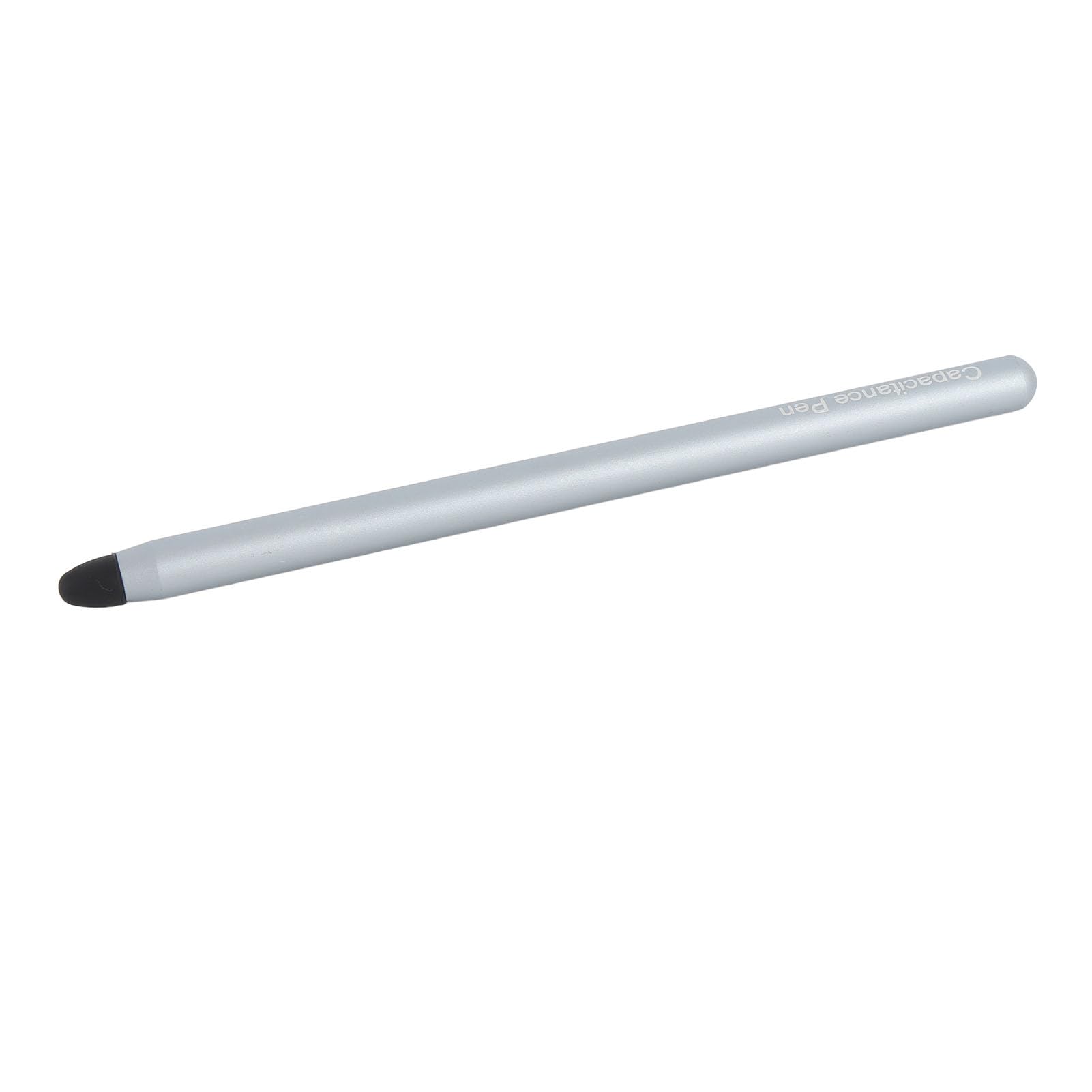
Image 1: The Bewinner Tablet Pen, a sleek blue stylus with a black silicone tip.
Package Contents:
- 1 x Bewinner Tablet Pen
- 1 x Replacement Silicone Pen Nib
2. Compatibility
This tablet pen is compatible with a wide range of capacitive touchscreen devices. Verified compatible models include:
- For Fire Maximum 11
- For Fire HD 10, Fire 10 Kids, Fire HD 10 Kids Pro, HD 10 Plus
- For Fire HD 8, HD 8 Plus, HD 8 Kids, HD 8 Kids Pro
- For Fire 7, Fire 7 Kids
- For Tab A9, Tab A8, Tab A7, Tab A7 Lite
- And other devices with capacitive touchscreens.
3. Setup
The Bewinner Tablet Pen requires no complex setup. It is ready for immediate use upon removal from its packaging.
- Unpack the Pen: Carefully remove the tablet pen and any accessories from the packaging.
- Inspect the Tip: Ensure the silicone pen nib is securely attached to the stylus.
- Begin Use: The pen is now ready to interact with your compatible touchscreen device.
4. Operating Instructions
The Bewinner Tablet Pen functions like an extension of your finger, providing enhanced precision and control for various tasks.
- Holding the Pen: Hold the stylus comfortably as you would a traditional pen or pencil.
- Interacting with the Screen: Gently touch the silicone tip to your device's screen to perform actions such as:
- Tapping to select items.
- Swiping to scroll or navigate.
- Drawing or writing in compatible applications.
- Editing documents or images with greater accuracy.
- Pressure Sensitivity: As a passive stylus, it does not feature active pressure sensitivity. Input is registered based on contact with the screen.
5. Maintenance
Proper care will ensure the longevity and optimal performance of your Bewinner Tablet Pen.
Cleaning:
- Wipe the pen body with a soft, dry cloth.
- If the silicone tip becomes dirty, gently clean it with a slightly damp cloth and allow it to air dry completely before use.
Replacing the Pen Nib:
If the silicone tip wears out or becomes damaged, it can be easily replaced.
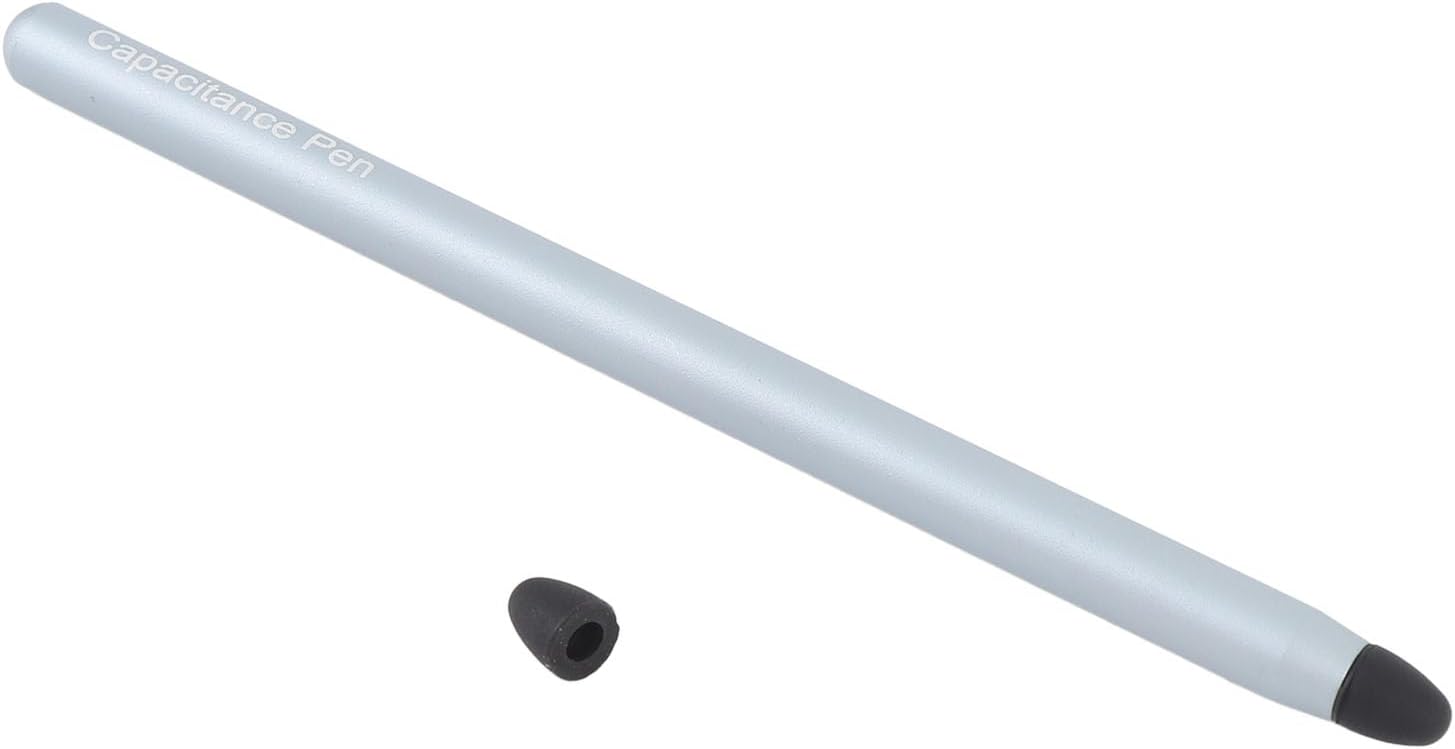
Image 2: The Bewinner Tablet Pen with its silicone tip detached, showing how it can be replaced.
- Remove Old Nib: Gently pull the existing silicone nib straight off the pen. Do not twist forcefully.
- Attach New Nib: Align the new silicone nib with the pen's tip and push it firmly into place until it is secure.
Storage:
- Store the pen in a safe place to prevent damage to the tip.
- Avoid exposing the pen to extreme temperatures or direct sunlight for prolonged periods.
6. Troubleshooting
If you encounter issues with your tablet pen, consider the following:
- Pen Not Responding:
- Ensure your device's screen is clean and free of debris.
- Check if the silicone tip is securely attached and not damaged. Replace if necessary.
- Verify that your device has a capacitive touchscreen. This pen is not compatible with resistive touchscreens.
- Restart your tablet or smartphone.
- Inaccurate Input:
- Clean the screen and the pen tip.
- Ensure you are holding the pen at a comfortable angle and making firm, but not excessive, contact with the screen.
7. Specifications
| Feature | Detail |
|---|---|
| Item Type | Tablet Pen |
| Material | Aluminium Alloy |
| Color | Blue |
| Item Weight | 0.705 ounces (approx. 20g) |
| Package Dimensions | 6.69 x 2.36 x 0.39 inches |
| Batteries Required | No |
| Bluetooth Connectivity | No |
8. Warranty and Support
Return Policy:
This product is subject to a 30-day return policy for refund or replacement, as per the retailer's terms and conditions.
Customer Support:
For further assistance or inquiries, please visit the official Bewinner store or contact your retailer.
Bewinner Store: Visit Bewinner Store on Amazon