
Introduction
This manual provides essential instructions for setting up, operating, maintaining, and troubleshooting your TCL FLIP GO 4058W flip phone. Please read this guide thoroughly to ensure proper use and to maximize the device's functionality.
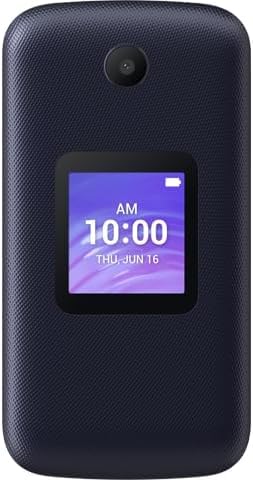
Image: The TCL FLIP GO 4058W phone shown in its open position, revealing the internal display and physical keypad.
What's in the Box
Verify that all items are present in your product packaging:
- TCL FLIP GO 4058W Phone
- Battery
- USB Cable
Setup
1. Battery Installation
- Carefully remove the back cover of the phone.
- Align the battery contacts with the terminals inside the battery compartment.
- Gently press the battery into place until it is securely seated.
- Replace the back cover, ensuring it clicks into position.
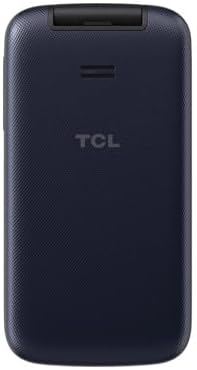
Image: The rear side of the TCL FLIP GO 4058W, indicating the location of the removable back cover for battery and SIM card access.
2. SIM Card Installation
The TCL FLIP GO 4058W uses a Nano SIM card.
- With the back cover and battery removed, locate the SIM card slot.
- Insert your Nano SIM card into the slot with the gold contacts facing down and the notched corner aligned correctly.
- Gently push the SIM card until it locks into place.
- Reinstall the battery and back cover.
3. Initial Power On and Charging
- Press and hold the Power/End Call button until the screen illuminates.
- If the battery is low, connect the USB cable to the phone's USB Type-C port and the other end to a compatible power adapter (not included) or computer.
- Allow the phone to charge fully before initial use.

Image: Side profile of the TCL FLIP GO 4058W, highlighting the USB Type-C charging port.
Operating Your Phone
Basic Functions
- Making Calls: Enter the phone number using the keypad and press the Call button.
- Answering Calls: When the phone rings, open the flip and press the Call button.
- Sending Messages: Navigate to the Messages application, select 'New Message', enter the recipient and your text, then send. Dedicated shortcut keys are available for messages.
- Contacts: Access your contacts list to save and manage phone numbers. A dedicated shortcut key allows quick access to Favorite Contacts.
Display and Navigation
- Internal Display: The 2.8-inch internal display is used for most operations, including viewing menus, messages, and contacts. Text size, color inversion, and brightness can be adjusted.
- External Display: The 1.44-inch external display shows incoming calls, new text messages, time, and battery status without needing to open the phone.
- Keypad: The large print tactile keypad provides easy navigation and text input. Use the directional pad and 'OK' button for menu selection.
Advanced Features
- 4G LTE Connectivity: The phone supports reliable 4G LTE for calls and basic internet functions.
- HD Voice: Enjoy clear call quality with HD Voice functionality and powerful speakers, complemented by noise cancellation.
- Mobile Hotspot: The device includes mobile hotspot capability, allowing you to share your phone's internet connection with other devices. Refer to the phone's settings for activation and configuration.
Maintenance
Battery Care
- Avoid exposing the battery to extreme temperatures.
- Do not puncture or damage the battery.
- Use only approved chargers and cables.
- If the phone will not be used for an extended period, charge the battery to about 50% before storing.
Cleaning Your Device
- Use a soft, lint-free cloth to clean the screen and body of the phone.
- Avoid using harsh chemicals or abrasive materials.
- Do not expose the phone to excessive moisture. The device is not water resistant.
Software Updates
Periodically check for software updates through the phone's settings menu to ensure optimal performance and access to the latest features and security enhancements.
Troubleshooting
Common Issues and Solutions
- Phone not turning on: Ensure the battery is correctly installed and charged. Connect the charger and wait a few minutes before attempting to power on again.
- No network signal: Check that your SIM card is properly inserted. Verify that you are in an area with network coverage. Contact your service provider if the issue persists.
- Cannot make or receive calls/messages: Confirm that your SIM card is active and your account is in good standing with your service provider. Check network signal strength.
- Screen unresponsive or frozen: Try restarting the phone by pressing and holding the Power/End Call button. If unresponsive, remove and reinsert the battery (if applicable) and then power on.
- Poor audio quality during calls: Ensure the speaker is not obstructed. Check the volume settings. HD Voice requires network support from your carrier.
Factory Reset
If you experience persistent software issues, a factory reset may resolve them. Warning: A factory reset will erase all data on your phone. Back up any important information before proceeding.
- Navigate to the phone's Settings menu.
- Locate and select 'System' or 'Reset options'.
- Choose 'Factory data reset' or 'Erase all data'.
- Confirm your selection and follow the on-screen prompts.
Specifications
| Brand | TCL |
| Model Name | TCL Flip Go (4058W) |
| Operating System | AOSP |
| Memory Storage Capacity | 8 GB |
| RAM Memory Installed Size | 1 GB |
| Screen Size (Internal) | 2.8 Inches |
| Screen Size (External) | 1.44 Inches |
| Resolution | 640 x 480 |
| Wireless Carrier | Unlocked (Original carrier T-Mobile) |
| Cellular Technology | 4G LTE |
| SIM Card Slot Count | Single SIM |
| SIM Card Size | Nano |
| Connector Type | USB Type C |
| Form Factor | Flip |
| Water Resistance Level | Not Water Resistant |
| Additional Features | Dual Display, Flip, HD Voice, Mobile Hotspot Capability |
| Front Photo Sensor Resolution | 2 MP |
| Battery Capacity | 1850 Milliamp Hours |
Warranty and Support
For warranty information and technical support, please refer to the documentation provided with your purchase or visit the official TCL support website. You can also find additional resources and contact information on the TCL Store on Amazon.


