
1. Introduction
This manual provides detailed instructions for the operation and maintenance of your CATIGA SP-2401 Thermal Printing Calculator. Designed for efficiency and accuracy, this 12-digit adding machine features ink-free thermal printing, a large fluorescent display, and various functions for commercial and personal use.
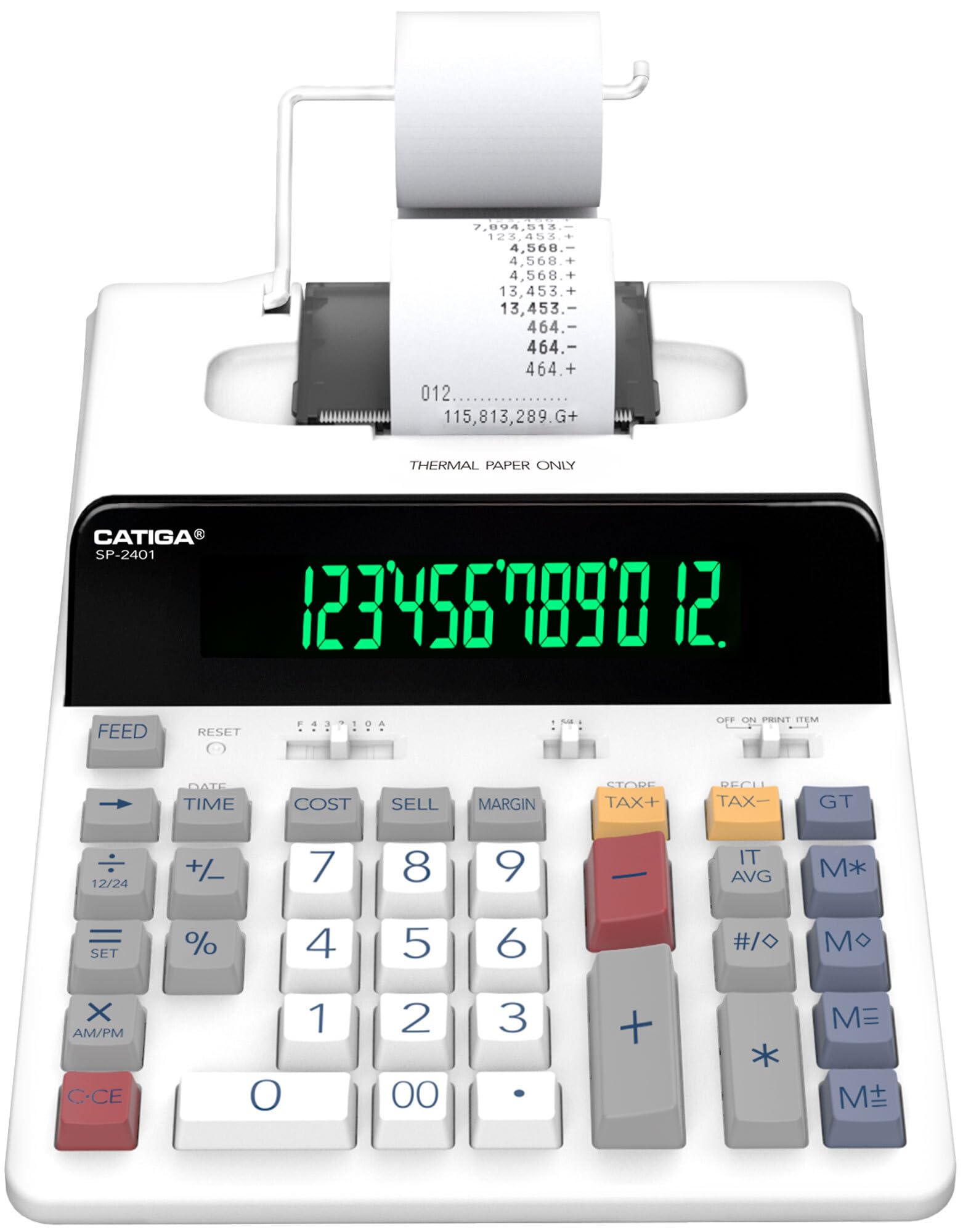
Figure 1: CATIGA SP-2401 Thermal Printing Calculator
2. Key Features
- Ink-Free Thermal Printing: Eliminates the need for ink cartridges, providing clean, smudge-free printouts at 8.0 lines per second (LPS).
- 12-Digit Fluorescent Display: An extra-large, high-contrast display ensures clear readability in various lighting conditions.
- Full-Sized Tactile Keyboard: Features large, responsive keys and a classic 10-key layout for comfortable and accurate data entry.
- Advanced Functions: Includes tax calculation, clock and calendar, cost/sell/margin, and memory functions.
- User-Friendly Design: Optimized for reduced eye strain with larger font size and an expanded screen.
3. Setup
3.1 Power Connection
Connect the calculator to a standard AC power outlet using the provided power adapter. The calculator does not operate on batteries.
3.2 Paper Roll Installation
The CATIGA SP-2401 uses thermal paper rolls. Ensure you use thermal paper only for proper printing functionality.
- Open the paper roll cover located at the top rear of the calculator.
- Place a new thermal paper roll into the compartment, ensuring the paper feeds from the bottom of the roll.
- Feed the leading edge of the paper into the printer slot until it emerges from the front.
- Close the paper roll cover.

Figure 2: Thermal paper installation. Ensure paper feeds correctly for ink-free printing.
4. Operating Instructions
4.1 Basic Calculations
The calculator operates like a standard adding machine. Enter numbers and use the +, -, *, / keys for operations. The machine maintains a running total.

Figure 3: Example of basic addition and subtraction using the adding machine functionality.
4.2 Special Functions
The calculator includes dedicated keys for various functions:
- TAX+ / TAX-: For adding or subtracting a pre-set tax rate.
- COST / SELL / MARGIN: For calculating profit margins.
- TIME / DATE: To display and print the current time and date.
- GT (Grand Total): To display and print the grand total of all calculations.
- M+ / M- / M* / M=: Memory functions for storing and recalling values.
- #/<>: Backspace key to correct entries.
- % (Percent): For percentage calculations.

Figure 4: Key functions of the CATIGA SP-2401 calculator.
4.3 Display and Printing Options
The calculator features a clear fluorescent display and options for controlling printing.

Figure 5: The 12-digit fluorescent display provides superior readability.
- Decimal Selector: Use the slider switch (F 4 3 2 1 0 A) to set the desired number of decimal places.
- Rounding Selector: Use the slider switch (↑ 5/4 ↓) to control rounding behavior.
- Print Selector: The 'OFF ON PRINT ITEM' switch controls printing. 'OFF' disables printing, 'ON' enables printing, and 'ITEM' prints item counts.
Video 1: Demonstration of the calculator's printing function and date/time display. This video shows the quiet operation and clear printouts of the thermal printer, along with how to set and display the date and time.
5. Maintenance
5.1 Paper Replacement
When the paper roll is depleted, follow the steps in Section 3.2 to install a new thermal paper roll.
5.2 Cleaning
To clean the calculator, use a soft, dry cloth. Do not use liquid cleaners or abrasive materials, as these may damage the display or casing.
6. Troubleshooting
6.1 Printing Issues
- No Printout: Ensure the 'OFF ON PRINT ITEM' switch is set to 'ON'. Verify that thermal paper is correctly installed and that it is indeed thermal paper.
- Faint Print: Replace the thermal paper roll. If the issue persists, ensure the paper is installed correctly.
- Unexpected Printouts: If the printer activates when not expected, especially when the print switch is off, this indicates an anomaly. Ensure the calculator is used as intended.
6.2 Display Issues
- Display Washes Out: The fluorescent display may appear to wash out or become unreadable from certain viewing angles, particularly when looking down from above. Adjust your viewing angle for optimal clarity.
Video 2: Demonstration of a display wash-out issue from certain viewing angles and unexpected printing behavior. This video highlights how the display can become unreadable from specific angles and an instance where the printer activates despite being set to off.
6.3 General Errors
If the calculator displays an 'E' or other error messages, try pressing the 'C.CE' key to clear the error. If the issue persists, disconnect the power, wait a few moments, and then reconnect it.
7. Specifications
| Feature | Specification |
|---|---|
| Brand | CATIGA |
| Model Name | SP-2401 |
| Calculator Type | Printing |
| Display Type | VFD (Fluorescent) |
| Number of Digits | 12 |
| Printing Speed | 8.0 Lines Per Second (LPS) |
| Printing Method | Thermal (Ink-Free) |
| Material | Plastic |
| Power Source | AC Adapter (No Battery Support) |
| UPC | 810185460946 |
8. Warranty and Support
CATIGA is committed to providing quality products and customer satisfaction. For any inquiries or support needs, please refer to the following:
- Customer Support: 24/7 customer support is available.
- Phone Support: Lifetime phone support is provided from 9 AM to 5 PM PST.
- Return Guarantee: A 30-day unconditional return guarantee is offered.
For further assistance, please visit the official CATIGA website or contact their customer service directly.

