
FINOTI DUALBATTERY-66501903
FINOTI LU30 Professional 8K GPS Brushless HD Camera Drone User Manual
Model: LU30 (DUALBATTERY-66501903)
Brand: FINOTI
1. Introduction and Overview
The FINOTI LU30 Professional 8K GPS Brushless HD Camera Drone is a high-performance aerial photography device designed for enthusiasts and professionals. It features a 6K HD camera, GPS positioning, obstacle avoidance, and a brushless motor for stable and quiet flight. This manual provides essential information for safe operation, setup, maintenance, and troubleshooting.
Key features include:
- Professional 6K HD Video Recording (5780x2890) with 1/1.9-inch sensor.
- Lightweight and foldable design (192g).
- GPS positioning for precise navigation and Smart Return to Home.
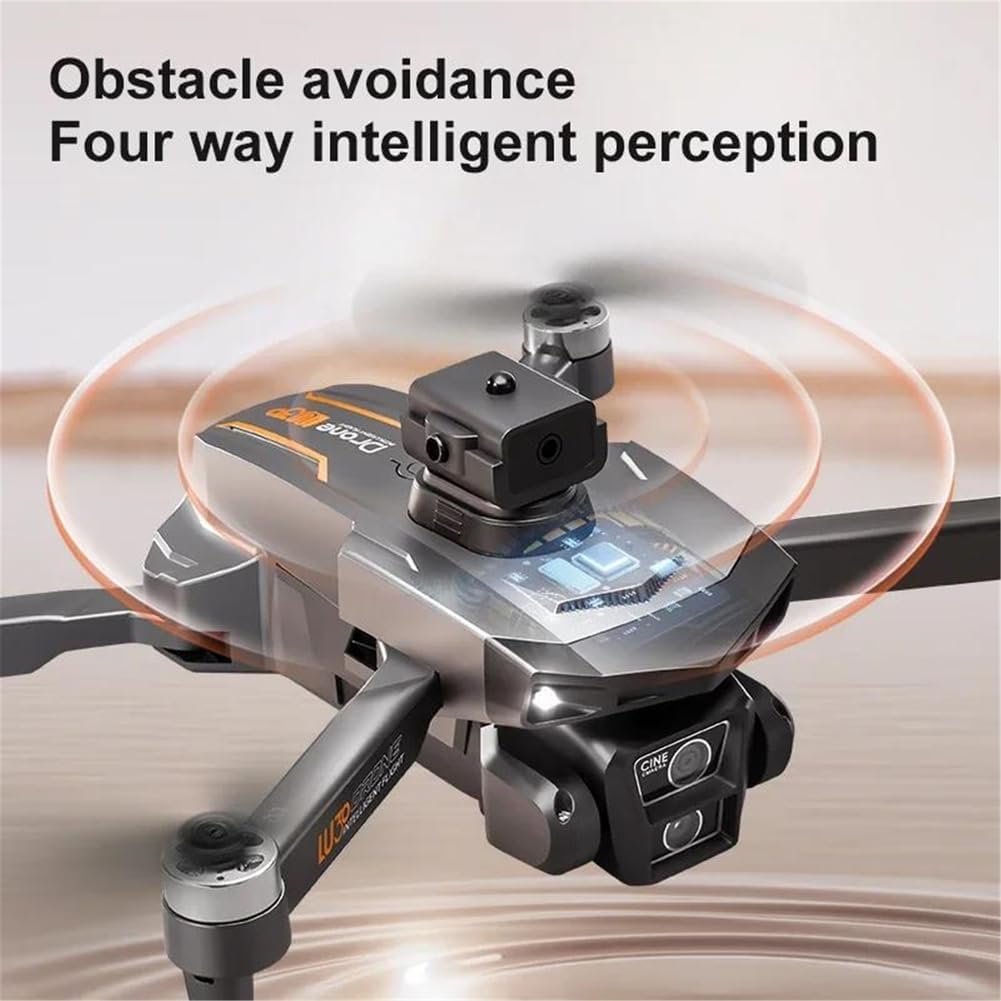
- Visual obstacle avoidance for enhanced safety.
- Brushless motor for stable flight and extended durability.
- Up to 18 minutes of flight time and 1000m remote control range.
- FPV operation for immersive real-time viewing.
- Multiple connectivity options: APP Controller, Remote Control, Wi-Fi Connection.
2. What's in the Box
Upon opening the package, verify that all components are present and in good condition. The standard package for the Dual Battery version includes:
- FINOTI LU30 Drone
- Remote Controller with 4.5-inch Screen
- Two (2) Intelligent Flight Batteries
- USB Charging Cable
- Spare Propellers
- Screwdriver
- User Manual (this document)

3. Setup
3.1 Charging the Batteries
Before first use, fully charge both the drone's intelligent flight batteries and the remote controller's internal battery.
- Connect the USB charging cable to a compatible USB power adapter (not included).
- Connect the other end of the cable to the charging port on the drone battery and the remote controller.
- Charging indicators will show the charging status. Disconnect once fully charged.
3.2 Installing Propellers
Ensure propellers are correctly installed on the corresponding motor arms. Match the propeller type (A or B) with the markings on the motor mounts.
3.3 Unfolding the Drone
Gently unfold the drone's arms until they click into place. Ensure all arms are fully extended and locked.
3.4 Remote Controller Overview
Familiarize yourself with the remote controller's layout and functions.

3.5 App Installation and Connection
Download the official FINOTI drone app from your device's app store.
- Power on the drone and the remote controller.
- On your smartphone, connect to the drone's Wi-Fi network (usually named "FINOTI-XXXXXX").
- Open the FINOTI app to establish a connection and view the live FPV feed.
4. Operating Instructions
4.1 Pre-Flight Checklist
- Ensure batteries are fully charged.
- Propellers are correctly installed and free from damage.
- Drone arms are fully unfolded and locked.
- Fly in an open area, away from obstacles, people, and restricted airspace.
- Check weather conditions; avoid flying in strong winds (>10km/h).
- GPS signal is acquired (indicated on remote/app).
4.2 Takeoff and Landing
- Place the drone on a flat, level surface.
- Power on the drone, then the remote controller.
- Perform gyroscope calibration if prompted (refer to app instructions).
- For one-key takeoff, press the designated takeoff button on the remote. The drone will automatically ascend to a safe height.
- To land, press the one-key landing button. The drone will descend and land automatically.
- For manual takeoff/landing, use the throttle stick (left joystick) to control altitude.
4.3 Flight Controls
| Control Stick | Movement | Drone Action |
|---|---|---|
| Left Stick | Up/Down | Ascend/Descend |
| Left Stick | Left/Right | Rotate Left/Right (Yaw) |
| Right Stick | Up/Down | Move Forward/Backward (Pitch) |
| Right Stick | Left/Right | Move Left/Right (Roll) |
4.4 Smart Features
The LU30 drone is equipped with several intelligent flight modes:
- GPS Smart Return to Home (RTH): The drone can automatically return to its takeoff point in case of low battery, loss of signal, or by pressing the RTH button.
- Obstacle Avoidance: Utilizes visual sensors to detect and avoid obstacles in its flight path.
- Waypoint Definition: Plan custom flight paths by setting waypoints on the app's map. The drone will follow the defined route automatically.


4.5 Camera Operation
The drone is equipped with a 6K HD camera.
- Photo/Video Capture: Use the dedicated buttons on the remote controller or the app interface to take photos or start/stop video recording.
- Camera Angle Adjustment: The camera angle can be remotely adjusted up to 90 degrees via the remote controller.
- FPV View: The live camera feed is displayed on the remote controller's screen or your connected smartphone.

5. Maintenance
5.1 Battery Care
- Store batteries in a cool, dry place.
- Do not overcharge or over-discharge batteries.
- If storing for extended periods, charge batteries to approximately 50-60%.
5.2 Propeller Inspection
Regularly inspect propellers for cracks, bends, or other damage. Replace damaged propellers immediately using the provided spare parts.
5.3 Cleaning
Use a soft, dry cloth to clean the drone body and camera lens. Avoid using liquid cleaners directly on electronic components.
6. Troubleshooting
| Problem | Possible Cause | Solution |
|---|---|---|
| Drone does not power on | Low battery; Battery not properly inserted | Charge battery; Reinsert battery firmly |
| No FPV feed | Wi-Fi not connected; App not open | Connect to drone's Wi-Fi; Open the FINOTI app |
| Drone drifts during flight | Gyroscope not calibrated; Strong wind | Perform gyroscope calibration; Fly in calm conditions |
| Remote controller not connecting | Low remote battery; Pairing issue | Charge remote; Re-pair drone and remote (refer to app for pairing steps) |
7. Specifications
- Model: LU30
- Brand: FINOTI
- Drone Weight: 192g
- Max Takeoff Weight: <1kg
- Flight Time: Approximately 18 minutes
- Remote Distance: 1000m
- Aircraf Operating Frequency: 2.4GHz
- Camera: 6K HD Video Recording (5780x2890), 1/1.9 inches sensor
- Motor Type: Brushless Motor
- Obstacle Avoidance: Visual avoidance
- Max Wind Speed Resistance: <10km/h
- Connectivity: APP Controller, Remote Control, Wi-Fi Connection
- Display Control: Yes (on remote controller)
- FPV Operation: Yes
- Removable/Replaceable Battery: Yes
8. Warranty and Support
For warranty information and technical support, please refer to the official FINOTI website or contact their customer service directly. Keep your proof of purchase for warranty claims.
For further assistance, you may visit the product page on Amazon:
Ask a question about this manual
Ask about setup, troubleshooting, compatibility, parts, safety, or missing instructions. Manuals+ will review the question and use this page’s manual context to help answer it.