1. Introduction
Thank you for choosing the PEICHENG Android 15.0 10-inch Tablet. This manual provides essential information for setting up, operating, and maintaining your device. Please read it thoroughly to ensure optimal performance and longevity of your tablet.
2. What's in the Box
Upon unpacking, please verify that all items listed below are present:
- PEICHENG Android 15.0 10-inch Tablet
- Bluetooth Keyboard
- Wireless Mouse
- Stylus Pen
- Foldable Protective Case
- USB Charging Cable
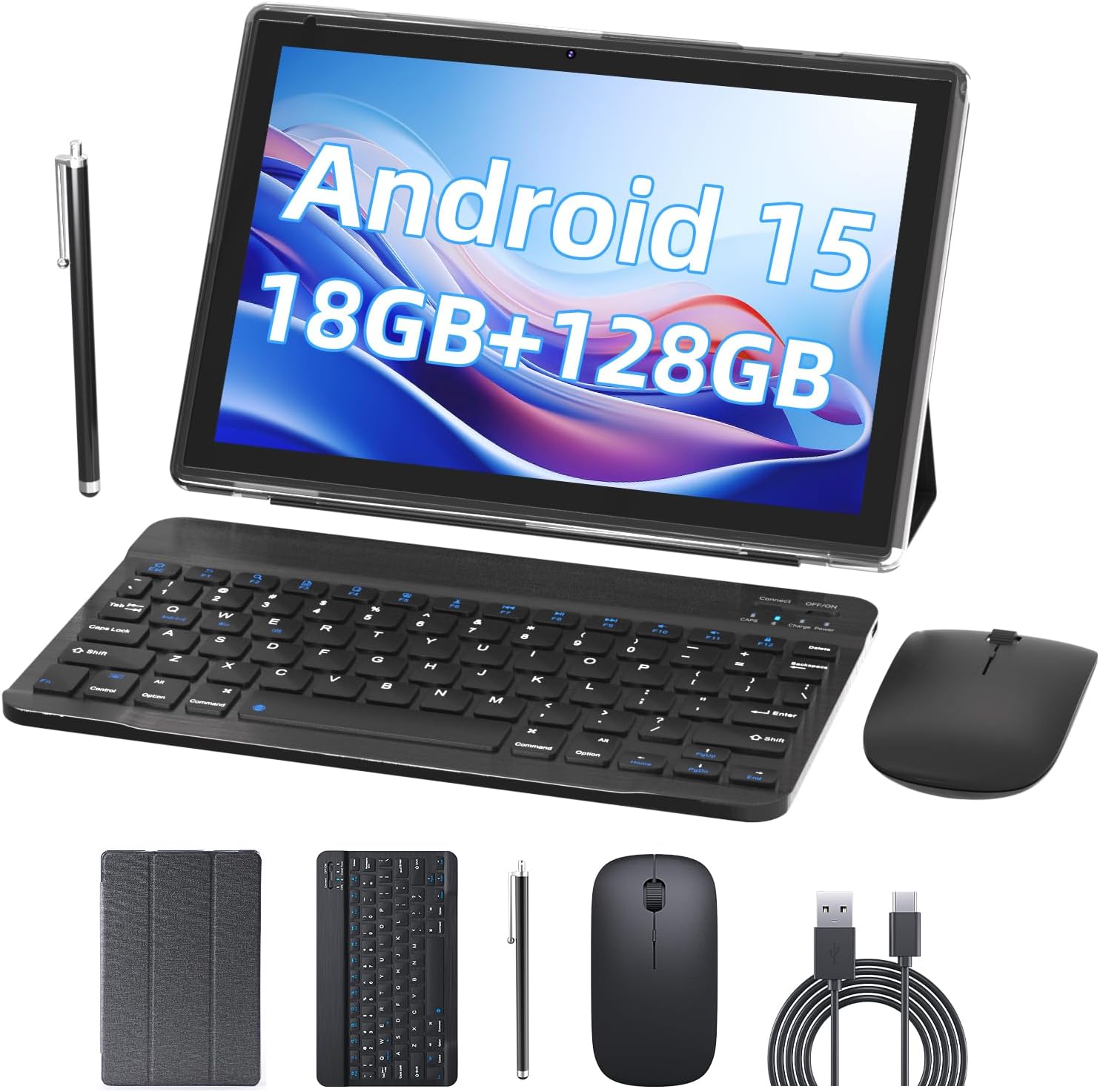
Image 2.1: Contents of the PEICHENG Tablet package, including the tablet, keyboard, mouse, stylus, case, and charging cable.
3. Product Overview
The PEICHENG 10-inch Tablet is designed for versatility and performance. It features a 10.1-inch IPS display, front and rear cameras, and various ports for connectivity. Familiarize yourself with the device's layout for ease of use.
3.1 Key Components
- Display: 10.1-inch IPS touchscreen (1280x800 resolution).
- Cameras: 8MP Rear Camera, 2MP Front Camera.
- Ports: USB-C port for charging and data transfer, MicroSD card slot.
- Buttons: Power button, Volume Up/Down.
4. Setup
4.1 Initial Charging
Before first use, fully charge your tablet using the provided USB charging cable and a compatible power adapter. The charging indicator will typically show progress and turn off when fully charged.
4.2 Powering On/Off
- To Power On: Press and hold the Power button until the screen lights up.
- To Power Off: Press and hold the Power button, then select 'Power off' from the options on the screen.
4.3 Initial Configuration
Upon first startup, follow the on-screen prompts to:
- Select your preferred language.
- Connect to a Wi-Fi network.
- Sign in with your Google account or create a new one.
- Set up security features (PIN, pattern, or password).

Image 4.1: The PEICHENG Tablet configured for use with its accessories, suitable for various tasks.
5. Operating Instructions
5.1 Android 15.0 Operating System
Your tablet runs on the Android 15.0 operating system, offering a user-friendly interface and access to a vast ecosystem of applications via the Google Play Store.
5.2 Basic Navigation
- Swipe: Move your finger across the screen to scroll through content or switch between home screens.
- Tap: Touch an icon or item once to open or select it.
- Long Press: Press and hold an item for additional options or to move it.
- Pinch-to-Zoom: Use two fingers to zoom in or out on images and web pages.
5.3 App Management
Download and install applications from the Google Play Store. To uninstall an app, long-press its icon and drag it to the 'Uninstall' option.
5.4 Display Features
The 10.1-inch IPS display provides clear visuals. Utilize the 'Reading Mode' feature in the display settings to reduce harmful blue light, enhancing comfort during extended reading sessions.

Image 5.1: The tablet screen showcasing multiple applications and web content, demonstrating its multitasking capabilities.
6. Accessories
Your PEICHENG Tablet comes with a suite of accessories to enhance its functionality.
6.1 Bluetooth Keyboard
Pairing: Turn on the keyboard and enable Bluetooth on your tablet. Search for available devices and select the keyboard to pair. Once connected, you can use it for typing, similar to a laptop.
6.2 Wireless Mouse
Pairing: Similar to the keyboard, turn on the mouse and enable Bluetooth on your tablet. Pair the mouse through the Bluetooth settings. The mouse provides precise navigation and control.
6.3 Stylus Pen
The stylus allows for more precise input, drawing, and note-taking on the touchscreen. No pairing is required for basic functionality.
6.4 Protective Case
The foldable protective case safeguards your tablet from scratches and minor impacts. It also functions as a stand, allowing for comfortable viewing and typing angles.

Image 6.1: The PEICHENG Tablet with its keyboard and mouse, demonstrating its capability as a portable workstation.
7. Battery Management
The tablet is equipped with a 6000mAh battery, providing extended usage time.
7.1 Charging
Use the provided USB-C cable to charge the tablet. It is recommended to use a compatible charger to ensure efficient and safe charging.
7.2 Battery Life Tips
- Reduce screen brightness.
- Disable Wi-Fi and Bluetooth when not in use.
- Close unused applications running in the background.
- Enable power-saving modes in settings.

Image 7.1: Visual representation of the tablet's 6000mAh battery, highlighting its extended endurance.
8. Connectivity
8.1 Wi-Fi 6.0
The tablet supports 2.4GHz and 5GHz Wi-Fi 6.0, providing faster and more stable wireless connections. To connect, go to Settings > Network & internet > Wi-Fi, select your network, and enter the password.
8.2 Bluetooth 5.0
Bluetooth 5.0 allows for efficient connection to wireless accessories like headphones, speakers, and the included keyboard and mouse. Enable Bluetooth in Settings > Connected devices > Connection preferences > Bluetooth and pair your devices.
9. Storage Expansion
The tablet comes with 128GB of internal storage and 18GB RAM (6GB physical + 12GB virtual). For additional storage, you can expand it up to 2TB using a MicroSD card (not included). Insert the MicroSD card into the designated slot on the tablet.

Image 9.1: The tablet's storage capabilities, highlighting its 18GB RAM, 128GB internal storage, and support for up to 2TB MicroSD expansion.
10. Camera Usage
The tablet features an 8MP rear camera and a 2MP front camera. Open the Camera app to capture photos and videos. The front camera is ideal for video calls and selfies.
11. Maintenance
11.1 Cleaning
Use a soft, lint-free cloth to clean the screen and body of the tablet. Avoid using harsh chemicals or abrasive materials. For stubborn smudges, a screen cleaner designed for electronics can be used sparingly.
11.2 Software Updates
Regularly check for and install software updates to ensure your tablet has the latest features, security patches, and performance improvements. Go to Settings > System > System update.
12. Troubleshooting
If you encounter issues with your tablet, refer to the following common solutions:
- Device not powering on: Ensure the battery is charged. Connect the charger and wait a few minutes before attempting to power on again.
- Screen unresponsive: Try restarting the tablet by holding the Power button for about 10-15 seconds.
- Wi-Fi connection issues: Restart your Wi-Fi router and the tablet. Forget the network in tablet settings and reconnect.
- Apps crashing: Clear the cache of the problematic app (Settings > Apps > [App Name] > Storage & cache > Clear cache). If the issue persists, try reinstalling the app.
- Slow performance: Close unused apps, clear cache, and ensure sufficient storage space. Consider a factory reset as a last resort (Settings > System > Reset options > Erase all data (factory reset) - Note: This will delete all data on your tablet. Back up important files first.).
13. Specifications
| Feature | Specification |
|---|---|
| Brand | PEICHENG |
| Model Name | 10.1 inch Tablet |
| Operating System | Android 15.0 |
| Screen Size | 10.1 inches |
| Max Screen Resolution | 1280x800 IPS |
| RAM | 18GB (6GB physical + 12GB expansion) |
| Internal Storage | 128GB ROM |
| Expandable Storage | Up to 2TB via MicroSD card |
| Processor | 2.0GHz Quad-core |
| Wi-Fi Connectivity | 2.4G/5G Wi-Fi 6.0 |
| Bluetooth | Bluetooth 5.0 |
| Front Camera | 2MP |
| Rear Camera | 8MP |
| Battery Capacity | 6000mAh |
| Dimensions (LxWxH) | 10.1 x 4.85 x 0.4 inches |
| Item Weight | 2.66 pounds |
14. Warranty and Support
For warranty information and technical support, please refer to the documentation provided with your purchase or contact PEICHENG customer service. Keep your proof of purchase for warranty claims.


