
1. Introduction
This manual provides detailed instructions for the installation, operation, and maintenance of your MekedeTech DUDUAUTO DUDU7 Car Radio Stereo Head Unit. Please read this manual thoroughly before using the product to ensure proper function and safety. This unit is designed for VW Multivan T5 models from 2003 to 2015.
2. Product Overview
The MekedeTech DUDUAUTO DUDU7 is an advanced 2K touch screen car multimedia head unit featuring Android 13, an 8-core UIS7870 processor, 6GB RAM, and 64GB ROM. It offers a comprehensive in-car entertainment and navigation experience.
Key Features:
- 9.5-inch 2K Touch Screen Display
- Android 13 Operating System
- 8-Core UIS7870 Processor (A76 2.7Ghz)
- 6GB RAM, 64GB ROM (UFS 3.1)
- Wireless CarPlay & Android Auto Support
- Qualcomm 3031 Bluetooth 5.0 with aptX HD
- 4G LTE & Wi-Fi Connectivity (5G Wi-Fi support)
- Digital Noise Cancellation Microphone
- Optical + Coaxial, RCA 5.1 Channel Audio Outputs
- Built-in 360 Panoramic Chip
- Support for factory steering wheel controls
Components and Connections:
The DUDU7 head unit features various ports and connections on its rear panel for integration with your vehicle's systems and external accessories.

Image: Rear panel of the DUDU7 head unit showing various connection points. These include ports for the radio antenna, WiFi antenna, GPS antenna, 4G antenna, USB ports (4-pin, 6-pin, Type-C), reverse video cable, RCA cable with 4G card slot, 360 panoramic device, power cable, and microphone input. A cooling fan is also visible.
- Power Cable (G): Connects to the vehicle's power supply.
- RCA Cable with 4G Card Slot (A): For audio/video input/output and 4G SIM card insertion.
- 360 Panoramic Device (B): Input for 360-degree camera systems.
- Protocol Serial Use with Can-bus (C): For vehicle data communication.
- 4Pin USB (E) & 6Pin USB (D): For connecting USB devices.
- Reverse Video Cable (F): Input for a rearview camera.
- Radio Antenna (8): Connects to the vehicle's radio antenna.
- WiFi Antenna (7): External antenna for Wi-Fi reception.
- GPS Antenna (6): External antenna for GPS signal reception.
- 4G Antenna (4): External antenna for 4G LTE connectivity.
- MIC (0): External microphone input.
- Type-C USB (8): Additional USB port.
- Coaxial Optical Audio Out: For high-quality audio output to external amplifiers.
3. Setup and Installation
Proper installation is crucial for the optimal performance of your DUDUAUTO DUDU7 head unit. It is highly recommended that installation be performed by a qualified professional.
3.1 Pre-Installation Check:
- Ensure the vehicle's ignition is off and the battery is disconnected before starting installation.
- Verify all included components are present according to the packing list.
- Confirm compatibility with your VW Multivan T5 (2003-2015) model.
3.2 Installation Steps (General Guide):
- Carefully remove the existing factory radio from your vehicle's dashboard.
- Connect the main power harness, RCA cables, USB cables, and antenna cables (Radio, GPS, WiFi, 4G) to the corresponding ports on the DUDU7 head unit. Refer to the "Components and Connections" diagram in Section 2.
- If applicable, connect the reverse video cable and 360 panoramic device.
- Connect the vehicle-specific CAN-bus decoder (if provided) to ensure steering wheel controls and other vehicle data functions operate correctly.
- Carefully route all cables to avoid pinching or interference.
- Mount the DUDU7 head unit into the dashboard opening.
- Reconnect the vehicle battery and turn on the ignition to test the unit.
- Secure the head unit in place and reassemble the dashboard trim.
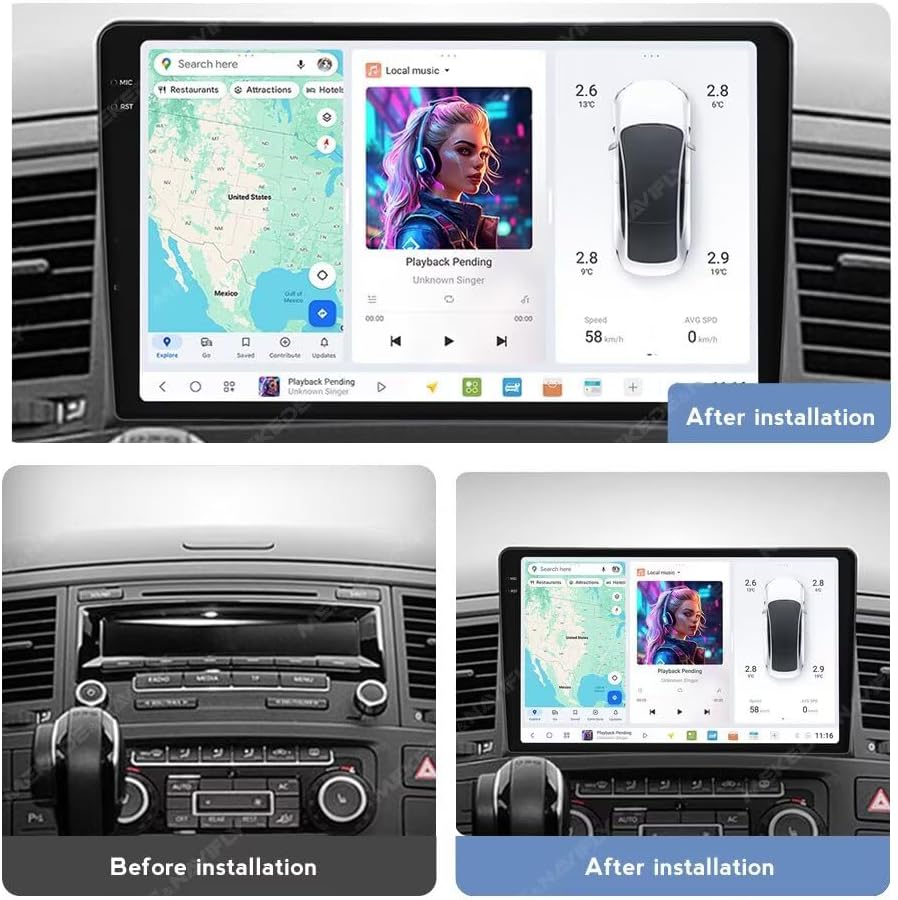
Image: A comparison showing the vehicle's dashboard before and after the installation of the DUDUAUTO head unit. The "Before installation" image displays the original factory radio, while the "After installation" image shows the new 9.5-inch touch screen seamlessly integrated into the dashboard, displaying navigation and media interfaces.
3.3 Initial Configuration:
- Upon first power-on, the unit may guide you through initial setup steps.
- Language Selection: Choose your preferred system language.
- Time and Date: Set the correct time zone and synchronize time.
- Wi-Fi Connection: Connect to an available Wi-Fi network for internet access and software updates.
- Google Account: Log in to your Google account to access the Play Store and other Google services.
4. Operating Instructions
The DUDUAUTO DUDU7 operates on Android 13, providing a familiar and intuitive user experience. All functions are primarily controlled via the 2K touch screen.
4.1 Basic Operation:
- Power On/Off: The unit typically powers on with the vehicle's ignition. A long press on the power button (if available) may turn it off or put it into standby.
- Volume Control: Adjust volume using the on-screen controls or vehicle's steering wheel buttons.
- Home Screen: Navigate to the home screen to access installed applications and widgets.
- Settings: Access system settings to customize display, sound, network, and other preferences.

Image: Screenshots of the DUDU OS 3.5 user interface, showcasing various screens including a customizable home screen, navigation map, media playback, vehicle settings, and file browser. The interface is designed for intuitive operation with clear icons and layouts.

Image: Displays the DUDU OS 3.0 interface with examples of dynamic wallpapers and different themes for day and night modes. Various application screens are shown, including settings, trip information, radio, and media playback, highlighting customization options.
4.2 Wireless CarPlay & Android Auto:
The DUDU7 supports both wireless CarPlay for iPhones and wireless Android Auto for Android devices, allowing seamless integration of your smartphone's features.
- For iPhone (CarPlay):
- Ensure Wi-Fi and Bluetooth are enabled on your iPhone.
- On the DUDU7, open the CarPlay application.
- Follow the on-screen prompts to pair your iPhone via Bluetooth.
- Once paired, CarPlay will automatically launch.
- For Android (Android Auto):
- Ensure Wi-Fi and Bluetooth are enabled on your Android phone.
- On the DUDU7, open the Android Auto application.
- Follow the on-screen prompts to pair your Android phone via Bluetooth.
- Once paired, Android Auto will automatically launch.
4.3 Bluetooth Connectivity (Qualcomm 3031 BT 5.0):
Connect your phone or other Bluetooth devices for hands-free calling and audio streaming.
- Go to the Bluetooth settings on the DUDU7.
- Enable Bluetooth on your device and make it discoverable.
- Select your device from the list on the DUDU7 screen and pair.
- Confirm the pairing code on both devices.
4.4 4G LTE & Wi-Fi:
- 4G LTE: Insert a compatible SIM card into the designated slot (usually on the RCA cable harness) for mobile data access.
- Wi-Fi: Connect to a local Wi-Fi hotspot or your phone's hotspot for internet access. Go to Settings > Network & Internet > Wi-Fi.
4.5 Navigation:
The unit supports various navigation applications. Ensure the GPS antenna is properly installed for accurate positioning.
- Open your preferred navigation app (e.g., Google Maps).
- Enter your destination and follow the on-screen and voice-guided directions.
4.6 Audio Features (AKM7739 DSP Velvet Audio Technology):
The DUDU7 incorporates advanced audio processing for a superior sound experience.
- Access the Equalizer or DSP settings in the audio menu to customize sound profiles.
- Utilize the Optical + Coaxial outputs for connecting to high-fidelity external amplifiers.

Image: Detailed view of the internal audio components, highlighting the TDA7808 digital amplifier and the AKM7739 DSP Velvet Audio Technology chip. Text describes the support for "VELVET SOUND" and DTS 5.1 panoramic sound, aiming for a natural and immersive acoustic experience.
5. Maintenance
Regular maintenance ensures the longevity and optimal performance of your DUDUAUTO DUDU7 head unit.
- Screen Cleaning: Use a soft, lint-free cloth slightly dampened with water or a screen cleaner. Avoid harsh chemicals or abrasive materials.
- Software Updates: Periodically check for system updates via Wi-Fi to ensure you have the latest features and security patches. Go to Settings > System > System update.
- Cable Connections: Ensure all cables are securely connected and free from damage.
- Environmental Conditions: Avoid exposing the unit to extreme temperatures, direct sunlight for prolonged periods, or excessive moisture.
6. Troubleshooting
This section addresses common issues you might encounter with your DUDUAUTO DUDU7 head unit. If problems persist, contact customer support.
Common Issues and Solutions:
- No Power:
- Check all power cable connections.
- Verify the vehicle's fuse for the radio is intact.
- Ensure the vehicle battery is properly connected and charged.
- No Sound:
- Check volume levels on the head unit and any connected amplifiers.
- Verify speaker connections.
- Ensure the correct audio source is selected.
- Check audio output settings (e.g., ensure RCA/Optical outputs are correctly configured if external amplifiers are used).
- GPS Signal Loss/Inaccuracy:
- Ensure the GPS antenna is securely connected and placed in a location with a clear view of the sky.
- Avoid placing the antenna near metal objects that could interfere with the signal.
- Bluetooth Connectivity Issues:
- Ensure Bluetooth is enabled on both the head unit and your device.
- Delete previous pairings and attempt to re-pair the device.
- Restart both the head unit and your Bluetooth device.
- CarPlay/Android Auto Not Connecting:
- Ensure Wi-Fi and Bluetooth are enabled on your phone.
- Verify that your phone's operating system is up to date.
- Try restarting the head unit and your phone.
- Check for any specific app permissions required on your phone for CarPlay/Android Auto.
- Touch Screen Unresponsive:
- Perform a soft reset of the unit (refer to the device's specific reset procedure, often a small reset button or holding the power button).
- Ensure the screen is clean and free from debris.
7. Specifications
Detailed technical specifications for the MekedeTech DUDUAUTO DUDU7-6-64 Car Radio Stereo Head Unit.

Image: A detailed comparison table outlining specifications for DUDU3, DUDU4, DUDU5, DUDU6, and DUDU7 models. Key specifications include RAM/ROM, CPU, memory type, GPS, MIC, USB interface, power amplifier, DSP, Amp, Android version, car machine system, audio output, BT chip, filter capacitance, screen, CP/AA support, network, radio IC, and voice control. The DUDU7 model is highlighted with its advanced features.
| Feature | Specification |
|---|---|
| Model Name | MKD-DUDU7-6-64 |
| Operating System | Android 13 |
| CPU | 8 Core UIS7870 (Customized version A76 2.7Ghz 6nm processor) |
| Memory (RAM/ROM) | 6GB RAM / 64GB ROM (UFS 3.1) |
| Display | 9.5 inch 2K Touch Screen (Capacitive, OLED) |
| CarPlay & Android Auto | Wired and Wireless Support |
| Bluetooth | Qualcomm 3031 Chip, BT 5.0 (Supports aptX HD protocol) |
| Wi-Fi | 802.11a/b/g/n/ac, Support 5G Wi-Fi |
| Network | 4G LTE (SIM card slot) |
| GPS | Dual Band 6 mode L1 L5 B1 B2a E1 E5a |
| Microphone | Digital Noise Cancellation Microphone |
| USB Ports | USB 3.2 GEN1*1 (Type-C), USB 2.0*3 |
| Power Amplifier | TDA7808 Digital AB type |
| DSP | AKM7739 Velvet Audio Technology |
| Audio Output | Optical + Coaxial, RCA 5.1 Channel Outputs |
| Radio IC | TDA7708 |
| Work Voltage | 9V~16V |
| Special Features | Built-in 360 Panoramic Chip, Steering Wheel Control Support |

Image: An infographic detailing the UIS7870 processor, highlighting its 2.7GHz 8-core architecture, 6nm process, and significant CPU and GPU boost percentages. It also includes a comparison of mainstream chip run scores and a demonstration of 7x read speed improvement with UFS 3.1 storage.
8. Warranty Information
The MekedeTech DUDUAUTO DUDU7 Car Radio Stereo Head Unit comes with a 1-Year Warranty from the date of purchase. This warranty covers manufacturing defects and malfunctions under normal use. It does not cover damage caused by improper installation, misuse, accidents, unauthorized repairs, or normal wear and tear.
Please retain your proof of purchase for warranty claims.
9. Customer Support
For technical assistance, troubleshooting not covered in this manual, or warranty inquiries, please contact MekedeTech customer support through your purchase platform or the official MekedeTech website.
When contacting support, please provide your product model (DUDU7-6-64), purchase date, and a detailed description of the issue.
