Introduction
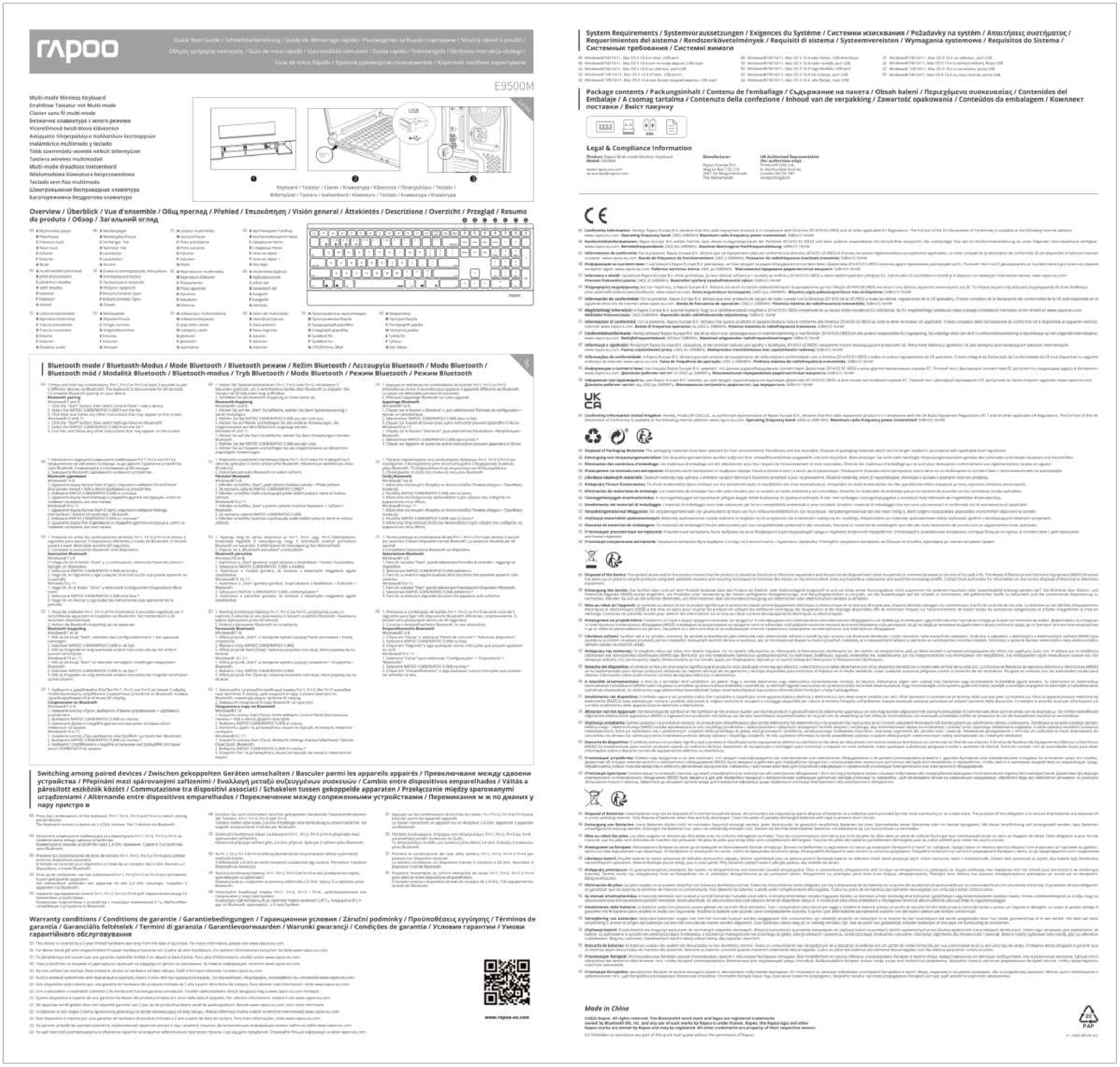
The RAPOO E9050L is a versatile wireless keyboard designed for seamless connectivity across multiple devices and operating systems. Its ultra-slim profile, quiet keys, and long-lasting rechargeable battery make it ideal for various environments, from office to travel. This manual provides detailed instructions for setup, operation, maintenance, and troubleshooting to ensure optimal use of your keyboard.
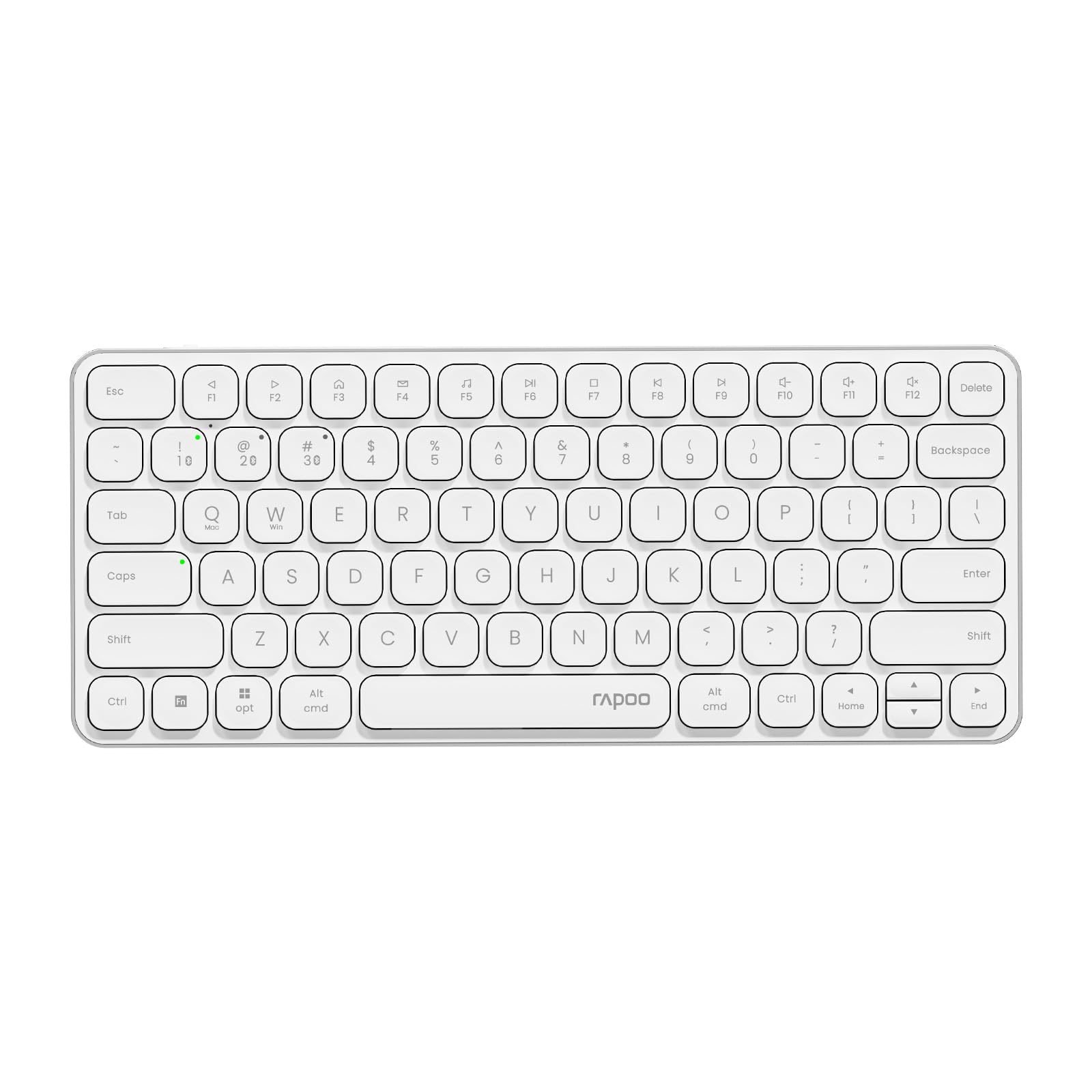
Image: The RAPOO E9050L Wireless Keyboard, showcasing its sleek design.
Setup
Package Contents
- RAPOO E9050L Wireless Keyboard
- USB-C Charging Cable
- User Manual
Charging the Keyboard
The E9050L features a built-in rechargeable battery. Before first use, fully charge the keyboard using the provided USB-C cable. A full charge can provide up to 90 days of continuous use. A quick 10-minute charge can provide enough power for one day of use.

Image: Diagram illustrating the rechargeable battery and charging indicators.
Connecting to Devices (Multi-Device & Multi-OS)
The keyboard supports wireless connection via 2.4GHz USB receiver or Bluetooth 5.0/4.0, allowing connection to up to 4 devices simultaneously. You can seamlessly switch between a notebook PC, desktop PC, tablet, or smartphone.

Image: Visual representation of multi-device and multi-OS connectivity options.
- 2.4GHz Wireless Connection:
Insert the USB receiver into an available USB port on your computer. The keyboard should connect automatically. - Bluetooth Connection:
Press and hold the Bluetooth pairing key (usually indicated by a Bluetooth icon or a specific Fn key combination) until the indicator light flashes. On your device (PC, tablet, smartphone), enable Bluetooth and search for "RAPOO E9050L". Select it to pair. - Switching Between Devices:
Use the dedicated device switching keys (e.g., Fn + 1, Fn + 2, Fn + 3, Fn + 4) to switch between your paired devices. The corresponding indicator light will show which device is currently active.

Image: Icons representing compatibility with various operating systems including Windows, Mac OS, Linux, iOS, Android, and Chrome OS.
Operating Instructions
Key Functions and Multimedia Hotkeys
The E9050L features a compact 78-key layout with 12 multimedia hotkeys for quick access to common functions like play/pause, volume control, and email. These functions are accessed by pressing the Fn key in combination with the corresponding F-keys (F1-F12).

Image: Diagram showing the multimedia hotkeys and their functions when used with the Fn key.
OS Switching
The keyboard supports dual system compatibility. To switch between Windows and Mac OS layouts, use the following key combinations:
- For Windows: Press Fn + W
- For Mac OS: Press Fn + Q
Indicator Lights
The keyboard includes indicator lights for device connection, Caps Lock status, and battery level. These lights provide clear visual feedback on the keyboard's current state, addressing user feedback for improved clarity.

Image: Close-up view of the device indicator lights and Caps Lock indicator.
Typing Experience
The E9050L utilizes thin chiclet keycaps and a scissor-switch mechanism, providing a quiet and comfortable typing experience. The ultra-thin design (0.2 inches / 0.53 cm) reduces wrist strain, eliminating the need for a separate palm rest.

Image: Detailed view of the thin chiclet keycaps and scissor-switch mechanism.
Maintenance
To ensure the longevity and optimal performance of your RAPOO E9050L keyboard, follow these maintenance guidelines:
- Cleaning: Use a soft, lint-free cloth slightly dampened with water or a mild cleaning solution to wipe the keycaps and surface. Avoid harsh chemicals or abrasive materials.
- Dust Removal: Use compressed air to remove dust and debris from between the keys.
- Avoid Liquids: Do not expose the keyboard to excessive moisture or submerge it in liquids. In case of spills, immediately disconnect the keyboard and allow it to dry completely before reuse.
- Storage: Store the keyboard in a cool, dry place away from direct sunlight and extreme temperatures.
Troubleshooting
If you encounter issues with your RAPOO E9050L keyboard, refer to the following common solutions:
- Keyboard Not Connecting:
- Ensure the keyboard is charged.
- Verify that the 2.4GHz USB receiver is properly inserted or that Bluetooth is enabled and paired on your device.
- Try re-pairing the Bluetooth connection or re-inserting the USB receiver.
- Ensure you are on the correct device channel (Fn + 1/2/3/4).
- Keys Not Responding or Delayed Response:
- Check the battery level; low battery can affect performance.
- Ensure the keyboard is within range of your device (for Bluetooth/2.4GHz).
- Interference from other wireless devices can cause issues; try moving closer to your device or away from other wireless sources.
- Restart your computer or device.
- Incorrect Key Output (e.g., @ key types "):
- This often indicates an incorrect keyboard layout setting on your operating system. Ensure your device's keyboard settings match the US layout of the E9050L.
- Verify the correct OS mode is selected on the keyboard (Fn + W for Windows, Fn + Q for Mac).
- Caps Lock / Device Indicator Not Working:
- Ensure the keyboard is powered on and connected.
- If the issue persists, try restarting the keyboard and your device.
Specifications
| Feature | Detail |
|---|---|
| Brand | RAPOO |
| Model Number | E9050L |
| Compatible Devices | Smartphones, Tablets, Notebook PCs, Desktop PCs |
| Connectivity Technology | Bluetooth, USB (2.4GHz) |
| Keyboard Description | Integrated |
| Recommended Uses | Personal, Business, Student, Everyday Use |
| Special Features | Ergonomic, Silent |
| Color | White |
| Product Dimensions (L x W x H) | 28.4 cm x 11.9 cm x 1.3 cm (11.18 in x 4.69 in x 0.51 in) |
| Material | Plastic (with aluminum frame) |
| Power Source | Battery Powered (Rechargeable) |
| Switch Type | Mechanical (Scissor-switch) |
| Keyboard Layout | QWERTY (US Layout) |
| Supported Operating Systems | Linux, Windows, Mac OS, iOS, Android, Chrome OS |
| Number of Keys | 78 |

Image: Diagram showing the precise dimensions of the RAPOO E9050L keyboard.
Warranty and Support
Warranty Information
The RAPOO E9050L Wireless Keyboard comes with a 1-year manufacturer's warranty from the date of purchase. This warranty covers defects in materials and workmanship under normal use. Please retain your proof of purchase for warranty claims.
Customer Support
For technical assistance, troubleshooting, or warranty inquiries, please contact RAPOO customer support through the official website or your retailer. Detailed contact information can typically be found on the product packaging or the RAPOO official support page.