1. Product Overview
The AOOEPU WiFi Extender Signal Booster is designed to expand your existing wireless network coverage, eliminate Wi-Fi dead zones, and provide stable, high-speed internet access throughout your home or outdoor areas. This dual-band device supports both 2.4GHz and 5GHz frequencies, ensuring broad compatibility with various devices.
Key Features:
- Dual-Band Connectivity: Operates on both 2.4GHz and 5GHz frequencies for versatile network extension.
- Extended Coverage: Features four external antennas to penetrate walls and floors, extending Wi-Fi coverage up to 12880 sq. ft.
- High Compatibility: Supports up to 105 devices, including phones, tablets, laptops, smart TVs, security cameras, and printers.
- High-Speed Performance: Boosts internet speeds up to 1200 Mbps, ideal for streaming, gaming, and video conferencing.
- Stable Connection: Provides a super stable signal, even through thick walls and appliances, ensuring uninterrupted online activities.
- Ethernet Port: Includes RJ45 Ethernet ports for reliable wired connections to devices like game consoles and smart TVs.
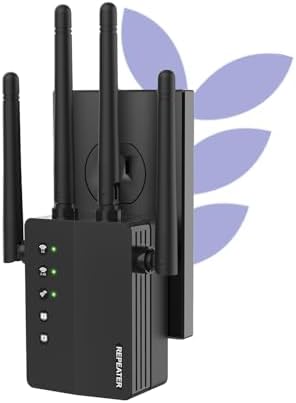
Figure 1: The AOOEPU WiFi Extender Signal Booster, a compact device with four external antennas, designed to plug directly into a standard wall outlet. Green indicator lights are visible, signifying active connections.
2. Setup and Installation
The AOOEPU WiFi Extender offers multiple modes for flexible network setup. Follow these steps for quick and easy installation.
2.1. Quick Setup using WPS Button
- Power On: Plug the WiFi Extender into a power outlet within the range of your existing main Wi-Fi router.
- Press WPS on Extender: Locate and press the WPS button on the AOOEPU WiFi Extender. The WPS indicator light should start blinking.
- Press WPS on Router: Within two minutes, press the WPS button on your main Wi-Fi router.
- Connection Confirmation: Wait for the indicator lights on the extender to become solid, indicating a successful connection. The extender will automatically pair with your router.

Figure 2: Visual guide for the WPS (Wi-Fi Protected Setup) method, demonstrating how to quickly connect the extender to your existing router by pressing the WPS buttons on both devices.
2.2. Manual Setup (Web Browser)
- Power On: Plug the WiFi Extender into a power outlet.
- Connect to Extender's Network: On your computer or mobile device, connect to the extender's default Wi-Fi network (e.g., "AOOEPU_Extender" or similar, check the device label for the exact name). No password is required initially.
- Access Setup Page: Open a web browser and enter the default IP address or web address (e.g., 192.168.10.1 or repea.ter, refer to the manual for exact details).
- Login: Enter the default username and password (usually "admin" for both, check the device label).
- Select Mode: Choose your desired operating mode (Repeater, AP, or Router).
- Configure Network: Follow the on-screen instructions to select your existing Wi-Fi network and enter its password. You can also set a new name and password for the extended network.
- Apply Settings: Save the settings and wait for the extender to restart.
- Reconnect: Reconnect your devices to the newly configured extended Wi-Fi network.
3. Operating Modes
The AOOEPU WiFi Extender supports three primary operating modes to suit various networking needs:
- Repeater Mode: Extends the coverage of an existing wireless network. This is the most common mode for eliminating Wi-Fi dead zones.
- AP (Access Point) Mode: Transforms a wired network connection into a wireless one. Ideal for adding Wi-Fi capability to a wired-only router.
- Router Mode: Functions as a standalone router, creating a new private wireless network.

Figure 3: An illustration of the three distinct operating modes: AP Mode, Repeater Mode, and Router Mode, detailing their respective network configurations and applications.
4. Connectivity and Compatibility
This WiFi Extender is designed for broad compatibility and robust connectivity, supporting a wide array of devices and providing stable connections for various activities.
4.1. Device Compatibility
The extender can connect up to 105 devices simultaneously, ensuring all your smart devices, from entertainment systems to smart home gadgets, stay connected.

Figure 4: The extender's wide compatibility, illustrated with icons of common devices such as game consoles, cameras, computers, smartphones, and smart TVs, all capable of connecting to the extended network.
4.2. Ethernet Port Usage
The integrated RJ45 Ethernet ports allow for stable wired connections, which are ideal for devices requiring maximum speed and reliability, such as gaming consoles, desktop computers, and smart televisions.

Figure 5: A detailed view of the Ethernet ports on the extender, demonstrating how wired devices can be connected for enhanced stability and speed.
5. Troubleshooting
If you encounter issues with your AOOEPU WiFi Extender, please refer to the following common troubleshooting steps:
- No Internet Access After Setup:
- Ensure the extender is within the effective range of your main router.
- Verify that the Wi-Fi password entered during setup is correct.
- Try restarting both your main router and the extender.
- Slow Speed on Extended Network:
- Relocate the extender closer to your main router to ensure a strong signal for the extender itself.
- Avoid placing the extender near large metal objects, concrete walls, or other electronic devices that may cause interference.
- Ensure your main router is providing adequate speed.
- Cannot Access Setup Page:
- Ensure your device is connected to the extender's default Wi-Fi network (not your main router's network).
- Clear your browser's cache and cookies, or try a different web browser.
- Verify the IP address or web address is entered correctly.
- Intermittent Connection:
- Check for firmware updates for the extender on the AOOEPU official website.
- Ensure there are no physical obstructions or sources of interference between the extender and your devices.
- Consider resetting the extender to factory defaults and reconfiguring it.
6. Specifications
| Attribute | Detail |
|---|---|
| Brand | AOOEPU |
| Model Number | AOOEPU-0630-1 |
| Product Dimensions | 7.48 x 3.74 x 2.4 inches |
| Item Weight | 5.6 ounces |
| Wireless Communication Standard | 2.4 GHz Radio Frequency, 5 GHz Radio Frequency (Dual Band) |
| Data Transfer Rate | Up to 1200 Megabytes Per Second |
| Connector Type | RJ45 Ethernet Port |
| Special Features | 1-Tap Setup, 360 Degree Coverage, Directional Antenna, Firewall, WiFi Mesh (compatible) |
| Coverage Area | Up to 12880 Sq. ft |
| Max Devices Supported | 105 Devices |
7. Maintenance
To ensure optimal performance and longevity of your AOOEPU WiFi Extender, consider the following maintenance tips:
- Regular Restart: Periodically restart the extender (unplug and plug back in after 10 seconds) to clear its memory and refresh its connection.
- Firmware Updates: Check the official AOOEPU website for any available firmware updates. Keeping the firmware updated can improve performance, stability, and security.
- Optimal Placement: Ensure the extender is placed in an open area, away from obstructions and sources of electromagnetic interference (e.g., microwaves, cordless phones, large metal objects).
- Cleaning: Gently wipe the exterior of the device with a soft, dry cloth to remove dust. Do not use liquid cleaners or aerosols.
- Environmental Conditions: Operate the extender within recommended temperature and humidity ranges to prevent damage.
8. Warranty and Support
AOOEPU is committed to providing high-quality products and customer satisfaction. For detailed warranty information and technical support, please refer to the following resources:
- Warranty Information: Please refer to the warranty card included in your product packaging for specific terms and conditions. Standard warranty typically covers manufacturing defects for a period specified at purchase.
- Technical Support: For technical assistance, setup guidance, or troubleshooting beyond this manual, please visit the official AOOEPU support website or contact their customer service.
- Online Resources: Additional FAQs, video tutorials, and updated manuals may be available on the AOOEPU brand store or product page.
Note: Protection plans are available for purchase separately through Amazon, offering extended coverage beyond the manufacturer's warranty.


