
1. Introduction
This manual provides essential information for setting up, operating, maintaining, and troubleshooting your Lenovo Laptop Computer 2026 Edition, Model IdeaPad Slim 3. Please read this manual thoroughly before using your device to ensure proper function and longevity.
2. Package Contents
Verify that all items are present in your package:
- Lenovo Laptop Computer 2026 Edition (IdeaPad Slim 3)
- Power Adapter
- SD Card Reader
- Quick Start Guide (if included)
- Warranty Information Card (if included)
3. Product Overview
Familiarize yourself with the components and features of your Lenovo IdeaPad Slim 3 laptop.
3.1 Key Features

This image displays the Lenovo IdeaPad Slim 3 laptop and highlights its primary features. It includes an Intel Core i7-13620H processor, a 15.3-inch WUXGA IPS display (1920x1200 resolution), and an HD camera with a privacy shutter. The laptop is 0.70 inches thin and weighs 3.51 lbs. It comes with 24GB DDR5 RAM, upgradable to 40GB, and a 512GB SSD, upgradable to 4TB. Audio is provided by dual 2W speakers. The device supports Rapid Charge Boost and features a Metal A Cover for durability, meeting Military Grade standards.
3.2 Display and Keyboard

This image focuses on the laptop's display and keyboard. The 15.3-inch WUXGA IPS display offers a 1920x1200 resolution, 300 nits brightness, anti-glare properties, and a 16:10 aspect ratio. It boasts up to a 90% active area ratio and is an Eyesafe Display, TÜV Rheinland Certified for low blue light. The keyboard is non-backlit and includes a numeric keypad.
3.3 Power and Audio
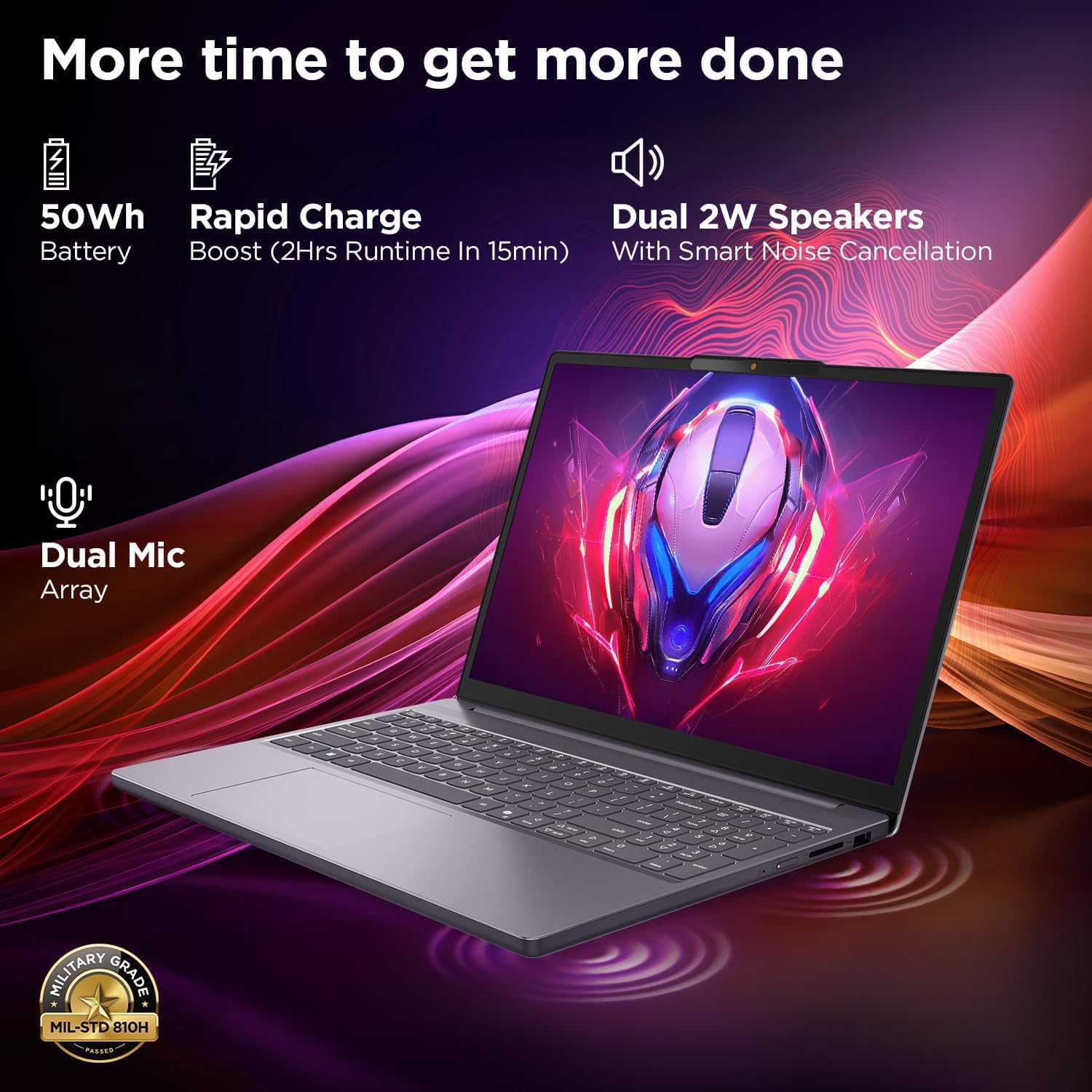
This image highlights the laptop's power and audio capabilities. It features a 50Wh battery with Rapid Charge Boost, providing 2 hours of runtime from a 15-minute charge. Dual 2W speakers with Smart Noise Cancellation and a Dual Mic Array enhance audio quality. The laptop also meets Military Grade MIL-STD 810H durability standards.
3.4 Ports and Connectivity

This image illustrates the various ports available on the Lenovo IdeaPad Slim 3. These include a power button, an SD card reader, a power connector, two USB-A ports (5Gbps), an HDMI port, and a USB-C port (5Gbps) with USB Power Delivery 3.0 and DisplayPort 1.2 support for data transfer and external displays. A headphone/microphone combo jack (3.5mm) is also present.
3.5 Keyboard and Touchpad Layout
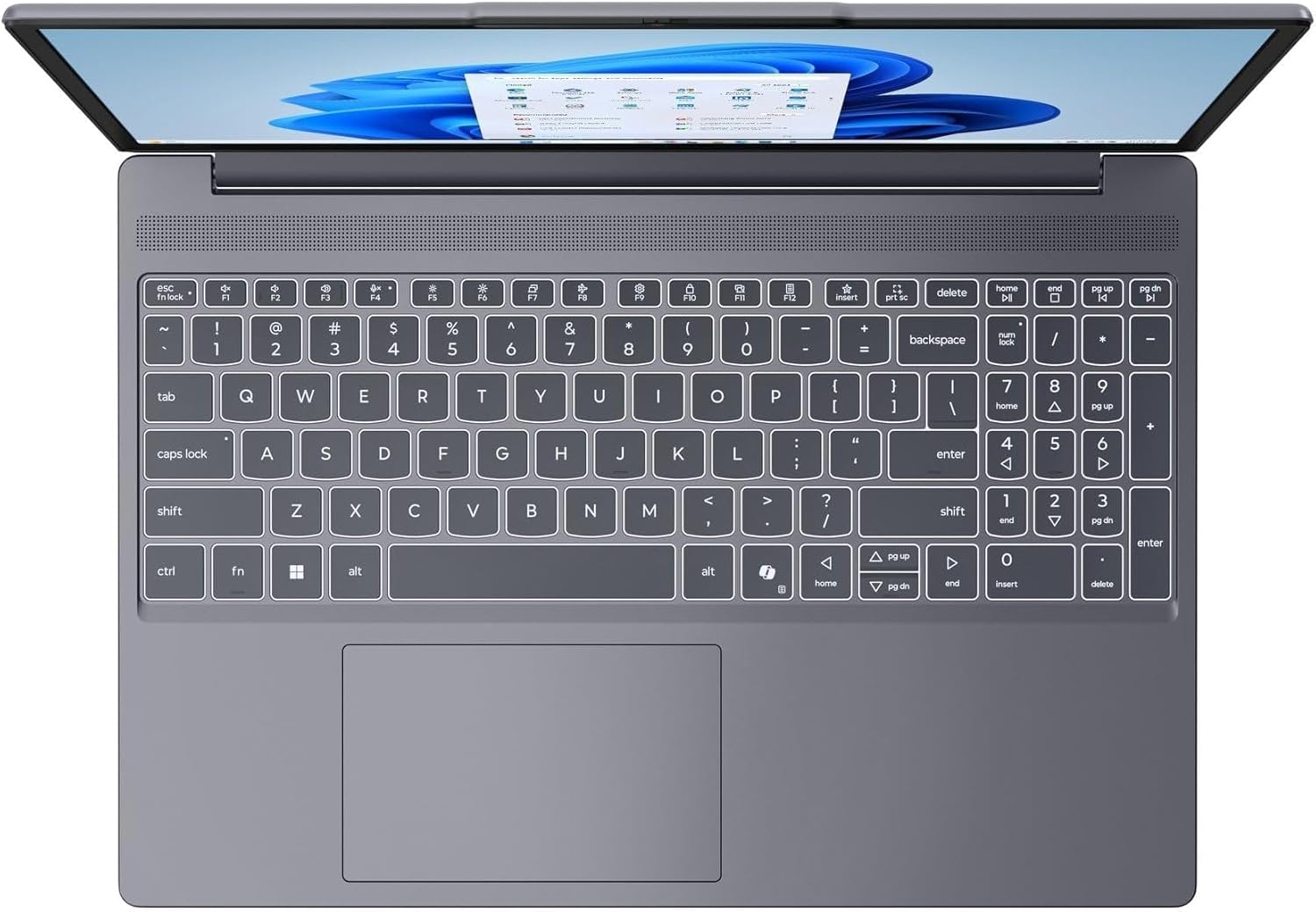
This image provides a top-down view of the laptop's full-size keyboard with a numeric keypad and the integrated touchpad. It shows the standard QWERTY layout along with function keys and dedicated navigation keys.
3.6 Laptop Exterior (Closed)
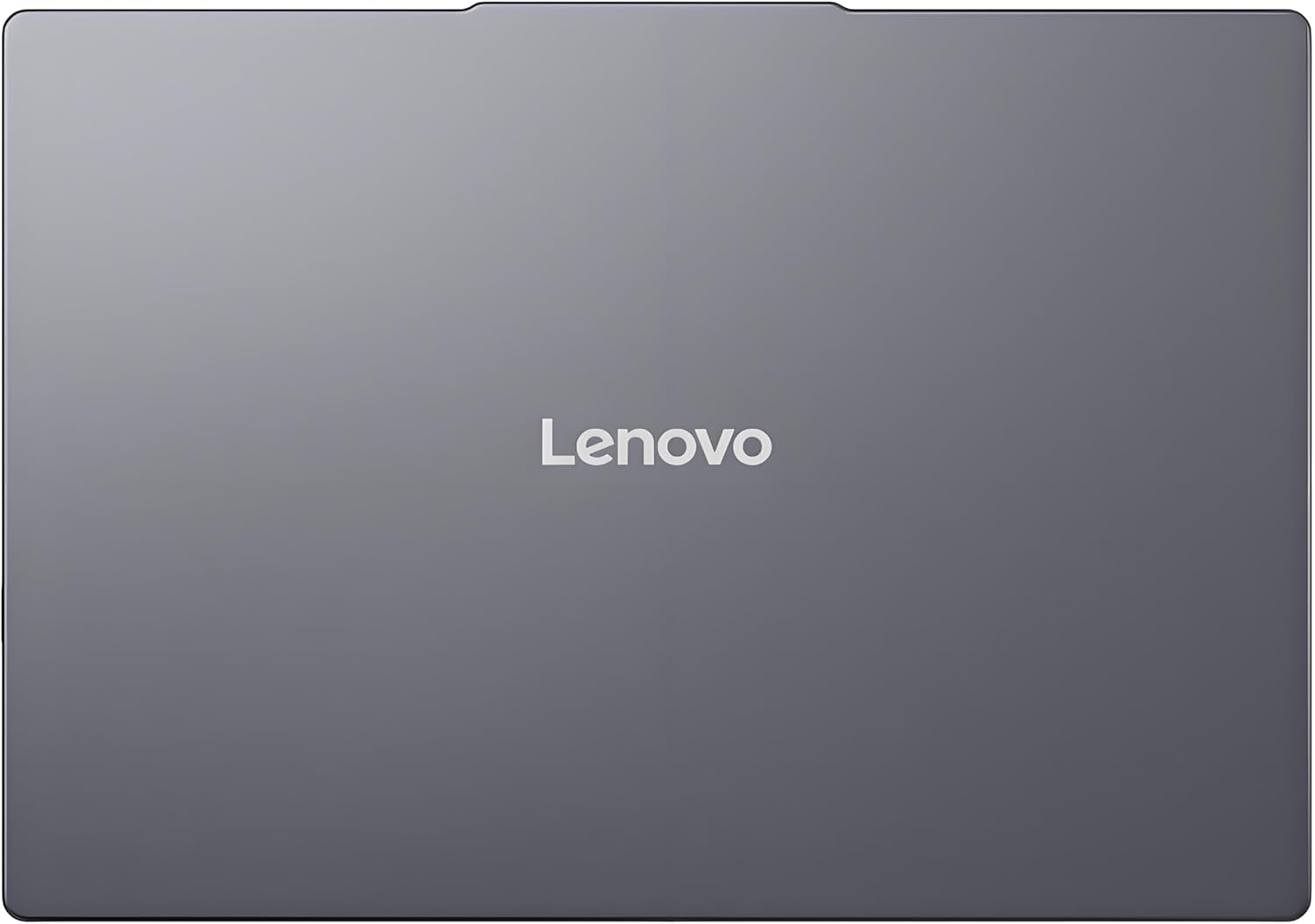
This image shows the top cover of the Lenovo IdeaPad Slim 3 laptop when closed, featuring the Lenovo brand logo centrally placed on the grey metallic surface.
3.7 Laptop Bottom View

This image displays the bottom panel of the Lenovo IdeaPad Slim 3 laptop, showing the ventilation grilles for cooling and rubber feet for stability.
4. Setup
4.1 Initial Power On and Charging
- Connect the Power Adapter: Plug the power adapter into the laptop's power connector and then into a wall outlet.
- Charge the Battery: Allow the laptop to charge for at least 30 minutes before initial use, or until the battery indicator shows sufficient charge.
- Power On: Open the laptop lid and press the power button located on the side or keyboard deck.
- Windows Setup: Follow the on-screen instructions to complete the Windows 11 Home setup, including language, region, network connection, and user account creation.
4.2 Connecting to a Network
- Wi-Fi: During Windows setup or later, click the Wi-Fi icon in the taskbar, select your network, enter the password, and click Connect.
- Ethernet (if applicable via adapter): Connect an Ethernet cable from your router/modem to a compatible USB-C adapter (not included) and then to the laptop's USB-C port.
5. Operating Instructions
5.1 Using the Keyboard and Touchpad
- Keyboard: The laptop features a full-size keyboard with a numeric keypad. Use the Fn key in combination with function keys (F1-F12) for special functions like adjusting brightness, volume, or enabling/disabling Wi-Fi.
- Touchpad: The integrated touchpad supports multi-touch gestures for navigation, scrolling, and zooming. Refer to Windows settings for customizing touchpad gestures.
5.2 Connecting External Devices
- USB Devices: Connect USB peripherals (mouse, keyboard, external drives) to the available USB-A or USB-C ports.
- HDMI/DisplayPort: Use the HDMI port or USB-C (with DP 1.2 support) to connect an external monitor or projector.
- Bluetooth Devices: Enable Bluetooth in Windows settings to pair wireless headphones, speakers, or other Bluetooth accessories.
- SD Card: Insert an SD card into the dedicated SD card reader slot for data transfer.
5.3 Power Management
- Sleep Mode: Close the lid or press the power button briefly to put the laptop into sleep mode.
- Shut Down: Click the Start button, then Power, and select "Shut down" to turn off the laptop completely.
- Restart: Click the Start button, then Power, and select "Restart" to reboot the laptop.
6. Maintenance
6.1 Cleaning the Laptop
- Screen: Use a soft, lint-free cloth lightly dampened with water or a screen cleaner. Do not spray liquid directly onto the screen.
- Keyboard and Chassis: Use a soft, dry cloth. For stubborn dirt, a slightly damp cloth with mild soap solution can be used, ensuring no liquid enters openings.
- Ventilation: Periodically clean the ventilation grilles with compressed air to prevent dust buildup, which can affect cooling performance.
6.2 Battery Care
- Avoid extreme temperatures.
- Do not fully discharge the battery frequently.
- If storing the laptop for an extended period, charge the battery to about 50-60%.
6.3 Software Updates
- Regularly check for Windows updates via Settings > Windows Update.
- Visit the official Lenovo support website for driver and firmware updates specific to your IdeaPad Slim 3 model.
7. Troubleshooting
| Problem | Possible Solution |
|---|---|
| Laptop does not power on. | Ensure the power adapter is securely connected and the outlet is functional. Try a different outlet. If the battery is completely drained, allow it to charge for a while before attempting to power on. |
| Display is blank or black. | Check if the laptop is powered on. Adjust screen brightness using function keys. Connect an external monitor to check if the issue is with the laptop's internal display. |
| Wi-Fi connection issues. | Ensure Wi-Fi is enabled in Windows settings. Restart your router/modem. Check for updated Wi-Fi drivers on the Lenovo support website. |
| Slow performance. | Close unnecessary applications. Check Task Manager for resource-intensive processes. Ensure Windows and drivers are up to date. Run a disk cleanup. |
| Keyboard or touchpad unresponsive. | Restart the laptop. Check for driver updates. Ensure no physical obstructions are present. |
8. Specifications
| Feature | Detail |
|---|---|
| Brand | Lenovo |
| Model Name | IdeaPad Slim 3 |
| Screen Size | 15.3 Inches WUXGA IPS |
| Resolution | 1920 x 1200 pixels |
| Processor | 13th Gen Intel Core i7-13620H (2.4 GHz, up to 4.9 GHz) |
| RAM | 24GB DDR5 RAM (Upgradable to 40GB) |
| Storage | 1TB NVMe M.2 SSD (Upgradable to 4TB) |
| Operating System | Windows 11 Home |
| Graphics | Integrated |
| Wireless Connectivity | WiFi 6 (802.11ax) |
| Bluetooth | Bluetooth 5.2 |
| Ports | 2x USB-A (5Gbps), 1x USB-C (5Gbps, PD 3.0, DP 1.2), 1x HDMI, 1x Headphone/Mic Combo, 1x SD Card Reader, Power Connector |
| Webcam | HD Camera with Privacy Shutter |
| Audio | Dual 2W Speakers with Smart Noise Cancellation, Dual Mic Array |
| Battery | 50Wh, Rapid Charge Boost |
| Dimensions (L x W x Th) | 13.52" x 9.43" x 0.7" |
| Weight | 3.51 lbs |
| Special Features | Privacy Shutter, Power Delivery, Military Grade Durability (MIL-STD 810H) |
9. Warranty Information
Your Lenovo Laptop Computer 2026 Edition (IdeaPad Slim 3) comes with a Limited Warranty. The specific terms and duration of your warranty may vary by region and purchase date. For detailed warranty information, including coverage, terms, and conditions, please refer to the warranty card included with your product or visit the official Lenovo support website:
https://support.lenovo.com/warranty
It is recommended to register your product on the Lenovo website to facilitate warranty claims and receive important updates.
10. Support
For further assistance, technical support, or to download the latest drivers and manuals, please visit the official Lenovo Support website:
You may also contact Lenovo customer service directly. Contact information can typically be found on the support website for your specific region.


