
1. Introduction
Thank you for purchasing the Bettdow AC1066 Projector. This manual provides essential information for setting up, operating, and maintaining your device. Please read it carefully before use to ensure optimal performance and safety.
2. Safety Information
To prevent fire, electric shock, or injury, always follow these basic safety precautions:
- Do not expose the projector to rain or moisture.
- Do not open the projector casing. Refer all servicing to qualified personnel.
- Ensure proper ventilation; do not block ventilation openings.
- Use only the power adapter supplied with the projector.
- Avoid direct eye exposure to the projector lens when the lamp is on.
- Keep the projector away from heat sources and direct sunlight.
3. Package Contents
Verify that all items are present in your package:
- Bettdow AC1066 Projector
- Power Adapter
- Remote Control
- User Manual
4. Product Overview
4.1 Projector Components
Familiarize yourself with the main parts of your Bettdow AC1066 Projector.
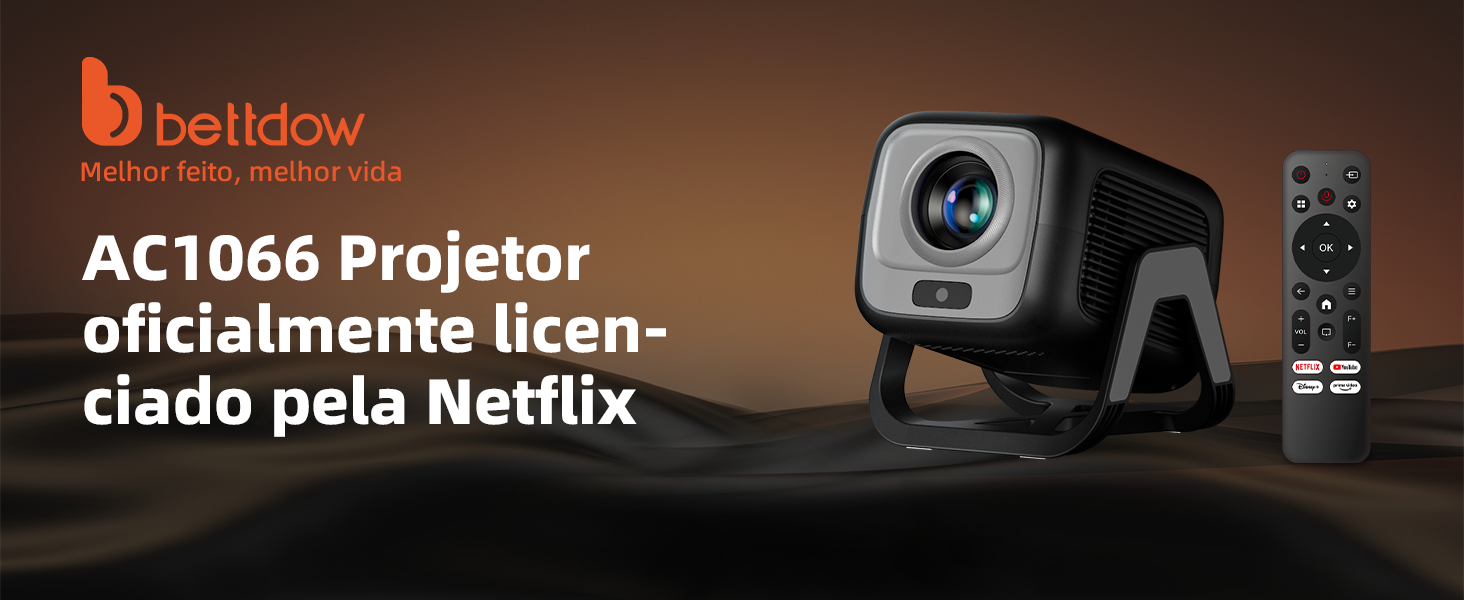
Image: The Bettdow AC1066 Projector shown with its remote control, highlighting its compact design.
4.2 Connectivity Ports
The projector offers various ports for connecting external devices.
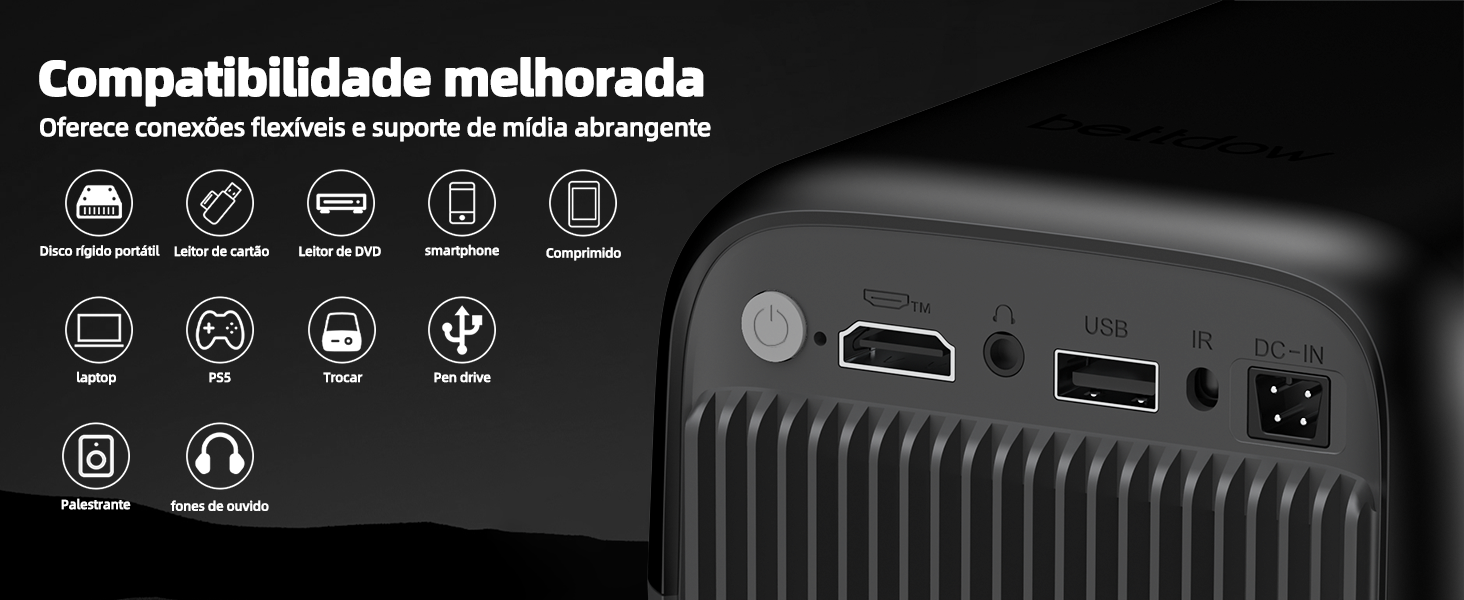
Image: Rear view of the projector displaying HDMI, USB, and DC-IN ports for various connections.
- HDMI Port: Connect to laptops, gaming consoles, or other HDMI-enabled devices.
- USB Port: Connect USB drives for media playback.
- DC-IN: Power input for the projector.
5. Setup
5.1 Powering On/Off
- Connect the power adapter to the DC-IN port on the projector and then to a power outlet.
- Press the power button on the projector or the remote control to turn it on.
- To turn off, press the power button again and confirm shutdown.
5.2 Placement and Projection
The Bettdow AC1066 is designed for flexible placement, supporting projection sizes from 50 to 120 inches.
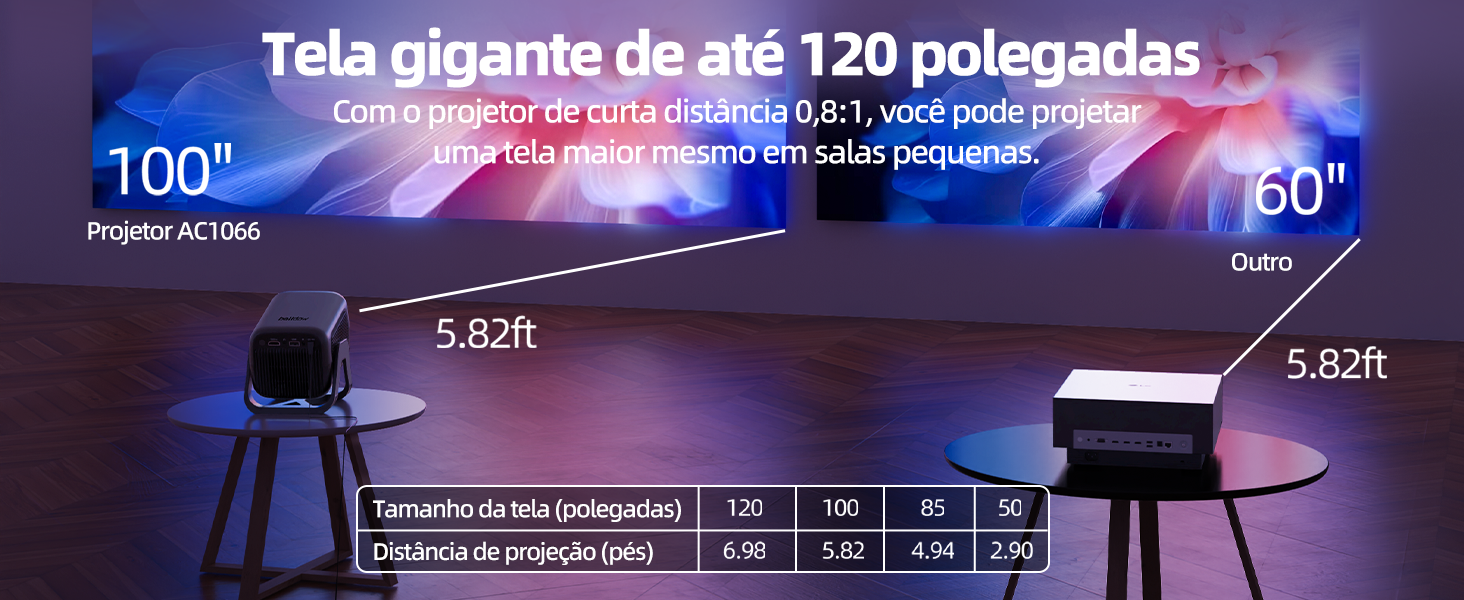
Image: A chart illustrating recommended projection distances for various screen sizes (50-120 inches) with the AC1066 projector.
The projector features a 90° rotatable stand, allowing for versatile projection angles, including ceiling projection.
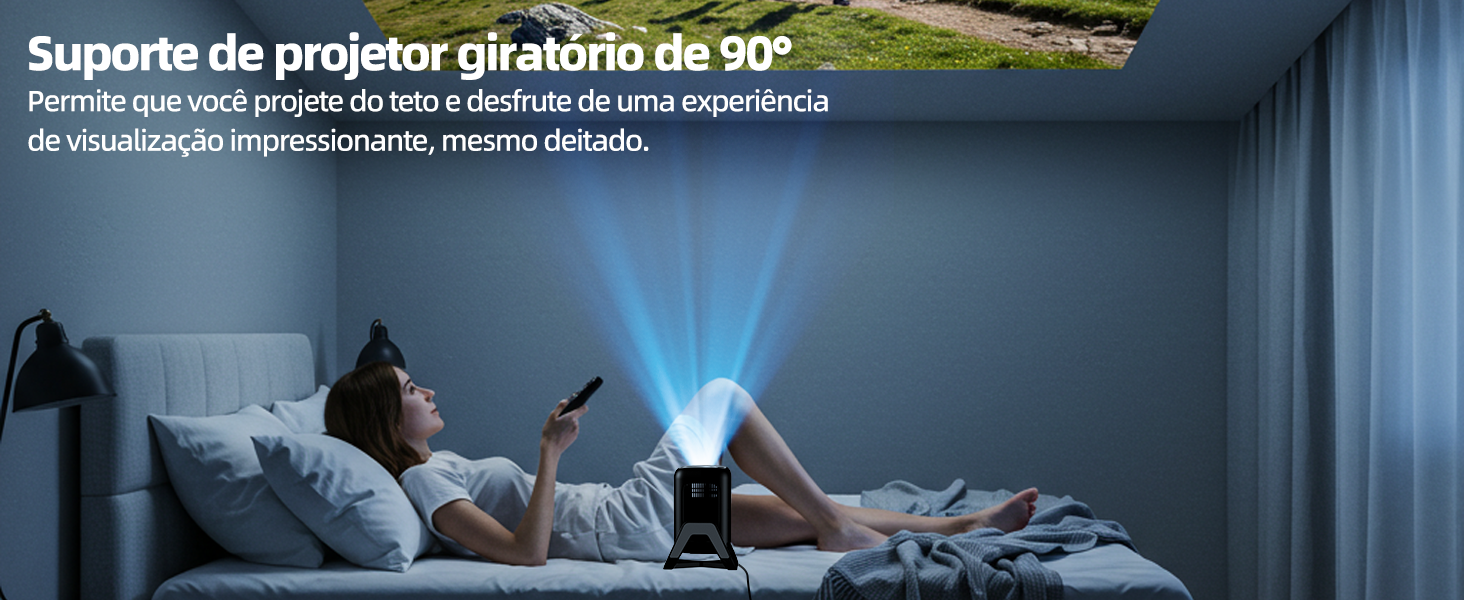
Image: A user enjoying content projected onto the ceiling, demonstrating the 90° rotatable stand feature.
5.3 Automatic Focus and Keystone Correction
The AC1066 projector is equipped with automatic focus and keystone correction (up to ±30 degrees) for a clear, rectangular image without manual adjustments.
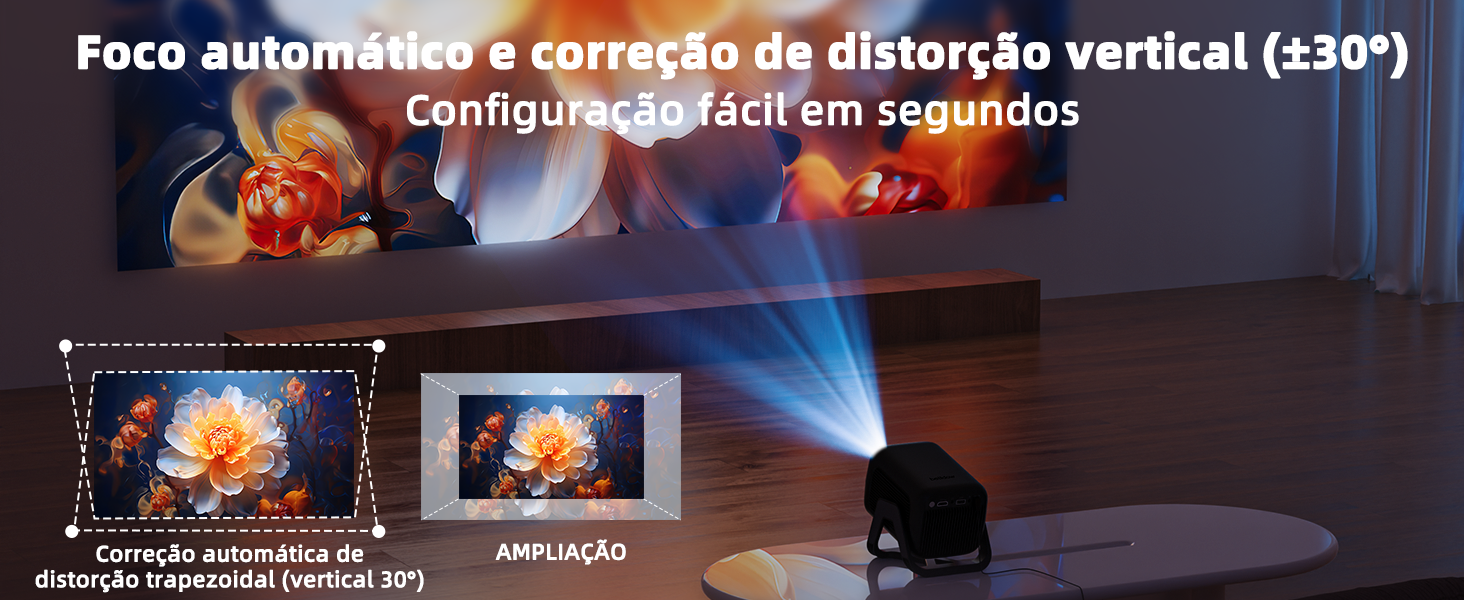
Image: Visual representation of automatic focus and keystone correction, transforming a skewed projection into a perfectly aligned image.
5.4 Network and Device Connectivity
- Wi-Fi Connection: Navigate to Settings > Network > Wi-Fi and select your network. Enter the password to connect. The projector supports dual-band 2.4G and 5G Wi-Fi for stable and fast streaming.
- Bluetooth Connection: Go to Settings > Bluetooth, turn on Bluetooth, and pair with your desired audio device (e.g., headphones, speakers).
- HDMI/USB Connection: Connect your device to the respective port. The projector should automatically detect the input or allow you to select it from the input source menu.
6. Operating Instructions
6.1 Smart OS Navigation (Android 13.0)
The Bettdow AC1066 runs on Android 13.0 with Whale OS, providing a user-friendly interface. Use the remote control to navigate through menus, select applications, and adjust settings.
6.2 Netflix and Streaming Applications
This projector is officially licensed by Netflix, allowing direct access to Netflix, Prime Video, YouTube, Disney+, and other streaming services without external devices.
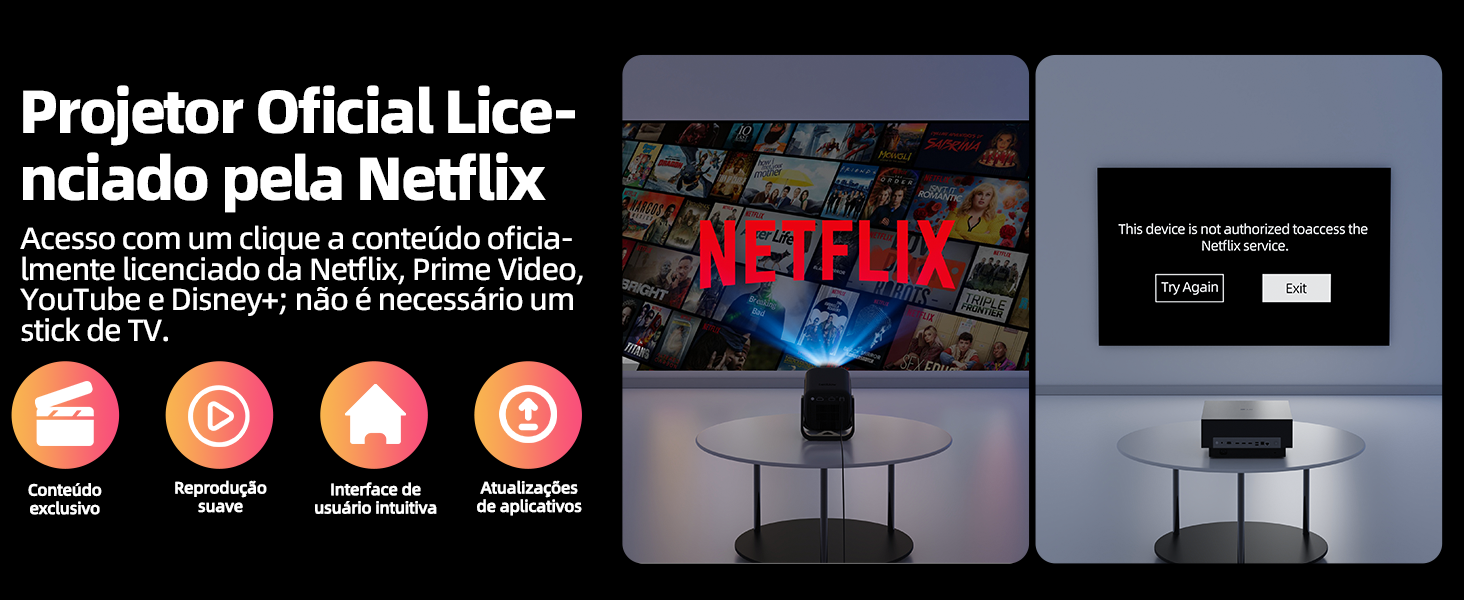
Image: A visual comparison demonstrating the Bettdow AC1066's official Netflix licensing, allowing seamless content playback, unlike unauthorized projectors.
Access these applications directly from the home screen. Ensure you are connected to the internet for streaming.
6.3 AI Voice Control
The integrated ChatGPT AI voice assistant allows you to control the projector using natural language commands. This includes turning the projector on/off, adjusting volume, and switching input sources. Multiple languages are supported.
6.4 Screen Mirroring
The projector supports Airplay, Miracast, and DLNA for mirroring content from your smartphone, tablet, or laptop.
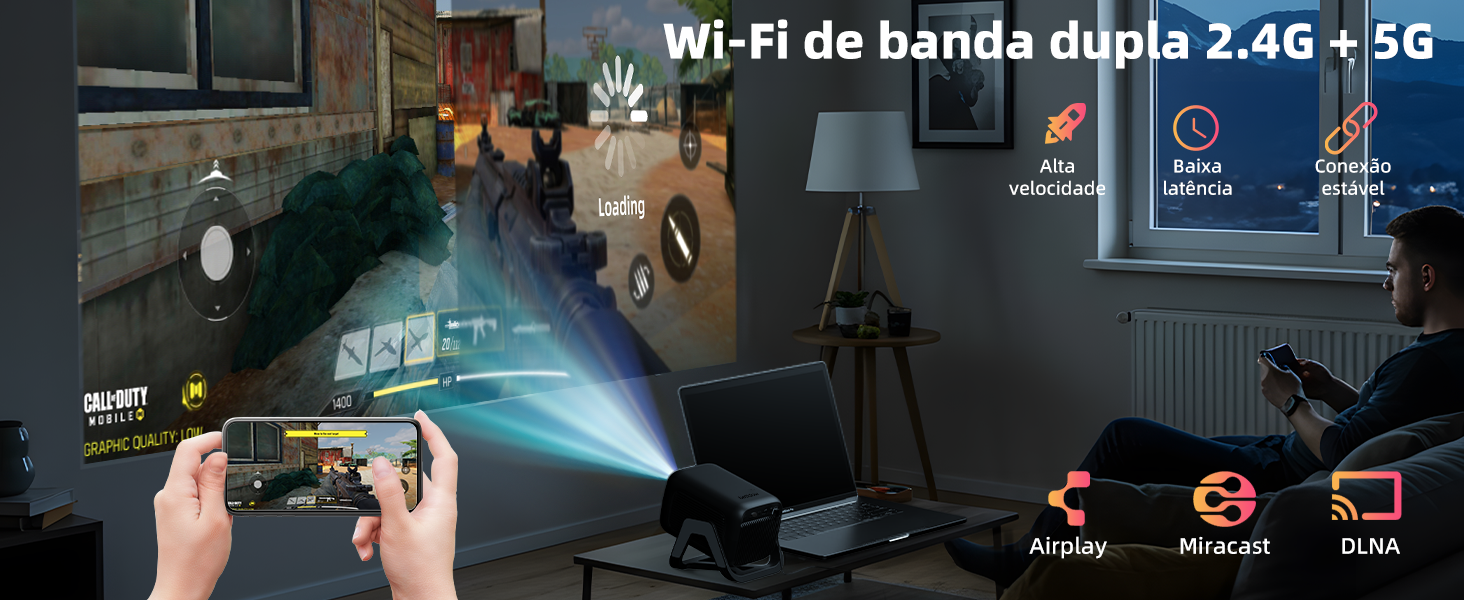
Image: A user mirroring a mobile game to the projector, illustrating the dual-band Wi-Fi and screen mirroring capabilities.
- For iOS devices (Airplay): Ensure both devices are on the same Wi-Fi network. Select the Airplay option on your iOS device and choose the projector.
- For Android devices (Miracast/DLNA): Look for 'Screen Mirroring', 'Smart View', or 'Wireless Display' in your device's settings and select the projector.
7. Maintenance
7.1 Cleaning the Projector
- Lens: Use a soft, lint-free cloth specifically designed for optical lenses. Do not use abrasive cleaners.
- Casing: Wipe the exterior with a soft, dry cloth. For stubborn dirt, use a slightly damp cloth and then dry thoroughly.
- Ventilation: Regularly check and clean the ventilation openings to prevent dust buildup, which can affect performance and lifespan.
7.2 Lamp Life
The projector lamp has an estimated lifespan of 30,000 hours. Proper ventilation and regular cleaning can help maximize its longevity.
7.3 Software Updates
Periodically check for software updates in the projector's settings menu to ensure you have the latest features and performance enhancements.
8. Troubleshooting
If you encounter issues, refer to the following common problems and solutions:
- No Power: Ensure the power adapter is securely connected to both the projector and the power outlet. Try a different outlet.
- No Image: Check the input source selection. Ensure the connected device is powered on and sending a signal. Verify all cables are securely connected.
- Blurry Image: The projector features auto-focus. If the image remains blurry, try moving the projector slightly or manually adjusting focus if an option is available in settings. Ensure the lens is clean.
- No Sound: Check the volume settings on both the projector and the connected device. Ensure external Bluetooth speakers are properly paired.
- Wi-Fi Connection Issues: Restart the projector and your Wi-Fi router. Ensure the Wi-Fi password is correct.
9. Specifications
| Feature | Specification |
|---|---|
| Model Name | AC1066 |
| Native Resolution | 1920 x 1080P (Full HD) |
| Supported Resolution | Up to 4K signal input |
| Brightness | 200 ANSI Lumens (12000 Lumens marketing) |
| Contrast Ratio | 1500:1 |
| Aspect Ratio | 4:3 / 16:9 |
| Lamp Life | 30,000 hours |
| Operating System | Android 13.0, Whale OS |
| Connectivity | Wi-Fi 6 (2.4G + 5G), Bluetooth 5.2, HDMI, USB |
| Special Features | Netflix Licensed, HDR10+, Auto Focus, Auto Keystone (±30°), AI Voice Control, 90° Rotatable Stand |
| Projection Size | 50 - 120 inches |
| Dimensions | 16 x 12.3 x 12.5 cm |
| Weight | 0.65 kg |
| Included Components | Adapter |
10. Warranty
The Bettdow AC1066 Projector comes with a 6-month warranty from the date of purchase. This warranty covers manufacturing defects and malfunctions under normal use. It does not cover damage caused by misuse, accidents, unauthorized modifications, or improper maintenance. Please retain your proof of purchase for warranty claims.
11. Support
For technical assistance, warranty claims, or any questions regarding your Bettdow AC1066 Projector, please contact our customer support team:
- Email: support@bettdow.com
- Website: www.bettdow.com/support
Please have your model number (AC1066) and proof of purchase ready when contacting support.