
1. Product Overview
The Logitech G Astro A20 X is a Lightspeed wireless gaming headset designed for multi-platform compatibility, offering seamless audio switching between various gaming systems. It features a lightweight design, high-resolution microphone, customizable RGB lighting, and advanced audio drivers for an immersive gaming experience.

2. What's in the Box
Ensure all the following components are present in your package:
- A20 X Wireless Gaming Headset
- PLAYSYNC Base Station
- Removable Boom Microphone
- USB-C to USB-A Charging Cable
- USB-C to USB-A Data Cable

3. Setup
3.1. Connecting the PLAYSYNC Base
The PLAYSYNC Base allows you to connect to two systems simultaneously and switch between them. Use the provided USB-C to USB-A cables to connect the base to your desired platforms.
- Connect one USB-C to USB-A cable from the PLAYSYNC Base (Port 1 or 2) to your first gaming system (e.g., PS5, PC).
- Connect a second USB-C to USB-A cable from the other port on the PLAYSYNC Base to your second gaming system (e.g., Xbox, Switch).
- Ensure the switches on the back of the PLAYSYNC Base are set correctly for your connected systems (e.g., 'XBOX' for Xbox, 'PC' for PC/PS5/Switch).

3.2. Attaching the Boom Microphone
The headset comes with a removable boom microphone for clear voice communication.
- Locate the microphone port on the left earcup of the headset.
- Align the microphone's connector with the port and gently push until it clicks into place.
3.3. Charging the Headset
Before first use, fully charge your headset. The headset can be charged via the USB-C port on the headset itself or by placing it on the PLAYSYNC Base.
- Connect the USB-C charging cable to the headset's USB-C port and to a power source.
- Alternatively, place the headset on the PLAYSYNC Base. The headset will indicate charging status.
4. Operating Instructions
4.1. Power On/Off
To power on the headset, slide the power switch located on the earcup. An LED indicator will light up. To power off, slide the switch back.
4.2. PLAYSYNC Audio Switching
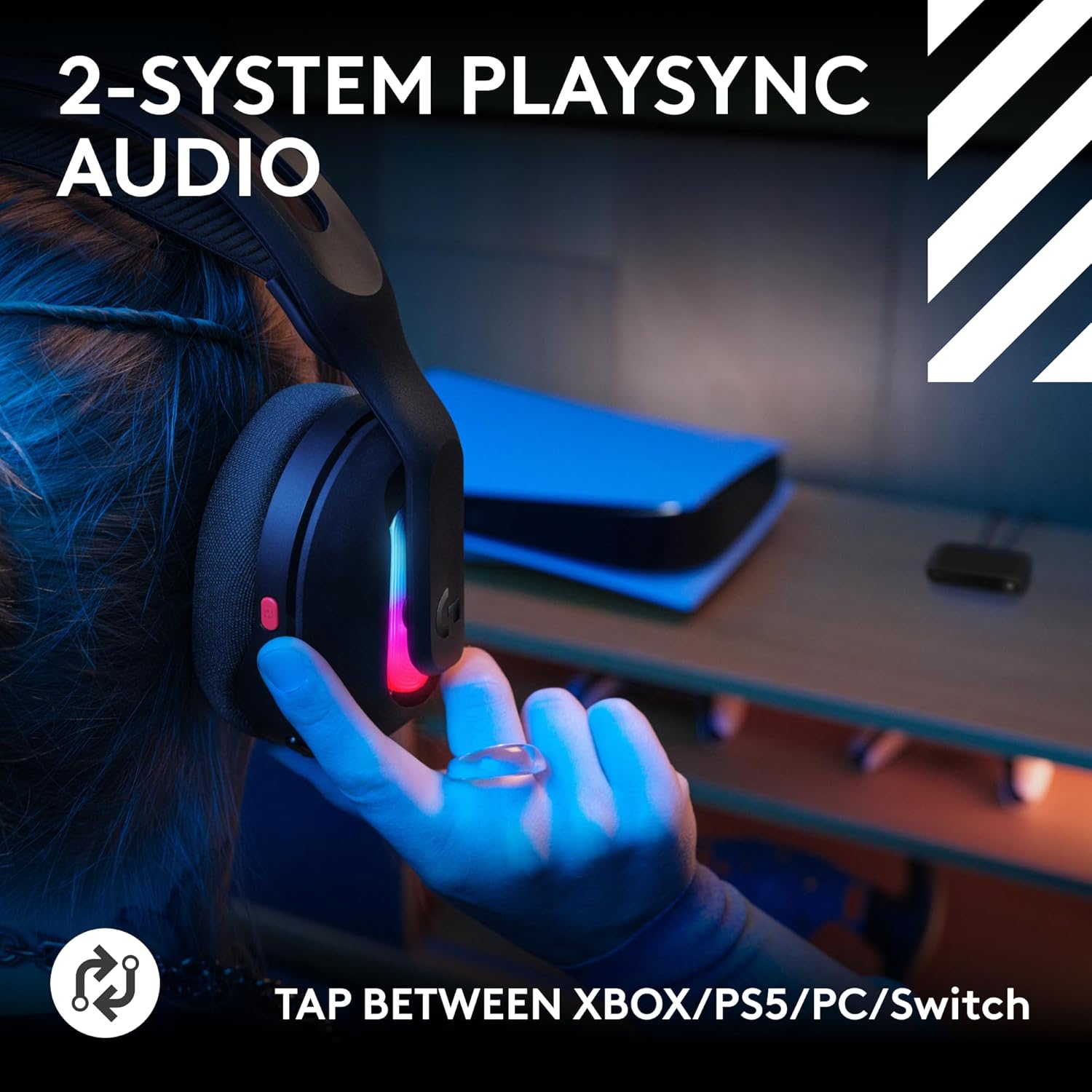
Effortlessly switch between your two connected systems (e.g., Xbox and PC) with the dedicated PLAYSYNC button on the headset.
- Press the PLAYSYNC button once to toggle between the audio sources connected to your PLAYSYNC Base.
4.3. Volume Control
Adjust the overall volume using the volume wheel located on the earcup.
4.4. Game/Chat Balancing (MixAmp Technology)
Balance game audio and chat audio to your preference using the MixAmp controls.
- Press the 'Game' button to prioritize game audio.
- Press the 'Chat' button to prioritize chat audio.

4.5. Bluetooth Connectivity
Connect your headset to Bluetooth-enabled devices for mobile gaming or audio.
- Press and hold the Bluetooth pairing button on the headset until the LED indicator flashes.
- On your device, go to Bluetooth settings and select 'Astro A20 X' to pair.
4.6. Microphone Usage
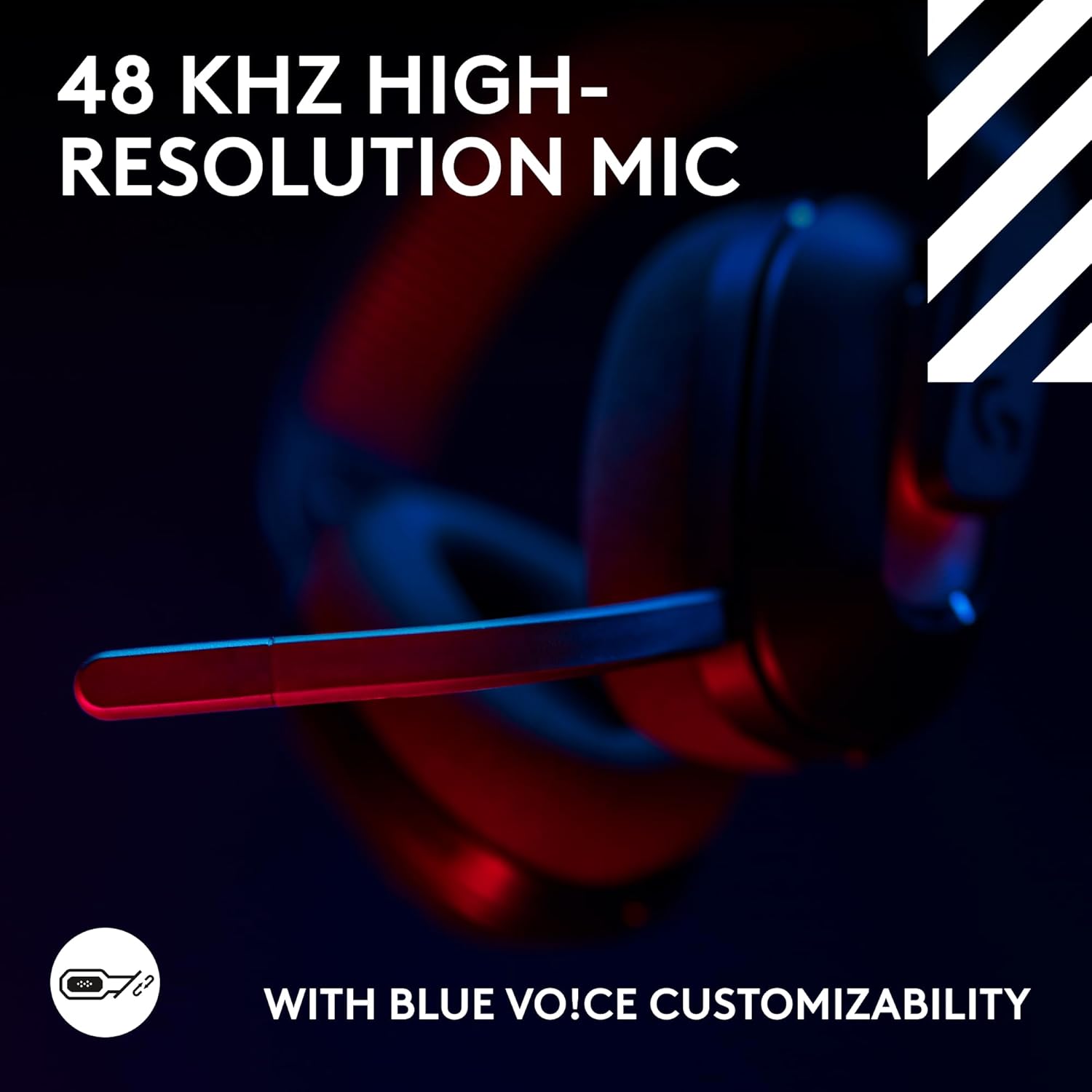
The 48 kHz high-resolution microphone with Blue VO!CE customization ensures clear communication.
- Flip the boom mic up to mute, and down to unmute. A red LED on the mic indicates mute status.
- Blue VO!CE settings can be customized via the G HUB software for enhanced clarity.
5. Customization (G HUB and Mobile App)
Unlock precise control and personalize your audio experience with the Logitech G HUB software (for PC) and the G Mobile App (for mobile devices).
- 10-Band EQ Adjustments: Fine-tune your audio profile for different games or media.
- LIGHTSYNC RGB: Customize the 8-zone RGB lighting with 16.8 million colors to match your setup or mood.
- Blue VO!CE: Enhance microphone clarity and apply vocal effects.
6. Maintenance
6.1. Cleaning
To maintain the headset's condition, regularly clean the earcups and headband with a soft, dry cloth. Avoid using harsh chemicals or abrasive materials.
6.2. Storage
Store the headset in a cool, dry place away from direct sunlight and extreme temperatures. When not in use, consider placing it on a headset stand to prevent damage.
7. Troubleshooting
7.1. No Audio/Microphone Issues
- Ensure the headset is powered on and charged.
- Check the volume levels on both the headset and your connected device.
- Verify the microphone is not muted (red LED on mic indicates mute).
- Confirm the boom microphone is securely attached.
7.2. Connectivity Problems
- Ensure the PLAYSYNC Base is correctly connected to your systems via USB-C cables.
- Check the system switches on the PLAYSYNC Base are set to the correct platform.
- Re-pair the headset with the PLAYSYNC Base or Bluetooth device if connection is lost.
- Move closer to the PLAYSYNC Base to ensure you are within the wireless range (up to 30 meters).
7.3. Battery Life Concerns
- Battery life is up to 90 hours without LIGHTSYNC RGB, and up to 40 hours with default lighting. Adjusting RGB settings can impact battery duration.
- Ensure the headset is fully charged before extended use.
8. Specifications
| Feature | Specification |
|---|---|
| Model Name | A20 X |
| Item Model Number | 939-002242 |
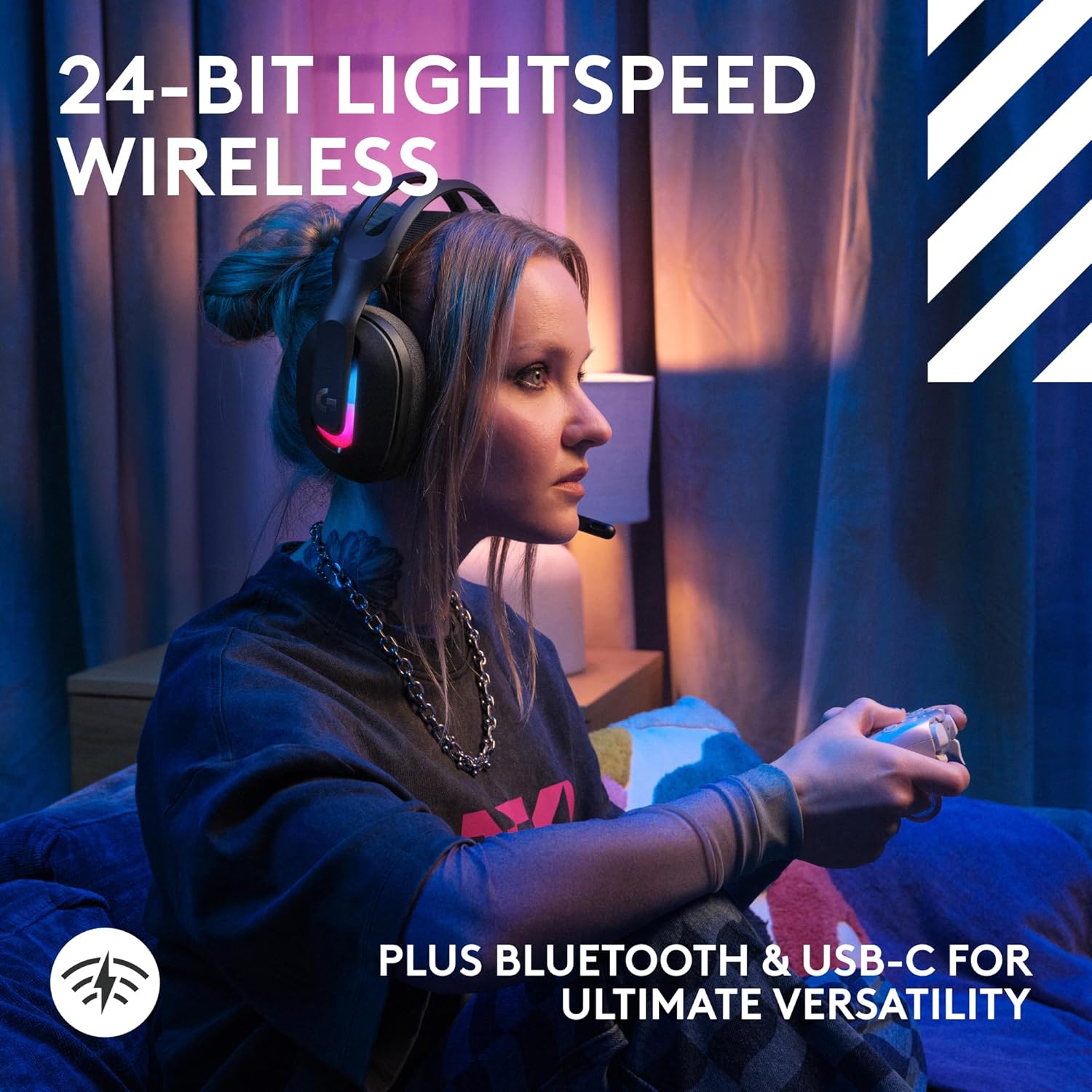
| Connectivity Technology | Wireless (LIGHTSPEED), Bluetooth 5.3, USB wired |
| Headphones Jack | USB-C Jack |
| Item Weight | 10.2 ounces (290 g) |
| Driver | 40 mm Biocellulose (PRO-G Audio Drivers) |
| Frequency Response | 20 Hz-20 KHz |
| Microphone (Boom) | Omni-directional, 48 kHz high-resolution, Blue VO!CE |
| Wireless Range | Up to 30 meters |
| Battery Life (No lighting) | Up to 90 hours |
| Battery Life (Default lighting) | Up to 40 hours |
| Compatible Devices | PS5, Xbox Series X|S, Nintendo Switch (docked), PC, Mobile Devices |
9. Warranty and Support
For warranty information, technical support, and additional resources, please visit the official Logitech G support website. You can find detailed FAQs, driver downloads, and contact options there.
The Logitech G Astro A20 X is also built with a minimum of 29% post-consumer recycled plastic, reflecting a commitment to sustainability.


