
HP HP 15 Laptop
HP 15 Laptop User Manual
Model: HP 15 Laptop (15.6-inch FHD Touchscreen)
Introduction
This manual provides essential information for setting up, operating, maintaining, and troubleshooting your new HP 15 Laptop. Please read this guide thoroughly to ensure optimal performance and longevity of your device.

Image: The HP 15 Laptop displayed from an angle, showcasing its sleek design and the vibrant display.
Environmental Considerations
Your HP 15 Laptop is designed with environmental impact reduction in mind, utilizing sustainable materials and energy-efficient components.

Image: An illustration highlighting the HP 15 Laptop's commitment to sustainability, featuring certifications like EPEAT Gold and ENERGY STAR, and its construction with recycled materials.
Setup Guide
1. Unboxing Your Laptop
- Carefully remove your HP 15 Laptop and all accessories from the packaging.
- Verify that all components are present: HP 15 Laptop, 45W AC power adapter, and documentation.
2. Connecting to Power
Before first use, connect the AC power adapter to your laptop and a power outlet to ensure the battery is charged.

Image: The HP 15.6-inch Laptop alongside its 45W AC power adapter, indicating the essential components for initial setup.
- Plug the small connector of the 45W AC power adapter into the AC smart pin port on your laptop.
- Plug the other end of the power adapter into a working electrical outlet.
3. First Boot and Windows Setup
Once connected to power, you can proceed with the initial setup.
- Open the laptop lid and press the power button, typically located on the keyboard deck.
- Follow the on-screen instructions to complete the Windows 11 Home setup process. This includes selecting your region, connecting to a Wi-Fi network, and creating a user account.
4. Port Identification
Familiarize yourself with the various ports on your HP 15 Laptop for connecting peripherals.
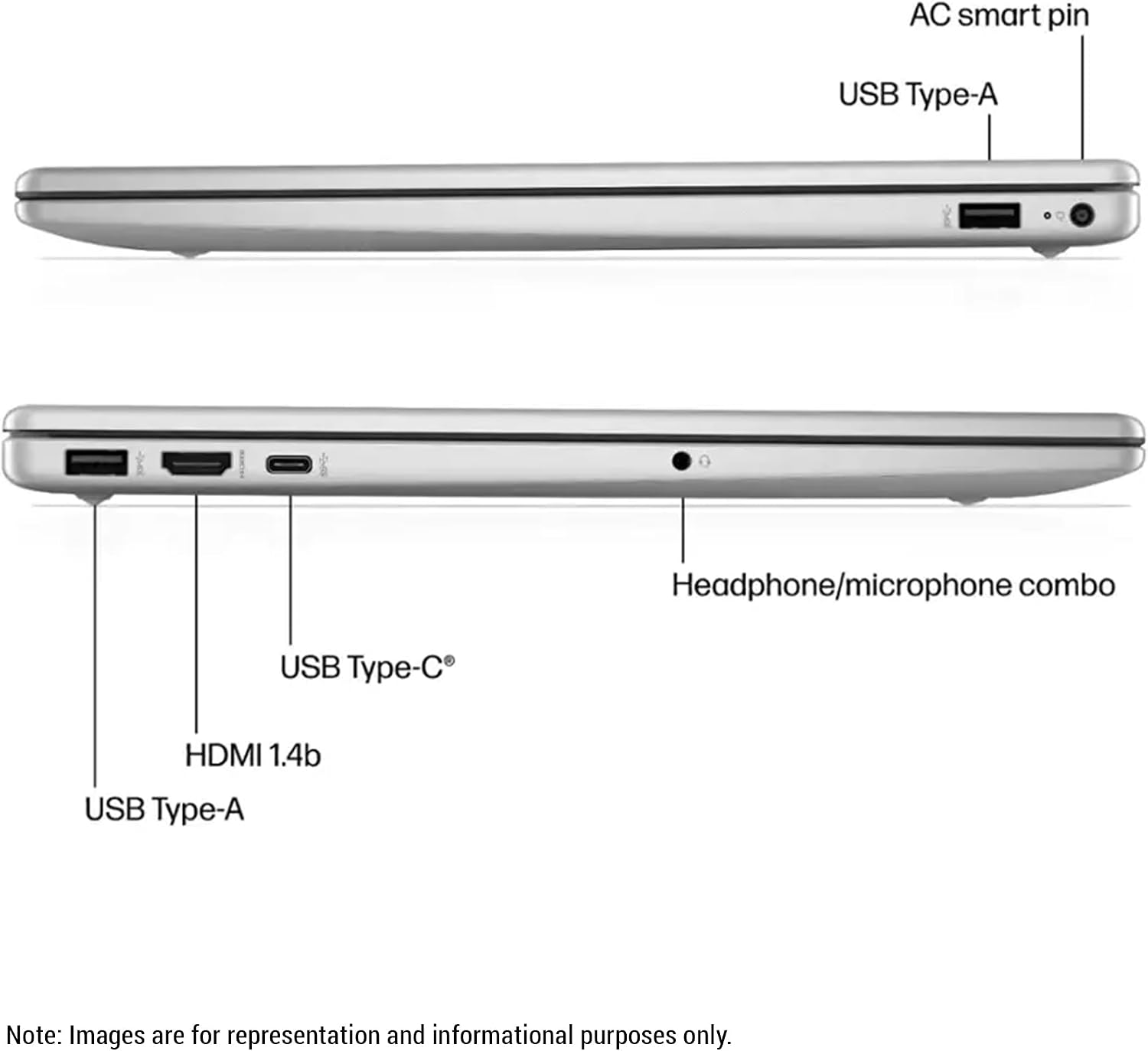
Image: A detailed view of the laptop's sides, clearly labeling all available ports including USB Type-A, USB Type-C, HDMI, headphone/microphone combo, and the AC smart pin.
- Left Side: 1x USB Type-A (5Gbps signaling rate), 1x HDMI 1.4b, 1x USB Type-C (5Gbps signaling rate), 1x Headphone/microphone combo.
- Right Side: 1x USB Type-A (5Gbps signaling rate), 1x AC smart pin.
Operating Your Laptop
Power On/Off
- To Power On: Press the power button.
- To Shut Down: Click the Start button (Windows icon) > Power > Shut down.
- To Restart: Click the Start button > Power > Restart.
Keyboard, Touchpad, and Touchscreen
- Keyboard: Utilize the full-size keyboard for typing. The keyboard may feature backlighting for use in low-light conditions.
- Touchpad: The integrated touchpad supports multi-touch gestures for navigation. Refer to Windows settings for customization.
- Touchscreen: The 15.6-inch FHD (1920x1080) touchscreen allows for intuitive interaction. Use gestures like pinch-to-zoom, tap, and swipe directly on the display.
Windows 11 Home Features
Your laptop comes pre-installed with Windows 11 Home, offering a modern and efficient user experience.
- Microsoft Copilot: Access your AI personal assistant directly from the taskbar for quick answers, task automation, and creative assistance.
- Snap Layouts: Easily organize your open windows for improved multitasking.
- Widgets: Stay updated with personalized information at a glance.
Connectivity
- Wi-Fi 6 (802.11ax): Connect to high-speed wireless networks. Access Wi-Fi settings via the taskbar network icon.
- Bluetooth: Pair wireless accessories such as headphones, mice, or keyboards. Enable Bluetooth from Windows Settings > Bluetooth & devices.
- External Displays: Connect an external monitor or projector using the HDMI 1.4b port. Press Windows key + P to manage display modes.
- USB Devices: Use the USB Type-A and USB Type-C ports to connect external storage, printers, or other USB peripherals.
Camera and Audio
The integrated camera and audio system are designed for clear communication.

Image: The HP 15 Laptop screen showing an active video conference, illustrating the effectiveness of its high-quality camera and noise reduction features for clear communication.
- Webcam: The integrated camera is suitable for video conferencing and online meetings.
- Microphone: Features advanced noise reduction software to ensure your voice is clear during calls.
- Audio: Connect headphones or external speakers to the headphone/microphone combo jack for private listening or enhanced audio output.
Performance and Battery Life
Your laptop is equipped with an Intel Core i7 processor for reliable performance and efficient power management.

Image: A user comfortably operating the HP 15 Laptop on a couch, emphasizing its portability, long battery life, and consistent performance powered by Intel Core i7.
Maintenance
Cleaning Your Laptop
- Screen: Use a soft, lint-free microfiber cloth lightly dampened with water or a screen cleaner specifically designed for electronics. Do not spray liquid directly onto the screen.
- Keyboard and Chassis: Use a soft, dry cloth to wipe surfaces. For stubborn dirt, a slightly damp cloth can be used. Avoid abrasive cleaners, solvents, or harsh chemicals.
- Ports: Use compressed air to gently clear dust from ports.
Battery Care
- Avoid exposing the laptop to extreme temperatures (hot or cold) as this can degrade battery life.
- For optimal battery health, avoid frequently discharging the battery completely.
- If storing the laptop for an extended period, ensure the battery is charged to around 50-70%.
Software Updates
- Regularly check for and install Windows updates to ensure your operating system is secure and performing optimally. Go to Settings > Windows Update.
- Keep your HP drivers and firmware updated. Use the HP Support Assistant application or visit the official HP support website for the latest drivers.
Troubleshooting
No Power or Not Turning On
- Ensure the AC power adapter is securely connected to both the laptop and a working electrical outlet.
- Try plugging the adapter into a different outlet.
- If the battery is completely drained, it may take a few minutes of charging before the laptop can power on.
Display Issues
- If the screen is blank, try adjusting the brightness using the function keys (e.g., F2/F3 or similar icons).
- Connect an external monitor via the HDMI port to check if video output is present. If so, the laptop's display may have an issue.
- Ensure display drivers are up to date.
Connectivity Problems (Wi-Fi/Bluetooth)
- Wi-Fi: Restart your Wi-Fi router and your laptop. Check if Wi-Fi is enabled in Windows settings.
- Bluetooth: Ensure Bluetooth is enabled in Windows settings and the device you are trying to connect is discoverable and within range. Try unpairing and re-pairing the device.
System Unresponsive or Freezing
- If the system freezes, press and hold the power button for 10-15 seconds to force a shutdown. Wait a few seconds, then restart the laptop.
- Close unnecessary applications to free up system resources.
- Check for and install any pending Windows updates.
Specifications
| Feature | Specification |
|---|---|
| Brand | HP |
| Model Name | HP 15 Laptop |
| Screen Size | 15.6 inches |
| Display Type | FHD (1920 x 1080) Touchscreen, IPS, micro-edge, anti-glare, 300 nits, 45% NTSC |
| Processor | Intel Core i7-1355U (up to 5.0 GHz, 10 cores, 12 threads) |
| Graphics | Intel Iris Xe Graphics |
| RAM Memory | 16 GB DDR4 |
| Storage | 1 TB PCIe NVMe M.2 SSD |
| Operating System | Windows 11 Home |
| Wireless Connectivity | Wi-Fi 6 (802.11ax), Bluetooth |
| Ports | 1x USB Type-C (5Gbps), 2x USB Type-A (5Gbps), 1x HDMI 1.4b, 1x Headphone/microphone combo, 1x AC smart pin |
| Special Features | Backlit Keyboard |
| Dimensions (L x W x H) | 14.17" x 9.29" x 0.73" |
| Weight | 3.5 pounds |
| Color | Natural Silver |
Warranty Information
Your HP 15 Laptop comes with a standard limited warranty. The specific terms and duration of the warranty may vary by region and purchase location. For detailed warranty information, including terms, conditions, and registration, please refer to the warranty documentation included with your product or visit the official HP support website.
Important: Keep your proof of purchase (receipt or invoice) as it will be required for any warranty claims.
Support
For further assistance, technical support, driver downloads, or to find service centers, please visit the official HP Support website:
You can also utilize the pre-installed HP Support Assistant application on your laptop for diagnostics, updates, and direct access to support resources.
Related documentsHP 15 Laptop


Ask a question about this manual
Ask about setup, troubleshooting, compatibility, parts, safety, or missing instructions. Manuals+ will review the question and use this page’s manual context to help answer it.