
Elgato 20GBR9901
Contents
Elgato 4K S External Capture Card User Manual
Model: 20GBR9901
Introduction
The Elgato 4K S is an external capture card designed for high-performance video capture and passthrough. It allows users to record and stream gameplay from various consoles and devices, including PS5, Xbox Series X/S, Nintendo Switch 2, PC, Mac, and iPad, with exceptional quality and near-zero latency. This manual provides comprehensive instructions for setting up, operating, and maintaining your Elgato 4K S.
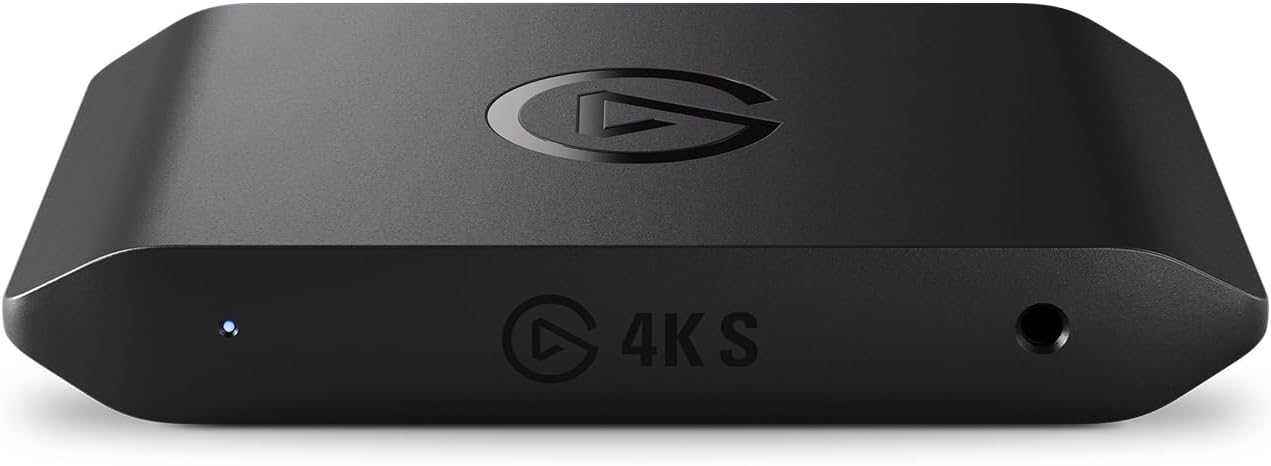
Image: The Elgato 4K S capture card, a compact black device with a subtle blue LED indicator and the Elgato logo, designed for external use.
Setup Guide
1. Unboxing and Components
Before you begin, ensure all components are present in the box:
- Elgato Game Capture 4K S device
- USB-C to USB-C Cable (150 cm / 59 in.)
- HDMI 2.0 Cable (150 cm / 59 in.)

Image: A visual representation of the items included in the Elgato 4K S package: the capture card itself, a USB-C to USB-C cable, and an HDMI 2.0 cable.
2. System Requirements
To ensure optimal performance, your system should meet the following minimum requirements:
- Operating System: Windows 11 (64-bit), macOS 13 or later, iPadOS with USB-C
- CPU: Intel Core i5 (8th gen or later) / AMD Ryzen / Apple M1 or better
- GPU: NVIDIA GeForce RTX 10xx or equivalent
- Port: USB 3.0 Type-C
3. Connecting Your Elgato 4K S
Follow these steps to connect the capture card to your gaming console/PC and display:
- Connect one end of the HDMI 2.0 cable to the HDMI OUT port of your gaming console (e.g., PS5, Xbox Series X/S, Nintendo Switch 2) or PC.
- Connect the other end of this HDMI cable to the HDMI IN port on your Elgato 4K S.
- Connect one end of the second HDMI 2.0 cable (not included, or use the provided one if your setup allows) to the HDMI OUT port on your Elgato 4K S.
- Connect the other end of this HDMI cable to your TV or monitor. This provides the lag-free passthrough signal.
- Connect the USB-C to USB-C cable from the USB-C port on your Elgato 4K S to an available USB 3.0 Type-C port on your computer (Windows/macOS) or iPad.
- For analog audio input (e.g., for commentary or chat), connect a 3.5mm audio cable from your audio source to the 3.5mm analog audio in port on the Elgato 4K S.

Image: A step-by-step diagram illustrating the connection process for the Elgato 4K S, showing HDMI input from a console, HDMI output to a display, and USB-C connection to a computer or iPad.
Operating Instructions
1. Software Recognition
The Elgato 4K S is designed for plug-and-play functionality. Once connected, it should be automatically recognized by compatible streaming and recording software such as OBS Studio, Streamlabs Desktop, XSplit, and others. No specific drivers are typically required.

Image: The Elgato 4K S capture card integrated into a streaming setup, displaying its compatibility with popular broadcasting software like OBS Studio.
2. Capture and Passthrough Capabilities
The Elgato 4K S offers versatile capture and passthrough options:
- Passthrough Resolutions: Up to 2160p60 (4K60), 1440p120, 1080p240. This ensures you can play your games at high refresh rates and resolutions on your display without compromise.
- Capture Resolutions: 2160p60 (4K60), 1440p60, 1080p120, 1080p60, 720p60, 567p, 480p.
- HDR10 Passthrough: Supports up to 2160p60 HDR10 passthrough.
- HDR10 Capture: Up to 1080p60 (Windows only).
- VRR Support: Variable Refresh Rate (VRR) passthrough ensures smooth, tear-free gameplay on compatible displays.
- Near-Zero Latency: Experience minimal delay between your gameplay and the captured signal, crucial for competitive gaming.

Image: An infographic highlighting the key features of the Elgato 4K S, such as 4K60 capture, HDR10 support, VRR compatibility, and its ability to work across various gaming devices.

Image: A visual demonstrating the benefit of Variable Refresh Rate (VRR) support, showing a smooth gaming experience without screen tearing or stuttering.
3. Audio Input
The 3.5mm analog audio input allows you to capture external audio sources, such as microphone commentary or console voice chat, directly through the 4K S. This is particularly useful for streamers and content creators.

Image: The Elgato 4K S connected to a gaming setup, illustrating how it can be used to record console voice chat with an optional Chat Link Pro accessory.
Technical Specifications
| Feature | Detail |
|---|---|
| Input | HDMI 2.0 (unencrypted), 3.5 mm analog audio in |
| Output | HDMI 2.0 (lag-free passthrough) |
| Passthrough Resolutions | Up to 2160p60, 1440p120, 1080p240 |
| Capture Resolutions | 2160p60, 1440p60, 1080p120, 1080p60, 720p60, 567p, 480p |
| HDR10 Passthrough | Up to 2160p60 HDR10 |
| HDR10 Capture | Up to 1080p60 (Windows only) |
| VRR Support | Yes |
| Dimensions | 112 x 72 x 18 mm / 4.4 x 2.8 x 0.7 in |
| Weight | 90 g / 3.2 oz |
| Hardware Interface | USB 3.0 Type C |
| Model Number | 20GBR9901 |
| Manufacturer | Corsair (Elgato Brand) |

Image: A comparative chart outlining the technical specifications and features of different Elgato capture cards, including the 4K S, 4K X, and 4K Pro, to help users understand their capabilities.
Troubleshooting
If you encounter issues with your Elgato 4K S, try the following solutions:
- No Signal/Black Screen:
- Ensure all HDMI and USB-C cables are securely connected.
- Verify that your source device (console/PC) is powered on and outputting a signal.
- Check your display's input source selection.
- Try different HDMI cables.
- Ensure your source device's resolution and refresh rate are supported by the 4K S (refer to Specifications).
- No Audio:
- Check audio settings in your capture software (e.g., OBS Studio) to ensure the 4K S is selected as the audio input device.
- Verify that the audio output from your source device is enabled and not muted.
- If using the 3.5mm analog input, ensure the cable is connected correctly and the audio source is active.
- Performance Issues (Lag, Stuttering):
- Ensure your computer meets the minimum system requirements, especially for CPU and GPU.
- Confirm the 4K S is connected to a USB 3.0 (or higher) Type-C port. USB 2.0 ports will not provide sufficient bandwidth.
- Close unnecessary applications running in the background on your computer.
- Update your graphics card drivers.
- Reduce the capture resolution or frame rate in your software settings.
- Software Not Recognizing Device:
- Restart your computer and the Elgato 4K S.
- Try connecting the 4K S to a different USB-C port.
- Ensure your operating system is up to date.
- Check the official Elgato support website for any specific software updates or troubleshooting guides.
Maintenance
To ensure the longevity and optimal performance of your Elgato 4K S, follow these simple maintenance guidelines:
- Cleaning: Use a soft, dry, lint-free cloth to gently wipe the exterior of the device. Avoid using harsh chemicals, solvents, or abrasive materials.
- Storage: When not in use, store the device in a cool, dry place away from direct sunlight and extreme temperatures.
- Handling: Handle the device with care. Avoid dropping it or subjecting it to strong impacts.
- Ventilation: Ensure the device has adequate airflow around it during operation to prevent overheating. Do not block any vents (if present).
Warranty and Support
Elgato products are manufactured to high standards and undergo rigorous quality control. For information regarding warranty coverage, please refer to the warranty card included with your product or visit the official Elgato website.
For technical support, FAQs, and additional resources, please visit the official Elgato support page:
You can also find more information and products on the Elgato Store on Amazon.
Documents and downloads
Ask a question about this manual
Ask about setup, troubleshooting, compatibility, parts, safety, or missing instructions. Manuals+ will review the question and use this page’s manual context to help answer it.