
1. Introduction
This manual provides detailed instructions for the Loutoc SRC4526 Universal Remote Control, designed for seamless compatibility with Philips Ambilight Smart TVs. Please read this guide thoroughly to ensure optimal use and longevity of your remote control.
1.1 Product Overview
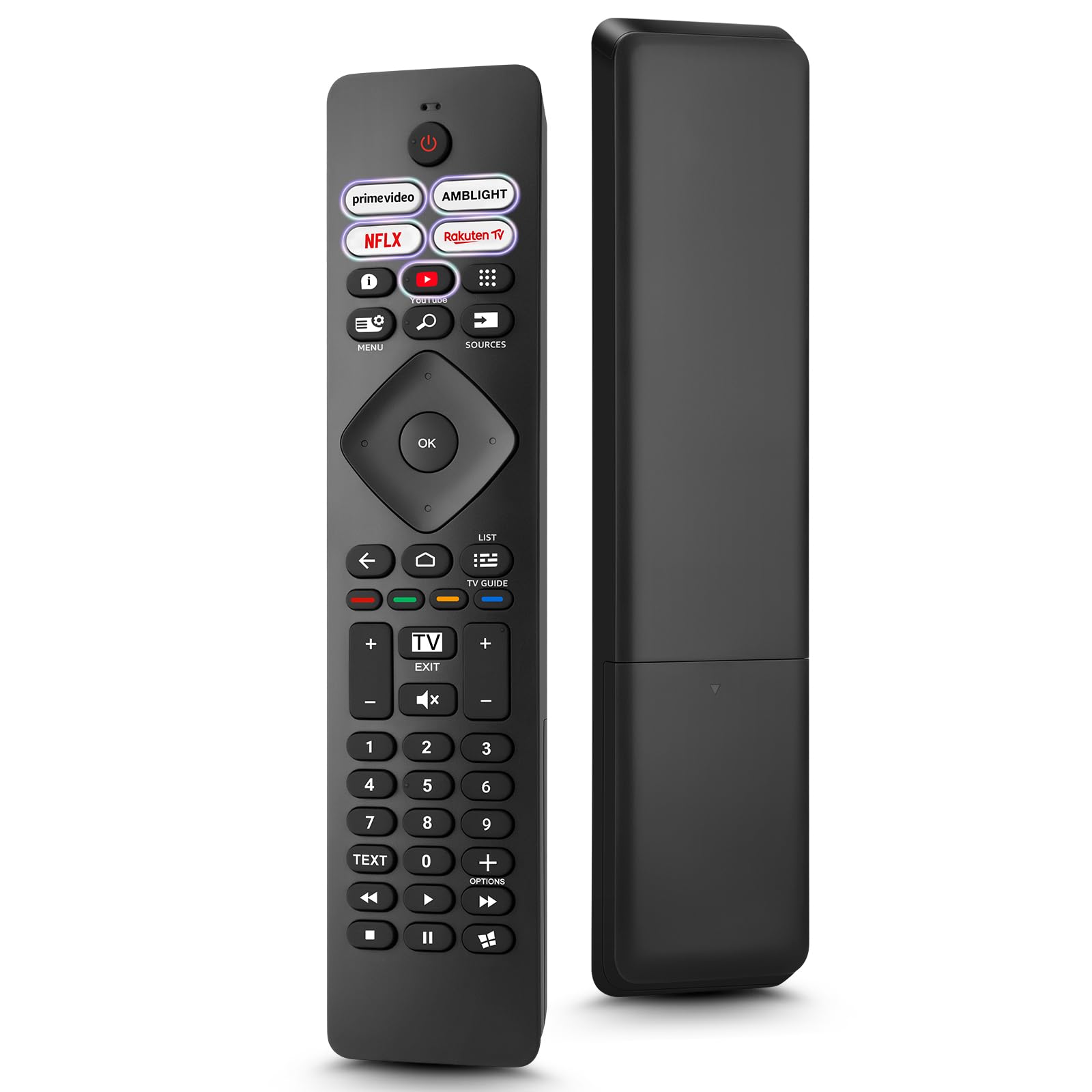
Image: The Loutoc SRC4526 Universal Remote Control, showcasing its ergonomic design and button layout.
1.2 Key Features
- Convenient Plug-and-Play: No complex setup or programming required. Simply insert batteries and the remote is ready for use.
- Wide TV Compatibility: Fully compatible with Philips Ambilight TVs, including 4K Ambilight LED, OLED, FHD, and Full Ultra HD models.
- Dedicated Shortcut Buttons: Features 5 direct access buttons for popular streaming platforms: Ambilight, Video, NFLX (Netflix), Rakuten TV, and YouTube.
- Reliable Performance: Offers an effective operating range of 8 meters (26 feet) and an ultra-fast response time of 0.2 seconds.
2. Setup
2.1 Battery Installation
The Loutoc SRC4526 remote control requires two AAA batteries (not included) for operation.
- Locate the battery compartment on the back of the remote control.
- Slide open the battery compartment cover.
- Insert two AAA batteries, ensuring the positive (+) and negative (-) terminals align correctly with the indicators inside the compartment.
- Close the battery compartment cover securely.
2.2 Initial Use
This remote control is designed for immediate use with compatible Philips Ambilight TVs. No programming or pairing is required. Once batteries are installed, point the remote at your TV and begin operation.
3. Operating Instructions
3.1 Button Functions Overview
Refer to the image below for a visual guide to the remote control's buttons and their corresponding functions.

Image: Detailed diagram of the Loutoc SRC4526 remote control, illustrating each button and its primary function.
| Button | Function |
|---|---|
| Power | Switches the TV on or off (Standby mode). |
| Prime Video, Ambilight, Netflix, Rakuten TV | Quickly launches the corresponding application. |
| Menu | Opens the Quick Menu with typical TV functions. Hold to show Gaming control bar. |
| Search | Opens the Search tab on the Home screen. |
| Sources | Opens or closes the TV's input sources menu. |
| OK | Confirms a selection or setting. |
| Arrow/Navigation Keys | Navigates up, down, left, or right through menus and options. |
| Back | Returns to the previous screen or channel. |
| Home | Opens the TV's Home menu. |
| TV Guide | Opens or closes the TV Guide. Long press to open the channel list. |
| Color Keys (Red, Green, Yellow, Blue) | Provides direct selection of on-screen options. The blue key typically opens Help. |
| Volume (+/-) | Adjusts the TV's volume level. |
| Channel (+/-) | Switches to the next or previous channel. |
| Exit | Exits current menu/application or returns to live TV. From standby, goes to last viewed source. |
| Mute | Mutes or unmutes the TV sound. |
| Number Keys (0-9) | Directly selects TV channels. |
| TEXT | Opens or closes Text/Teletext. |
| Playback Controls | Controls media playback: Play, Pause, Stop, Rewind, Fast Forward. |
| Apps | Opens the Apps tab on the Home screen. |
3.2 Ambilight Functionality
For Philips TVs equipped with Ambilight functionality, the dedicated Ambilight button on your remote allows you to control the lighting effects.
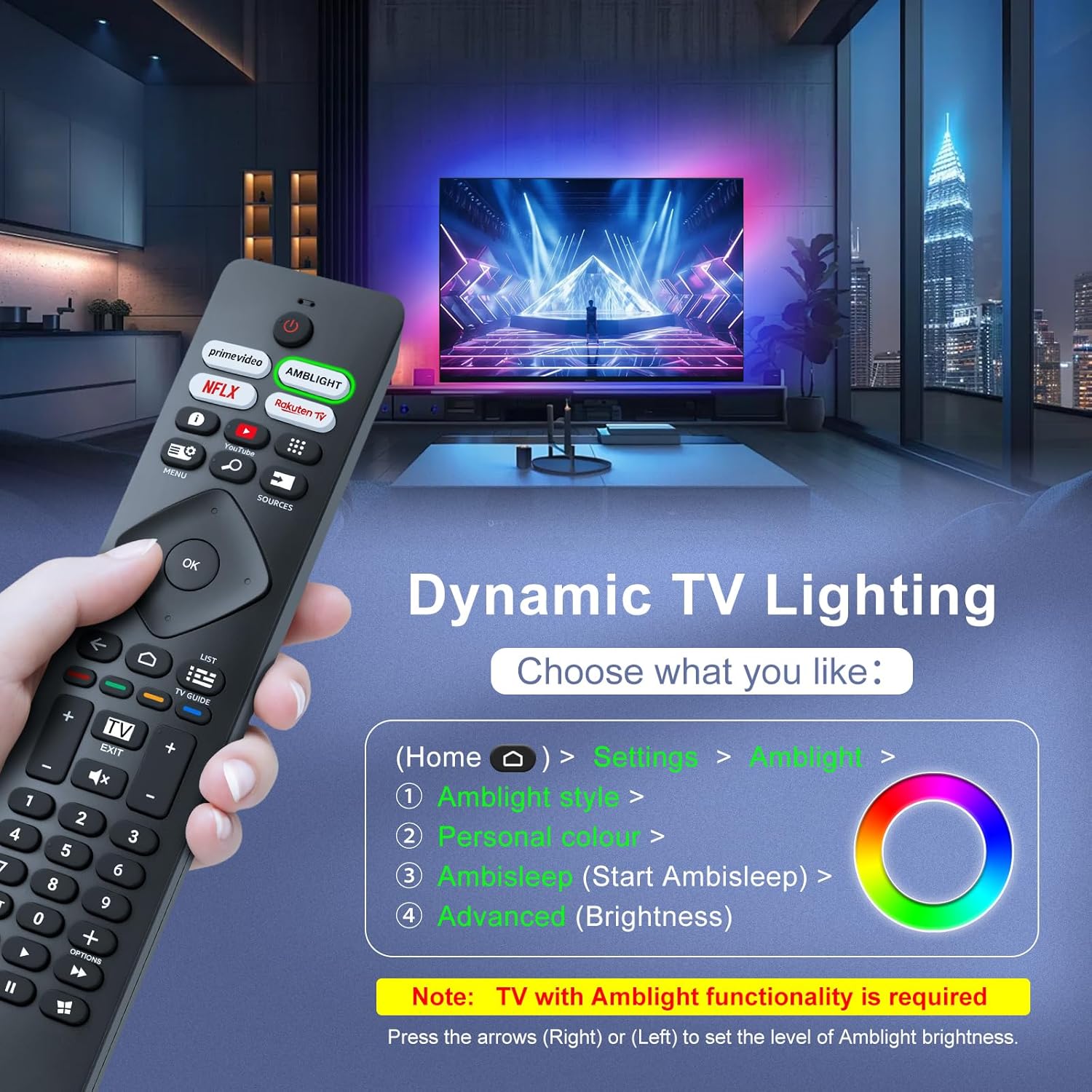
Image: A hand holding the remote control, with an overlay showing Ambilight settings on a TV screen.
After pressing the Ambilight button, you can navigate through the TV's menu to:
- Select different Ambilight display styles.
- Adjust personal color preferences.
- Initiate AmbiSleep mode.
- Adjust Ambilight brightness levels (using the right or left arrow keys).
Note: This feature requires a Philips TV with built-in Ambilight functionality.
4. Maintenance
4.1 Cleaning
To clean your remote control, gently wipe it with a soft, dry cloth. Avoid using liquid cleaners, aerosols, or harsh chemicals, as these can damage the remote's surface or internal components.
4.2 Storage
Store the remote control in a cool, dry place away from direct sunlight and extreme temperatures. If the remote will not be used for an extended period, it is recommended to remove the batteries to prevent leakage.
4.3 Battery Care
- Replace all batteries at the same time; do not mix old and new batteries.
- Do not mix different types of batteries (e.g., alkaline and rechargeable).
- Dispose of used batteries responsibly according to local regulations.
5. Troubleshooting
5.1 Common Issues and Solutions
- Remote not responding:
- Check if the batteries are inserted correctly with the correct polarity.
- Replace the batteries with new AAA batteries.
- Ensure there are no obstructions between the remote control and the TV's infrared receiver.
- Make sure you are within the effective operating range (up to 8 meters).
- Specific buttons not working:
- Clean the remote control, especially around the non-functioning buttons, to remove any dirt or debris.
- If only Ambilight functions are not working, ensure your Philips TV model supports Ambilight.
5.2 Contact Support
If you encounter persistent issues that cannot be resolved with the troubleshooting steps above, please contact Loutoc customer support directly. We aim to respond to all inquiries within 12 working hours.
6. Specifications
| Feature | Detail |
|---|---|
| Brand | Loutoc |
| Model Name | SRC4526-FBA |
| Item Model Number | SRC4526 |
| Color | Black |
| Connectivity Technology | Infrared |
| Special Features | No programming required, Ergonomic, Lightweight |
| Compatible Devices | Television (Philips Ambilight TVs) |
| Maximum Number of Supported Devices | 1 |
| Controller Type | Button Control |
| Maximum Range | 8 Meters (26 Feet) |
| Battery Description | AAA (2 required, not included) |
| Manufacturer | Loutoc |
| Country of Origin | China |
| Date First Available on Amazon.com.be | August 31, 2025 |
7. Warranty and Support
7.1 Warranty Information
This Loutoc remote control comes with a manufacturer's warranty of 30 days from the date of purchase. Please retain your proof of purchase for any warranty claims.
7.2 Customer Support
For any questions, technical assistance, or warranty inquiries, please contact Loutoc customer support. We are committed to providing timely assistance and will respond to your queries within 12 working hours.