1. Introduction
This user manual provides comprehensive instructions for the NEC VersaPro VH-1 laptop. It covers setup, operation, maintenance, and troubleshooting to ensure optimal performance and user experience. Please read this manual thoroughly before using your device.
The NEC VersaPro VH-1 is a lightweight and high-performance 12.5-inch Full HD laptop, featuring a 7th Generation Intel Core i5-7Y54 processor. It is designed for efficient web browsing, business applications, and remote work. With pre-installed Windows 11 Pro and MS Office 2019, it is ready for immediate use upon arrival.
2. Product Overview
2.1 Key Features
- Lightweight & Thin Design: Weighing approximately 921g, this 12.5-inch FHD laptop is highly portable, fitting easily into a backpack for commuting, business trips, or mobile work.
- 7th Gen Intel Core i5-7Y54 Processor: Equipped with an efficient and power-saving Intel Core i5-7Y54 (up to 3.2GHz) processor, offering sufficient performance for browsing, online meetings, and Office applications. It also features quiet operation and low heat generation.
- High-Speed SSD Storage: Features an SSD for fast boot-up and smooth operation, handling large files and multiple applications without lag.
- Rich Connectivity & Type-C Expansion: Includes a Web camera, Wi-Fi, Bluetooth, HDMI, and a Type-C port for versatile connections to peripherals and external monitors. The Type-C port supports future expansion.
- Pre-installed Software: Comes with Windows 11 Pro and MS Office 2019 pre-installed, allowing immediate document creation, report preparation, and web conferencing.
2.2 Component Identification
Familiarize yourself with the various parts of your NEC VersaPro VH-1 laptop.

Image: Various views of the NEC VersaPro VH-1 laptop, showing the front, back, top, and keyboard layout.

Image: Side view of the laptop highlighting available ports including USB 3.0, LAN, Headphone Jack, HDMI, SD Card Slot, and Power Connector.
3. Setup
3.1 Initial Power-On
- Connect Power: Plug the AC adapter into the laptop's power port and then into a wall outlet.
- Power On: Open the laptop lid and press the power button. The laptop will begin the initial boot process.
- Windows Setup: Follow the on-screen instructions to complete the Windows 11 Pro setup, including language, region, network connection, and user account creation.
3.2 Software Activation
Your laptop comes with MS Office 2019 pre-installed. Follow the prompts to activate your Office suite using your Microsoft account or product key.

Image: The laptop displaying the Windows 11 interface, with logos indicating Windows 11 Pro and MS Office 2019 are installed and ready for use.
4. Operating Instructions
4.1 Basic Usage
- Keyboard: The laptop features a Japanese layout keyboard designed for comfortable and accurate typing.
- Touchpad: Use the integrated touchpad for navigation and gestures.
- Web Camera: The built-in web camera and dual microphones are ideal for remote work, online meetings, and video calls.

Image: A user engaged in a video conference call on the NEC VersaPro VH-1 laptop, demonstrating its web camera and dual microphone capabilities for remote work and online learning.
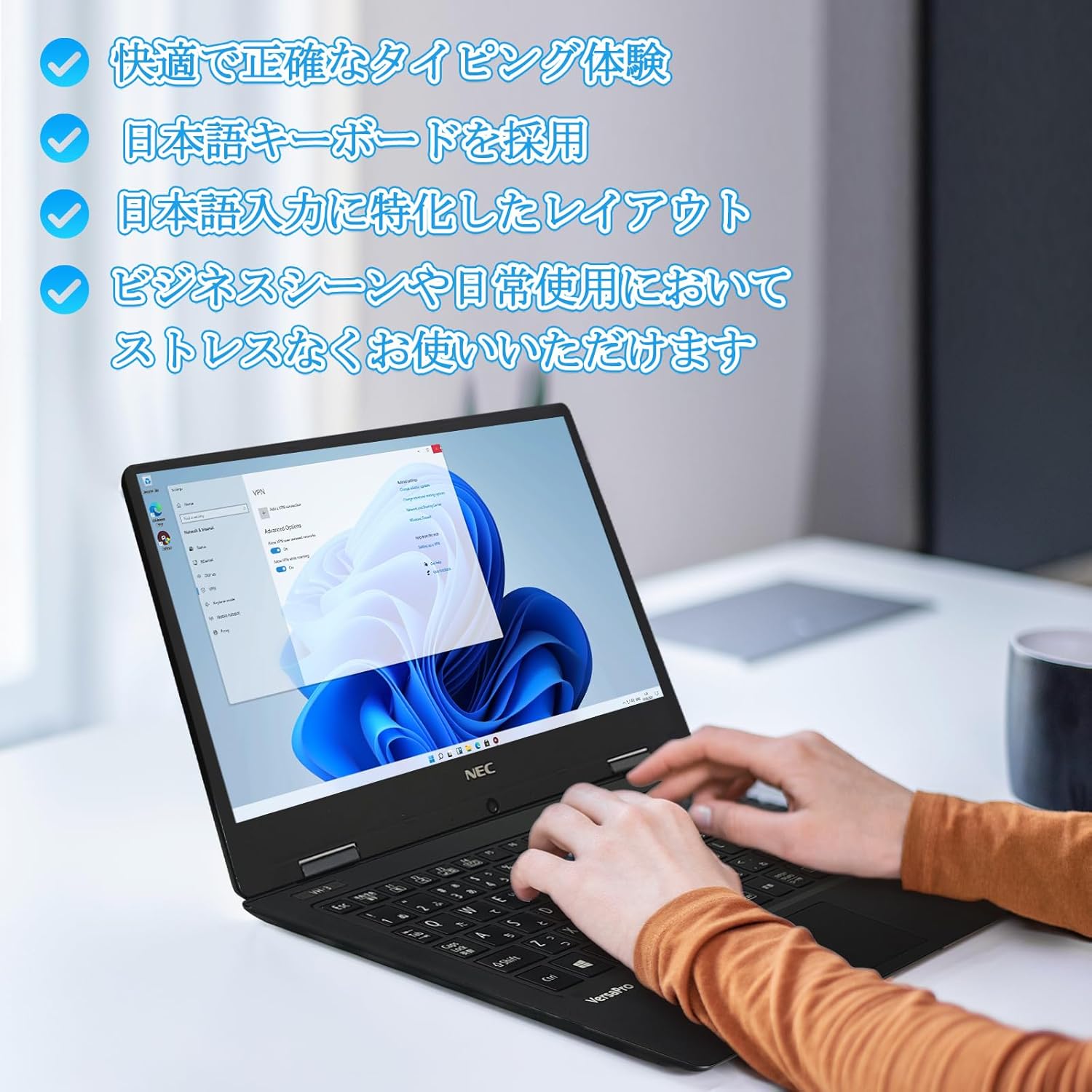
Image: Close-up of hands typing on the laptop's keyboard, illustrating the comfortable and precise typing experience provided by the Japanese layout keyboard.
4.2 Connectivity
- Wi-Fi: Connect to wireless networks for internet access.
- Bluetooth: Pair with Bluetooth-enabled devices such as headphones or mice.
- HDMI: Connect to external displays or projectors.
- Type-C: Use the Type-C port for data transfer, charging compatible devices, or connecting to a USB-C hub for additional ports.
5. Maintenance
5.1 Cleaning
- Screen: Use a soft, lint-free cloth slightly dampened with water or a screen cleaner. Do not spray liquid directly onto the screen.
- Keyboard & Chassis: Use a soft cloth to wipe surfaces. For stubborn dirt, a slightly damp cloth can be used. Avoid harsh chemicals.
5.2 Battery Care
- To prolong battery life, avoid extreme temperatures.
- If storing the laptop for an extended period, ensure the battery is charged to about 50-70%.
6. Troubleshooting
6.1 Common Issues and Solutions
| Issue | Possible Solution |
|---|---|
| Laptop does not power on. | Ensure the AC adapter is securely connected to both the laptop and a working power outlet. Check if the power button is functioning correctly. |
| Wi-Fi connection issues. | Verify Wi-Fi is enabled in Windows settings. Restart your router and the laptop. Check for updated network drivers. |
| External display not detected. | Ensure the HDMI cable is securely connected. Press Windows key + P to cycle through display modes. Check external display input settings. |
| Slow performance. | Close unnecessary applications. Check for background processes consuming resources. Ensure sufficient free space on the SSD. Run a system scan for malware. |
If you encounter issues not listed here or require further assistance, please refer to the support section.
7. Specifications
| Feature | Detail |
|---|---|
| Brand | NEC |
| Model Name | VasaPro VH-1 |
| Product Model Number | VKT12 |
| Screen Size | 12.5 Inches |
| Resolution | 1920x1080 Pixels (FHD) |
| CPU Brand | Intel |
| CPU Type | Core i5 7Y54 |
| CPU Speed | 1.2 GHz (Max 3.2 GHz) |
| Processor Count | 2 |
| RAM Memory Size | 4 GB |
| Maximum Memory Supported | 8 GB |
| Memory Type | DDR3 SDRAM |
| Hard Disk Size | 1 TB |
| Hard Disk Type | SSD |
| Graphics Coprocessor | Intel HD Graphics 615 |
| Graphics Card Description | Integrated |
| Operating System | Windows 11 Pro |
| Wireless Type | Bluetooth, Wi-Fi (802.11n) |
| USB 3.0 Ports | 2 |
| HDMI Ports | 1 |
| Optical Drive Type | None |
| Item Weight | 1.5 Kilograms (Shipping Weight) |
| Battery | 1 12V battery (included), 24 Watt-hours, 4 Lithium Ion cells |
8. Warranty and Support
For warranty information and technical support, please refer to the documentation provided with your purchase or contact the retailer. Specific warranty terms may vary.


