
1. Introduction
This manual provides detailed instructions for the setup, operation, and maintenance of your Bextgoo SW06-01-US 4K Spy Camera. Please read this manual thoroughly before using the device to ensure proper functionality and to maximize its capabilities. Keep this manual for future reference.

Image 1.1: The Bextgoo 4K Mini Camera highlighting its multiple connection modes and features.
2. Package Contents
Verify that all items listed below are present in your package:
- 1 x Bextgoo Mini Security Camera
- 1 x 64GB TF Memory Card (pre-installed)
- 1 x Adjustable Bracket
- 1 x USB Charging Cable
- 1 x User Manual (this document)

Image 2.1: The Bextgoo mini camera with its pre-installed 64GB TF card, ready for use.
3. Product Overview
Familiarize yourself with the camera's components and dimensions.
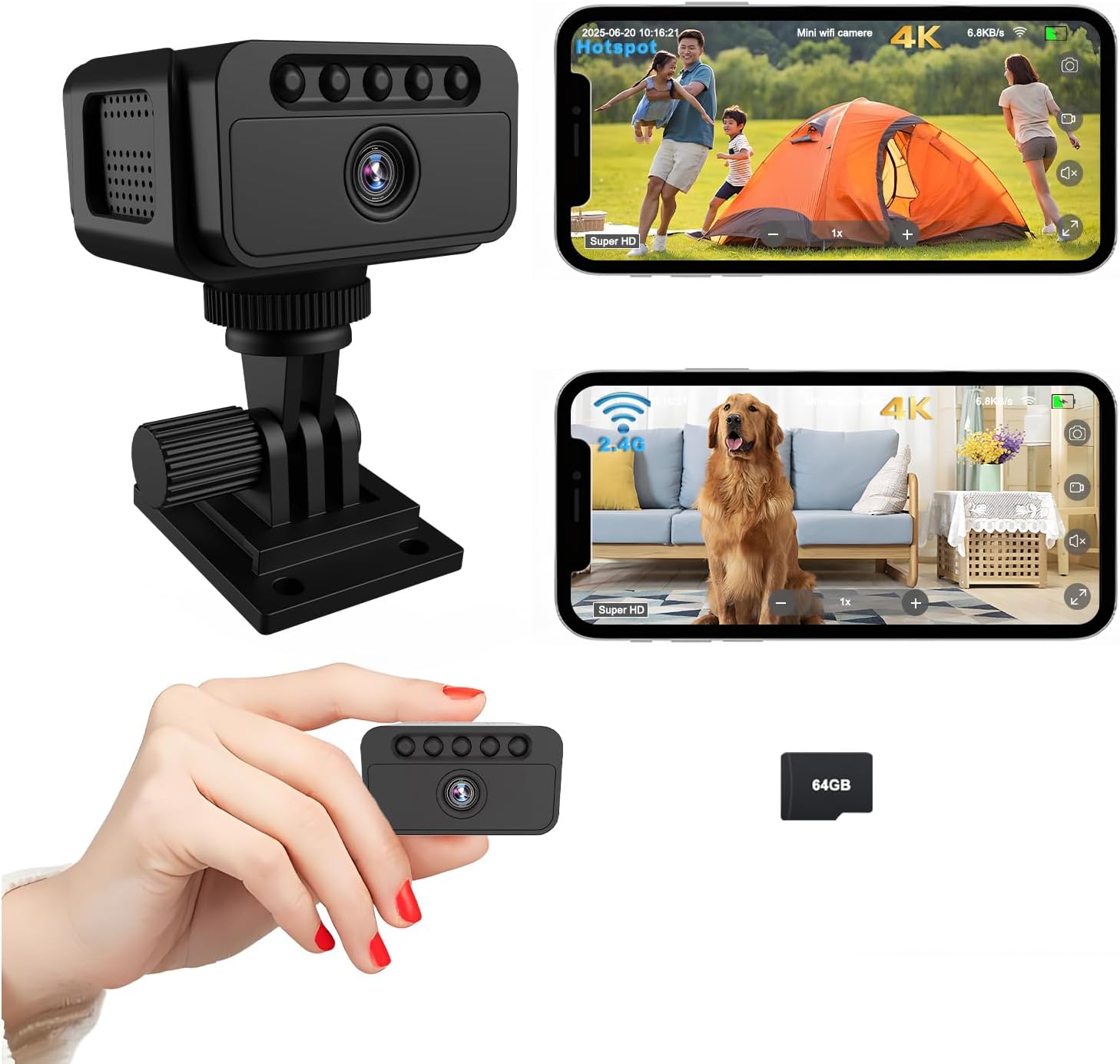
Image 3.1: Overview of the Bextgoo mini camera, including its adjustable bracket and examples of live feed on a smartphone.

Image 3.2: Diagram showing the compact dimensions of the Bextgoo mini camera: Length 1.97in, Width 1.97in, Height 1.18in.
4. Features
- 4K Ultra HD Video: Captures video in 4K resolution with a 150° wide-angle lens for comprehensive coverage.
- Three Connection Modes: Supports WiFi, AP Hotspot, and direct use without internet connectivity.
- Superior Night Vision: Equipped with 5 powerful 940nm infrared lights for clear vision up to 10 meters in total darkness, without visible red glow.
- Long-Lasting Battery: Built-in 1500mAh rechargeable battery provides up to 8 hours of use and supports recording while charging.
- Built-in Storage: Comes with a pre-installed 64GB TF card, expandable up to 128GB, with optional cloud storage.
- Motion Detection: Automatically detects movement and sends instant notifications to your phone (in WiFi mode).
- Versatile Mounting: Includes an adjustable bracket and adhesive pads for various mounting options (desk, wall, ceiling, flat surfaces).

Image 4.1: Visual comparison demonstrating the enhanced detail of 4K Ultra HD video compared to 2K resolution.

Image 4.2: Illustration comparing the clarity and invisibility of 940nm IR night vision with standard IR night vision.

Image 4.3: Depiction of the camera's 1500mAh battery capacity, indicating its suitability for extended operation and charging while in use.
5. Setup
5.1 Charging the Camera
Before first use, fully charge the camera. Connect the camera to a USB power adapter (not included) or a computer USB port using the provided USB cable. The charging indicator light will show the charging status.
5.2 Inserting/Removing the TF Card
The camera comes with a 64GB TF card pre-installed. If you need to replace or upgrade the card (up to 128GB), gently push the card into the slot until it clicks. To remove, push the card again until it ejects.
5.3 Connection Modes
The Bextgoo SW06-01-US offers three distinct connection modes:
- WiFi Mode: For remote viewing and control via the mobile application. Requires an active 2.4GHz WiFi network.
- AP Hotspot Mode: Connects directly to your smartphone via the camera's built-in hotspot. Ideal for local viewing without an internet connection.
- Offline Mode: Records directly to the TF card without any network connection. Suitable for remote areas or situations where network access is unavailable.

Image 5.1: Visual guide to the camera's three connection modes, explaining their uses and requirements.
6. Operation
6.1 App Installation and Pairing
- Download the designated mobile application from your smartphone's app store.
- Follow the in-app instructions to register an account and add your camera.
- Select your preferred connection mode (WiFi or AP Hotspot) and complete the pairing process.
6.2 Video Recording
Once connected, you can initiate video recording through the mobile application. In Offline Mode, recording starts automatically when the camera is powered on, or can be manually controlled via physical buttons (refer to specific button functions in the app or quick start guide).
6.3 Motion Detection
Enable motion detection in the app settings. When motion is detected, the camera will begin recording and send a notification to your smartphone (WiFi mode only).
6.4 Night Vision Activation
Night vision activates automatically in low-light conditions. You can also manually toggle it on/off via the mobile application.
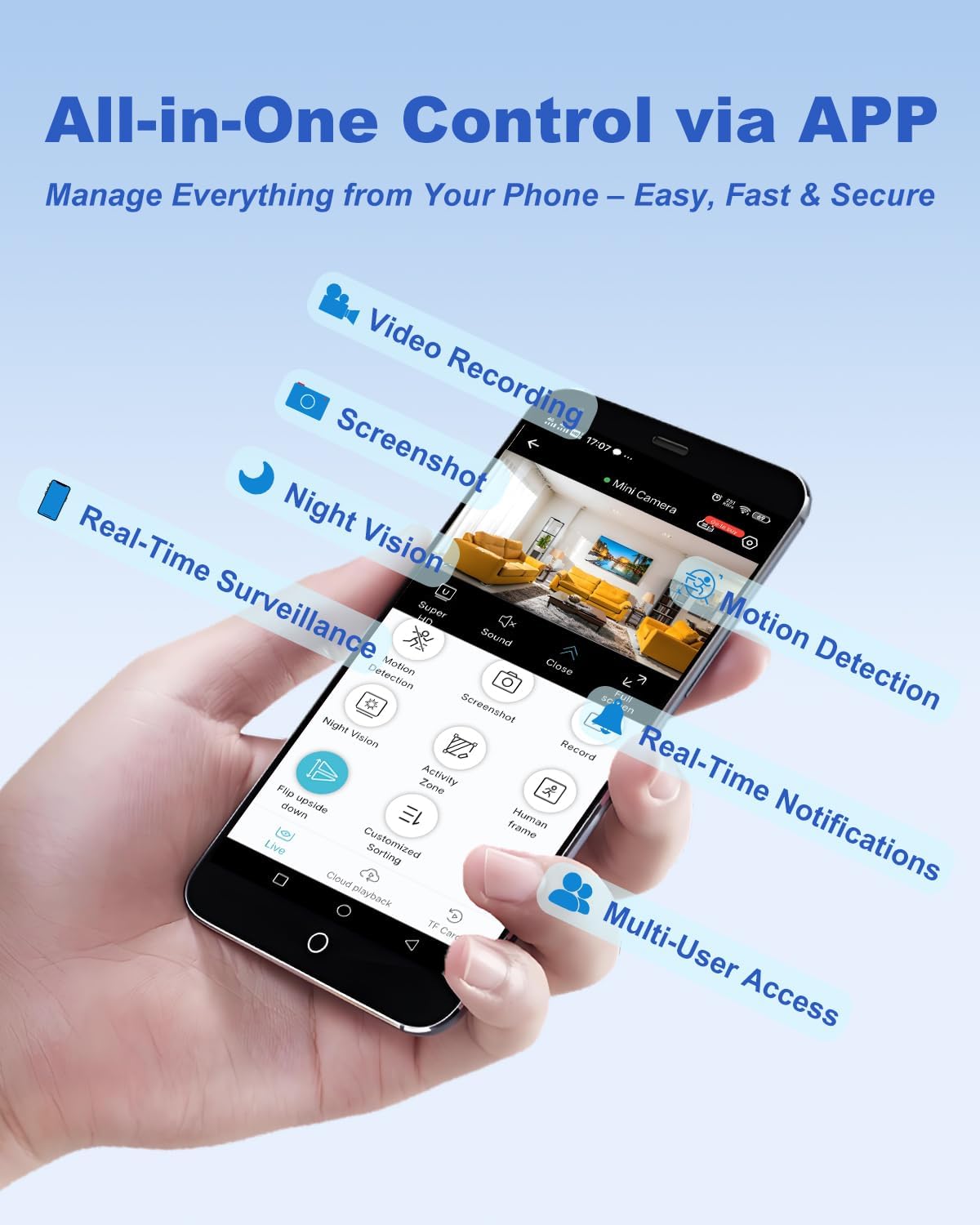
Image 6.1: The mobile application interface, demonstrating various control options such as video recording, screenshots, night vision, motion detection, and real-time notifications.
7. Mounting Options
The camera offers flexible mounting solutions to suit various environments:
- Desk Placement: Simply place the camera on any flat surface.
- Wall Mount: Use the adjustable bracket and adhesive pads or screws to secure it to a wall.
- Ceiling Mount: Attach the bracket to the ceiling for an overhead view.
- Other Surfaces: The compact design and included accessories allow for discreet placement on shelves, under cabinets, or other suitable locations.

Image 7.1: Examples of the camera mounted in different locations, including on a desk, wall, and ceiling, demonstrating its versatility.
8. Maintenance
- Cleaning: Use a soft, dry cloth to clean the camera lens and body. Avoid liquid cleaners.
- Storage: Store the camera in a cool, dry place away from direct sunlight when not in use for extended periods.
- Battery Care: To prolong battery life, avoid fully discharging the battery frequently. Charge it regularly, even if not in constant use.
- Firmware Updates: Check the mobile application periodically for available firmware updates to ensure optimal performance and security.
9. Troubleshooting
- Camera not turning on: Ensure the battery is charged. Connect to a power source and try again.
- Cannot connect to WiFi: Verify your WiFi network is 2.4GHz. Ensure the camera is within range of the router. Restart both the camera and router.
- Poor video quality: Check for obstructions on the lens. Ensure sufficient lighting. In WiFi mode, check your network speed.
- Motion detection not working: Ensure motion detection is enabled in the app settings. Adjust sensitivity if necessary.
- TF card not recording: Ensure the TF card is correctly inserted and not full. Format the card via the app if issues persist.
- AP Hotspot range limited: AP Hotspot mode is designed for short-range direct connection. For wider range, use WiFi mode.
10. Specifications
| Model Name | SW06-01-US |
| Video Capture Resolution | 4K |
| Viewing Angle | 150 Degrees |
| Connectivity Technology | WiFi, AP Hotspot, Direct Use Without Internet |
| Power Source | Battery Powered (1500mAh) |
| Night Vision Range | 10 Meters (940nm IR) |
| Storage | Built-in 64GB TF Card (Supports up to 128GB, Cloud Optional) |
| Indoor/Outdoor Usage | Indoor, Outdoor |
| Dimensions (L x W x H) | 3.8 x 2.5 x 2.2 inches |
| Item Weight | 6.4 ounces |
| Alert Type | Motion Only |
| Controller Type | APP |
11. Warranty and Support
For warranty information and technical support, please refer to the official Bextgoo website or contact customer service through the details provided on your product packaging or purchase platform. Keep your proof of purchase for warranty claims.


