
1. Introduction
The NGTeco MB20 is an advanced time recorder designed for efficient attendance management. It supports multiple authentication methods including face recognition, fingerprint recognition, and password verification, ensuring flexible and reliable check-in operations. This device automatically records attendance data and generates reports, reducing manual workload and improving management efficiency. Its design is suitable for various business environments, offering a cost-effective solution for long-term use by eliminating the need for frequent card or ink replacements.
2. Setup
2.1 Unpacking and Components
Carefully unpack the NGTeco MB20 Time Recorder and verify all components are present. The package should include the MB20 device, power adapter, and a USB drive for data transfer.
2.2 Physical Installation
The MB20 can be placed on a desktop or wall-mounted. For wall mounting, use the provided mounting bracket and screws.

Image: NGTeco MB20 Time Recorder with dimensions (180mm width, 130mm height, 32mm depth) and wall mounting instructions. The image shows how to mark drill points and attach the device to the wall bracket.
2.3 Power Connection
Connect the power adapter to the DC 5V 800mA input port on the back of the device and plug it into a power outlet. The device will power on automatically.

Image: Rear view of the NGTeco MB20 Time Recorder, highlighting the USB Port, TCP/IP Port, Access Port, and 5V 800mA DC input. This illustrates where to connect the power supply and other peripherals.
2.4 Initial Administrator Setup
Upon first power-on, you may need to set up an administrator. Press the 'M/OK' button to enter the menu. Navigate to 'User Management' and register an administrator with face, fingerprint, or password. This administrator will have access to all device settings.
2.5 User Registration
To register new users:
- Press 'M/OK' to access the main menu.
- Select 'User' then 'User Management'.
- Choose 'New User' and enter the user ID.
- Register the user's face, fingerprint, or set a password. It is recommended to register at least two authentication methods for each user for redundancy.
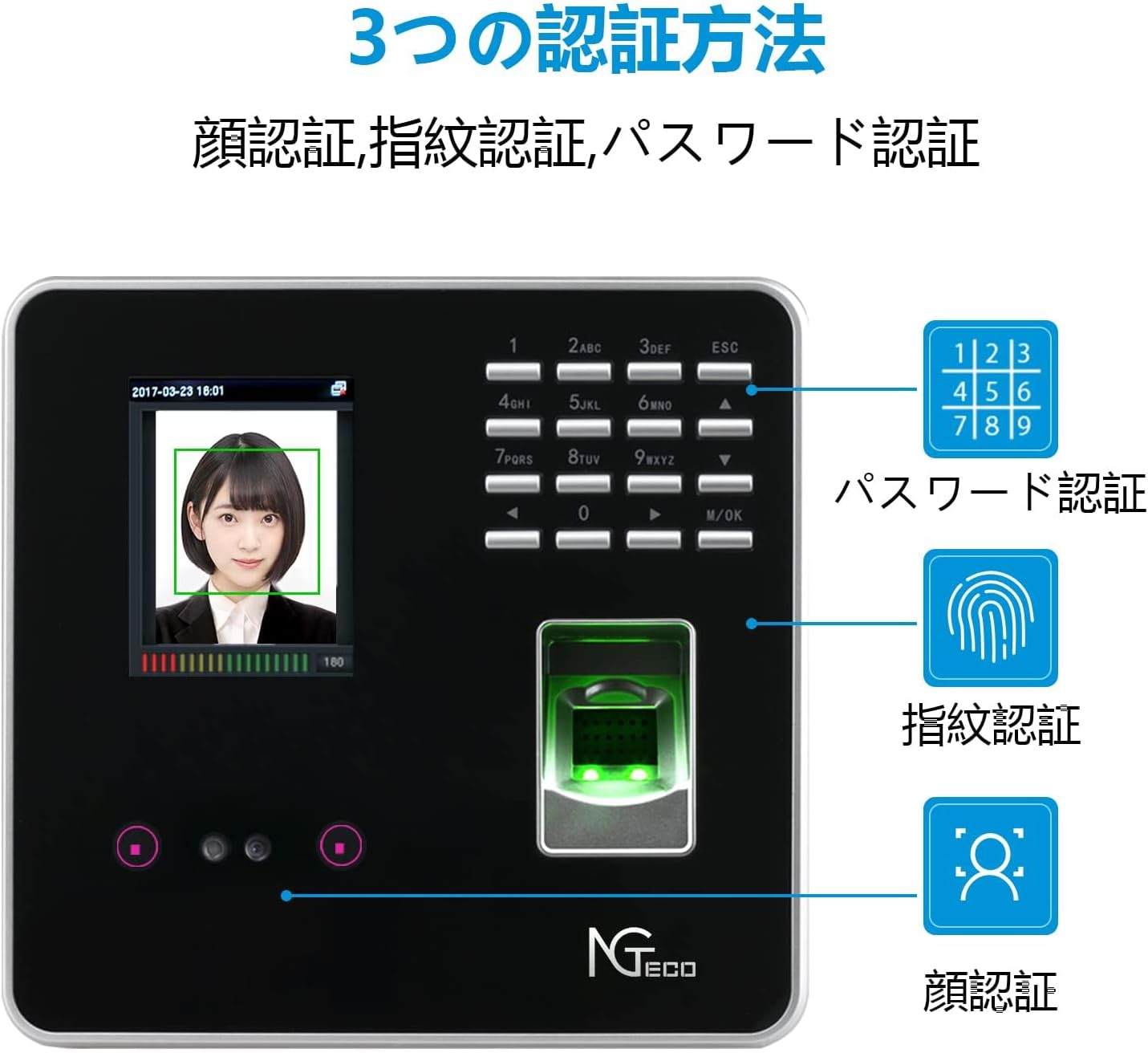
Image: The NGTeco MB20 device displaying its three authentication methods: face recognition, fingerprint recognition, and password verification. This image visually confirms the multiple ways users can clock in and out.
3. Operating Instructions
3.1 Clocking In/Out
Users can clock in or out using their registered face, fingerprint, or password. The device provides quick verification, typically within 1 second.
- Face Recognition: Stand in front of the device, aligning your face with the camera.
- Fingerprint Recognition: Place your registered finger firmly on the fingerprint sensor.
- Password: Enter your user ID and password using the keypad.
3.2 Data Download via USB
Attendance data can be easily downloaded to a USB flash drive.
- Insert the provided USB flash drive into the USB port on the device.
- Press 'M/OK' to enter the menu.
- Navigate to 'Report Management'.
- Select 'Download Attendance Report' and confirm. The device will save the attendance data to the USB drive in a readable format.

Image: Diagram illustrating the USB connection for data transfer. The NGTeco MB20 is shown connected to a USB flash drive, which then transfers data to a laptop for report generation. A magnifying glass highlights the attendance report on the laptop screen.
3.3 Automatic Report Generation
The device automatically records attendance data and can generate various reports, simplifying attendance tracking and payroll processing.

Image: Examples of attendance setting tables for 2, 4, and 6 check-ins per day. These tables show how the device records clock-in/out times, including breaks and overtime, demonstrating its automatic report generation capability.
3.4 Flexible Shift Settings
The MB20 supports flexible shift settings, including night shifts and various work schedules, to accommodate the needs of different businesses.
3.5 Bell Settings
You can configure bell rings for specific times, such as start and end of shifts, or breaks.
- Press 'M/OK' to enter the menu.
- Navigate to 'System Settings' then 'Bell Settings'.
- Set the desired time and days for the bell to ring.
4. Maintenance
4.1 Data Protection
The MB20 features built-in backup to protect time data during power outages, ensuring no data loss.

Image: Comparison showing data protection during power loss. A generic time recorder (left) is shown with a question mark, indicating potential data loss, while the NGTeco MB20 (right) is shown with a checkmark and a report, signifying its built-in data protection.
4.2 Cleaning
Regularly clean the device screen and fingerprint sensor with a soft, dry cloth. Avoid using abrasive cleaners or solvents.
5. Troubleshooting
5.1 Admin Password Reset
If you forget the administrator password:
- Long-press the 'ESC' button. An SN number will appear on the screen.
- Contact NGTeco customer support with this SN number.
- Support will provide a one-time valid password to reset your settings.
5.2 Recognition Issues
- Face Recognition: Ensure adequate lighting and that your face is clearly visible to the camera. Avoid direct sunlight or strong backlighting.
- Fingerprint Recognition: Ensure your finger is clean and dry. Place your finger flat and firmly on the sensor. If issues persist, re-register your fingerprint.
5.3 Data Transfer Problems
If data transfer to USB fails, ensure the USB drive is properly formatted (FAT32 is recommended) and has sufficient free space. Try using a different USB drive.
6. Specifications
| Brand | NGTeco |
| Model Number | NG-MB20 |
| Color | Black |
| Display Type | Digital |
| Special Features | Time Recorder, Face Recognition, Fingerprint Recognition |
| Product Dimensions (W x H) | 18 cm x 13.2 cm |
| Power Source | Corded Electric |
| Connectivity Technology | USB |
| Item Weight | 0.5 kg |
| User Capacity | 500 users |
| Fingerprint Capacity | 500 fingerprints |
| Record Capacity | 50,000 records |
7. Warranty Information
The NGTeco MB20 Time Recorder comes with a 1-year warranty from the date of purchase. This warranty covers malfunctions and defects under normal use. For any issues, please contact our official support channels for prompt assistance.
8. Customer Support
For technical support, inquiries, or warranty claims, please contact NGTeco customer service:
- Phone: +81 800-300-8197
- Email: ngtime@ngteco.com
- Service Hours: Monday - Friday, 9:00 - 21:00 (JST)

Image: A customer support representative smiling, with contact information for phone and email displayed. This image reinforces the availability of support for users.