
Eureka J15 Evo Ultra
Eureka J15 Evo Ultra Robot Vacuum and Mop Combo Instruction Manual
Brand: Eureka | Model: J15 Evo Ultra
Introduction
This manual provides essential instructions for the setup, operation, and maintenance of your Eureka J15 Evo Ultra Robot Vacuum and Mop Combo. Please read this manual thoroughly before using the product to ensure proper function and longevity.
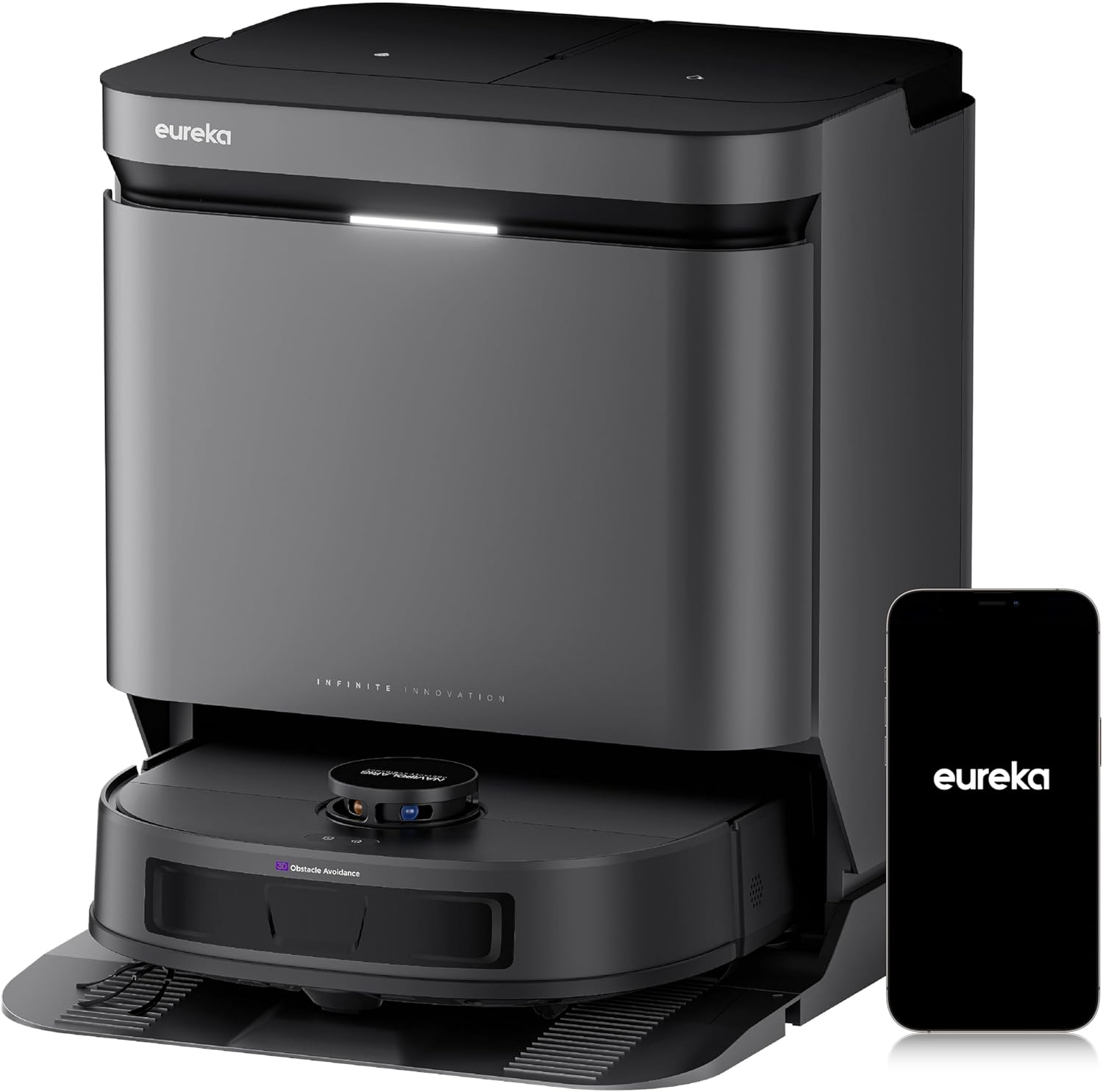
Image: The Eureka J15 Evo Ultra robot vacuum and its accompanying self-emptying base station, alongside a smartphone showing the Eureka application interface.
1. Setup
1.1 Unboxing and Component Check
Carefully remove all components from the packaging. Verify that all items listed below are present:
- Eureka J15 Evo Ultra Robot Vacuum
- Self-Emptying Base Station
- Power Cord
- DragonClaw Side Brush
- Mop Pads (2)
- Main Brush Roller
- Dust Bag (pre-installed in base station)
- Cleaning Tool
- User Manual (this document)
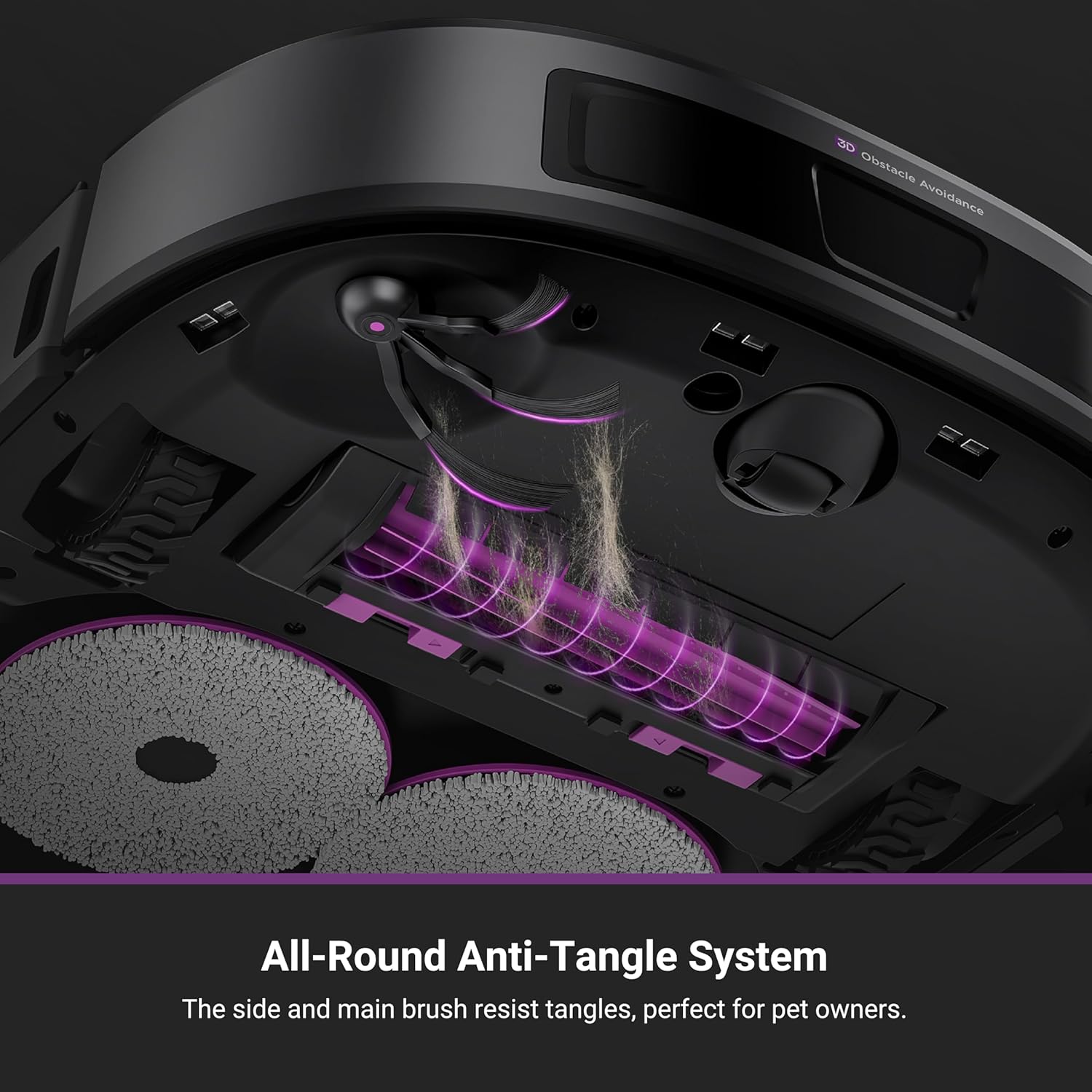
Image: An exploded view showing the Eureka J15 Evo Ultra robot vacuum, its base station, two mop pads, a main brush roller, a dust bag, and a side brush.
1.2 Base Station Placement
Place the self-emptying base station on a hard, level surface against a wall. Ensure there is at least 0.5 meters (1.6 feet) of clear space on both sides and 1.5 meters (4.9 feet) in front of the base station for optimal navigation and docking. Plug the power cord into the base station and a wall outlet.
1.3 Initial Charging
Place the robot vacuum onto the charging contacts of the base station. Ensure the robot is properly aligned. The robot will begin charging automatically. For first-time use, fully charge the robot before operation (approximately 4 hours).
1.4 App Installation and Connection
- Download the "Eureka" app from your smartphone's app store (iOS or Android).
- Open the app and create an account.
- Follow the in-app instructions to add your Eureka J15 Evo Ultra robot vacuum. This typically involves connecting to the robot's Wi-Fi hotspot and then connecting the robot to your home Wi-Fi network.
- Once connected, you can access all smart features and controls.
2. Operating Instructions
2.1 Starting and Stopping Cleaning
- Start Cleaning: Press the power button on the robot or use the "Start Cleaning" option in the Eureka app.
- Pause Cleaning: Press the power button once during operation or use the "Pause" option in the app.
- Return to Base: Press and hold the power button for 3 seconds or use the "Return to Base" option in the app.
2.2 Cleaning Modes
The Eureka J15 Evo Ultra offers various cleaning modes, configurable via the Eureka app:
- Vacuum Only: For dry debris on all floor types.
- Mop Only: For light mopping on hard floors.
- Vacuum & Mop Combo: Simultaneous vacuuming and mopping.
- Carpet-First Mode: The robot will vacuum carpets first with dry mops, then proceed to mop hard floors. This feature needs to be enabled in the Eureka App.

Image: Illustrations demonstrating the robot's complete carpet coverage using a grid pattern and its automatic carpet boost feature for deeper cleaning.
2.3 Smart Navigation and Obstacle Avoidance
The robot uses LiDAR navigation to create a real-time map of your home and plan efficient cleaning routes. DuoDetect AI™ 3D Obstacle Avoidance sensors help the robot detect and avoid obstacles, even in low-light conditions.

Image: The robot vacuum navigating a living room, demonstrating its smart navigation and obstacle avoidance around household items and pets.
2.4 Mop Lifting and ScrubExtend Technology
- Mop Lifting: The robot automatically lifts its mop pads by 10mm when detecting carpets, preventing them from getting wet. This feature can be enabled in the Eureka App.
- ScrubExtend: For thorough edge cleaning, the mop pads extend outward to reach skirting boards, wall corners, and table legs, ensuring 99.99% edge coverage.

Image: Demonstrations of the robot's mop lifting function to avoid wetting carpets and its carpet-first cleaning mode.

Image: The robot vacuum performing edge-to-edge mopping, with its mop pads extended to clean along a wall and furniture.
2.5 App Control Features
The Eureka app provides comprehensive control over your robot vacuum:
- Schedule Cleaning: Set specific times for cleaning cycles.
- Map Management: Create and manage maps for multiple floors, set no-go zones, and virtual walls.
- Room Management: Define and name rooms for targeted cleaning.
- Cleaning Settings: Adjust suction power, water flow, and cleaning modes.
- Child Lock: Prevent accidental operation.
- Do Not Disturb Mode: Prevent cleaning during specified hours.
- Accessory Lifespan Check: Monitor the wear of consumables.

Image: A smartphone screen showing the Eureka app, illustrating the range of control features available for the J15 Evo Ultra.
2.6 Voice Control Integration
The Eureka J15 Evo Ultra is compatible with Amazon Alexa, Google Assistant, and Siri. Link your robot vacuum through the respective smart home app to enable voice commands for starting, stopping, or sending the robot back to its base.

Image: A user interacting with a smart speaker to control the robot vacuum, highlighting its voice control capabilities.
3. Maintenance
Regular maintenance ensures optimal performance and extends the lifespan of your robot vacuum.
3.1 Self-Emptying Base Station
The base station automatically empties the robot's dustbin into a 3-liter dust bag, providing up to 75 days of maintenance-free cleaning. The bagless design eliminates the need for disposable dust bags.

Image: The self-emptying base station, illustrating its large capacity dust collection system for reduced maintenance.
3.2 Mop Pad Cleaning and Drying
The base station features automatic mop washing and 55°C hot air drying to prevent odors and mold growth on the mop pads. Ensure the clean and dirty water tanks in the base station are maintained regularly.

Image: A visual representation of the high-temperature mop drying process within the base station, using 55°C warm air.
3.3 Brush Maintenance
- DragonClaw Side Brush: The V-shaped design helps detangle hair. Periodically remove and clean the side brush to ensure optimal performance.
- Anti-Tangle Brush Roller: The redesigned V-shaped brush roller minimizes hair tangles. Use the included hair-trimming tool to remove any wrapped hair.

Image: A close-up of the robot's underside, showcasing the DragonClaw Side Brush and its ability to prevent hair tangles during rotation.

Image: The anti-tangle brush roller and the hair-trimming tool, designed for easy maintenance and effective pet hair removal.
3.4 Removable Base Tray
The base station's tray is detachable for easy cleaning. Regularly remove and rinse the tray to prevent dirt buildup.

Image: A user demonstrating the removal of the base station's tray for convenient cleaning.
4. Troubleshooting
| Problem | Possible Cause | Solution |
|---|---|---|
| Robot does not start or respond. | Low battery; power switch off; robot stuck. | Charge the robot; ensure power switch is on; clear any obstructions. |
| Poor cleaning performance. | Full dustbin; clogged brushes; dirty filters; low suction setting. | Check and empty dustbin; clean main and side brushes; clean/replace filters; increase suction in app. |
| Robot cannot dock. | Base station obstructed; robot too far from base; dirty charging contacts. | Ensure clear space around base; manually place robot near base; clean charging contacts on robot and base. |
| Mop pads are not cleaning effectively or leaving streaks. | Dirty mop pads; insufficient water in clean water tank; clogged water nozzles. | Ensure mop pads are clean; refill clean water tank; clean water nozzles. |
| App connection issues. | Incorrect Wi-Fi password; robot out of Wi-Fi range; router issues. | Verify Wi-Fi password; move robot closer to router; restart router and robot. |
5. Specifications
| Feature | Detail |
|---|---|
| Brand | Eureka |
| Model Name | J15 Evo Ultra |
| Suction Power | 22,000 Pa (Max) |
| Mop Lifting Height | 10mm |
| Mop Drying Temperature | 55°C Hot Air |
| Dust Bag Capacity | 3 Liters (up to 75 days) |
| Navigation Type | LiDAR with DuoDetect AI™ 3D Obstacle Avoidance |
| Battery Life | Up to 180 minutes |
| Product Dimensions (Robot) | 13.8"L x 13.8"W x 3.8"H |
| Control Method | App Control, Push Button, Voice Control (Alexa, Google Home, Siri) |
| Filter Type | Cartridge |
| Item Weight | 44.3 pounds (total package weight) |
6. Warranty and Support
For warranty information, please refer to the documentation included with your product packaging or visit the official Eureka website. For technical support or any questions regarding your Eureka J15 Evo Ultra, please contact our customer service team:
Customer Service: 1-800-282-2886
Please have your model number (J15 Evo Ultra) and purchase information ready when contacting support.
Related documentsJ15 Evo Ultra


Ask a question about this manual
Ask about setup, troubleshooting, compatibility, parts, safety, or missing instructions. Manuals+ will review the question and use this page’s manual context to help answer it.