
1. Product Overview
The MECHEER Digital Timer Switch (Model JK-TM02-BL) is a programmable timer socket designed to automate the control of electrical devices. It allows you to set specific ON/OFF times for appliances, helping to save energy and enhance home security. This timer features a clear LCD display with backlight, up to 16 programmable settings, and a random mode for holiday security.
Key Features:
- Up to 16 programmable ON/OFF settings for daily or weekly schedules.
- 24-hour and weekly scheduling options (weekdays, weekends, specific days).
- Large, high-contrast LCD display with soft white backlight for easy readability.
- Random mode to simulate occupancy for enhanced home security during absences.
- Built-in battery to retain programmed settings during power outages.
- Constructed from durable, heat-resistant PC material.
- Manual override function for immediate control.
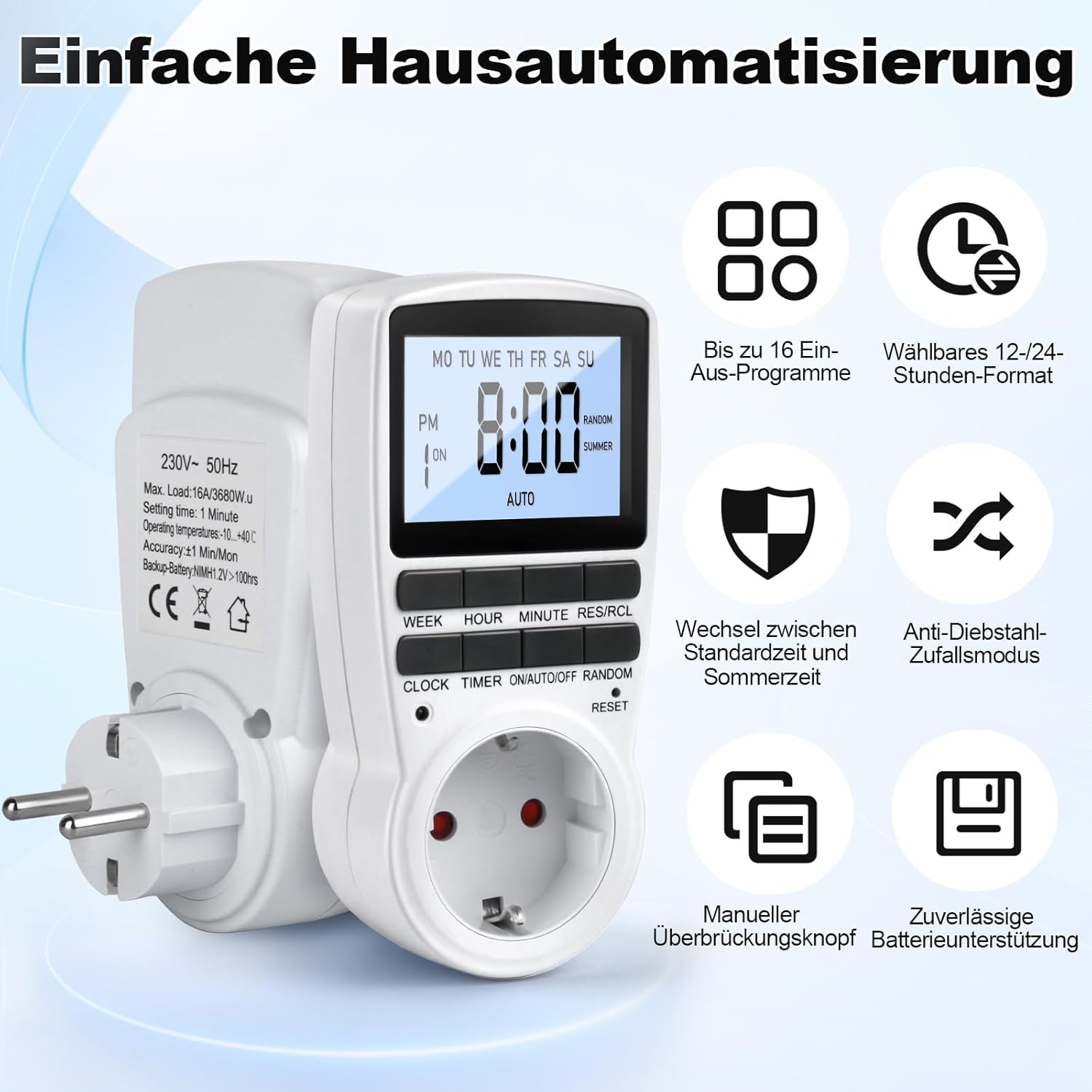
Figure 1: MECHEER Digital Timer Switch showing its display and control buttons, with icons illustrating key features like 16 programs and 12/24-hour format.
2. Safety Instructions
- Do not immerse the timer in water or any other liquid.
- Do not connect any appliance that exceeds the maximum load rating of 16A/3680W.
- Ensure the timer is securely plugged into a grounded outlet.
- Do not disassemble or attempt to repair the timer yourself. Contact qualified personnel for service.
- Keep out of reach of children.
- Use indoors only. This timer is not suitable for outdoor use.
- Unplug the timer from the wall outlet before cleaning.
3. Package Contents
- 1 x MECHEER Digital Timer Switch (Model JK-TM02-BL)
- 1 x User Manual
4. Product Components
Familiarize yourself with the buttons and display of your digital timer switch.
- LCD Display: Shows current time, day, ON/OFF status, program number, and mode.
- WEEK Button: Sets the day of the week.
- HOUR Button: Sets the hour.
- MINUTE Button: Sets the minute.
- RES/RCL Button: Resets or recalls program settings.
- CLOCK Button: Exits programming mode and returns to clock display.
- TIMER Button: Enters or exits program setting mode.
- ON/AUTO/OFF Button: Selects operating mode (ON, AUTO, OFF).
- RANDOM Button: Activates or deactivates random mode.
- RESET Pinhole: Resets the device to factory defaults.
Figure 2: Detailed view of the timer's LCD display and control buttons.
5. Setup
5.1 Initial Setup and Charging
- Plug the timer into a standard wall outlet for at least 5-10 minutes to charge the internal backup battery. This battery retains your settings during power outages.
- After charging, use a pointed object (like a pen tip) to press the RESET pinhole button located above the socket. This clears all current settings and ensures proper operation.

Figure 3: Pressing the RESET button to restore factory settings.
5.2 Setting the Current Time
- Press and hold the CLOCK button.
- While holding CLOCK, press the WEEK button repeatedly to set the current day of the week.
- While holding CLOCK, press the HOUR button repeatedly to set the current hour (12-hour or 24-hour format).
- While holding CLOCK, press the MINUTE button repeatedly to set the current minute.
- Release the CLOCK button. The current time and day are now set.
- To switch between 12-hour and 24-hour format, press the CLOCK and TIMER buttons simultaneously.
6. Operating Instructions
6.1 Programming ON/OFF Times
The timer allows for up to 16 ON/OFF programs. Each program consists of an ON time and an OFF time.
- Press the TIMER button once to enter program setting mode. The display will show "1 ON".
- Press the WEEK button to select the desired day(s) for this program. Options include: every day, specific weekdays, weekends, or custom combinations.
- Press the HOUR button to set the desired ON hour.
- Press the MINUTE button to set the desired ON minute.
- Press the TIMER button again. The display will show "1 OFF".
- Repeat steps 2-4 to set the desired OFF day(s), hour, and minute for the first program.
- Press the TIMER button to advance to the next program ("2 ON", "2 OFF", etc.) and repeat the process for up to 16 programs.
- After setting all desired programs, press the CLOCK button to exit program mode and return to the current time display.

Figure 4: Example of 16 ON/OFF programs in action, automating devices like an aquarium light and a toaster.
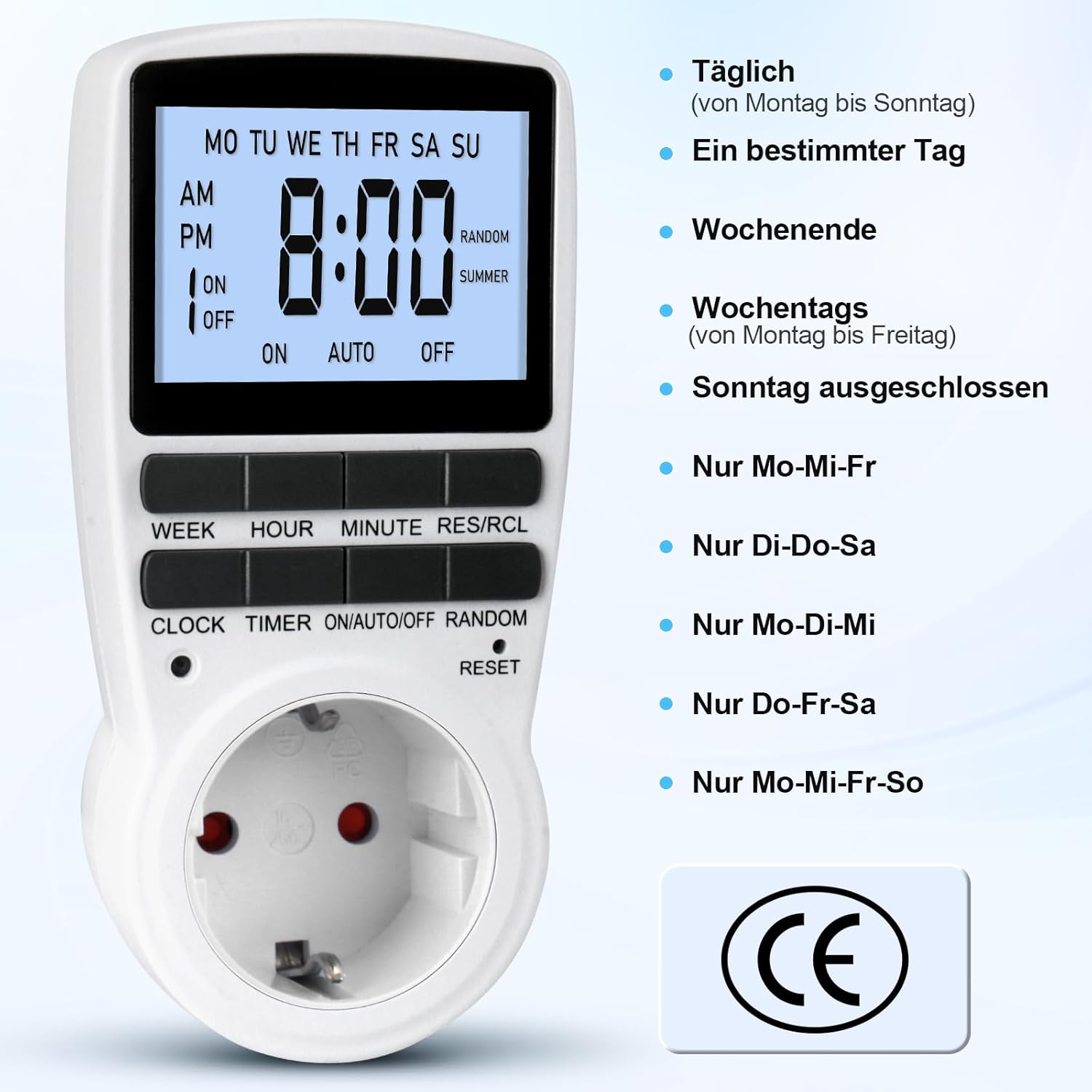
Figure 5: Different weekly programming options available, such as daily, specific days, weekends, or weekdays.
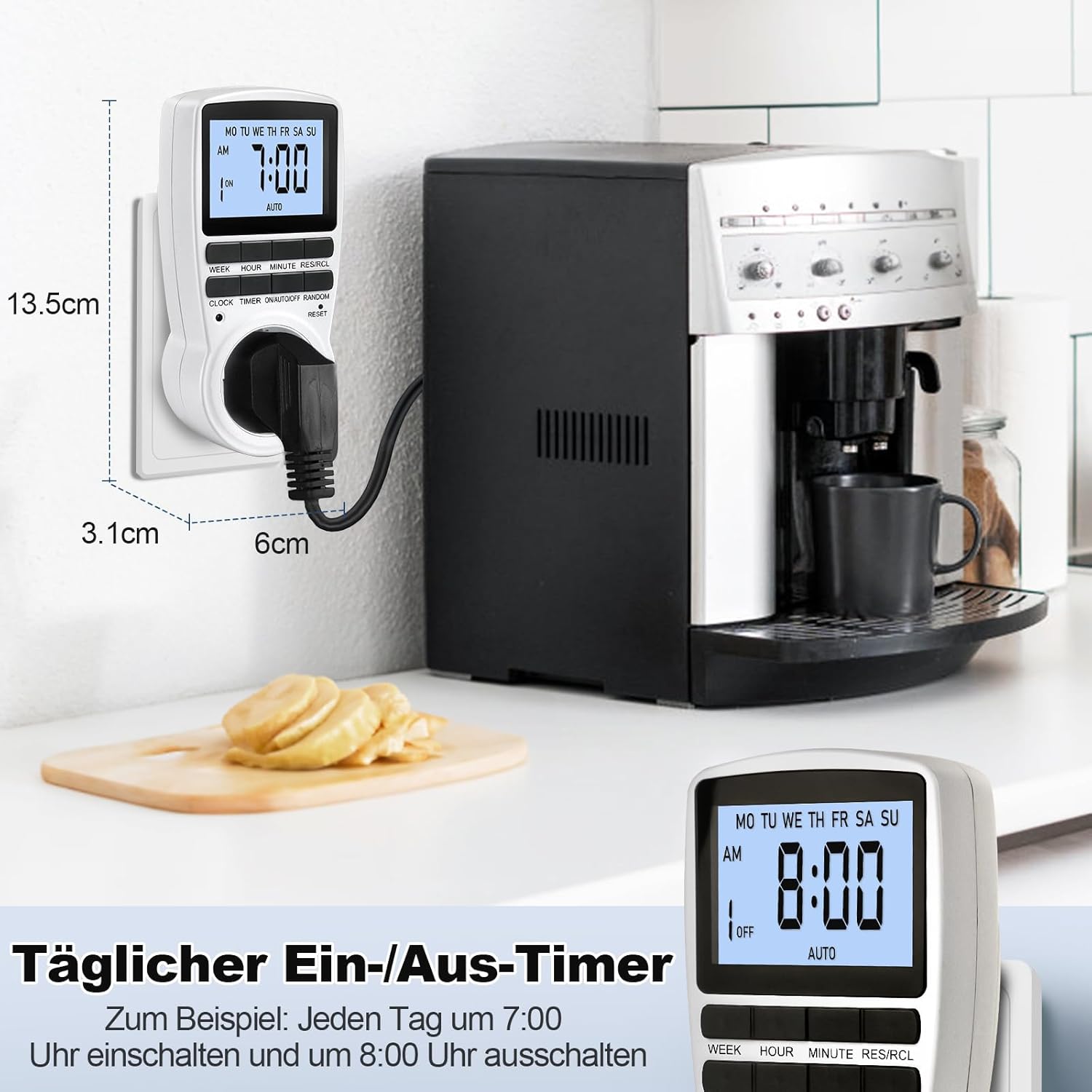
Figure 6: The timer in use, demonstrating a daily ON/OFF schedule and illustrating its compact dimensions.
6.2 Manual Override (ON/AUTO/OFF)
Press the ON/AUTO/OFF button repeatedly to cycle through the operating modes:
- ON: The connected appliance will remain ON, ignoring all programmed settings.
- AUTO: The connected appliance will operate according to the programmed ON/OFF times.
- OFF: The connected appliance will remain OFF, ignoring all programmed settings.
For automatic operation, ensure the timer is set to AUTO mode.
6.3 Random Mode (Holiday Security)
The random mode is designed to deter potential intruders by making your home appear occupied when you are away. When activated, the timer will randomly turn ON and OFF connected lights or appliances within a set period.
- To activate Random Mode, press the RANDOM button. The "RANDOM" indicator will appear on the LCD.
- To deactivate Random Mode, press the RANDOM button again. The "RANDOM" indicator will disappear.

Figure 7: The timer in holiday mode, randomly switching lights to enhance home security.
6.4 Backlight Function
The LCD display features a soft white backlight for improved visibility in low-light conditions.
- The backlight activates automatically when any button is pressed.
- It will turn off automatically after approximately 30 seconds of inactivity to conserve energy.
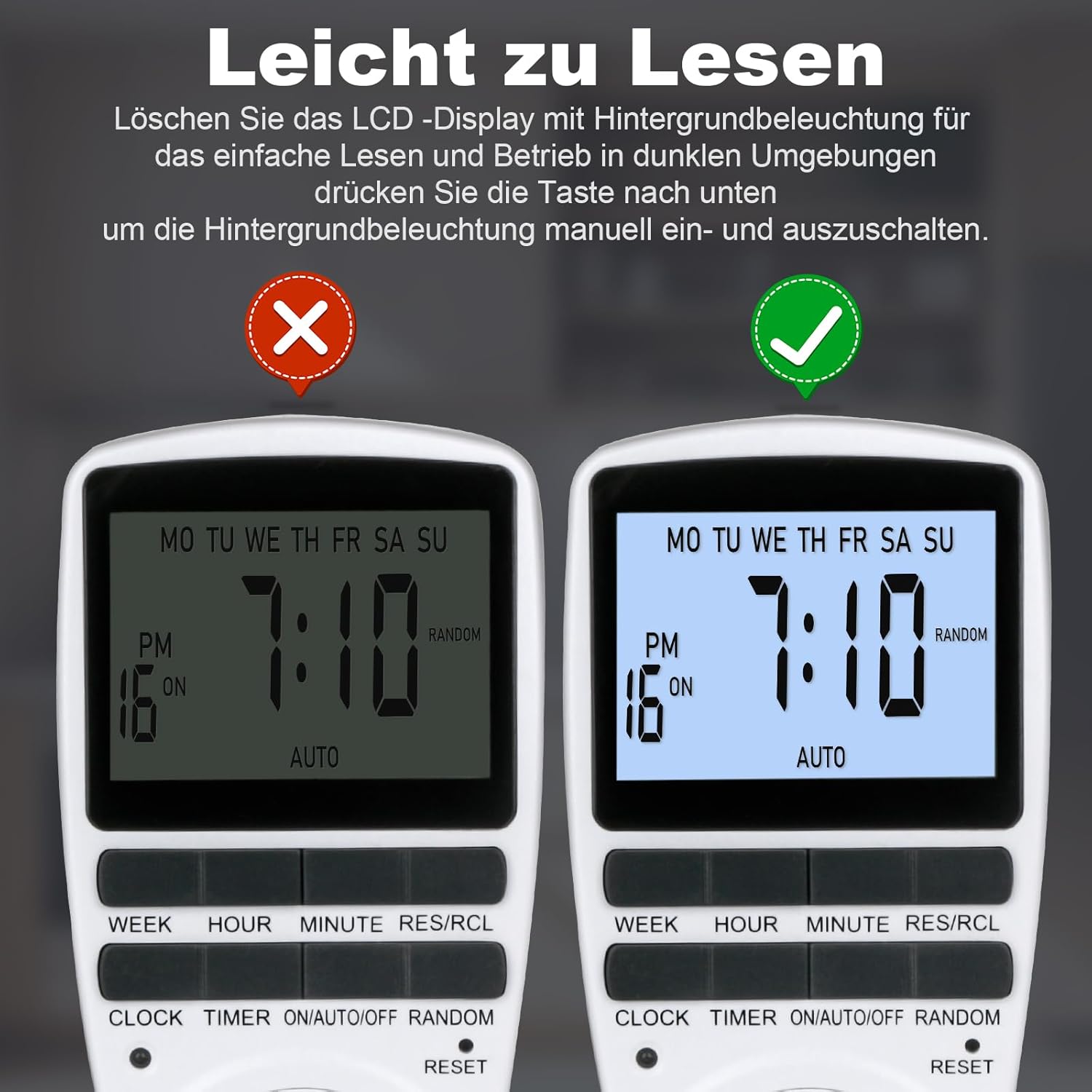
Figure 8: The timer's display with and without the backlight for clear readability.
6.5 Multi-functional Applications
The MECHEER Digital Timer Switch can be used to automate a wide range of household appliances and devices, helping to save energy and simplify your daily routine.

Figure 9: Examples of how the timer switch can be used with various devices such as lamps, ovens, aquariums, air purifiers, and routers.
7. Maintenance
- Cleaning: Disconnect the timer from the power outlet before cleaning. Wipe the exterior with a soft, dry cloth. Do not use liquid cleaners or abrasive materials.
- Battery: The timer has a built-in rechargeable battery that maintains settings during power outages. This battery is not user-replaceable. Ensure the timer is regularly plugged in to keep the battery charged.
- Storage: If storing the timer for an extended period, ensure it is fully charged and stored in a cool, dry place.
8. Troubleshooting
| Problem | Possible Cause | Solution |
|---|---|---|
| Display is blank or dim. | Internal battery is low or depleted. | Plug the timer into a live outlet for 5-10 minutes to charge the battery. |
| Timer programs are not activating. | Timer is not in AUTO mode. Incorrect program settings. | Ensure the timer is set to AUTO mode. Review and correct your program settings. |
| Appliance remains ON/OFF constantly. | Timer is in ON or OFF mode, not AUTO. | Press the ON/AUTO/OFF button until "AUTO" is displayed. |
| Timer is behaving erratically. | System glitch or interference. | Perform a full reset by pressing the RESET pinhole button. You will need to reprogram the time and settings. |
9. Specifications
| Feature | Detail |
|---|---|
| Model Number | JK-TM02-BL |
| Brand | MECHEER |
| Product Dimensions | 1.57"D x 1.97"W x 3.94"H (4 x 5 x 10 cm) |
| Item Weight | 6.7 ounces (190 grams) |
| Max Load | 16A / 3680W |
| Setting Time | 1 Minute |
| Operating Temperature | -10 to +40°C |
| Accuracy | ±1 Min/Mon |
| Backup Battery | NiMH 1.2V >100hrs |
| Color | White |
10. Warranty and Support
MECHEER products are designed for reliability and performance. For warranty information, technical support, or any questions regarding your Digital Timer Switch, please contact MECHEER customer service through the retailer where you purchased the product or visit the official MECHEER website. Please have your model number (JK-TM02-BL) and purchase details ready when contacting support.