
1. Introduction
Thank you for choosing the ORICO USB C Hub 6-in-1. This manual provides detailed instructions for setting up, operating, and maintaining your device. Please read this manual carefully before use to ensure optimal performance and safety.
2. Product Overview
The ORICO 6-in-1 USB C Hub expands a single USB-C port into multiple essential connections, enhancing your device's connectivity and functionality. It features a durable aluminum alloy shell for efficient heat dissipation and portability.

Image: The ORICO 6-in-1 USB C Hub, showcasing its various ports including USB-C PD-IN, HDMI, USB-C 3.0, and USB-A 3.0 ports.
Key Features:
- 6-in-1 Connectivity: Expands one USB-C port into 1x HDMI (4K@30Hz), 3x USB-A (5Gbps), 1x USB-C (5Gbps), and 1x PD Charging (100W).
- High-Resolution HDMI Output: Supports up to 4K@30Hz for external displays, with backward compatibility for 1080P@120Hz and 2K@120Hz.
- 100W Power Delivery: Provides up to 85W charging to your connected laptop while reserving 15W for the hub and other connected devices.
- 5Gbps High-Speed Data Transfer: Facilitates rapid data transfer through its USB-A and USB-C data ports.
- Universal Compatibility: Works with Windows, MacOS, Linux, iOS, and Android systems.
- Durable Design: Features a lightweight aluminum alloy shell for enhanced durability and heat dissipation.
3. Setup Instructions
- Verify Host Device Compatibility: Ensure your laptop, tablet, or smartphone has a full-function USB Type-C port that supports display output, power delivery, and data transfer. The hub's full functionality requires a host interface that supports Thunderbolt 5/4/3 or a full-function USB-C port.
- Connect the Hub: Plug the integrated USB-C cable of the ORICO Hub into the USB-C port of your host device.
- Connect Power (Optional, for PD Charging): If you require power delivery to your host device, connect a 100W PD charger (sold separately) to the hub's USB-C PD-IN port.
- Connect Peripherals: Connect your desired peripherals (e.g., external monitor, USB flash drives, keyboard, mouse) to the corresponding ports on the hub.

Image: The ORICO USB C Hub connected to a laptop, demonstrating power delivery functionality.
4. Operating Instructions
4.1. HDMI Display Output
- Connect an HDMI cable from the hub's HDMI port to your monitor, TV, or projector.
- Your device should automatically detect the external display. You can configure display settings (mirror mode, extend mode) through your operating system's display settings.
- Supports resolutions up to 4K@30Hz.
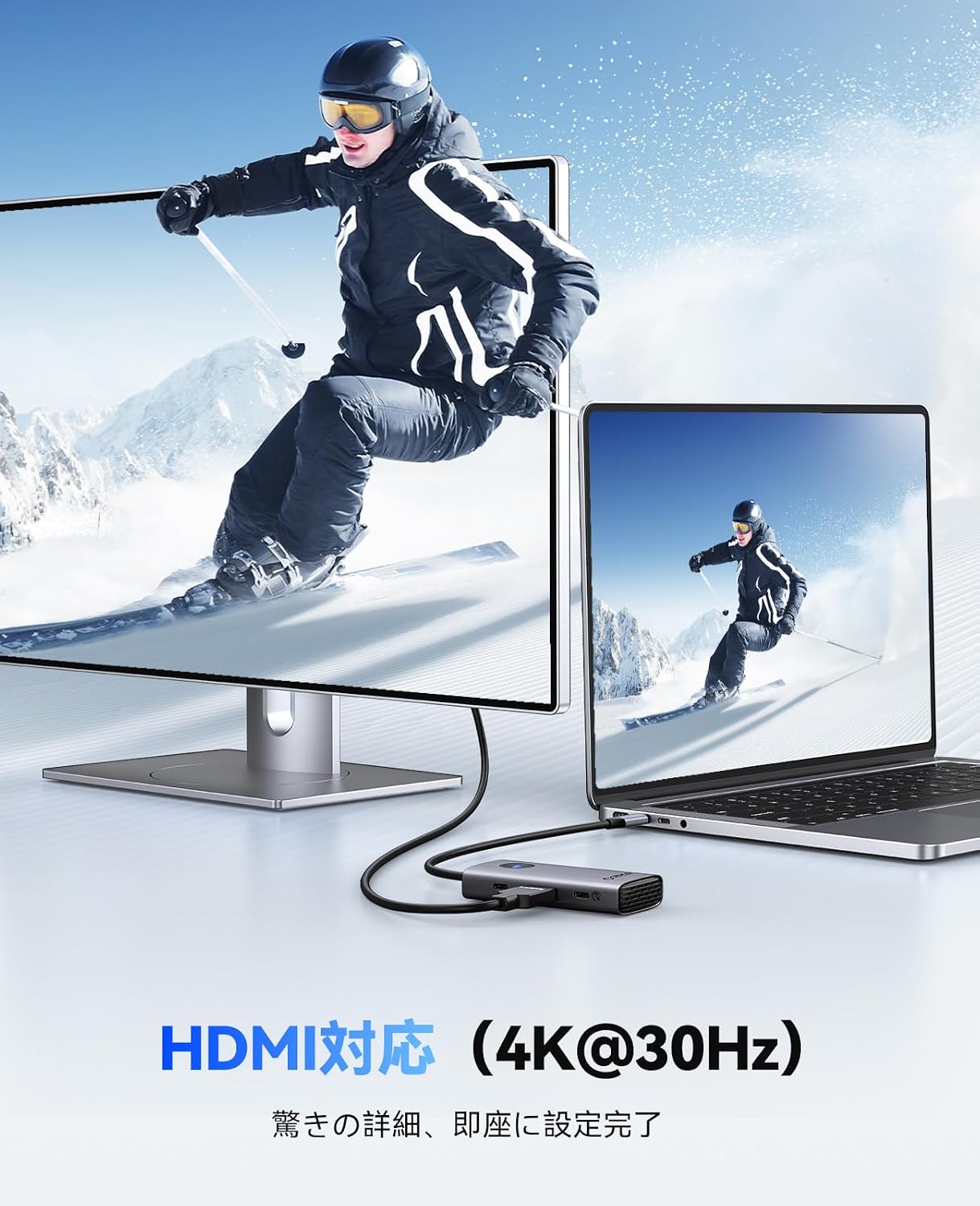
Image: A laptop connected to an external monitor through the ORICO USB C Hub, displaying a high-resolution image.
4.2. Power Delivery (PD) Charging
- When a 100W PD charger is connected to the hub, it will charge your host device (up to 85W) and power the hub itself (15W).
- Ensure your charger and USB-C cable support 100W PD for optimal charging performance.
4.3. Data Transfer
- Use the 3x USB-A 3.0 ports and 1x USB-C 3.0 data port to connect USB devices such as flash drives, external hard drives, keyboards, and mice.
- All data ports support transfer speeds of up to 5Gbps.

Image: The ORICO USB C Hub with various USB devices connected, highlighting its 5Gbps high-speed data transfer capability.
5. Maintenance
- Cleaning: Use a soft, dry cloth to clean the hub. Avoid liquid cleaners or abrasive materials.
- Storage: Store the hub in a cool, dry place away from direct sunlight and extreme temperatures.
- Handling: Avoid dropping the device or subjecting it to strong impacts.
- Cable Care: Do not bend or pull the integrated USB-C cable excessively to prevent damage.
6. Troubleshooting
| Problem | Possible Cause | Solution |
|---|---|---|
| No display output via HDMI. | Host USB-C port does not support DisplayPort Alt Mode. Incorrect display settings. Faulty HDMI cable. | Ensure your host device's USB-C port supports video output. Check display settings on your computer. Try a different HDMI cable. |
| Device not charging or slow charging. | PD charger not connected or insufficient wattage. Host device does not support PD. Overloaded hub. | Connect a 100W PD charger to the hub. Ensure your host device supports PD charging. Disconnect high-power devices from the hub if experiencing instability. |
| USB devices not recognized or slow data transfer. | Loose connection. Driver issues (rare, as it's plug-and-play). Power fluctuations. | Ensure all connections are secure. Try connecting the device directly to the host if possible. Restart your computer. |
| Interference with wireless devices. | Signal interference between wireless and wired devices. | Avoid using wireless devices (e.g., 2.4GHz wireless mouse/keyboard) and wired devices simultaneously when connected to the hub, if interference occurs. |
7. Specifications
| Feature | Detail |
|---|---|
| Model | ORICO-PW11-6P-GY-EP-JP |
| Ports | 1x HDMI (4K@30Hz), 3x USB-A 3.0 (5Gbps), 1x USB-C 3.0 (5Gbps Data), 1x USB-C PD-IN (Max 100W) |
| Data Transfer Rate | 5 Gbps (USB 3.0 ports) |
| Power Delivery | Max 100W input (85W to host, 15W to hub) |
| HDMI Resolution | 4K@30Hz, 2K@120Hz, 1080P@120Hz |
| Compatibility | Windows, MacOS, Linux, iOS, Android |
| Material | Aluminum Alloy |
| Dimensions (L x W x H) | 9.4 x 4.5 x 1.7 cm |
| Color | Gray |
8. Warranty and Support
This ORICO product comes with a 1-year warranty from the date of purchase. If you encounter any issues or have questions regarding your ORICO USB C Hub, please contact ORICO customer support through the retailer where you purchased the product or visit the official ORICO website for assistance.
Please retain your proof of purchase for warranty claims.


