
Introduction
This manual provides comprehensive instructions for setting up, operating, and maintaining your BOALZETD Smartwatch Model QS50. Please read this manual carefully before using the device to ensure proper function and to maximize your user experience. Keep this manual for future reference.
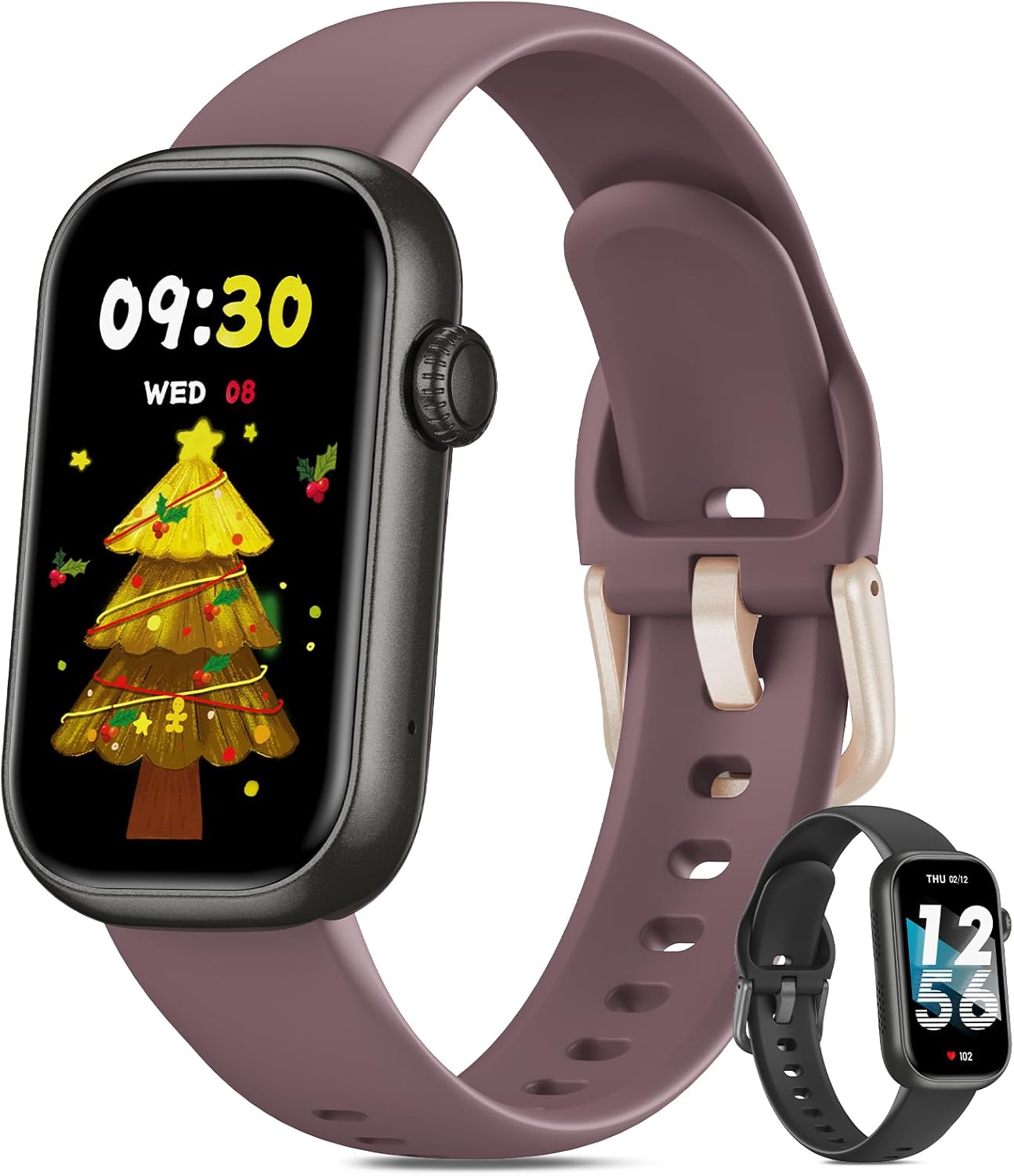
Image: BOALZETD Smartwatch QS50. The main image shows the smartwatch with a purple band and a festive watch face, alongside a smaller image of the watch with a black band.
1. Setup
1.1 Initial Charging
Before first use, fully charge your smartwatch. Connect the magnetic charging cable to the charging points on the back of the watch and plug the USB end into a standard USB power adapter (not included). A full charge typically takes approximately 2 hours.

Image: Smartwatch on a charger. The image illustrates the smartwatch connected to its magnetic charger, with a "Recharge" indicator on the screen. The watch offers up to 30 days standby time and 7-10 days of daily use on a 2-hour charge.
1.2 App Installation and Device Pairing
- Download the App: Search for the companion application (refer to the packaging or quick start guide for the exact app name) on your smartphone's app store (App Store for iOS, Google Play Store for Android).
- Enable Bluetooth: Ensure Bluetooth is enabled on your smartphone.
- Open the App: Launch the installed application and follow the on-screen instructions to create an account or log in.
- Pair Device: Within the app, navigate to the device pairing section. The app will search for available devices. Select "QS50" or the corresponding device name when it appears. Confirm the pairing request on both your phone and the smartwatch if prompted.
1.3 Basic Device Controls
- Power On/Off: Press and hold the side button to power the watch on or off.
- Screen Wake: Raise your wrist or press the side button to wake the screen.
- Navigation: Swipe left, right, up, or down on the touchscreen to navigate through menus and features. Tap to select.
- Return: Press the side button to return to the previous screen or the watch face.
2. Operating the Smartwatch
2.1 Display and Navigation
The BOALZETD QS50 features a 1.47-inch touchscreen display with a resolution of 172 x 320 pixels and 450 nits brightness for clear visibility.
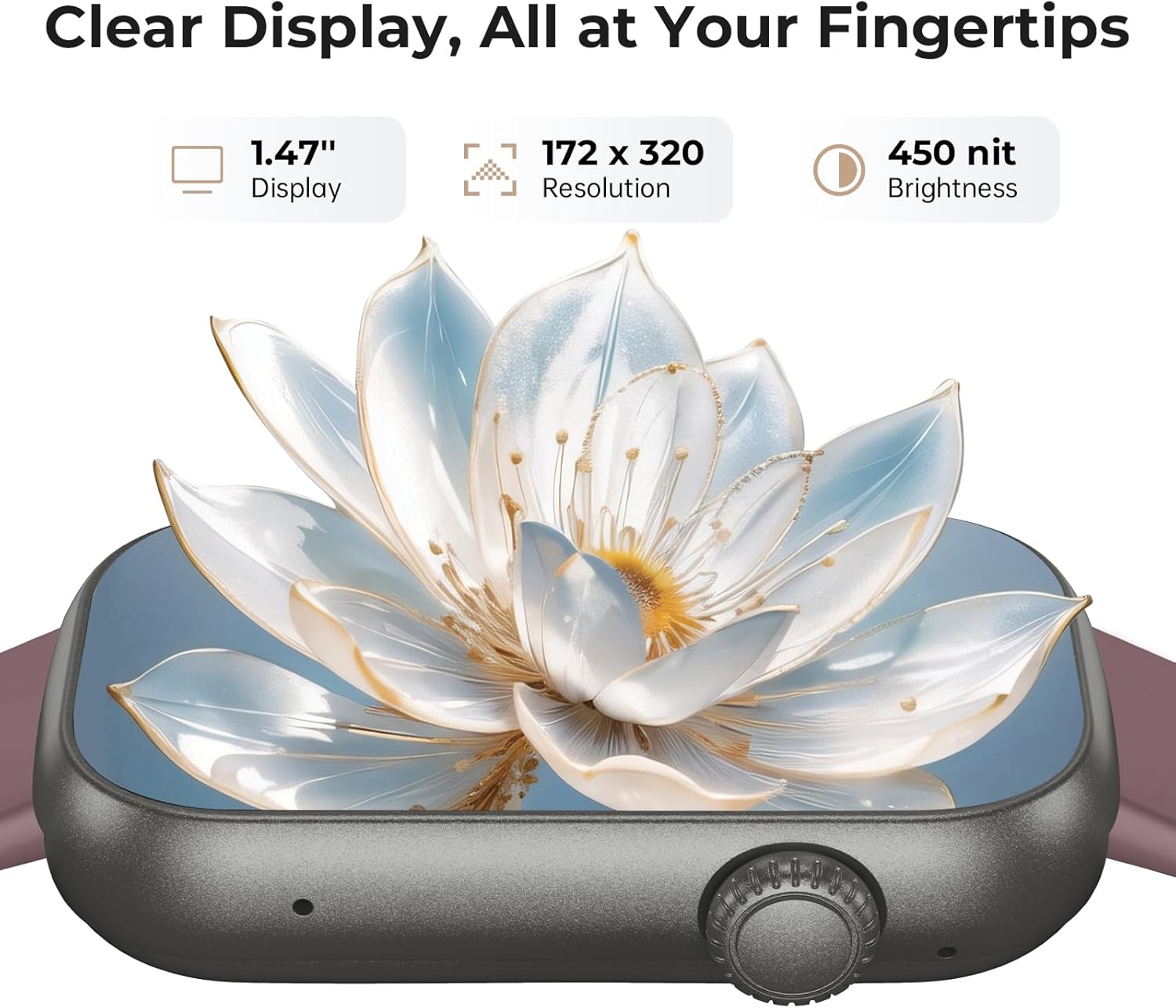
Image: Smartwatch display details. This image highlights the 1.47-inch display size, 172x320 resolution, and 450 nit brightness of the smartwatch screen.
2.2 Bluetooth Calling and Notifications
Once paired with your smartphone, the smartwatch supports Bluetooth calling and displays notifications directly on your wrist.
- Bluetooth Calling: Answer or make calls directly from your watch. Ensure the Bluetooth connection is stable.
- Message Notifications: Receive alerts for incoming calls, text messages, and app notifications. Configure which app notifications appear on your watch through the companion app settings.
- Voice Assistant: Access your smartphone's voice assistant directly from the watch.

Image: Smartwatch connectivity. This image illustrates users wearing the smartwatch, emphasizing its Bluetooth calling and notification features.
2.3 Health Monitoring
The smartwatch is equipped with sensors to monitor various health metrics.
- Heart Rate Monitoring: Continuous 24/7 heart rate tracking. View your current heart rate and historical data in the app.
- SpO2 (Blood Oxygen) Monitoring: Measure your blood oxygen saturation levels.
- Sleep Tracking: Automatically monitors your sleep patterns, including deep sleep, light sleep, and wake times. Provides a sleep score and analysis in the app.
- Female Cycle Tracker: For female users, the watch can track menstrual cycles, providing predictions and reminders.

Image: Smart health monitoring. This image illustrates the smartwatch's capabilities in tracking heart rate, blood oxygen levels, and sleep patterns.
2.4 Activity Tracking
The QS50 tracks your daily activity and supports various sports modes.
- Pedometer: Records steps taken, distance covered, and calories burned throughout the day.
- Sports Modes: Features over 24 sports modes to track specific activities. Select a mode before starting your workout to get detailed metrics.
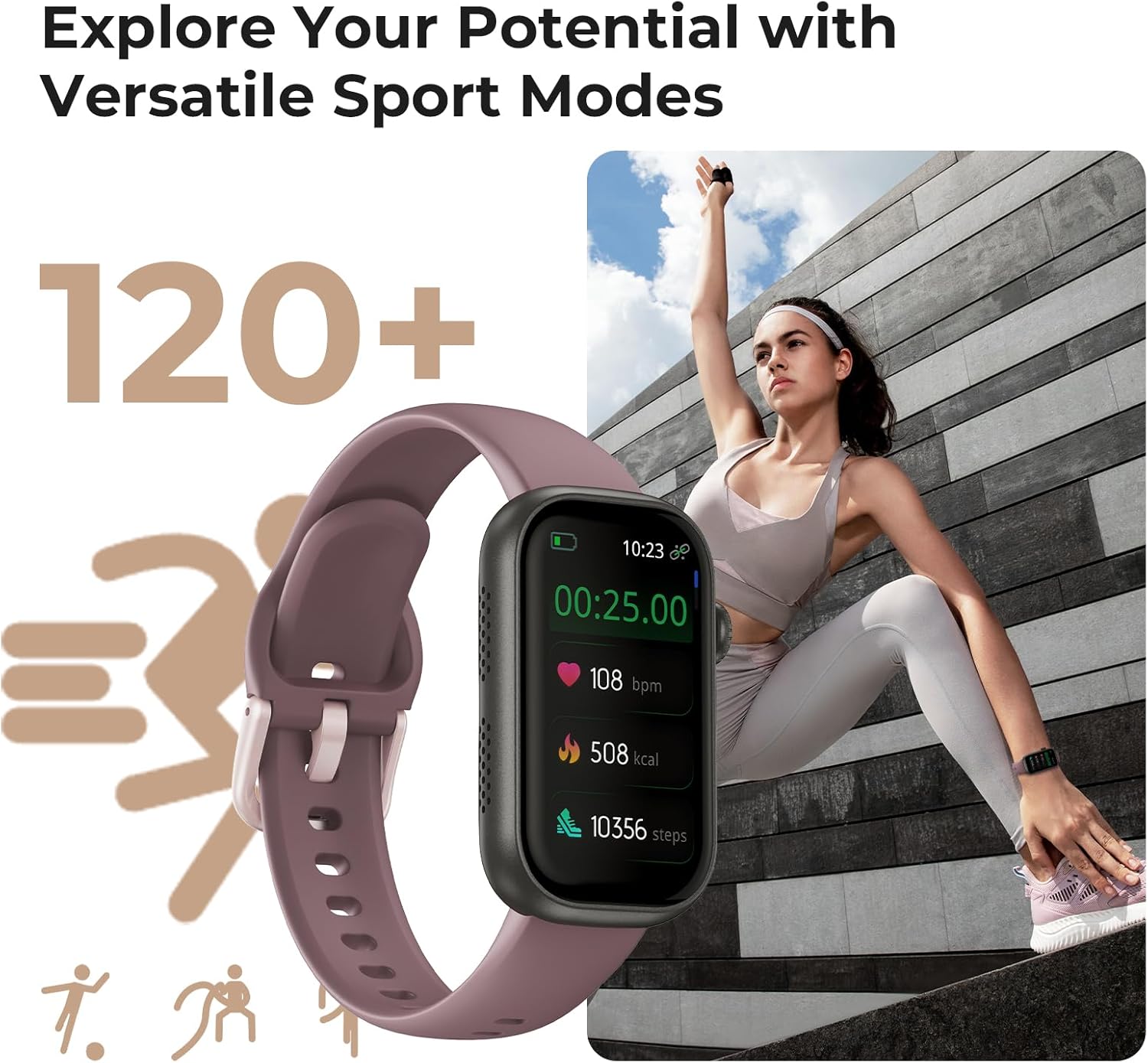
Image: Versatile sport modes. The image shows the smartwatch tracking a workout, highlighting its ability to monitor various sports activities with over 120 modes.
2.5 Customization and Utility Features
- Watch Faces: Choose from over 165 pre-installed watch faces or upload your own photos to personalize the display.
- Weather Forecast: View current weather conditions and forecasts.
- Drink Reminders: Set reminders to stay hydrated.
- Movement Alerts: Receive alerts if you've been sedentary for too long.
- Alarm/Stopwatch: Use the built-in alarm clock and stopwatch functions.
- Find Phone: Locate your paired smartphone by triggering an alert sound from the watch.
3. Maintenance
3.1 Cleaning
Regularly clean your smartwatch and wristbands to prevent skin irritation and maintain device performance. Use a soft, lint-free cloth. If necessary, dampen the cloth with a small amount of water. Do not use harsh chemicals or abrasive materials.
3.2 Battery Care
To prolong battery life, avoid exposing the watch to extreme temperatures. Charge the device fully before long periods of inactivity. The watch uses a 250 mAh Lithium-polymer battery.
3.3 Water Resistance
Specific water resistance ratings are not provided in the product details. Avoid submerging the device in water or exposing it to high-pressure water streams to prevent damage.
4. Troubleshooting
- Device not turning on: Ensure the watch is fully charged. Connect it to the charger for at least 30 minutes.
- Cannot pair with smartphone:
- Ensure Bluetooth is enabled on your phone and the watch is within range.
- Restart both your smartphone and the smartwatch.
- Try unpairing and re-pairing the device through the app.
- Check if the companion app is updated to the latest version.
- Notifications not appearing:
- Verify that notification permissions are granted for the companion app on your smartphone.
- Check app settings to ensure notifications for specific applications are enabled.
- Ensure the watch is connected via Bluetooth.
- Inaccurate health data:
- Ensure the watch is worn snugly on your wrist, not too loose or too tight.
- Clean the sensors on the back of the watch.
- Note that health monitoring data is for reference only and should not be used for medical diagnosis.
5. Specifications
| Brand | BOALZETD |
| Model Number | QS50 |
| Display Size | 1.47 Inches |
| Display Resolution | 172 x 320 pixels |
| Brightness | 450 nits |
| Connectivity | Bluetooth |
| Special Features | SpO2 Monitor, Sleep Tracking, Multisport, Heart Rate Monitor, Bluetooth Calling, Notifications, Voice Assistant |
| Compatible Devices | Smartphone |
| Battery Composition | Lithium-polymer |
| Battery Capacity | 250 mAh |
| Charging Time | Approx. 2 hours |
| Battery Life (Daily Use) | 7-10 days |
| Battery Life (Standby) | Up to 30 days |
| GPS | No GPS |
| Shape | Rectangular |
| Product Dimensions (approx.) | 46mm (1.81in) length, 26mm (1.02in) width, 10mm (0.39in) thickness |
| Band Length (Min-Max) | 130mm (5.1in) - 200mm (7.9in) |

Image: Product dimensions. This diagram provides detailed measurements of the smartwatch and its strap.
6. Warranty and Support
Information regarding specific warranty terms is not provided in the product details. For warranty claims, technical support, or further assistance, please contact the seller or refer to the contact information provided with your purchase documentation.
Return Policy: The product has a 31-day return policy for refund/replacement.