
1. Introduction
Welcome to the Alienware 18 Area-51 Gaming Laptop user manual. This guide provides essential information for setting up, operating, maintaining, and troubleshooting your new device. The Alienware 18 Area-51 is engineered for high-performance gaming and creative tasks, featuring advanced thermal management and powerful components.
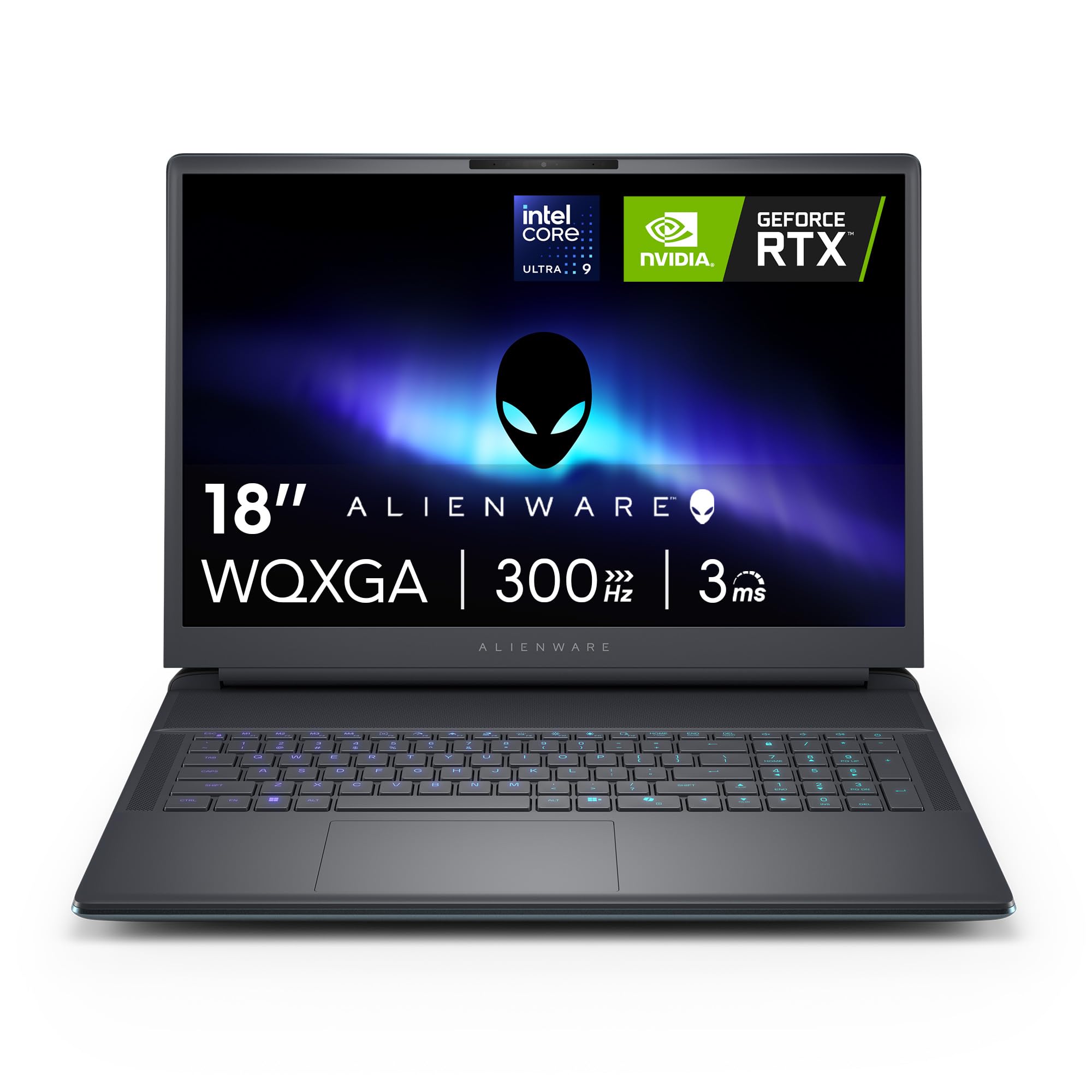
Figure 1.1: Alienware 18 Area-51 Gaming Laptop
2. What's in the Box
Carefully unpack your Alienware 18 Area-51 Gaming Laptop and ensure all items are present:
- Alienware 18 Area-51 AA18250 Laptop
- 360-Watt Small Form Factor Adapter
- Power Cord
- Documentation (Quick Start Guide, Safety Information)
3. Setup
3.1 Initial Power-On
- Connect the power adapter to the laptop's power input port and then to a wall outlet.
- Open the laptop lid.
- Press the power button, typically located on the keyboard deck.
- Follow the on-screen instructions to complete the Windows 11 setup process. This includes selecting your region, language, connecting to a Wi-Fi network, and creating a user account.
3.2 Connecting Peripherals
You can connect external devices such as a mouse, keyboard, external display, or storage devices to the available ports on your laptop. Refer to Section 4.3 for a detailed overview of available ports.
4. Operating Your Laptop
4.1 Power On/Off and Sleep Mode
- Power On: Press the power button.
- Shut Down: Click the Start button, then Power > Shut down.
- Sleep Mode: Close the lid or click the Start button, then Power > Sleep.
4.2 Display and Visuals
Your Alienware 18 Area-51 features an 18-inch WQXGA (2560x1600) display with a 300Hz refresh rate for smooth and immersive visuals.

Figure 4.1: High-resolution display in action
4.3 Keyboard and Trackpad
The laptop is equipped with a full-sized backlit keyboard, including a numeric keypad, for comfortable typing and gaming. The integrated trackpad supports multi-touch gestures for intuitive navigation.

Figure 4.2: Backlit keyboard and trackpad
4.4 Ports and Connectivity
Your laptop offers a comprehensive selection of ports for various peripherals and external devices:
- USB Ports: Multiple USB 3.2 Gen 1 Type-A ports (some with PowerShare).
- Thunderbolt Ports: Two Thunderbolt 4 ports for high-speed data transfer and display output.
- HDMI: One HDMI 2.1 port for connecting external displays.
- Ethernet: One RJ-45 Killer E5000 (5 Gbps) Ethernet port for wired network connectivity.
- Audio: Global headset jack.
- Card Reader: Full-sized SD card slot.
- Wireless: Wi-Fi 7 (802.11.be) and Bluetooth 5.4.

Figure 4.3: Rear ports and connectivity options
4.5 Performance Features
The Alienware 18 Area-51 is built with cutting-edge components for peak performance:
- Processor: Intel Core Ultra 9-275HX processor, integrating CPU, GPU, and NPU for balanced performance and AI acceleration.
- Graphics: NVIDIA GeForce RTX 5070 Laptop GPU with 8GB GDDR7 memory, powered by NVIDIA Blackwell architecture.
- Memory: 32GB DDR5 RAM (6400MHz) for seamless multitasking. Expandable up to 64GB.
- Storage: 1TB NVMe M.2 PCIe Gen4 SSD for fast boot times and application loading.

Figure 4.4: Core processing units

Figure 4.5: Memory and storage expansion slots
4.6 Cryo-Chamber Thermal Management
The Alienware 18 Area-51 features a new Cryo-Chamber structure at the bottom of the laptop. This design focuses airflow directly to core components, enhancing cooling efficiency and enabling higher power limits for sustained performance.

Figure 4.6: Advanced Cryo-Chamber cooling system
4.7 Alienware Command Center
The Alienware Command Center software allows you to customize your gaming experience. You can manage performance presets, monitor system statistics, adjust AlienFX lighting, and configure game-specific profiles.

Figure 4.7: Alienware Command Center interface
4.8 Official Product Video
Video 4.1: Official overview of the Alienware 18 Area-51 Gaming Laptop by Dell Marketing USA, LP.
5. Maintenance
5.1 Cleaning Your Laptop
- Screen: Use a soft, lint-free cloth lightly dampened with water or a screen cleaner. Do not spray liquid directly onto the screen.
- Keyboard and Chassis: Use a soft, dry cloth. For stubborn dirt, a slightly damp cloth can be used. Avoid harsh chemicals.
- Vents: Periodically use compressed air to clear dust from the cooling vents to maintain optimal airflow.
5.2 Battery Care
- Avoid extreme temperatures.
- For optimal battery longevity, avoid constantly discharging the battery to 0% or keeping it at 100% for extended periods.
6. Troubleshooting
If you encounter issues with your laptop, try the following basic troubleshooting steps:
- No Power: Ensure the power adapter is securely connected to both the laptop and a working power outlet. Try a different outlet.
- Display Issues: If the screen is blank, try connecting an external monitor to check if the issue is with the laptop's display. Ensure display drivers are up to date.
- Performance Slowdown: Close unnecessary applications, check for background processes, and ensure your system is free of malware. Verify that cooling vents are not obstructed.
- Connectivity Problems: For Wi-Fi, restart your router and the laptop. For wired connections, check the Ethernet cable.
- Software Issues: Restart the laptop. If problems persist, check for Windows updates or consider reinstalling problematic software.
For more advanced troubleshooting, refer to the Dell support website or contact customer service.
7. Specifications
| Feature | Specification |
|---|---|
| Brand | Alienware |
| Model Name | Dell Alienware 18 Area 51 AA18250 Laptop |
| Screen Size | 18 inches |
| Resolution | 2560x1600 pixels |
| Refresh Rate | 300 Hz |
| CPU Model | Intel Core Ultra 9-275HX (24 Cores, up to 5.4 GHz) |
| RAM Memory | 32 GB DDR5 (6400 MHz), Max 64 GB |
| Hard Disk Size | 1000 GB (1TB NVMe M.2 PCIe Gen4 SSD) |
| Graphics Coprocessor | NVIDIA GeForce RTX 5070 (8 GB GDDR7) |
| Operating System | Windows 11 Home |
| Connectivity | Bluetooth 5.4, Wi-Fi 7 (802.11.be) |
| USB Ports | 5 (USB 3.2 Gen 1 Type-A) |
| Thunderbolt Ports | 2 (Thunderbolt 4) |
| HDMI Ports | 1 (HDMI 2.1) |
| Ethernet Port | 1 (RJ-45 Killer E5000) |
| Special Features | Backlit Keyboard, HD Audio, Memory Card Slot, Numeric Keypad |
| Item Weight | 9.1 pounds |
| Dimensions (L x W x Th) | 12.59" x 16.14" x 1.2" |
| Battery Energy Content | 96 watt-hours (6-cell) |
8. Warranty and Support
Your Alienware 18 Area-51 Gaming Laptop comes with a 1-Year Basic Onsite Service. This service provides support when and where you need it, with Dell dispatching a technician to your location if an issue covered by the Limited Hardware Warranty cannot be resolved remotely.
For technical assistance, warranty claims, or further support, please visit the official Dell support website or contact Dell customer service directly. Ensure you have your product's serial number or service tag readily available for faster assistance.