
1. Introduction
Thank you for choosing the Jedel WS732 Wireless Keyboard and Mouse Combo. This product provides a convenient and efficient wireless solution for your computing needs. Designed for comfort and ease of use, this combo features a 104-key keyboard with English and Arabic layouts and a high-speed wireless mouse with 1000 DPI. Please read this manual carefully to ensure proper setup and operation.
2. Package Contents
- Jedel WS732 Wireless Keyboard
- Jedel Wireless Mouse
- USB Wireless Receiver
- User Manual (this document)
3. Product Overview
The Jedel WS732 combo offers a full-sized keyboard and an ergonomic mouse for comfortable use across various devices.

Figure 3.1: Jedel WS732 Wireless Keyboard and Mouse Combo packaging.
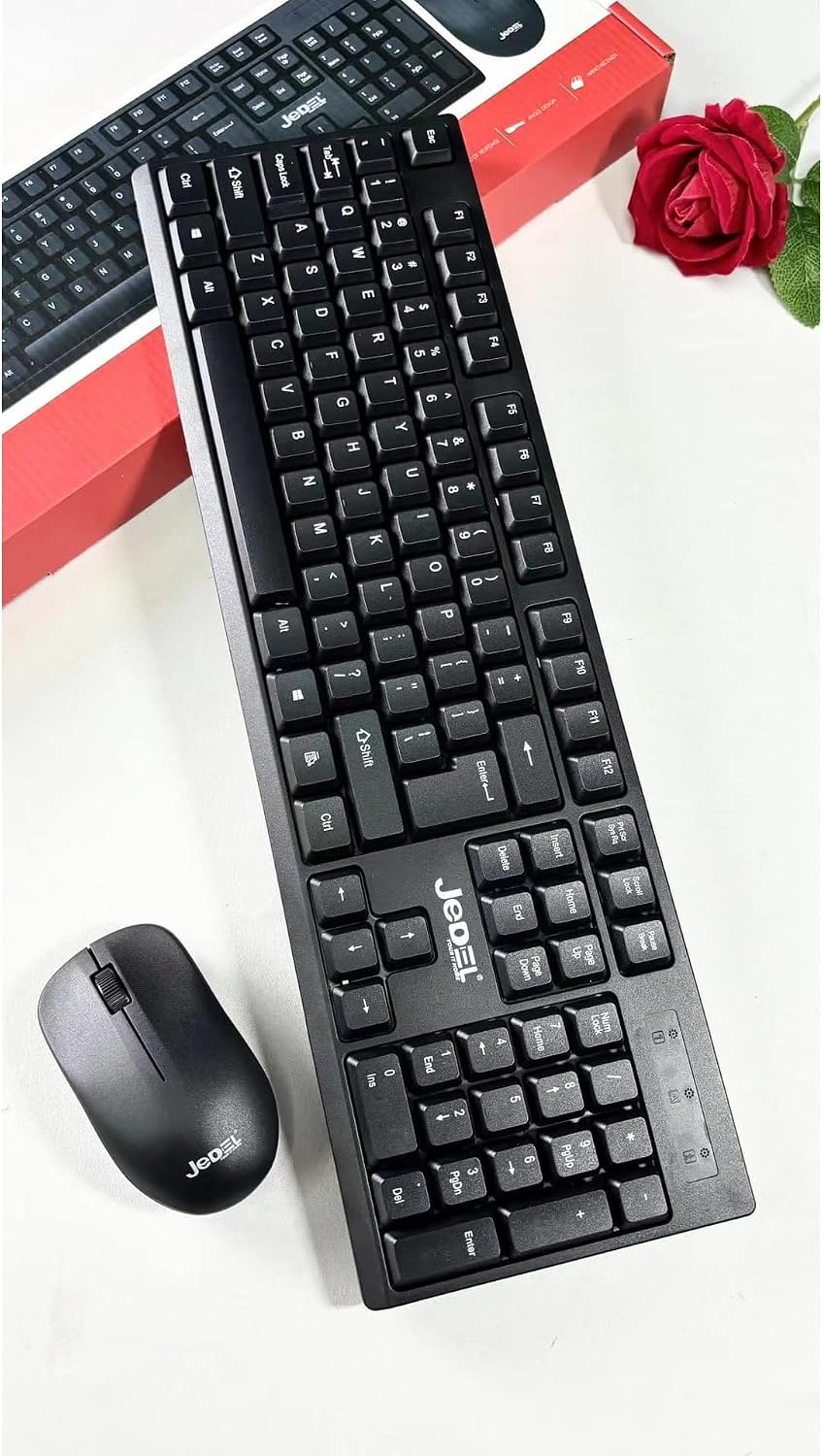
Figure 3.2: Top view of the Jedel wireless keyboard and mouse, showcasing the full layout.

Figure 3.3: Underside of the Jedel wireless mouse, revealing the battery compartment and the convenient storage slot for the USB receiver.
4. Setup Instructions
Follow these steps to set up your Jedel WS732 Wireless Keyboard and Mouse Combo:
- Install Batteries:
- For the keyboard: Open the battery compartment on the underside of the keyboard and insert the required batteries (not included), ensuring correct polarity.
- For the mouse: Open the battery compartment on the underside of the mouse (refer to Figure 3.3) and insert the required batteries (not included), ensuring correct polarity.
- Connect USB Receiver: Locate the USB wireless receiver, usually stored within the mouse's battery compartment. Plug this receiver into an available USB port on your computer, laptop, or compatible device.
- Power On: Ensure the keyboard and mouse are switched on (if they have an on/off switch). Your device should automatically detect and install the necessary drivers.
- Test Functionality: Once drivers are installed, test the keyboard and mouse to ensure they are working correctly.
5. Operating Instructions
The Jedel WS732 combo operates on a 2.4GHz wireless frequency, providing a stable connection.
- Keyboard Usage: The keyboard features a standard 104-key layout with both English and Arabic characters. Use it as you would any standard keyboard for typing and input.
- Mouse Usage: The mouse offers precise tracking with 1000 DPI sensitivity. Use the left and right click buttons and the scroll wheel for navigation and interaction.
- Compatibility: This combo is compatible with various devices including laptops, desktop PCs, and smart TVs that support USB input devices.
6. Maintenance
To ensure the longevity and optimal performance of your Jedel WS732 combo, follow these maintenance guidelines:
- Cleaning: Use a soft, dry cloth to clean the surfaces of the keyboard and mouse. For stubborn dirt, a slightly damp cloth can be used, but ensure no liquid enters the devices. Avoid harsh chemicals or abrasive cleaners.
- Battery Replacement: When the keyboard or mouse performance degrades (e.g., lag, unresponsive keys/clicks), it's time to replace the batteries. Always use new batteries of the specified type and dispose of old batteries responsibly.
- Storage: When not in use for extended periods, remove the batteries to prevent leakage. Store the devices in a cool, dry place away from direct sunlight and extreme temperatures.
7. Troubleshooting
If you encounter issues with your Jedel WS732 combo, try the following solutions:
- No Response from Keyboard/Mouse:
- Ensure batteries are correctly installed and not depleted. Replace if necessary.
- Verify the USB receiver is securely plugged into a working USB port. Try a different USB port.
- Make sure the keyboard and mouse are switched ON.
- Restart your computer or device.
- Lagging or Intermittent Connection:
- Move the keyboard and mouse closer to the USB receiver.
- Ensure there are no large metal objects or other wireless devices (like Wi-Fi routers, cordless phones) interfering with the 2.4GHz signal.
- Replace batteries.
- Mouse Cursor Jumps or is Inaccurate:
- Clean the mouse sensor area on the underside.
- Use the mouse on a clean, non-reflective surface or a mouse pad.
8. Specifications
| Feature | Description |
|---|---|
| Brand | Jedel |
| Model | WS732 |
| Connectivity Technology | 2.4GHz Wireless (USB Receiver) |
| Keyboard Layout | 104 Keys, QWERTY, English & Arabic |
| Mouse DPI | 1000 DPI |
| Power Source | Battery Powered (Batteries Not Included) |
| Compatible Devices | Laptop, PC, TV |
| Color | Black |
| Item Weight | 1 kg |
9. Warranty and Support
The Jedel WS732 Wireless Keyboard and Mouse Combo comes with a 30-day warranty from the date of purchase. This warranty covers manufacturing defects under normal use.
For technical support, warranty claims, or further inquiries, please visit the official Jedel website or contact their customer service:
- Official Website: www.jedelit.com