
1. Introduction
Thank you for choosing the INNOCN 2780s 27" QD-OLED Gaming Monitor. This manual provides essential information for setting up, operating, maintaining, and troubleshooting your monitor. Please read it thoroughly to ensure optimal performance and longevity of your device.
The INNOCN 2780s monitor features a 27-inch QD-OLED panel with 2560 x 1440 (2K QHD) resolution, a rapid 280Hz refresh rate, and an ultra-fast 0.03ms response time. It supports HDR400, 10-bit color depth, and is G-Sync Compatible for a smooth and immersive gaming experience. Connectivity options include HDMI 2.1 and DisplayPort, along with built-in speakers and a fully adjustable stand for ergonomic comfort.
2. Package Contents
Please verify that all items are present in the package:
- INNOCN 2780s Monitor
- Monitor Stand (Base and Arm)
- Power Cable
- Power Adapter
- DisplayPort (DP) Cable
- HDMI Cable
- USB-B to USB-A Cable
- Quick Installation Guide
- Color Calibration Factory Report
- Customer Support Card

Image: The INNOCN 2780s monitor and its included accessories, neatly packed in protective foam. The accessories include power cables, DisplayPort cable, HDMI cable, USB-B cable, quick installation guide, color calibration report, and customer support card.
Video: A detailed unboxing of the INNOCN 2780s monitor, showcasing all included cables, documentation, and the two-piece stand components.
3. Setup
3.1 Stand Assembly
- Attach the monitor arm to the monitor panel by aligning the VESA mount with the monitor's rear mounting points.
- Secure the arm to the monitor using the provided screws.
- Attach the stand base to the monitor arm. Tighten the thumb screw located at the bottom of the base until secure.
3.2 Connecting Cables
Connect the power adapter to the monitor's DC input and then plug the power cable into a wall outlet. Use the provided DisplayPort or HDMI 2.1 cables to connect your PC or console to the monitor for optimal performance. Utilize the USB-B upstream port to enable the USB-A ports on the monitor for peripherals.

Image: The rear panel of the INNOCN 2780s monitor, showing the arrangement of its ports including USB-A, USB-B, HDMI 2.1, DisplayPort, audio out, and DC power input.
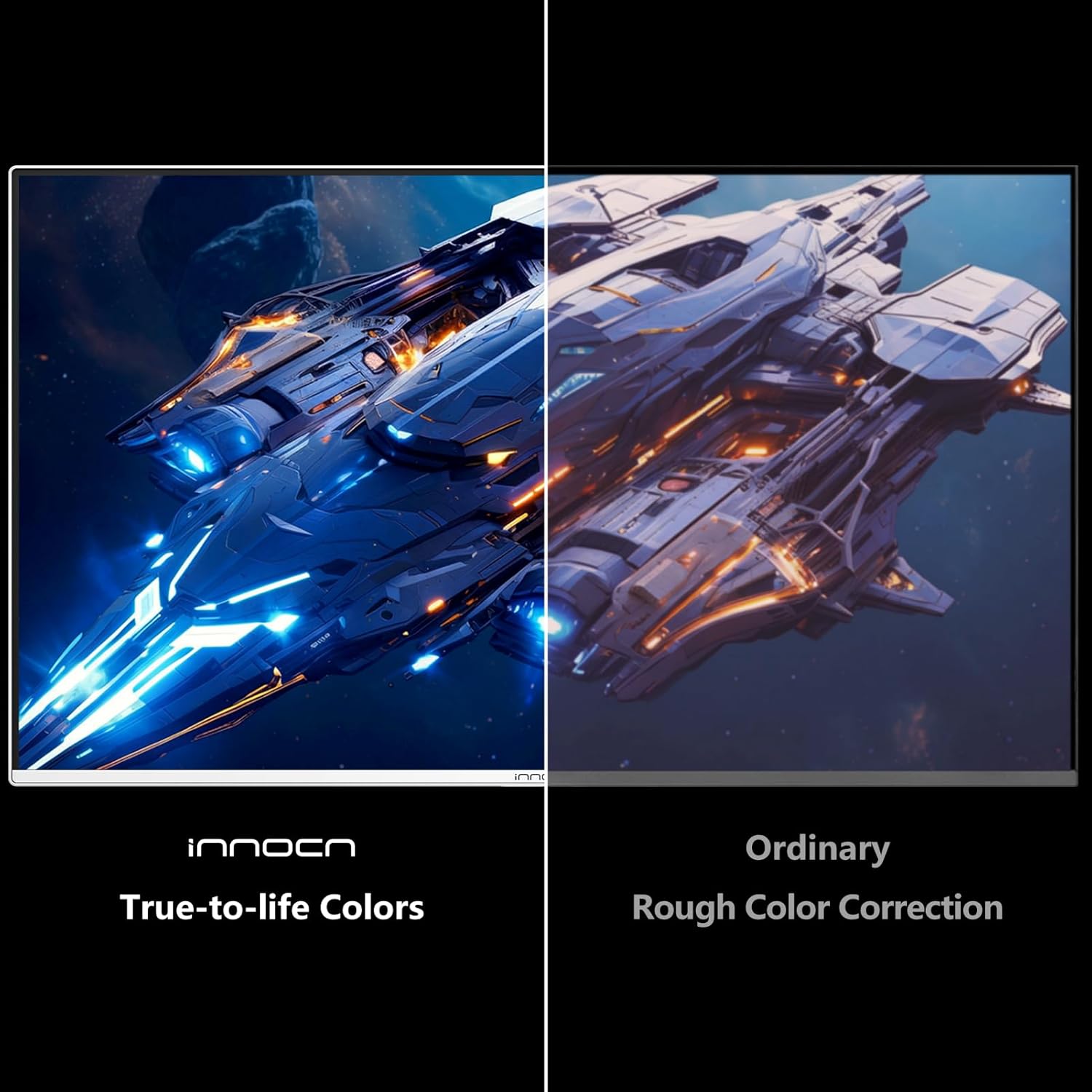
Image: The INNOCN 2780s monitor stand demonstrating its full range of adjustability, including height adjustment, tilt from 5° to 20°, 45° swivel, and 90° pivot for vertical orientation.
4. Operation
4.1 OSD Menu Navigation
The On-Screen Display (OSD) menu is navigated using the joystick located on the back of the monitor. Push the joystick in to access the main menu, and move it up/down/left/right to select and adjust settings.
4.2 Quick Access Functions
From the main screen, quick access functions are available by moving the joystick:
- Brightness: Adjust display brightness.
- Picture Mode: Select from various preset picture modes (e.g., Standard, FPS, RTS, Movie, Reading, Mac, Innocent, Eye Care).
- Input Signal: Manually select the input source (HDMI 1, HDMI 2, DP 1, DP 2).

Image: The On-Screen Display (OSD) menu of the INNOCN 2780s monitor, showing options for brightness, picture mode, and input signal selection.
5. Display Features
5.1 QD-OLED Visual Fidelity
Experience stunning visuals with the QD-OLED panel, offering perfect blacks, vibrant colors, and exceptional contrast. The 2560 x 1440 (2K QHD) resolution provides sharp, detailed images, while 10-bit color depth ensures smooth color transitions and accurate color reproduction. HDR400 support enhances dynamic range for breathtaking highlights and deep shadows.
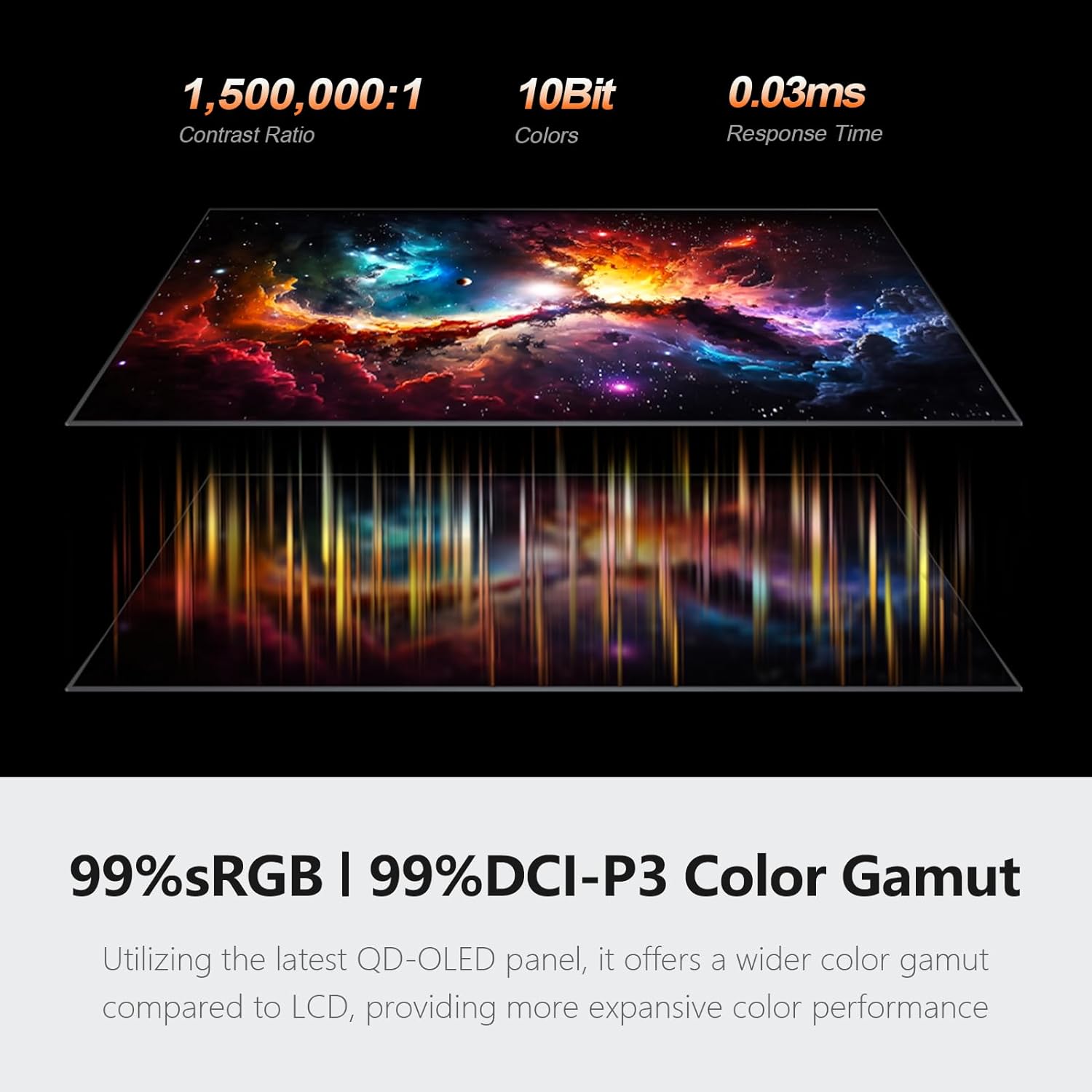
Image: Visual representation of the QD-OLED panel's capabilities, highlighting a 1,500,000:1 contrast ratio, 10-bit color depth, 0.03ms response time, and 99% sRGB / 99% DCI-P3 color gamut.
5.2 High Refresh Rate & Response Time
Gain a competitive edge with a blistering 280Hz refresh rate and a near-instantaneous 0.03ms response time. This combination ensures flawlessly smooth motion and crisp visuals, eliminating ghosting and motion blur in fast-paced games.
5.3 Adaptive Sync (G-Sync Compatible)
The monitor supports Adaptive Sync technology, making it G-Sync Compatible. This feature synchronizes the monitor's refresh rate with your GPU's frame rate, eliminating screen tearing and stuttering for a fluid gaming experience.

Image: A split-screen comparison illustrating the visual difference with Adaptive-Sync enabled versus disabled, demonstrating how it effectively solves lag and screen tearing.
6. OLED Care Features
To prolong the lifespan of your QD-OLED panel and prevent image retention, the monitor includes several OLED care features:
- Pixel Shift: Automatically shifts pixels slightly to prevent static image burn-in.
- Screen Saver: Activates a screen saver after a period of inactivity.
- Static Icon Detection: Detects and dims static elements like taskbars or logos.
- Low Power Consumption: Reduces power usage in specific areas of the screen.
- Taskbar Detection: Automatically dims the taskbar area.
- Boundary Detection: Detects and adjusts brightness around screen boundaries.
- Panel Maintenance: A periodic process that runs when the monitor is off to refresh pixels and prevent image retention.
Video: Demonstration of the monitor's OSD menu, including navigation through various settings such as picture modes, game settings, audio, I/O, system settings, and specific OLED care features like Pixel Shift and Panel Maintenance.
7. Specifications
| Feature | Specification |
|---|---|
| Brand | INNOCN |
| Model Number | 2780s |
| Screen Size | 27 Inches |
| Resolution | 2560 x 1440 (QHD Wide 1440p) |
| Display Type | QD-OLED |
| Refresh Rate | 280 Hz |
| Response Time | 0.03 Milliseconds |
| Contrast Ratio | 1,500,000:1 |
| HDR Support | HDR400 |
| Color Depth | 10 Bits |
| Adaptive Sync | FreeSync (G-Sync Compatible) |
| Connectivity | 2x HDMI 2.1, 2x DisplayPort, USB-B, 2x USB-A, Audio Out |
| Built-in Speakers | Yes |
| Adjustable Stand | Height, Tilt, Swivel, Pivot |
8. Troubleshooting
If you encounter any issues with your monitor, please refer to the Quick Installation Guide or contact customer support. Common issues and solutions include:
- No Signal: Ensure all cables (power, HDMI/DP) are securely connected and the correct input source is selected in the OSD menu.
- Screen Tearing/Stuttering: Verify that Adaptive Sync is enabled in the monitor's OSD menu and your GPU settings.
- Image Retention/Burn-in: Utilize the OLED Care features, especially Panel Maintenance, to mitigate risks. Avoid displaying static images for extended periods.
- Display Issues: Check the Color Calibration Factory Report for baseline settings. Adjust brightness, contrast, and color temperature via the OSD menu.
9. Warranty and Support
The INNOCN 2780s monitor comes with a 12-month warranty. For any product-related questions, technical support, or warranty claims, please contact INNOCN customer service directly. Do not return the product to the store without contacting support first.
Customer Service Email:
- U.S.: service@innocn.com
- Japan: service-japan@innocn.com
- Europe: support-eu@innocn.com
Home Page: www.innocn.com
Contact Number:
- Japan: +81-50-5050-9696
- U.S.: +1-855-669-0119
INNOCN provides lifetime technical support with a free replacement warranty within 30 days of purchase.