
Introduction
The Keenetic Roamer 4G is a portable mobile hotspot designed to provide secure and fast internet access on the go. It supports 4G LTE connectivity and Wi-Fi 6, allowing up to 10 devices to connect simultaneously. This manual provides essential information for setting up, operating, and maintaining your device.
What's in the Box
Upon unboxing your Keenetic Roamer 4G, please ensure all the following components are present:
- Roamer 4G Mobile Wi-Fi hotspot
- Removable Lithium-ion battery
- Quick start guide
- USB-A to USB Type-C cable
Note: A SIM card and internet subscription are not included and must be acquired separately.
Product Overview

Figure 1: Front view of the Keenetic Roamer 4G, highlighting the color display that shows signal strength, data volume, battery status, and network information.
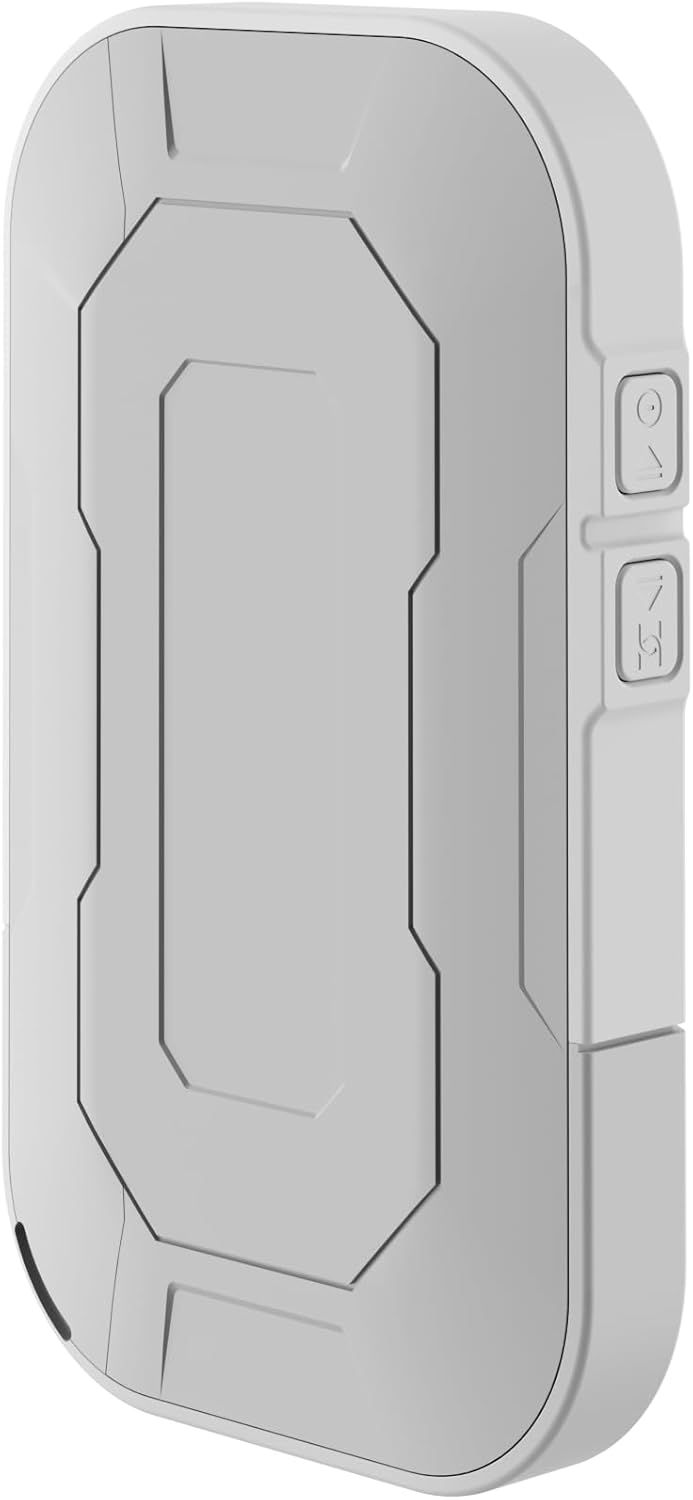
Figure 2: Rear view of the device, illustrating its compact and portable design.

Figure 3: Side view displaying the USB Type-C port for charging and data transfer.

Figure 4: Side view illustrating the physical buttons for power and navigation.
Setup
1. Inserting the SIM Card
- Locate the SIM card slot, typically found under the battery cover.
- Carefully remove the back cover and the battery.
- Insert your standard-sized SIM card into the designated slot with the gold contacts facing down, ensuring it clicks into place.
- Reinsert the battery and replace the back cover.
2. Charging the Device
- Connect the provided USB-A to USB Type-C cable to the device's charging port.
- Plug the other end into a USB power adapter (not included) or a computer's USB port.
- The battery indicator on the display will show charging status. Fully charge the device before first use.
3. Powering On/Off
- To power on, press and hold the Power button (refer to Figure 4) until the display lights up.
- To power off, press and hold the Power button until the shutdown prompt appears on the screen, then confirm.
Operating Instructions
Connecting Devices via Wi-Fi
- Ensure the Roamer 4G is powered on and has established a 4G connection (indicated on the display).
- On your Wi-Fi enabled device (smartphone, tablet, laptop), search for available Wi-Fi networks.
- Locate the network name (SSID) displayed on the Roamer 4G's screen.
- Enter the Wi-Fi password (Key) also shown on the Roamer 4G's screen. Alternatively, you can scan the QR code displayed on the device's screen for quick connection.
- Your device should now be connected to the internet via the Roamer 4G hotspot.
Understanding the Display
The color display provides real-time information about your hotspot's status:
- Signal Strength: Indicates the strength of the 4G cellular signal.
- Battery Level: Shows the remaining battery charge.
- Data Usage: Displays current upload/download speeds and total data consumed.
- Network Information: Provides details like SSID, password, and connected devices count.
Maintenance
Battery Care
- To maximize battery lifespan, avoid exposing the device to extreme temperatures.
- Charge the battery regularly, but avoid leaving it fully discharged for extended periods.
- If the device will not be used for a long time, charge it to about 50% before storing.
Cleaning
- Use a soft, dry, lint-free cloth to clean the device's exterior.
- Do not use liquid cleaners, aerosols, or solvents.
Troubleshooting
| Problem | Possible Cause | Solution |
|---|---|---|
| No Internet Connection | No SIM card inserted, SIM card not activated, no signal, data plan exhausted. | Ensure SIM is correctly inserted and active. Check signal strength on display. Verify data plan with your mobile operator. Try restarting the device. |
| Cannot Connect to Wi-Fi | Incorrect password, device too far from hotspot, Wi-Fi disabled on hotspot. | Verify Wi-Fi password. Move closer to the hotspot. Ensure Wi-Fi is enabled on the Roamer 4G. |
| Device Not Powering On | Battery is depleted, battery not inserted correctly. | Charge the device for at least 30 minutes. Ensure the battery is properly seated. |
Specifications
| Feature | Detail |
|---|---|
| Brand | Keenetic |
| Model | KN-5110-01-EU |
| Dimensions | 12.1 x 8.2 x 4.7 cm |
| Weight | 200 grams |
| Battery Type | Lithium-ion (1 required, included) |
| Wireless Type | 802.11b (Wi-Fi 6 compatible) |
| Connectivity Technology | LTE |
| Compatible Devices | PC (and other Wi-Fi enabled devices) |
| Special Features | LED Indicator, Color Display |
Warranty Information
For detailed warranty information, please refer to the warranty card included with your product or visit the official Keenetic website. Keep your proof of purchase for warranty claims.
Customer Support
If you encounter any issues not covered in this manual or require further assistance, please contact Keenetic customer support. Visit the official Keenetic website for contact details and support resources.
You can also visit the Keenetic Store on Amazon for more information.


